
How to Fix VPN Error 789 [100% Working]
4 step-by-step solutions


 6 min. read
  Updated on

VPN error 789 happens when Windows fails to build an L2TP/IPsec connection. It’s basically your computer and the server arguing over how to secure the tunnel, and they give up before agreeing.
That leaves you stuck without a working VPN, which can be a real headache if you rely on it for work or streaming. This guide takes you through fixes that actually work, starting from the easiest checks to the more advanced steps.

Access content across the globe at the highest speed rate.
🔥 Save 81% + 2 bonus months! 🔥
70% of our readers choose Private Internet Access
70% of our readers choose Private Internet Access
2
Browse the web from multiple devices with industry-standard security protocols.
🔥 Save 73%! 🔥

Faster dedicated servers for specific actions (currently discounted)
🔥 Save 69%! 🔥
Table of contents
What is VPN Error 789?
VPN Error 789 occurs when the L2TP protocol is not properly configured on a Windows system. During the initial negotiations between the remote computer and the L2TP server, a security layer error occurs leading to the issue you’re currently having.
How to Fix VPN Error 789?
To resolve the VPN 789 error, you’ll need to:
- Enable IPsec and Policy Agent
- Modify the Registry
- Reset Network adapters
- Use an alternative VPN
Let me give you a step-by-step guide on each of these fixes:
1. Enable IKE and AuthIP IPsec Keying Modules and IPsec Policy Agent
VPN error 789 may occur when the IKE and AuthIP IPsec Keying Modules and IPsec Policy Agent are disabled.
Follow the below steps to enable IPsec and Policy Agent:
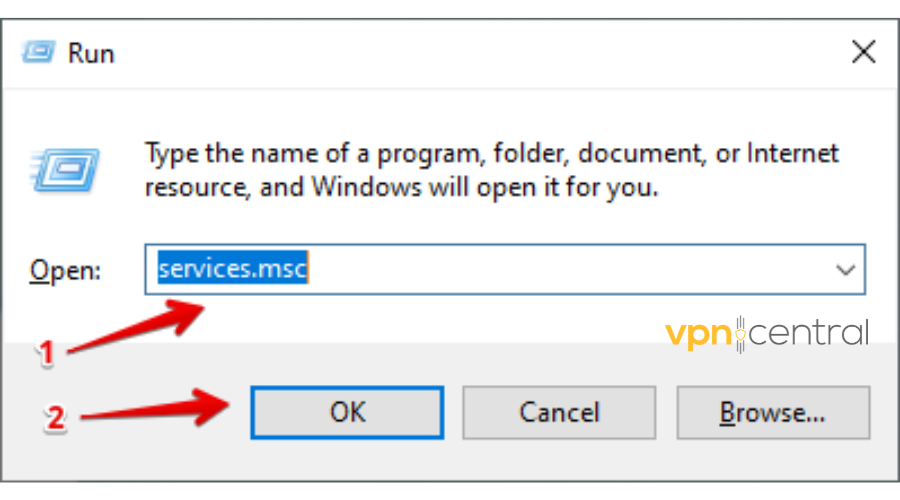
- Tap the Windows key and press ‘R’ to open the Run dialog box. Type “services.msc” and click OK.
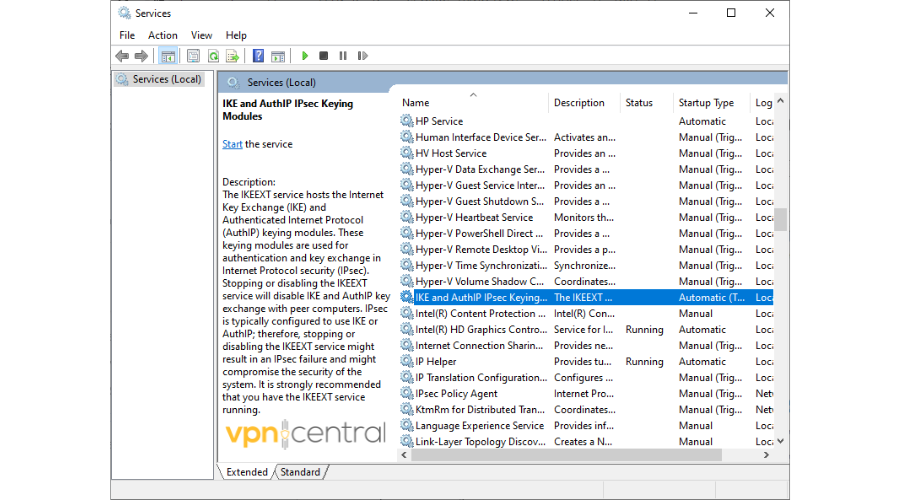
- On the services (local), locate IKE and AuthIP IPsec Keying Modules.
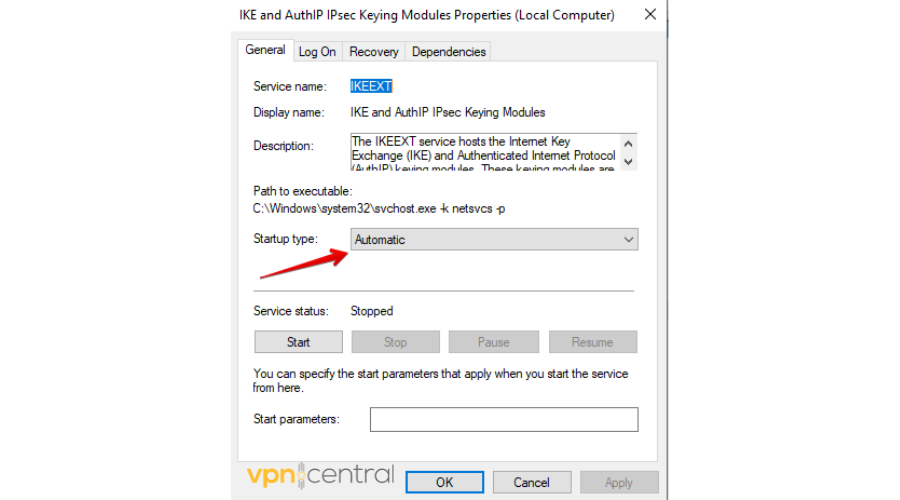
- Right-click on IKE and AuthIP IPsec Keying Modules and choose properties. On the Startup type, select Automatic.
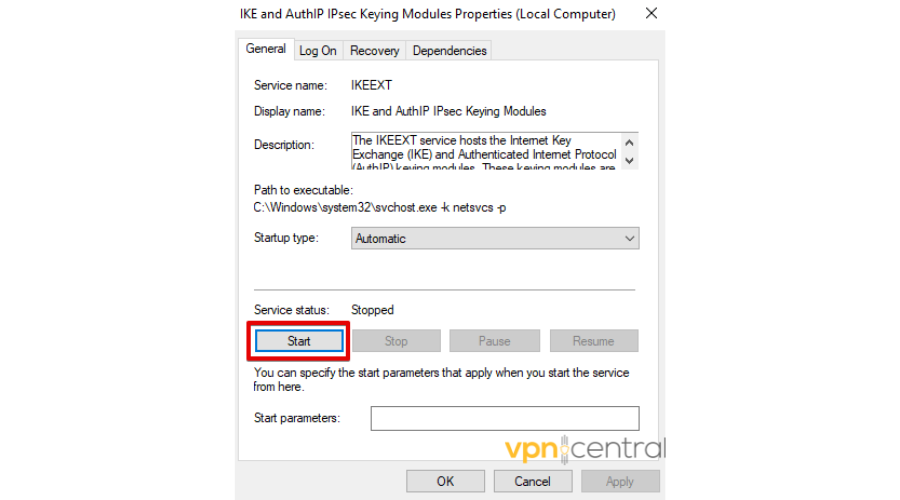
- On the service status, click the Start button to force the service to come into action.
- Once the changes are made, scroll again to locate the IPsec Policy Agent.
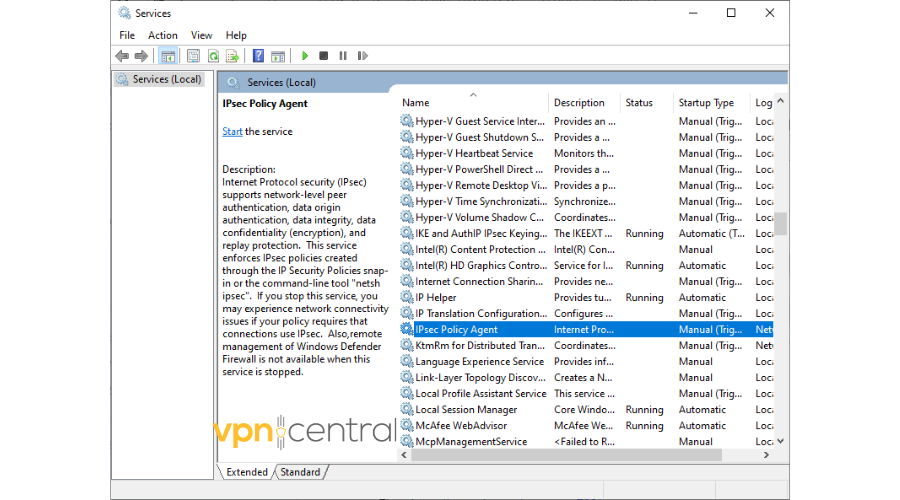
- Right-click on it then select properties. Pick Automatic on the Startup type.
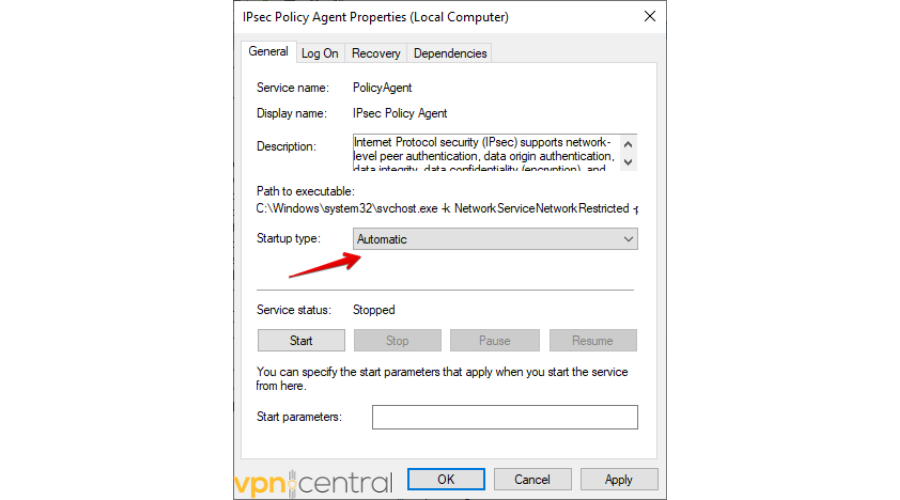
- Click Start on the service status then apply the changes.
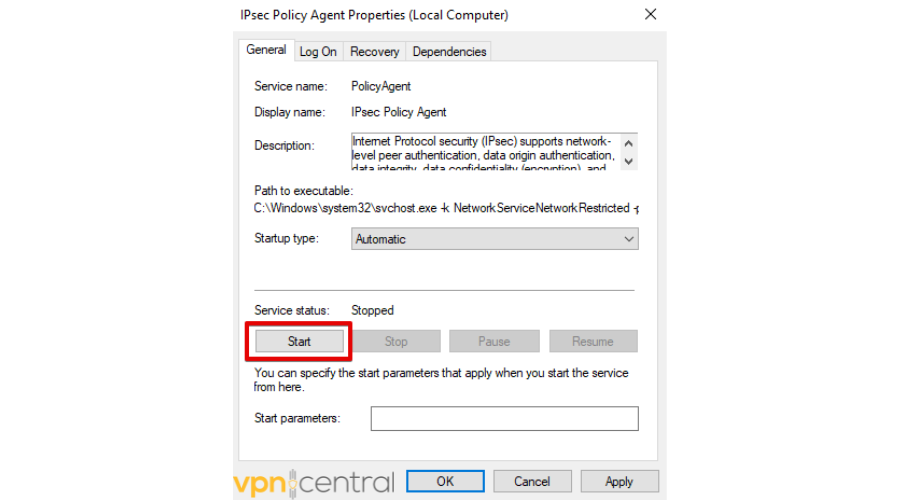
The error should disappear. If it doesn’t, I have another fix:
2. Modify the Registry
If Registry keys are absent, your computer may consistently lose its VPN connection, leading to VPN Error 789. To address this issue, you can manually input the missing Registry keys using the Registry Editor.
Follow the below steps:
- Tap the Windows Key then press R to open the Run Dialog Box, type “Regedit” and click the OK button to access the Registry Editor.
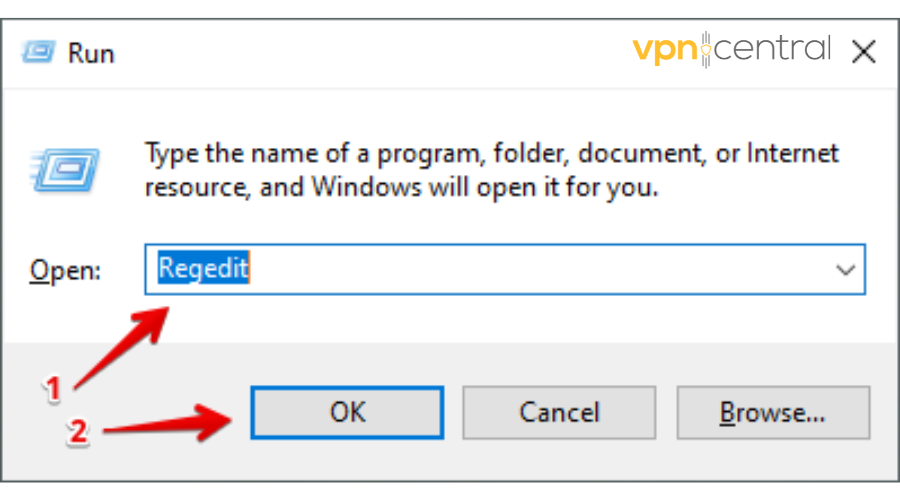
- On the Registry Editor, double-click HKEY_LOCAL MACHINE.
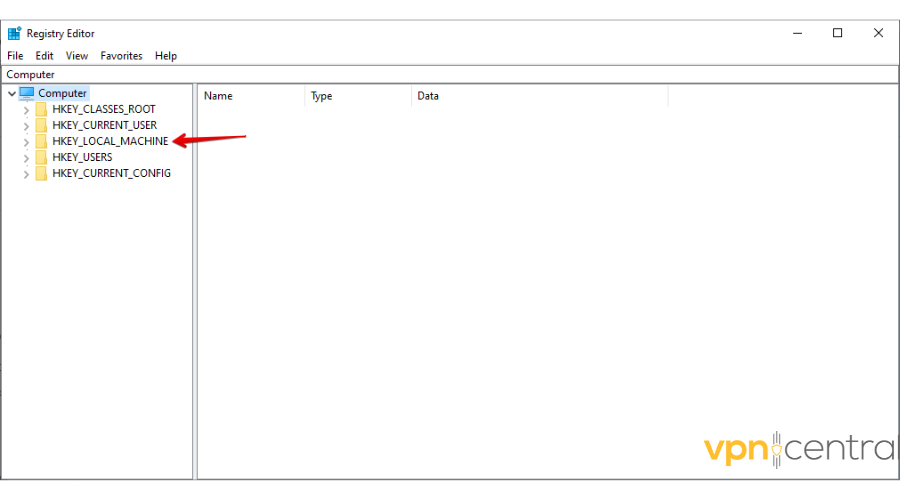
- Double-click on SYSTEM.
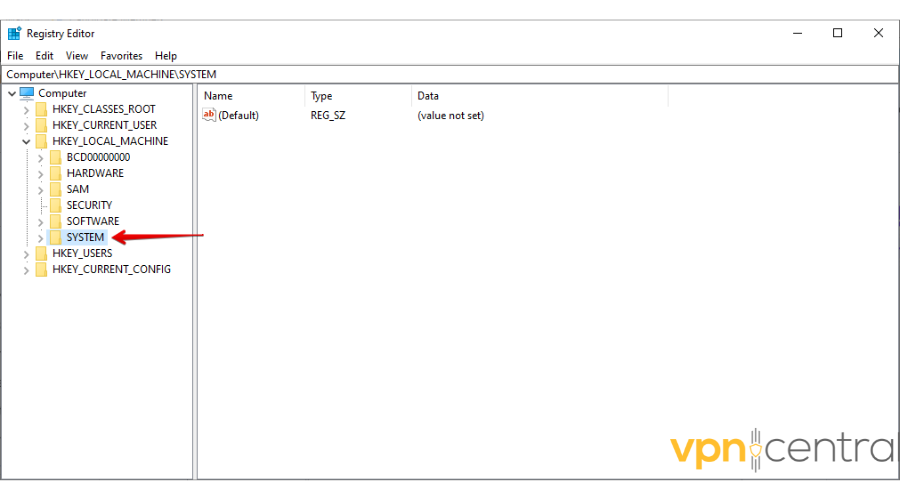
- Double-click again on CurrentControlSet.
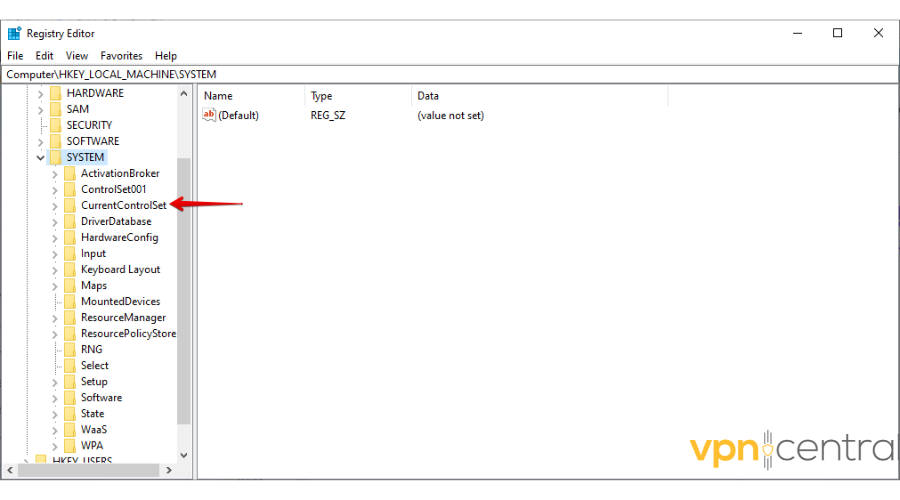
- Double-click on the Services folder.
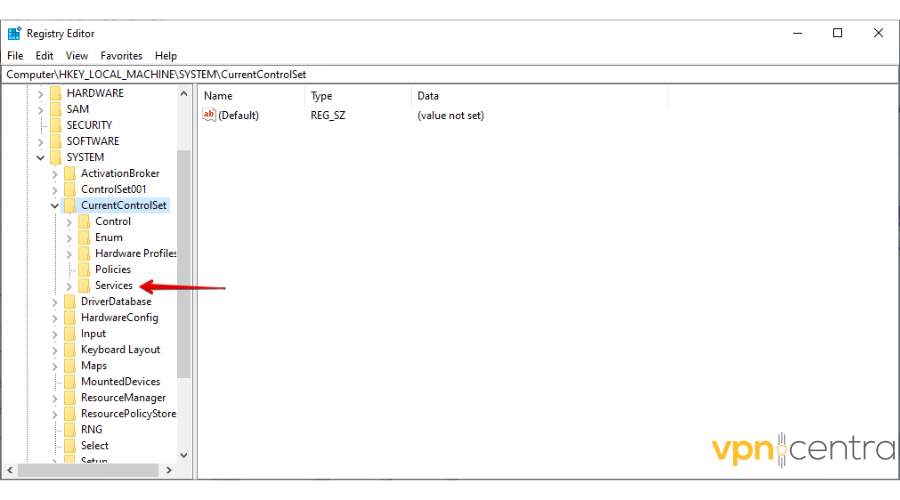
- Scroll down to locate PolicyAgent, then double-click it.
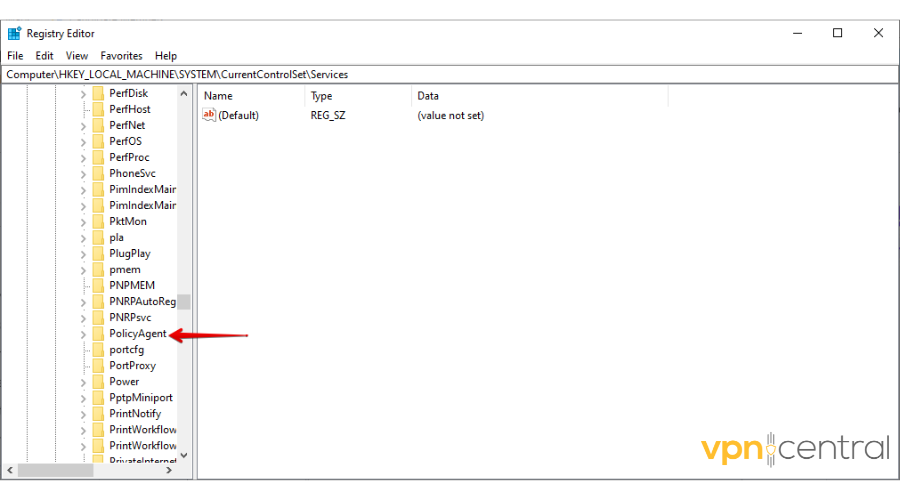
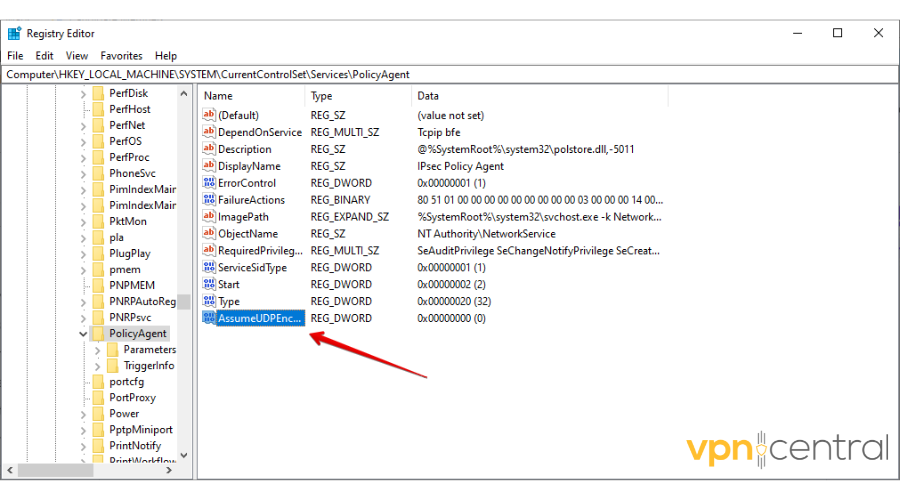
- Navigate to the right-hand section, right-click on an empty space, select New, and pick Dword (32-bit) Value.
- Rename it AssumeUDPEncapsulationContextOnSendRule then save changes by pressing Enter.
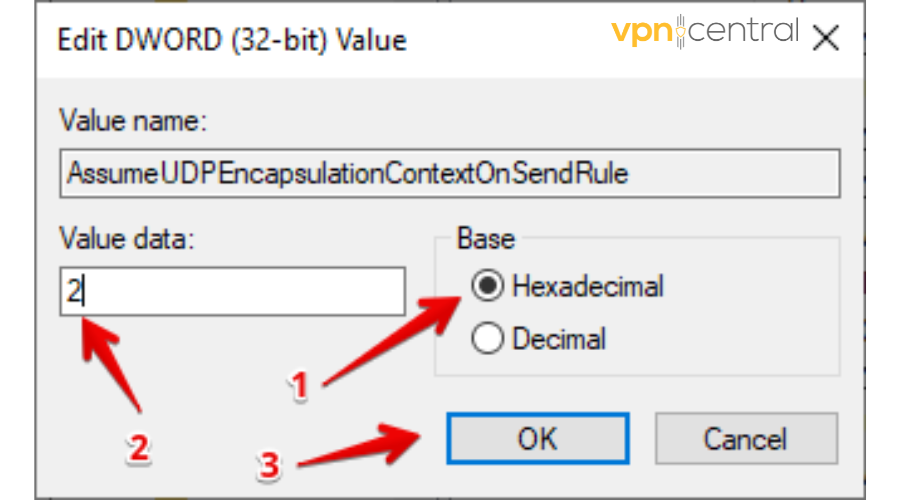
- After it’s created, double-click on it, then select Hexadecimal on the base and pick 2 on the Value data. Click OK to save the changes.
- Restart your computer.
It should now solve the error but there’s still more if this fix doesn’t work.
3. Reset Network Adapters
VPN Error 789 may occur when the network adapters aren’t functioning correctly, which disrupts the connection between the computer and the VPN. It’s crucial to check and adjust them to resolve the error.
Follow the below steps regardless of the Windows version you are using to reset network adapters.
- Hold down the Windows key and press R to open the Run dialog box.
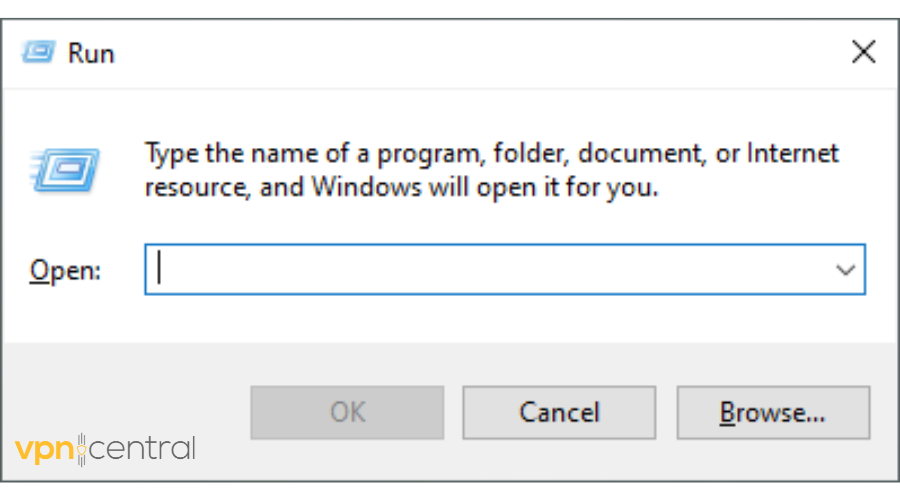
- Type “devmgmt.msc” in the provided text box, then press the OK button.
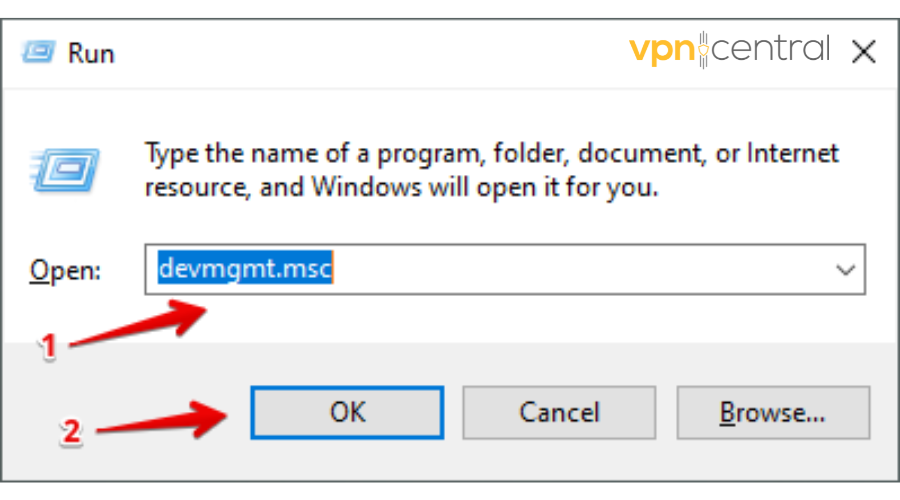
- If a User Account Control Prompt appears, click YES to continue.
- Scroll and double-click the Network Adapter, right-click, tick Delete the driver software for this device, then hit Uninstall.
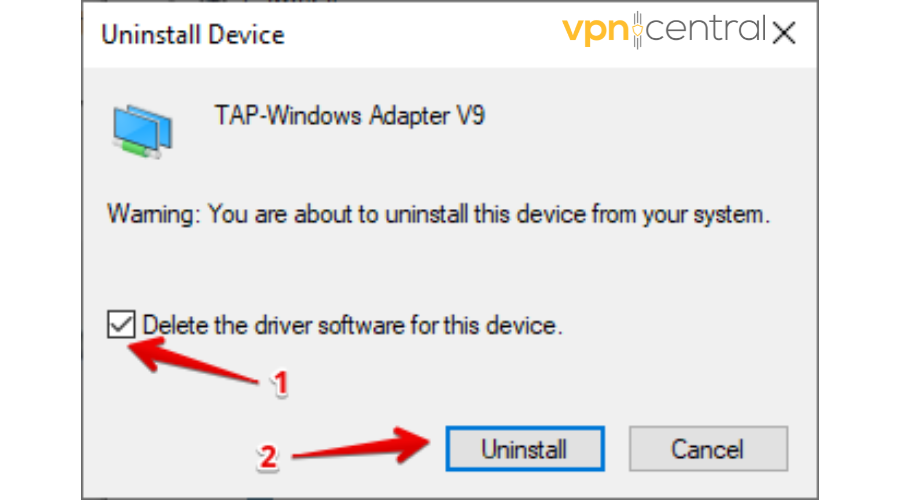
- After completing the process, reboot your computer to reinstall the network adapter again.
Confirm if the VPN error 789 is solved. If the problem persists, check the next fix below.
4. Switch to a more reliable VPN
If all of the above fixes fail, opt for a robust VPN service like CyberGhost. It’s a high-quality service with over 11,000 servers, so you’ll always have plenty of options for a stable connection.
Here’s how to get it up and running:
- Go to CyberGhost’s official website and pick a subscription plan.

- Download the VPN app and ensure you pick one that is compatible with your device.

- Launch the app on your device, log in with your credentials, and enjoy a seamless connection.
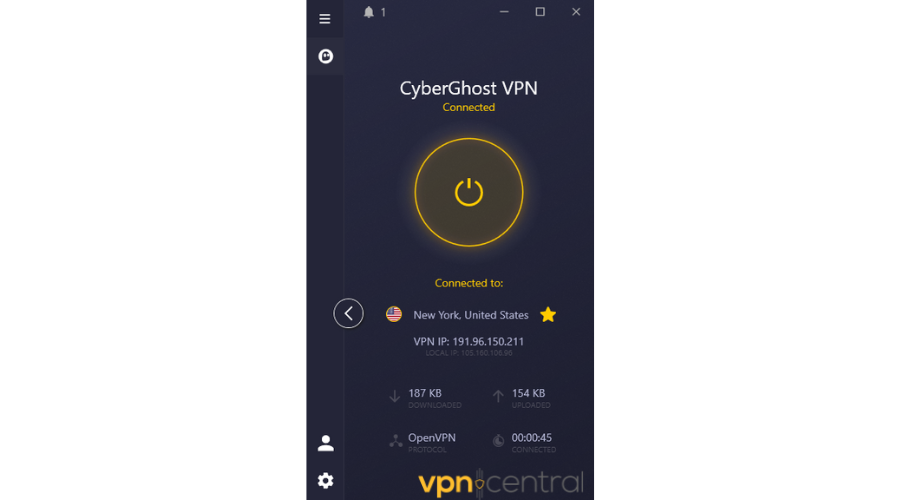
CyberGhost consistently ranks among the fastest and most stable VPNs on the market. Additionally, you get military-grade encryption, a strict no-logs policy, and servers optimized for different purposes like streaming, gaming, and torrenting.
On top of that, you get a generous 45-day money-back guarantee to test it risk-free.

CyberGhost
Enjoy fast speeds and a stable connection with this high-performing VPN.5. Confirm the pre-shared key or certificate
Error 789 often means Windows didn’t get the right key or certificate.
- Open Settings > Network & Internet > VPN.
- Select your VPN and click Edit.
- Ensure VPN type is set to L2TP/IPsec.
- Enter the correct pre-shared key or pick the right certificate.
- Save and test again.
6. Open the required ports and allow ESP
If your firewall or router blocks VPN traffic, the tunnel never starts. This is also a common cause of VPN error 806 (blocked GRE or IPsec/ESP).
- Allow UDP 500 and UDP 4500 through Windows Firewall and your router.
- Enable ESP (IP protocol 50), often labeled as “IPsec passthrough.”
- Save changes and retry the connection.
If Windows shows “The network connection between your computer and the VPN server could not be established…”, that’s typically VPN error 809, which often points to UDP 500/4500 or NAT-T being blocked. Follow this guide for the exact fixes.
7. Match authentication methods
A mismatch between your PC and the VPN server can trigger error 789.
- Open the VPN’s Properties > Security tab.
- Select L2TP/IPsec with MS-CHAP v2, unless your provider requires certificates.
- Make sure the server uses the same authentication method.
- Save and reconnect.
If the tunnel still fails after opening UDP 500/4500 and enabling IPsec/ESP, check whether you hit a different issue, like VPN Error 807: the connection between your computer and the VPN server was interrupted. That guide helps you confirm symptoms and fix server-side interruptions.
8. Recheck after Windows updates
Some Windows updates quietly change how IPsec works. That can suddenly break connections that used to work fine.
- After an update, reapply your VPN settings and test.
- If the problem started right after an update, note the version and check if your provider recommends a fix or patch.
Wrapping up
Windows systems that don’t properly configure the L2TP protocol will display VPN Error 789. The four fixes I showed you above will help you solve the issue and enjoy a smooth connection.
You might also run into other connection errors on Windows. For example, here’s how to fix VPN error 619 or follow this guide to resolve VPN error 720 when it appears during setup.


Read our disclosure page to find out how can you help VPNCentral sustain the editorial team Read more


Improve this guide




User forum
0 messages