
How to Unblock YouTube Proxy at School or Work (Quick Guide)


 14 min. read
  Updated on
Stuck with YouTube blocked on your network? Don’t worry – this quick guide will show you how to bypass school/work restrictions (or even geo-blocks) and get back to streaming. Below, we explain why networks block YouTube and the best methods to unblock it: using proxies, VPNs, browser add-ons, or Smart DNS. Each solution includes simple steps and tool recommendations, with tips for Windows, macOS, Android, iOS, and Chromebooks. (Hint: A VPN is often the most reliable fix, but there are free alternatives too!)
Table of contents
Why Is YouTube Blocked at School or Work? 🤔
- Distraction & Productivity: Schools and offices often block entertainment sites like YouTube to prevent distractions during class or work hours. Administrators want students and employees to stay focused on work instead of watching videos.
- Inappropriate Content & Security: Networks may censor YouTube to avoid exposing users to inappropriate content or potential security risks (malware in ads, etc.). This is a form of content filtering to maintain a safe environment.
- Bandwidth Limits: Streaming video consumes a lot of bandwidth. To keep the network running smoothly, IT admins might restrict high-bandwidth sites like YouTube, especially on crowded school or public Wi-Fi.
- Geo-Restrictions: In some cases, YouTube (or certain videos) is blocked due to location-based policies. Governments or ISPs may censor YouTube for political/cultural reasons, or specific videos might be unavailable in your country due to copyright licensing.
Regardless of the reason, you can usually bypass these blocks with one of the methods below. Always remember to use these fixes responsibly and abide by any applicable policies. ⚠️

Access content across the globe at the highest speed rate.
🔥 Save 81% + 2 bonus months! 🔥
70% of our readers choose Private Internet Access
70% of our readers choose Private Internet Access
2
Browse the web from multiple devices with industry-standard security protocols.
🔥 Save 73%! 🔥

Faster dedicated servers for specific actions (currently discounted)
🔥 Save 69%! 🔥
Method 1: Use a Web Proxy Server 🌐
Using a proxy is one of the simplest ways to unblock YouTube. A web proxy acts as a middleman between you and YouTube: you visit the proxy website, which then fetches YouTube for you. This hides your school/work IP from YouTube and can evade local network blocks. Many proxies require no installation – they run entirely in your browser.
Quick Steps:
- Find a reliable proxy site: Choose a web proxy known to work with YouTube (for example, CroxyProxy, Hide.me, KProxy, or ProxySite). Open the proxy webpage in your browser.
- Enter YouTube’s URL: On the proxy site, you’ll usually see an address bar. Type youtube.com and hit the Go/Start button. The proxy will route this request through its server.
- Browse YouTube through the proxy: Once connected, you can search and play videos on the YouTube site loaded via the proxy. The network sees only the proxy server’s address, not YouTube’s. You’ve essentially bypassed the block!
Recommended Proxy Tools: Web proxies are often free. For instance, CroxyProxy is a popular free YouTube proxy with full video support (even allows logins and comments). It requires no setup or signup – just visit and use it. Hide.me and KProxy offer similar free web proxy services. (Note: These work on any device via a browser – you can even use them on a phone or Chromebook without installing anything.)
Keep in Mind: Proxy connections are typically unencrypted and can be slower for video streaming. Free proxies may show ads or have limited bandwidth. Also, some strict school filters block known proxy websites, so this method might not work on every network. If a web proxy fails or buffers a lot, try the next methods below.
Method 2: Use a VPN (Virtual Private Network) 🔒
A VPN is the most robust solution to unblock YouTube. VPN apps encrypt your internet traffic and route it through a server in another location. This hides what site you’re accessing and can bypass school/work firewalls and geo-blocks. With a VPN on, your connection to YouTube is private and the network admin can’t easily see or block it.
Quick Steps:
- Choose a VPN service: Select a reputable VPN provider (e.g. NordVPN, ExpressVPN, or CyberGhost). These are known to reliably unblock content and have user-friendly apps. (If you need a free option, ProtonVPN has a limited free plan with no data cap, suitable for basic use.)
- Install the VPN app: Download the VPN client on your device (Windows, macOS, Android, iPhone, etc.). Most top VPNs support all major platforms. Install and log in with your account.
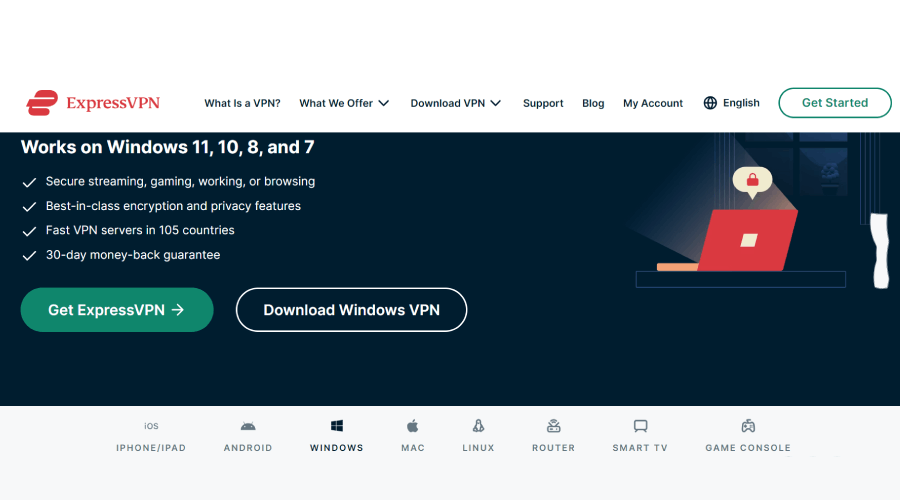
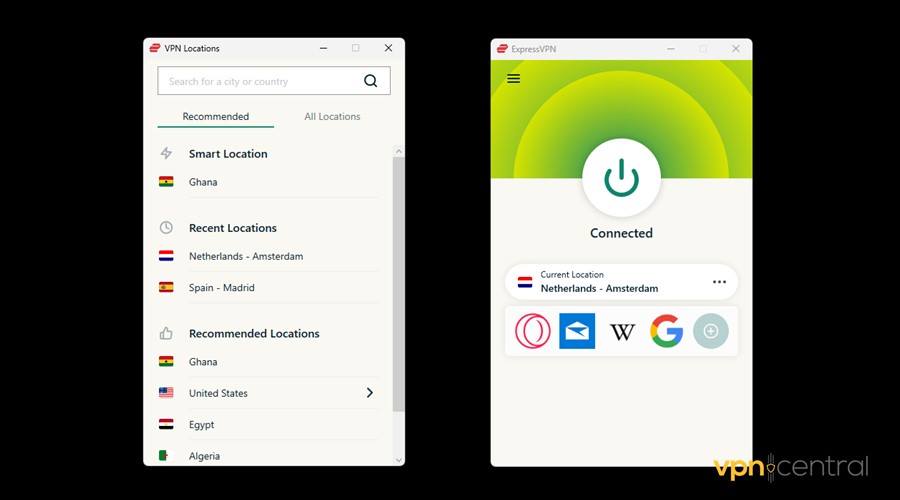
- Connect to a server: Launch the VPN and connect to a server. For best results, choose a nearby country or city – this minimizes speed loss and ensures YouTube isn’t region-blocked. (For example, connecting to a US or UK server works in most cases.)
- Access YouTube: With the VPN connection active, go to YouTube in your browser or app. It should load normally now, as the network sees only encrypted traffic to the VPN server – YouTube is unblocked! 🎉
Recommended VPNs:
- NordVPN (paid) – known for its large server network and fast speeds, great for streaming YouTube in HD.
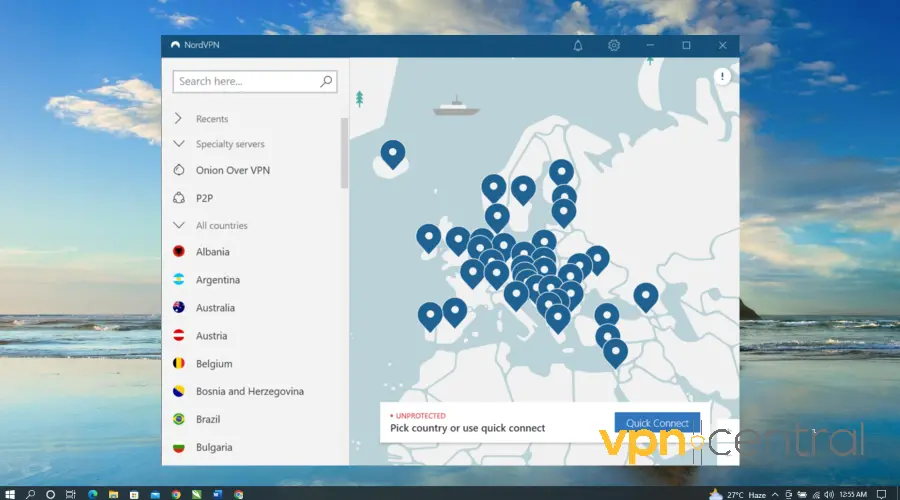
- ExpressVPN (paid) – excellent at bypassing firewalls and geo-restrictions, with top-notch speed.
- ProtonVPN (free tier) – unlimited data and strong privacy, though free servers can be slower (and may not access every streaming service).
Pro Tip: If your school or company has also blocked VPN traffic (yes, some do ), enable your VPN’s obfuscation/stealth mode or try a different protocol (e.g. OpenVPN TCP or WireGuard). This can hide the fact that it’s VPN traffic.
For more help, check out our guide on VPN blocked by school or admin – how to fix. It covers tips and VPNs that still work on restrictive networks.
Keep in Mind: A VPN will slightly slow down your connection (due to encryption and rerouting), but a good service minimizes this. Also, premium VPNs require a subscription – free ones exist but often have limitations (slow speed, few servers). However, the security and privacy benefits of a VPN are unmatched: all your browsing is encrypted, and you can use it to unblock not just YouTube but any blocked site or service. 👍
Method 3: Use a Smart DNS Service 🚩
Smart DNS is a clever workaround primarily for geo-restrictions. It won’t encrypt your traffic like a VPN, but it re-routes your DNS queries for specific sites to make it appear you’re in an allowed region. For example, if YouTube or a certain video is blocked in your location, a Smart DNS can redirect the requests through an intermediary server in a permitted country. This can also work if your school network blocks YouTube by DNS filtering – switching to a Smart DNS (or public DNS) can bypass that.
Quick Steps:
- Choose a Smart DNS provider: Popular options include SmartDNS Proxy and Unlocator, among others. These are paid services (typically, they offer a free trial for a few days). Sign up on their website.
- Get the DNS server addresses: After subscribing, the service will provide you with one or two DNS IP addresses. For example, it might give addresses like
X.X.X.XandY.Y.Y.Y. - Change your device’s DNS settings: On the device or router, go to network settings and enter the provided DNS addresses in place of the default. On Windows, this is in the IPv4 properties; on macOS, in System Preferences > Network; on iOS/Android, under Wi-Fi > network details (set DNS to manual); on Chromebooks, in the network settings section. (It sounds technical, but it’s usually just copy-pasting numbers into a settings field.) Each Smart DNS service also has setup guides for various devices.
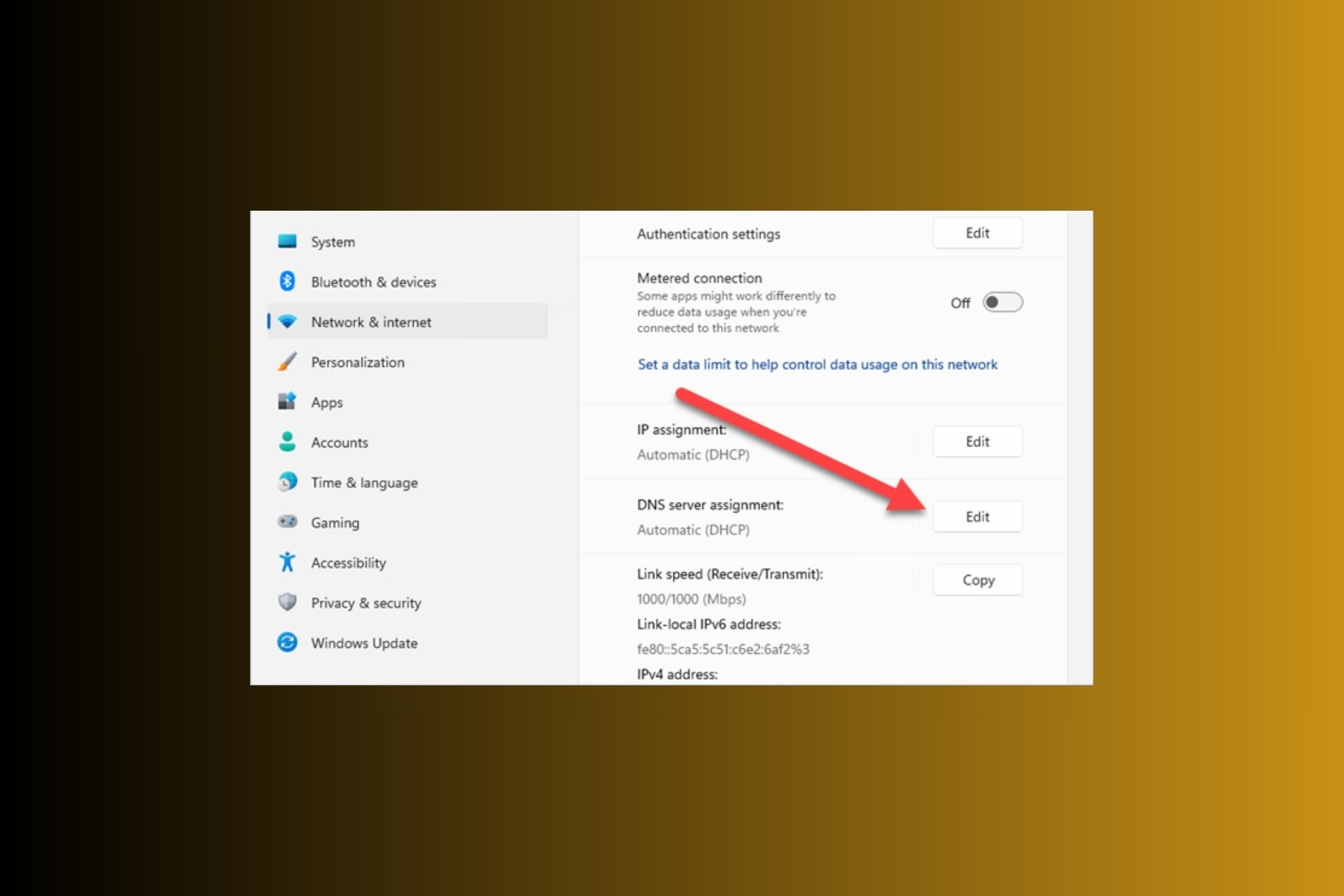
- Activate and verify: Some Smart DNS services require an extra step like logging into your account and registering your IP address (to prevent misuse). Do that if instructed. Once done, reconnect your device to the internet so the new DNS takes effect.
- Enjoy unblocked YouTube: Now, try accessing YouTube. If the block was due to DNS or geo-location, it should be lifted. YouTube will think you’re browsing from a location without restrictions. 📺🎉
Recommended Smart DNS Tools:
SmartDNSProxy.com – a dedicated Smart DNS service that supports unblocking YouTube, Netflix, and more (offers a free trial). Unlocator – another reliable Smart DNS with a trial period. Some VPN providers (like NordVPN or ExpressVPN) include Smart DNS features or dedicated streaming DNS in their plans as well.
If you suspect your school is simply using a DNS block, a free alternative is to use a public DNS like Google DNS (8.8.8.8) or Cloudflare DNS (1.1.1.1). Replacing your device’s DNS with Google’s often bypasses basic DNS-based blocks. (This won’t help for strict firewall blocks, but it’s an easy first thing to try.)
Keep in Mind: Smart DNS is great for speed (no encryption overhead, so your connection is as fast as normal). However, it does not hide or encrypt your traffic, so your activity is still visible to the network (use with caution on work/school networks if that’s a concern). Also, if the admin blocks sites by IP or deep packet inspection rather than just DNS, Smart DNS might not work. In those cases, a VPN is a surer bet.
Method 4: Use a Browser Extension 🚀
Another quick fix is installing a browser extension that unblocks sites. These are essentially lightweight proxy or VPN tools that integrate into your Chrome, Firefox, or Edge browser. For example, the “Unblocker for YouTube” extension on Chrome can automatically route your YouTube traffic via a proxy to bypass network blocks. Similarly, VPN extensions like Hola VPN, ProxMate, or TunnelBear can be toggled on to unlock YouTube right from the browser toolbar.
Quick Steps:
- Install an unblocker extension: Open your browser’s extensions/add-ons store (Chrome Web Store, Firefox Add-ons, etc.). Search for terms like “YouTube Unblocker” or choose a known VPN/proxy extension (e.g. Hola Free VPN or Browsec VPN). Add the extension to your browser – it usually just takes a click to install.
- Activate the extension: Click the extension icon in your browser’s toolbar and turn it on or select a location. For a simple YouTube-only unblocker, it may automatically connect to make YouTube accessible. For a VPN extension, choose a server location where YouTube isn’t blocked (usually any country like US/UK will do).
- Access YouTube in browser: With the extension enabled, go to the YouTube website in the same browser. The extension will route your YouTube traffic through a proxy server in the background. If all goes well, the site will load without restrictions (often the extension will show a green light or message when it’s working). Enjoy your videos!
Examples:
- Hola VPN extension (free) – one-click and it unblocks sites by using a peer-to-peer VPN network (note: speeds vary, and it has some privacy trade-offs).
- Urban Free VPN – free extension that claims to unblock YouTube and other sites.
- TunnelBear’s browser extension – comes with a limited free data allowance but is very user-friendly and secure. There are also specialized extensions like “YouTube Unblocked” for Chrome which focus just on bypassing YouTube filters.
Keep in Mind: Browser extensions only affect your browser traffic. They won’t unblock the YouTube app or other browsers outside of the one you installed it on. Also, free extensions can be hit-or-miss – some are supported by ads or might slow down your browsing. Use extensions from reputable sources (check reviews). And remember, like proxies, many extensions don’t encrypt data fully; they just funnel it through a different route. For casual video watching, that’s fine – just avoid sending sensitive info through them.
Using These Solutions on Different Devices 💻📱
One great thing about the methods above is that they can work on any common device. Here are some tips for using proxies, VPNs, etc., on various platforms:
- Windows & macOS: All the methods are available. You can install VPN apps or browser extensions as normal. Changing DNS or proxy settings can be done via the Network Settings on both (for system-wide setup), or simply use web proxies in your browser. Essentially, whether you’re on a PC or Mac, you have full freedom to use VPN software, access web proxy sites, or configure DNS.
- Android & iOS (iPhone/iPad): Use the official apps for VPN services (from Google Play or App Store). All major VPNs have mobile apps, and they work the same way – just tap to connect. For Smart DNS on mobile, you can edit the DNS entries in your Wi-Fi network settings (on iOS, for example, go to Wi-Fi > tap the “i” info button > Configure DNS). Web proxies can be used by opening the proxy site in your mobile browser (Chrome, Safari) – note you’ll have to watch YouTube via the browser, not the YouTube app, when using a web proxy or extension.
- Chromebook: On Chromebooks (which run Chrome OS), you might be restricted by school admin policies, but you still have options. You can install Chrome VPN extensions or use Android VPN apps (if your Chromebook supports the Play Store). For instance, NordVPN, ExpressVPN, etc., have Android apps that work on Chromebook, or you can use a lightweight extension from the Chrome Web Store. Web proxy sites also work through the browser as they would on any laptop. (If you can’t install anything due to admin locks, using a web-based proxy or switching DNS might be your only choice on a managed Chromebook.) For curated options, see our list of best VPNs for school Chromebook – those services are tested to work well on Chrome OS.
- Others: If you’re on Linux or other devices, VPN services often support those too (via apps or manual OpenVPN setup). Smart TVs or game consoles won’t let you install a VPN directly, but you could set up the VPN or Smart DNS on your Wi-Fi router to cover them. However, for the scope of YouTube at school/work, you’ll likely be on a computer or mobile device.
Bottom line: All these solutions are cross-platform. Just pick the method and tool that fits your device and follow the provider’s instructions if any platform-specific steps are needed. You’ll be watching videos again in no time, no matter what gadget you’re using. 😃🎉
Quick Comparison of Unblocking Tools 🛠️
Here’s a side-by-side look at some top tools and services for unblocking YouTube, including both free and paid options:
| Tool / Service | Type | Free/Paid | Key Features / Notes |
|---|---|---|---|
| CroxyProxy | Web Proxy | Free | No install needed; optimized for YouTube streaming. Works in-browser on any device (even phones/Chromebooks). |
| NordVPN | VPN App | Paid (30-day refund) | Large server network for fast, reliable access globally. Strong encryption and privacy; apps for Win/Mac/Mobile. |
| ProtonVPN Free | VPN App | Free (limited servers) | Unlimited data usage with no caps. Good privacy, but free version has fewer locations and moderate speeds (sufficient for 480p/720p streaming). |
| SmartDNS Proxy | Smart DNS | Paid (14-day free trial) | DNS-based unblocking – no speed loss for streaming. Easy setup on multiple devices, but no encryption (only use for bypassing region or DNS blocks). |
| Hola VPN Extension | Browser Extension (VPN) | Free | Unblocks YouTube and other sites via P2P routing. Very easy one-click use, but use cautiously (shares bandwidth, and may be slower during peak times). |
| “YouTube Unblocker” | Browser Extension (Proxy) | Free | Specialized Chrome/Edge add-on to bypass YouTube filters. Automatically reroutes YouTube traffic. No configuration needed, but only works within the browser. |
Note: Free tools can do the job, but premium services (like paid VPNs) generally offer better performance and security. Mix and match based on your needs – for a quick video during lunch, a web proxy or extension might suffice, whereas for daily unrestricted YouTube or HD streaming, a good VPN or Smart DNS service is worth it.
Final Tips: 📝 Always remember that unblocking YouTube might violate your school or workplace policies. Use these methods responsibly. If one method doesn’t work (e.g. the school has super strict filters), simply try another – there’s almost always a workaround. For instance, if the web proxy is too slow or blocked, switch to a VPN; if the VPN is detectable, try an obfuscated server or use Smart DNS, etc. In the end, you should be able to enjoy your favorite YouTube content anywhere – just keep your usage sensible so you don’t get in trouble with the network admins!
Happy streaming, and stay safe online! 🎬😄


Read our disclosure page to find out how can you help VPNCentral sustain the editorial team Read more


Improve this guide




User forum
0 messages