
How to Fix Channel 4 Not Working With VPN (Step by Step)


 5 min. read
  Updated on
Channel 4 not working with VPN is a common frustration for people who rely on a VPN to stream All4 outside the UK. Instead of loading your shows, the site throws errors like proxy connection detected, Digital Rights Management not enabled, or simply refuses to start playback.
This issue isn’t limited to one service. People report NordVPN not working with Channel 4, PureVPN Channel 4 problems, and even ExpressVPN or Surfshark being blocked sometimes. Whether you’re seeing a Channel 4 proxy error VPN warning or Channel4.com is getting caught by DRM, there are reliable fixes you can try.

Access content across the globe at the highest speed rate.
🔥 Save 81% + 2 bonus months! 🔥
70% of our readers choose Private Internet Access
70% of our readers choose ExpressVPN
2
Browse the web from multiple devices with industry-standard security protocols.
🔥 Save 73%! 🔥

Faster dedicated servers for specific actions (currently at summer discounts)
🔥 Save 69%! 🔥
Table of contents
- Why Is All4 Not Working With Your VPN?
- Fixes for All4 Not Working With VPN
- 1. Connect to a Different UK Server
- 2. Clear Cookies and Cache
- 3. Enable DRM in Your Browser
- 4. Switch VPN Protocol
- 5. Turn Off Location Services
- 6. Use Incognito/Private Browsing
- 7. Disable Ad Blockers and Extensions
- 8. Update or Reinstall Your VPN App
- 9. Change Your DNS Settings
- 10. Try Another Browser or Device
- 11. Switch to a More Reliable VPN
- 12. Ask Your VPN Provider for Help
- Final Thoughts
- FAQs
Why Is All4 Not Working With Your VPN?
- Overcrowded servers → too many users on one UK VPN server
- Blocked IP addresses → Channel 4 flags the VPN’s IP as suspicious
- DRM disabled → your browser isn’t allowing protected video playback
- Old cookies or cached files → your real location leaks through browsing data
- Extensions or firewalls → tools like ad blockers interfering with playback
Fixes for All4 Not Working With VPN
1. Connect to a Different UK Server
Not every server works with All4. Some are blocked.
- Open your VPN app and sign in.
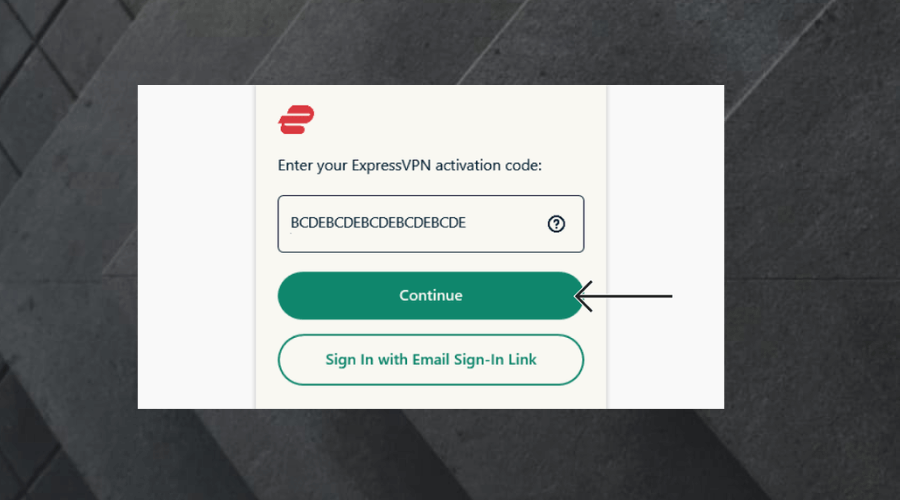
- Disconnect and scroll through available UK servers.
- Pick a new UK location (try London, Manchester, East Midlands).
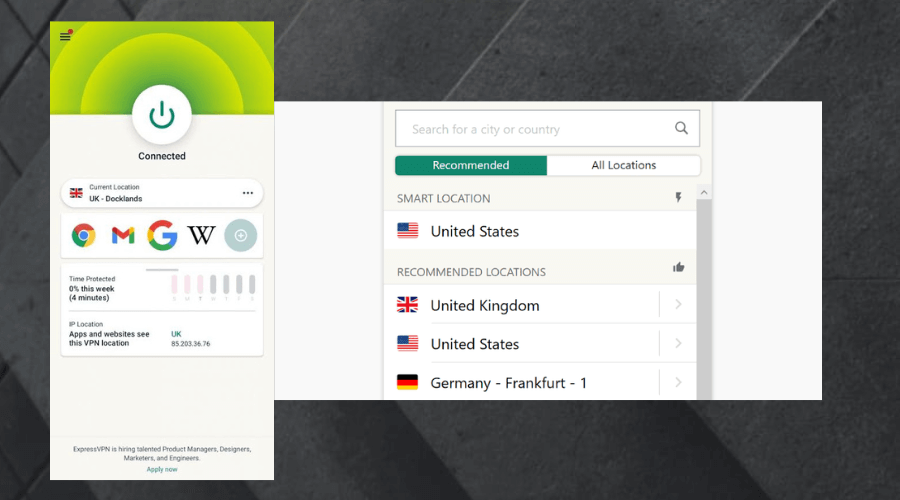
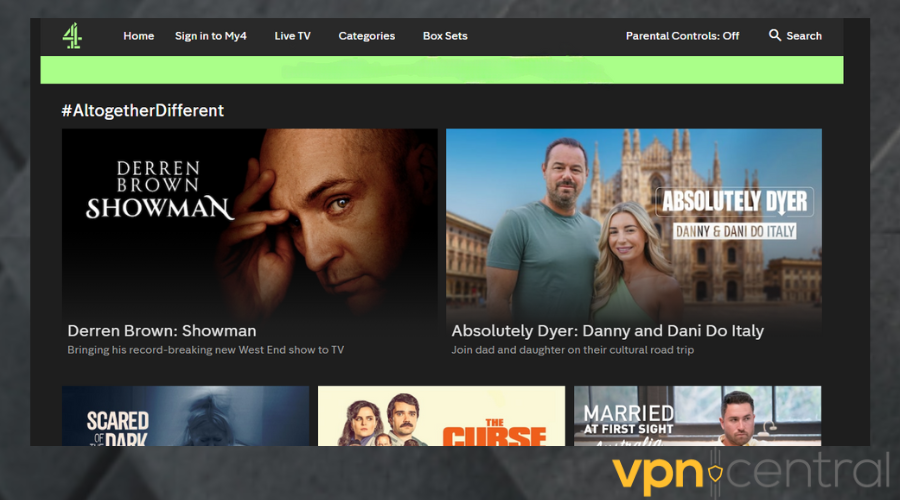
- Reconnect and refresh Channel4.com.
2. Clear Cookies and Cache
Cookies often “remember” your real location and cause All4 not working with VPN errors.
- Open your browser (example: Chrome).
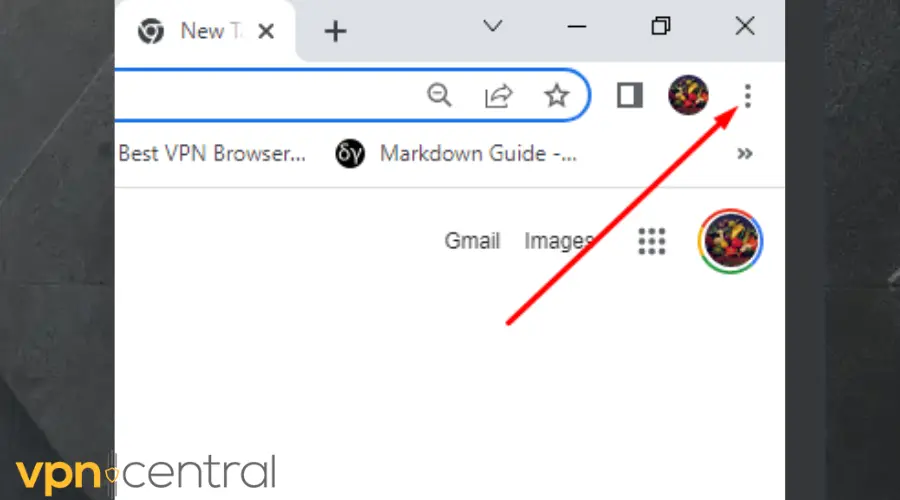
- Click the three dots in the top-right corner.
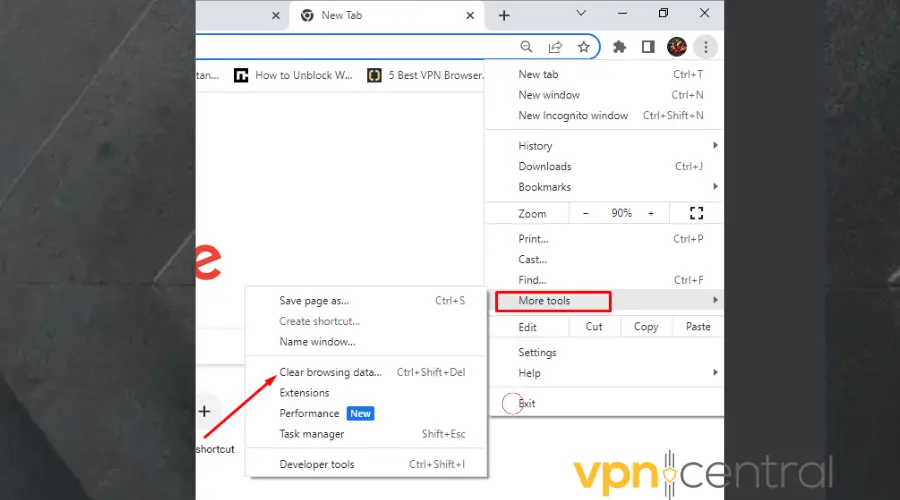
- Hover over More tools → select Clear browsing data.
- Choose All time as the range.
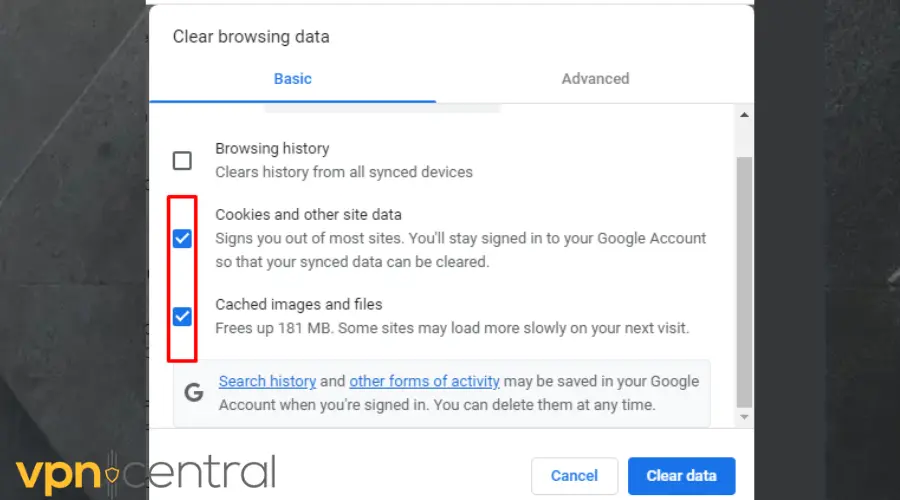
- Tick Cookies and Cached images/files.
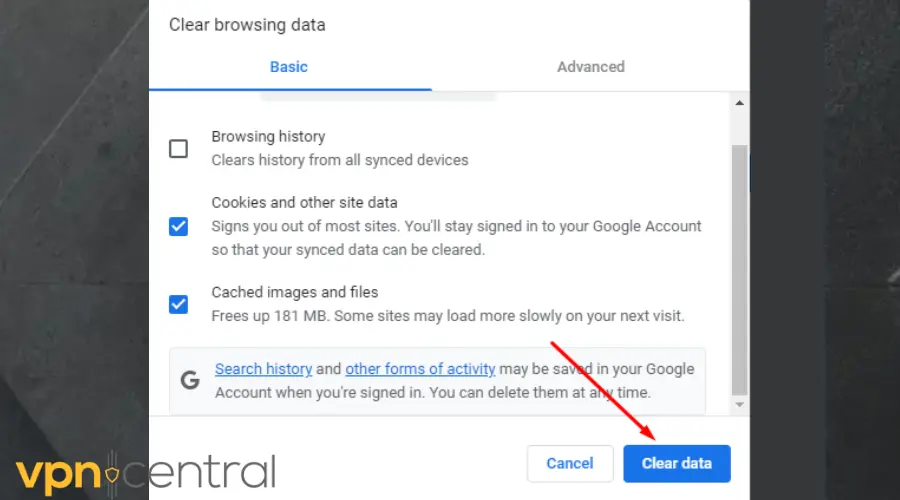
- Click Clear data.
- Reconnect your VPN and try All4 again.
3. Enable DRM in Your Browser
If Channel4.com is getting caught by DRM, playback won’t start until you enable it.
- Chrome: type
chrome://settings/content/protectedContent→ Allow. - Firefox: Settings → General → tick “Play DRM-controlled content.”
- Edge: Settings → Site permissions → Media licenses → Allow.
4. Switch VPN Protocol
If you see a Channel 4 proxy error VPN, changing the protocol helps.
- Open your VPN settings.
- Switch from WireGuard to OpenVPN UDP or OpenVPN TCP.
- Reconnect and reload All4.
5. Turn Off Location Services
Your device’s GPS can give away your location, even when on VPN.
- Windows: Settings → Privacy → Location → Off.
- Mac: System Settings → Privacy & Security → Location Services → Off.
- Mobile: turn off Location in system settings.
6. Use Incognito/Private Browsing
This prevents stored cookies from leaking your region.
- Chrome: Ctrl + Shift + N
- Firefox: Ctrl + Shift + P
- Connect to a UK VPN server and open Channel4.com again.
7. Disable Ad Blockers and Extensions
Ad blockers sometimes block video scripts.
- Turn off your ad blocker.
- Refresh All4 with your VPN on.
- If it works, whitelist Channel 4 in your extension.
8. Update or Reinstall Your VPN App
If you’re seeing repeated PureVPN Channel 4 problems or issues with NordVPN, your app might be outdated.
- Update the VPN app to the latest version.
- If issues persist, uninstall and reinstall.
- Log back in and connect to a UK server.
9. Change Your DNS Settings
Some DNS servers expose your real region.
- Set DNS to Google (8.8.8.8 / 8.8.4.4) or Cloudflare (1.1.1.1).
- Save changes, reconnect your VPN, and reload All4.
10. Try Another Browser or Device
Sometimes All4 fails in one browser but works in another.
- If Chrome doesn’t work, try Firefox or Edge.
- If browser playback fails, install the All4 app on mobile.
- On PC, you can also test tools like StreamFab for Windows, which works with DRM-enabled streaming.
11. Switch to a More Reliable VPN
If you often run into NordVPN not working with Channel 4 or PureVPN Channel 4 problems, the issue may be your provider. Some VPNs struggle to keep up with Channel 4’s blocks, while others refresh their UK servers regularly to stay ahead.
Recommended VPNs for All4:
- ExpressVPN – excellent for unblocking UK streaming sites like Channel 4
- CyberGhost – streaming-optimized UK servers built for reliability
- NordVPN – strong option, but you may need to test different UK servers
Here’s how easy it is with NordVPN:
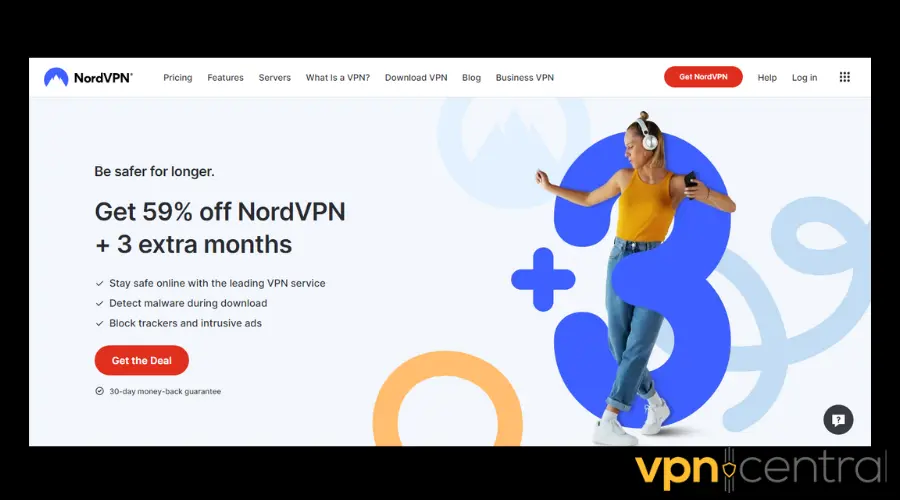
- Log in with your account details.
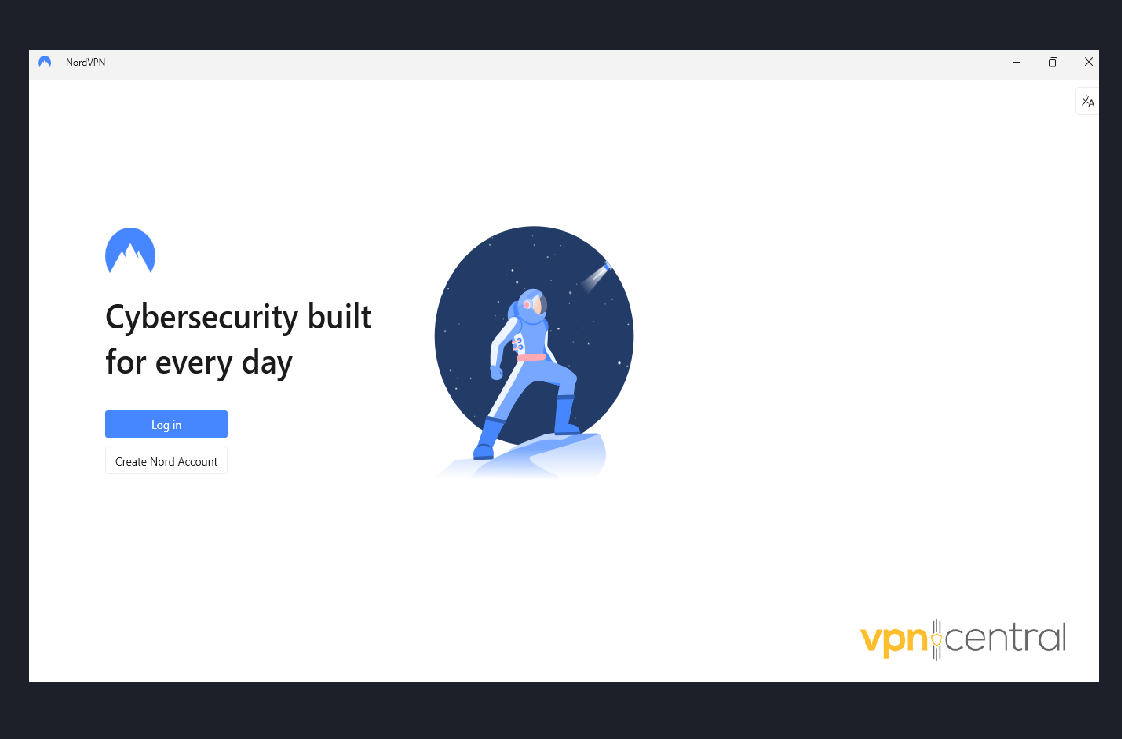
- Select a UK server and connect to it.
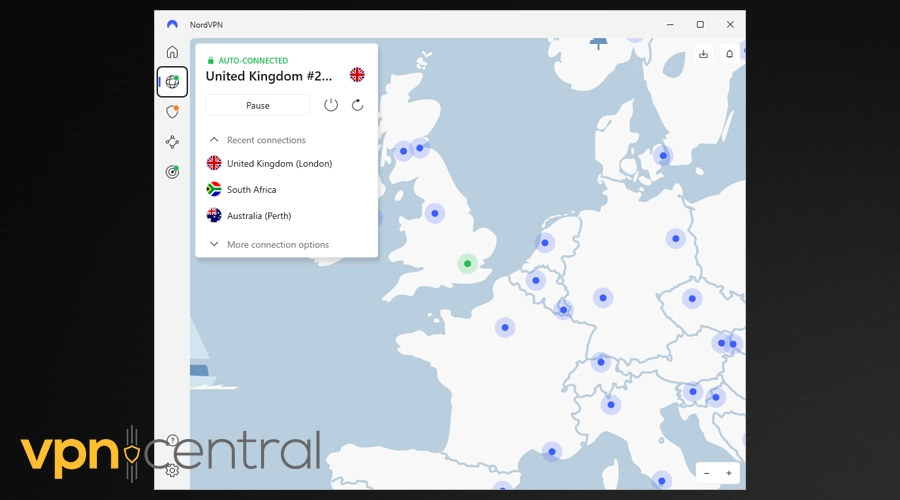
- Go back to Channel 4 and try streaming again.

NordVPN
Upgrade to this top-tier VPN for uninterrupted streaming of All4 content!12. Ask Your VPN Provider for Help
VPN support teams often know which UK servers currently work with All4. Contact them if none of the fixes above help.
Final Thoughts
If you’re facing All4 not working with VPN or hitting Channel 4 proxy error VPN messages, the fixes are simple: switch servers, clear cookies, enable DRM, and try incognito mode. If issues like PureVPN Channel 4 problems or NordVPN not working with Channel 4 keep happening, it might be time to upgrade to a VPN that works more reliably with Channel4.com.
Tools like StreamFab for Windows also help if you prefer downloading shows, but only after you’ve sorted DRM settings and a working VPN server.
FAQs
Because its streaming rights only cover the UK, and VPNs are used to bypass those restrictions.
It means your current VPN server is blocked. Switching to a different UK server usually fixes it.
Yes, but not every server. Try different UK servers or change protocols if playback fails.
PureVPN can work, but many servers get flagged. If switching servers fails, try another provider.
Yes, Channel4.com requires DRM. Without it, you’ll get playback errors.


Read our disclosure page to find out how can you help VPNCentral sustain the editorial team Read more


Improve this guide

User forum
0 messages