
Xbox App Not Working With VPN? Here’s How To Fix It


 9 min. read
  Published on

If your Xbox app stops working the moment your VPN is turned on, it can really mess up your gaming time. You might see login loops, downloads that never start, or cloud gaming that just refuses to load.
This happens because the Xbox app depends on direct and stable communication with Microsoft’s servers. When your VPN reroutes traffic, the Xbox network may think you’re signing in from a different country or even block the connection entirely. Follow the steps below to fix it.

Access content across the globe at the highest speed rate.
🔥 Save 81% + 2 bonus months! 🔥
70% of our readers choose Private Internet Access
70% of our readers choose Private Internet Access
2
Browse the web from multiple devices with industry-standard security protocols.
🔥 Save 73%! 🔥

Faster dedicated servers for specific actions (currently discounted)
🔥 Save 69%! 🔥
Table of contents
Why the Xbox App Breaks When Using a VPN
A VPN hides your real IP address and routes your traffic through another location. That’s great for privacy, but it can confuse services that depend on regional data.
The Xbox app is one of those services. It needs to know exactly where you are and confirm that your Microsoft account region, store location, and game licenses all match. If they don’t, things stop working.
Here are the most common causes when the Xbox app fails with a VPN:
- Region mismatch
If your Microsoft account says you live in the United States but your VPN connects through Germany, Xbox cannot confirm your game ownership or Game Pass eligibility. Check out this guide on Game Pass not available in your country for more about how region restrictions affect access. - High latency and routing delays
VPNs send your traffic through extra servers. This increases ping, which can cause laggy cloud gaming or failed sign-ins. - Blocked or rerouted ports
Xbox services rely on specific TCP and UDP ports. If your VPN closes or changes them, the connection breaks. - Unsupported regions
Xbox Cloud Gaming is only available in certain countries. If your VPN puts you somewhere outside those zones, the feature disables itself. You can still make it work by following this detailed guide on using a VPN for Xbox Cloud Gaming.
Understanding this helps you see why fixes like matching regions and split tunneling work so well.
How To Fix the Xbox App Not Working With VPN
The following steps are arranged from easiest to most technical. Start from the top and move down until the Xbox app starts working again.
1. Test the Xbox App Without the VPN
- Close the Xbox app completely.
- Disconnect your VPN from its current server.
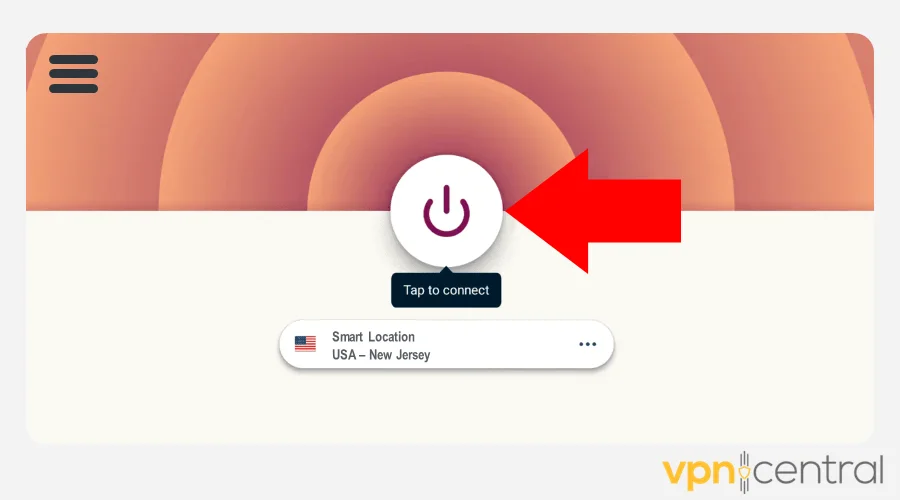
- Reopen the Xbox app and sign in again.
- Try launching a Game Pass title or browsing your library.
If everything loads normally now, the VPN is clearly the trigger. You’ll need to adjust how it interacts with Xbox traffic before turning it back on.
2. Match the VPN Region With Your Microsoft Account
Microsoft’s network ties your purchases, Game Pass region, and Xbox Live access to one main country. If your VPN puts you elsewhere, it can’t verify your account.
- Open account.microsoft.com/profile in your browser.
- Check your Country or Region under your profile info
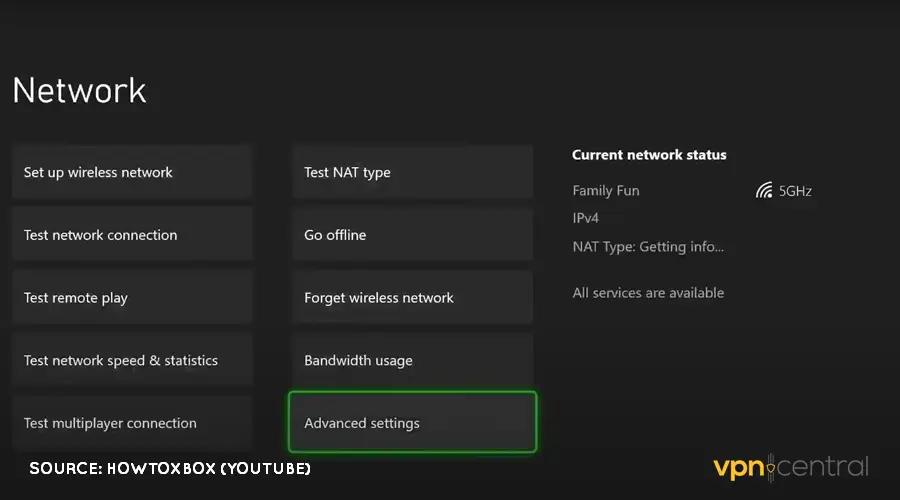 .
. - In your VPN app, connect to a server from that same country.
- Restart the Xbox app and test again.
If your account says “United States,” pick a U.S. VPN server. If it says “United Kingdom,” connect through the U.K. For players looking to save money, you can also explore the cheapest country for Xbox Game Pass subscriptions and see how pricing differs by region.
Doing this keeps your network identity consistent across Xbox and Microsoft services.
3. Use Split Tunneling in Your VPN
Split tunneling lets you decide which apps use the VPN and which connect directly to the internet. It’s one of the most effective ways to make the Xbox app work smoothly while keeping your VPN on for everything else.
- Open your VPN’s settings.
- Find the option labeled Split Tunneling or App Exclusions.
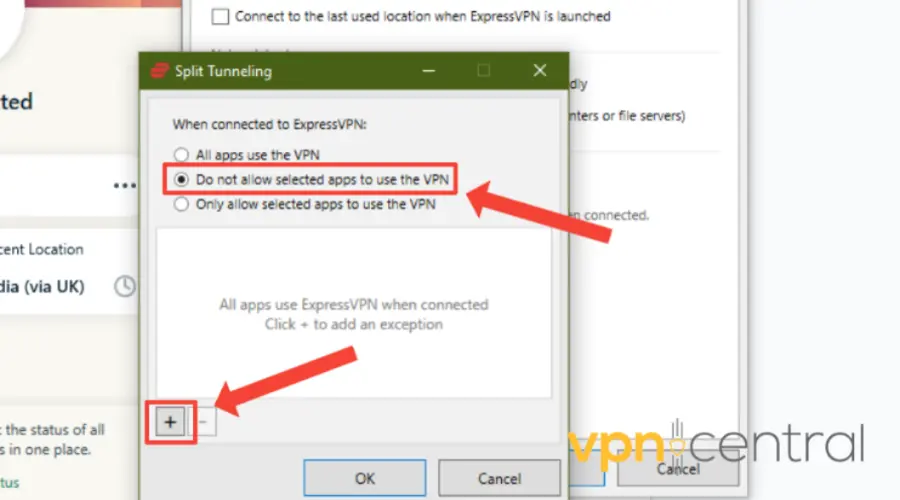
- Add these apps to the exclusion list:
- XboxApp.exe
- GamingServices.exe
- MicrosoftStore.exe (optional)
- Save your settings and reconnect to the VPN.
- Launch the Xbox app again.
Now, the Xbox app bypasses the VPN entirely, connecting straight to Microsoft while your browser or torrent client stays protected.
If your VPN does not support split tunneling, check if it allows custom routing rules. You can exclude the Microsoft server range manually, or use Smart DNS (offered by some VPNs) to connect directly for Xbox services without exposing the rest of your traffic.
4. Restart Xbox Services in Windows
Sometimes the background Xbox services need a quick restart to clear out temporary network conflicts.
- Press Windows + R, type
services.msc, and hit Enter. - Scroll down and restart these one by one:
- Xbox Live Auth Manager
- Xbox Live Networking Service
- Xbox Accessory Management Service
- Gaming Services
- Close the Services window and reopen the Xbox app.
If the app now connects properly, one of these services was stuck or not communicating correctly through the VPN.
5. Allow the Xbox App Through Windows Firewall
Windows Firewall can silently block parts of the Xbox network connection, especially when a VPN is active.
- Press Windows + R, type
control firewall.cpl, and press Enter. - Select Allow an app or feature through Windows Defender Firewall.
- Click Change settings.
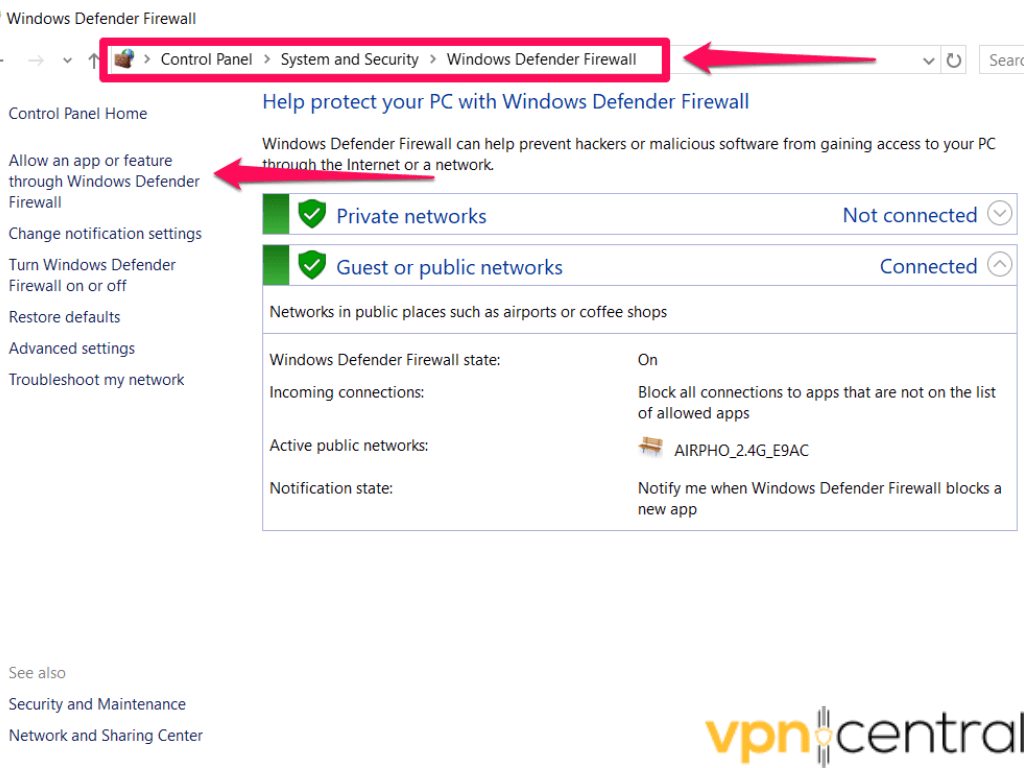
- Make sure both Private and Public boxes are checked for:
- Xbox App
- Gaming Services
- Microsoft Store
- Save your changes.
The firewall can even throw network errors that look like Xbox One error code 1, so keeping these apps unblocked helps avoid similar issues.
6. Open the Xbox Live Ports Manually
If your VPN or router blocks the ports used by Xbox Live, you’ll need to open them manually.
TCP: 3074, 53, 80, 500, 3544, 4500
UDP: 88, 500, 3074, 3544, 4500
Go into your router or VPN’s advanced settings, locate the port forwarding or firewall rules section, and allow these values. Restart your computer afterward to apply the changes.
This step often fixes sign-in errors and helps reduce high packet loss on Xbox during online play.
If your VPN supports port forwarding, enable it in the app. This lets Xbox Live use those required ports directly, even when the VPN is on. Some providers call it “Open NAT” or “gaming mode.”
7. Reset the Xbox App
If the Xbox app still refuses to cooperate, reset it completely. This removes cached data, temporary files, and broken configurations.
- Open Settings → Apps > Installed Apps.
- Locate Xbox in the list.
- Click Advanced options.
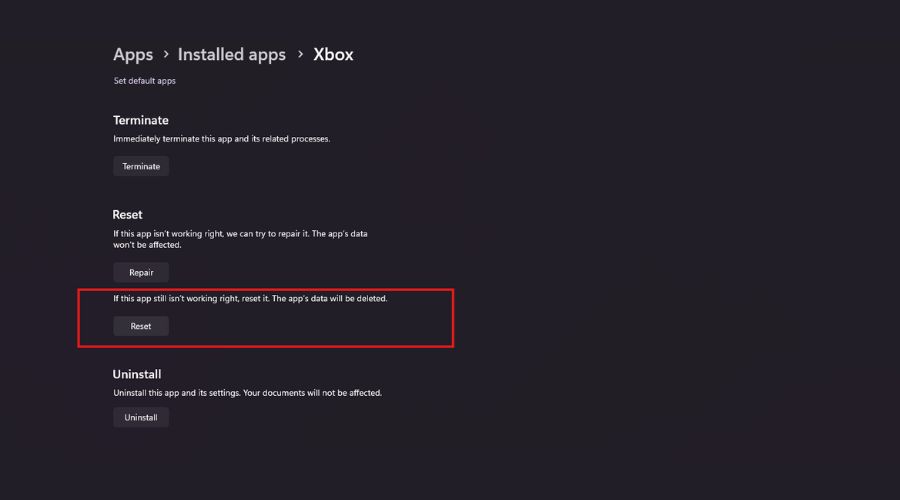
- Select Reset.
- Launch the app again and sign in with your Microsoft account.
A full reset returns the app to its default state without removing your installed games.
8. Reinstall Gaming Services
Gaming Services is a core Windows component that helps the Xbox app run. If it’s corrupted, the app might stop communicating with your network altogether.
- Right-click Start and choose Windows PowerShell (Admin).
- Paste the following command and press Enter:
get-appxpackage Microsoft.GamingServices | remove-AppxPackage -allusers start ms-windows-store://pdp/?productid=9MWPM2CQNLHN - When the Microsoft Store opens, reinstall Gaming Services.
- Restart your computer and test the Xbox app again.
If you are still on the older Companion app instead of the new Xbox app, check out this fix for Xbox Console Companion not working with VPN for similar troubleshooting steps.
What the Xbox App Actually Does
Before diving into the fixes, let’s get clear on what the Xbox app does. It connects your PC or mobile device to the Xbox ecosystem.
With it, you can:
- Play games on your PC using Game Pass or your own library.
- Stream games remotely from your Xbox console to your PC or phone.
- Use Xbox Cloud Gaming to play titles instantly without installing them.
- Chat with friends, join parties, and share screenshots or clips.
- Manage your games by installing, uninstalling, or updating them remotely.
It’s designed to make your Xbox life seamless across PC, console, and mobile. But that system depends on smooth communication between your device and Microsoft’s gaming servers. That’s where a VPN can throw a wrench into the gears.
Extra Tips for a Smoother Gaming Experience
Even if everything is working again, a few extra tweaks can make your setup more stable:
- Choose a VPN server close to your physical location to reduce ping.
- Enable gaming mode or UDP optimization if your VPN supports it.
- Keep your network adapter drivers updated through Device Manager.
- Avoid “stealth” or “double VPN” features since they slow down traffic.
- Try running the Xbox app as Administrator for full network permissions.
- If your VPN allows it, switch to the WireGuard or Lightway protocol for faster performance.
- Disable IPv6 leak protection temporarily if it interferes with Xbox Live. Some VPNs mismanage IPv6 traffic and block important packets.
- On certain VPNs, changing the DNS mode from “automatic” to “custom” (like 8.8.8.8 and 1.1.1.1) helps the Xbox app authenticate faster.
These small optimizations make a big difference in streaming stability and multiplayer performance.
Frequently Asked Questions
Yes, but you must connect through a country where Microsoft officially supports the service. Otherwise, Cloud Gaming will show as unavailable or fail to start.
No, Microsoft does not actively block VPNs. However, Xbox services depend on region data, so if your account and IP address don’t line up, it may cause problems with Game Pass or multiplayer.
Choose VPNs that offer split tunneling, gaming servers, and port forwarding options. Look for ones with stable U.S. or U.K. nodes if your Game Pass subscription is registered there.
Yes, it can. VPN encryption adds a little overhead, so you might see slower downloads. Split tunneling helps by keeping the Xbox app off the VPN path.
Conclusion
When the Xbox app does not work with a VPN, the issue usually comes down to mismatched regions, blocked ports, or background services that cannot talk to Microsoft’s servers. The easiest path to fixing it is to test without the VPN first, then enable split tunneling, restart Xbox services, and make sure your regions match.
Once everything lines up, the Xbox app runs just like it should. You can keep your VPN on for privacy and still enjoy Game Pass, multiplayer, and cloud gaming without interruptions.


Read our disclosure page to find out how can you help VPNCentral sustain the editorial team Read more


Improve this guide




User forum
0 messages