
What Is IPVanish Trusted Networks and How Does It Work?


 14 min. read
  Published on

IPVanish Trusted Networks is an automatic connection feature that lets you choose Wi-Fi networks where the VPN does not need to connect automatically.
You can mark a home or work network as trusted. When your device leaves that network and joins an unfamiliar Wi-Fi connection, IPVanish can automatically activate the VPN and encrypt your internet traffic.

Access content across the globe at the highest speed rate.
🔥 Save 81% + 2 bonus months! 🔥
70% of our readers choose Private Internet Access
70% of our readers choose ExpressVPN
2
Browse the web from multiple devices with industry-standard security protocols.
🔥 Save 73%! 🔥

Faster dedicated servers for specific actions (currently at summer discounts)
🔥 Save 69%! 🔥
The feature reduces the risk of forgetting to enable the VPN on public Wi-Fi. It is useful for people who regularly connect from cafés, hotels, airports, trains, coworking spaces, and other shared networks.
How IPVanish Trusted Networks works
Trusted Networks works as an exception list within IPVanish’s automatic connection settings. You identify networks that you consider safe, and the app changes its behaviour according to the network currently in use.
For example, you could add your password-protected home Wi-Fi to the trusted list. IPVanish would not automatically start the VPN while your device remains connected to that network.
If the device later connects to an airport Wi-Fi network that does not appear on the list, IPVanish can establish a VPN connection automatically.
| Network type | Typical IPVanish behaviour |
|---|---|
| Trusted home Wi-Fi | The VPN can remain disconnected unless you start it manually |
| Trusted work Wi-Fi | The VPN follows the rule selected for trusted networks |
| Unknown public Wi-Fi | IPVanish automatically connects when the relevant rule is enabled |
| Mobile data | Behaviour depends on the cellular-network setting |
| Ethernet | Windows and macOS users can choose whether to trust wired networks |
What does a trusted network mean?
A trusted network is a Wi-Fi or wired connection that you control or consider secure enough to use without an automatically activated VPN.
Your home network may qualify when it uses WPA2 or WPA3 encryption, a strong password, updated router firmware, and secure administrator credentials.
A network should not be trusted simply because you use it regularly. A hotel, café, airport, or shared office network still belongs to another organisation and may expose connected devices to additional risks.
- Your password-protected home Wi-Fi may be suitable.
- A carefully managed company network may be suitable.
- A personal mobile hotspot may be suitable.
- Hotel and airport Wi-Fi should normally remain untrusted.
- Café, library, and shopping-centre networks should remain untrusted.
- Networks without passwords should remain untrusted.
Why use IPVanish Trusted Networks?
A VPN only protects internet traffic while the encrypted connection remains active. Users who connect manually may forget to switch it on when joining a public network.
Trusted Networks removes part of that manual process. The app recognises when the device moves away from an approved network and can connect without waiting for the user to remember.
The feature can also prevent unnecessary connections at home, where a VPN might interfere with printers, local storage devices, banking apps, streaming platforms, or smart-home equipment.
What Trusted Networks can protect
When IPVanish connects, it creates an encrypted tunnel between the device and a VPN server. Other users on the local network cannot easily inspect the traffic travelling through that tunnel.
The VPN also replaces the device’s public IP address with the address of the selected server. Websites and internet services see the server address rather than the user’s normal public IP address.
The IPVanish applications include automatic connection features alongside tools such as a kill switch, split tunnelling, VPN protocol controls, and Threat Protection on supported devices.
| Risk | How an automatic VPN connection helps |
|---|---|
| Network monitoring | Encrypts traffic between the device and the VPN server |
| Accidental public Wi-Fi use | Starts the VPN when an unfamiliar network is detected |
| IP address exposure | Replaces the normal public IP address with a VPN address |
| Forgetting to connect | Applies predefined automatic connection rules |
| VPN interruptions | A kill switch can block traffic when the VPN disconnects |
Which devices support IPVanish Trusted Networks?
IPVanish provides trusted-network or equivalent On Demand controls on Windows, macOS, and iOS. The names and available rules differ between these operating systems.
Windows uses automatic connection and untrusted-network settings. macOS and iOS use Connect On Demand rules that can identify approved Wi-Fi networks.
The Trusted Networks feature overview identifies Windows, Mac, and iOS as the main supported platforms.
| Platform | Feature name or location | Trusted network support |
|---|---|---|
| Windows | Auto Connect or Network Security settings | Yes |
| macOS | Connect On Demand | Yes |
| iPhone and iPad | On Demand | Yes |
| Android | Automatic connection settings | Not the same documented whitelist workflow |
| Fire TV and Apple TV | Standard connection controls | No equivalent trusted Wi-Fi list documented |
How to set up Trusted Networks on Windows
The Windows application lets you instruct IPVanish to connect when the computer joins an untrusted network. You can then manage Wi-Fi networks that should receive trusted status.
You normally need to connect to a Wi-Fi network before adding it to the trusted list. This helps the app identify the correct network name.
- Connect the Windows computer to the Wi-Fi network you want to trust.
- Open the IPVanish Windows app.
- Sign in to your account.
- Open Settings.
- Select Network Security or the available Auto Connect section.
- Enable Auto-connect on untrusted networks.
- Choose whether IPVanish should trust Ethernet connections.
- Choose whether it should trust mobile or cellular connections, when available.
- Find the trusted Wi-Fi network list.
- Add the current Wi-Fi network to the list.
After saving the rule, disconnect from the trusted Wi-Fi network and join another network to test the setup. IPVanish should connect automatically when it detects the untrusted connection.
How to set up Trusted Networks on a Mac
On macOS, IPVanish places automatic network rules under Connect On Demand. The exact labels may change between application and macOS versions.
The source guide states that Trusted Networks works with WireGuard, IKEv2, or IPSec on Mac. OpenVPN may not support the same On Demand rules.
- Connect the Mac to the Wi-Fi network you want to trust.
- Open IPVanish.
- Select Preferences or Settings.
- Open the General section.
- Choose WireGuard, IKEv2, or IPSec.
- Open the Auto Connect section.
- Enable Connect On Demand.
- Choose whether to trust Ethernet networks.
- Leave Trust Wi-Fi Networks disabled when you want to create individual rules.
- Add the current network name to the Trusted Networks list.
- Add known public networks to the Untrusted Networks list when needed.
Network names are also known as SSIDs. Check the spelling carefully because similarly named Wi-Fi networks can represent different access points.
How to set up Trusted Networks on iPhone and iPad
The iPhone and iPad app calls the feature On Demand. It can automatically activate the VPN according to Wi-Fi, cellular, and domain-based rules.
The current IPVanish iOS app lists On-Demand VPN with custom network and traffic rules among its supported features.
- Open the IPVanish app on the iPhone or iPad.
- Sign in to the IPVanish account.
- Open Settings.
- Select On Demand.
- Enable Connect On Demand.
- Choose whether to trust cellular connections.
- Choose whether to apply automatic rules to Wi-Fi.
- Add your home or work Wi-Fi to the trusted list.
- Add networks you never trust to the untrusted list when the option appears.
- Approve any VPN configuration request from iOS.
iOS may request Face ID, Touch ID, or the device passcode when IPVanish creates or updates its VPN configuration. Apple requires this approval for applications that manage VPN connections.
IPVanish can also connect for specific websites
The iOS On Demand settings may let users create domain-based rules. These rules can trigger the VPN when the device visits a specified website.
This may help when users want the VPN to activate for particular work services, financial websites, or other sensitive destinations.
Domain rules require careful configuration. Entering the wrong domain or adding a broad rule could make the VPN connect more frequently than expected.
Should you trust cellular connections?
Mobile networks generally avoid some of the local risks associated with open public Wi-Fi. Other people in a café cannot join the same cellular network in the same simple way that they can join a shared hotspot.
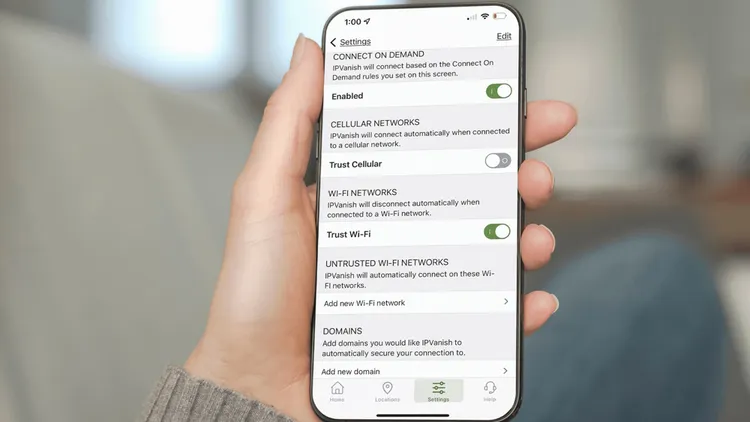
However, trusting cellular data means IPVanish may remain disconnected while the mobile carrier handles the traffic. The carrier can still see connection metadata and the websites’ domains in some circumstances.
Users who want continuous VPN protection should leave cellular networks untrusted. Users who prioritise battery life or connection compatibility may choose to trust them.
| Setting | Result |
|---|---|
| Trust cellular enabled | The VPN may remain disconnected on mobile data |
| Trust cellular disabled | The VPN can connect automatically on mobile data |
| Trust Ethernet enabled | The VPN may remain disconnected on wired networks |
| Trust Ethernet disabled | A wired connection can trigger the VPN |
Should you trust your home Wi-Fi?
Trusting your home network can make local services easier to use. Some printers, media servers, network drives, and smart-home devices may not work properly when all traffic routes through a VPN.
A trusted rule can also prevent websites and applications from repeatedly asking for verification because the VPN changes the device’s public IP address.
Users who want maximum privacy from their internet provider should not trust the home network. They can leave the VPN connected continuously and use split tunnelling for local services that need direct access.
Trusted Networks does not prove a network is safe
IPVanish does not perform a complete security audit before calling a network trusted. The user assigns that status through the app.
A trusted home network can still become unsafe when the router uses an outdated password, vulnerable firmware, weak encryption, or compromised devices.
Review the trusted list periodically and remove networks you no longer control. Do not leave a former hotel, workplace, rental property, or shared hotspot on the list.
Beware of Wi-Fi networks with copied names
Trusted-network rules commonly rely on a Wi-Fi network’s SSID. An attacker can create another network using the same visible name.
For example, someone could create a hotspot named after a café or hotel network. A device may connect automatically when it recognises the name.
A trusted-network feature therefore reduces accidental exposure but does not replace careful network selection. Confirm the correct network with the venue when several similarly named options appear.
What happens when IPVanish detects an untrusted network?
When automatic connection is enabled, IPVanish checks the active network against its saved rules. An unfamiliar network triggers the configured VPN connection.
The app then selects the default or previously chosen VPN location and establishes an encrypted tunnel. This process may take several seconds.
The IPVanish App Store description confirms support for automatic connections based on custom network and traffic rules.
- The device joins a Wi-Fi or cellular network.
- IPVanish checks the connection against its saved rules.
- The app identifies the network as trusted or untrusted.
- An untrusted network triggers the VPN.
- The app connects to the selected or default VPN server.
- Device traffic begins travelling through the encrypted tunnel.
Does Trusted Networks replace the kill switch?
No. Trusted Networks decides when IPVanish should start a connection. The kill switch controls what happens if an active VPN connection drops.
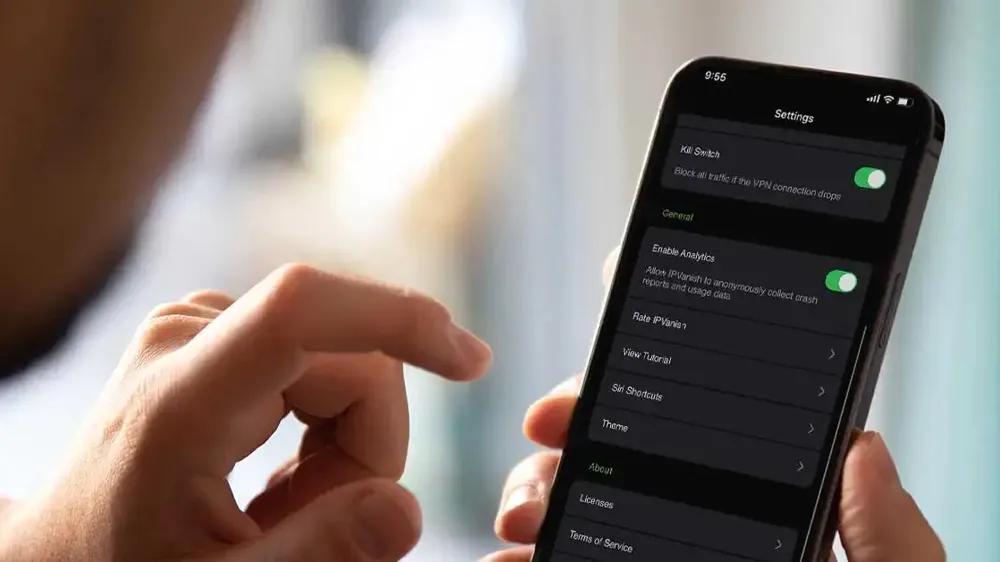
For stronger protection, enable both features. Trusted Networks can start IPVanish on public Wi-Fi, while the kill switch can block internet traffic during an unexpected disconnection.
| Feature | Main purpose |
|---|---|
| Trusted Networks | Automatically starts or avoids the VPN according to the network |
| Kill switch | Blocks traffic when an active VPN connection fails |
| Split tunnelling | Lets selected traffic bypass the VPN |
| Threat Protection | Blocks supported advertisements, trackers, and malicious websites |
| Double Hop | Routes VPN traffic through two server locations |
Does Trusted Networks reduce battery use?
Allowing IPVanish to remain disconnected on trusted networks may reduce battery and processing use compared with maintaining a VPN tunnel continuously.
The practical difference depends on the device, VPN protocol, signal strength, and amount of traffic. WireGuard generally uses resources efficiently on phones and laptops.
Automatic monitoring still requires the app and operating system to check network changes. Users should not expect Trusted Networks to produce a dramatic battery improvement on every device.
Does Trusted Networks work with every VPN protocol?
Protocol compatibility depends on the operating system. The supplied Mac instructions identify WireGuard, IKEv2, and IPSec as compatible options.
OpenVPN does not support the same macOS Trusted Networks workflow described in the source article. Windows and iOS may display a different set of protocols and controls.
Check the latest IPVanish app information when a setting does not appear. App updates can change supported protocols and menu locations.
Is Trusted Networks included with every IPVanish plan?
Trusted Networks and basic automatic connection rules are available with both the Essential and Advanced subscriptions on compatible devices.
You do not need the higher-priced Advanced plan solely to create a Wi-Fi whitelist.
Advanced adds other services, including Secure Browser, enhanced threat filtering, encrypted cloud storage, and additional support options. These extras do not change the basic purpose of Trusted Networks.
Problems with captive portals
Hotels, airports, cafés, and trains often require users to accept terms or enter details on a captive portal before granting internet access.
An automatically activated VPN can sometimes prevent that portal from loading because the network has not yet authorised normal internet traffic.
- Temporarily pause or disconnect IPVanish.
- Open a browser.
- Load the network’s sign-in page.
- Accept the terms or complete the required login.
- Return to IPVanish.
- Reconnect to the VPN.
- Confirm that the app shows an active connection.
Keep other applications closed while completing the public Wi-Fi login. Reconnect the VPN before opening email, banking, work, or messaging services.
What to do when Trusted Networks does not work
The feature may fail when automatic connection is disabled, the Wi-Fi name has changed, the wrong protocol is selected, or the operating system prevents IPVanish from running in the background.
- Confirm that Auto Connect or Connect On Demand is enabled.
- Check that the current Wi-Fi appears in the correct list.
- Remove and re-add the trusted network.
- Try WireGuard or IKEv2 when the current protocol is incompatible.
- Allow IPVanish to run in the background.
- Disable battery restrictions for IPVanish where appropriate.
- Update the app and operating system.
- Restart the device after changing the rules.
Test the feature by switching between the trusted Wi-Fi connection and a mobile hotspot. Watch the IPVanish status to confirm whether the VPN connects automatically.
Best practices for creating a trusted network list
Keep the list small. Only add networks that you control or whose security practices you understand.
A long whitelist increases the chance that IPVanish will remain disconnected in a location where you need protection.
The IPVanish Trusted Networks guide recommends the feature particularly for people who regularly work from cafés, trains, airports, and other public locations.
- Add only your home, work, or personal hotspot networks.
- Leave open and public Wi-Fi untrusted.
- Remove old networks when you move or change jobs.
- Review the list after replacing a router.
- Use unique Wi-Fi names and strong passwords at home.
- Enable the kill switch alongside automatic connections.
- Check the VPN status before handling sensitive information.
Is IPVanish Trusted Networks worth using?
Trusted Networks is useful for anyone who moves frequently between private and public internet connections. It automates VPN protection without forcing the service to remain active on every approved home or office network.
The feature works particularly well for remote workers, frequent travellers, students, and people who use public Wi-Fi regularly.
It does not guarantee that a trusted network remains secure, and it cannot protect traffic during an incorrectly configured rule. Users should combine it with a kill switch, secure router settings, software updates, and careful Wi-Fi selection.
FAQ
IPVanish Trusted Networks is an automatic connection feature that lets you identify approved Wi-Fi networks. IPVanish can remain disconnected on those networks and connect automatically when the device joins an unfamiliar or untrusted network.
IPVanish provides trusted-network or equivalent Connect On Demand controls on Windows, macOS, and iPhone and iPad. The feature names, settings, and supported protocols differ by platform.
Yes, when you enable the relevant Auto Connect or Connect On Demand rule. IPVanish can recognise that a public Wi-Fi network is not on the trusted list and start the VPN automatically.
You can add your home Wi-Fi when you control the router and prefer to use local printers, storage, or smart devices without an automatic VPN connection. Leave it untrusted when you want continuous protection from your internet provider.
No. Trusted Networks determines when IPVanish should connect. The kill switch blocks internet traffic if an active VPN tunnel fails. Enabling both features provides stronger protection on unfamiliar networks.
Yes. Trusted Networks and basic automatic connection controls are available with Essential and Advanced subscriptions on compatible devices.
The network may use a captive portal that requires you to accept terms or sign in before accessing the internet. Temporarily disconnect IPVanish, complete the portal login, and reconnect the VPN before using sensitive services.


Read our disclosure page to find out how can you help VPNCentral sustain the editorial team Read more


Improve this guide




User forum
0 messages