
How to Download Mullvad VPN for Windows and Check the Installer


 2 min. read
 Published on
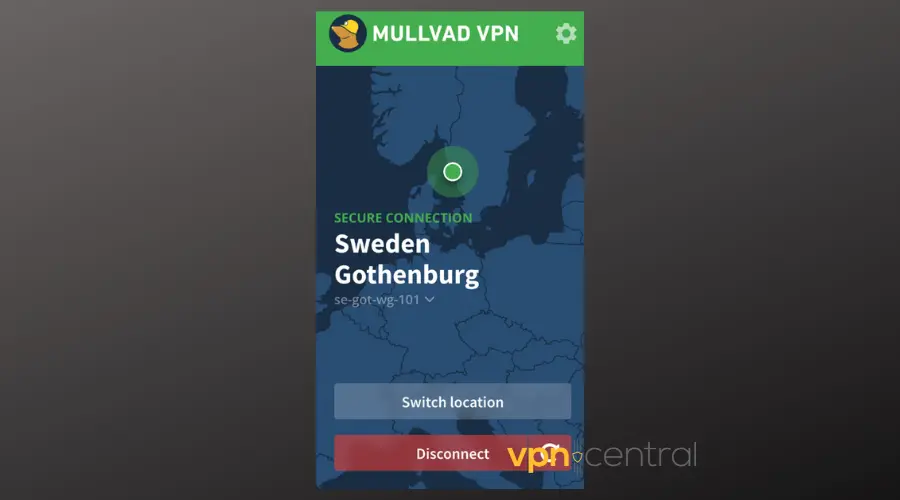
Get the Mullvad VPN loader for Windows from Mullvad’s download page. It retrieves the full app and checks the installer before setup. You need a 64-bit PC running Windows 10 or later. Mullvad also supports Windows on ARM.
Check the publisher before approving the installer
Open Install Mullvad VPN.exe from your downloads. If Windows asks whether to let it change your device, check that the verified publisher is Mullvad VPN AB. Cancel if the name is different or Windows lists an unknown publisher. Return to Mullvad’s site for a fresh copy.

Access content across the globe at the highest speed rate.
🔥 Save 84% + 4 bonus months! 🔥
70% of our readers choose Private Internet Access
70% of our readers choose Private Internet Access
2
Browse the web from multiple devices with industry-standard security protocols.
🔥 Save 81% + 4 bonus months! 🔥

Faster dedicated servers for specific actions (currently discounted)
🔥 Save 77% + 3 bonus months! 🔥

In the loader, select Download & install. When installation finishes, select Finish to open the app. If verification fails, retry from the loader. For a persistent error, Mullvad’s Windows installation guide includes screenshots of the prompts, troubleshooting by error message and a standalone installer option.
Sign in with the account number you paid for
Enter your existing Mullvad account number. If you bought time on the website, use that same number. Creating a second account can leave you looking at an empty balance while the time you purchased remains on the first account. New users can create an account and add time before connecting.
Check the connection from your browser
Select Connect and wait until the app reports that it is connected. Then open Mullvad’s connection check in the browser you normally use. It reports whether the browser reaches that page from a Mullvad exit address. If the result differs from the app, check whether you excluded that browser through split tunneling.
To reopen the app on Windows 11, look for its padlock in the notification area. If it is hidden, select the arrow beside the clock. From the app you can check the active location or disconnect.


Read our disclosure page to find out how can you help VPNCentral sustain the editorial team Read more


Improve this guide


User forum
0 messages