
Fix Disney Plus App Not Working With VPN (Step-by-Step Solutions)


 7 min. read
  Updated on
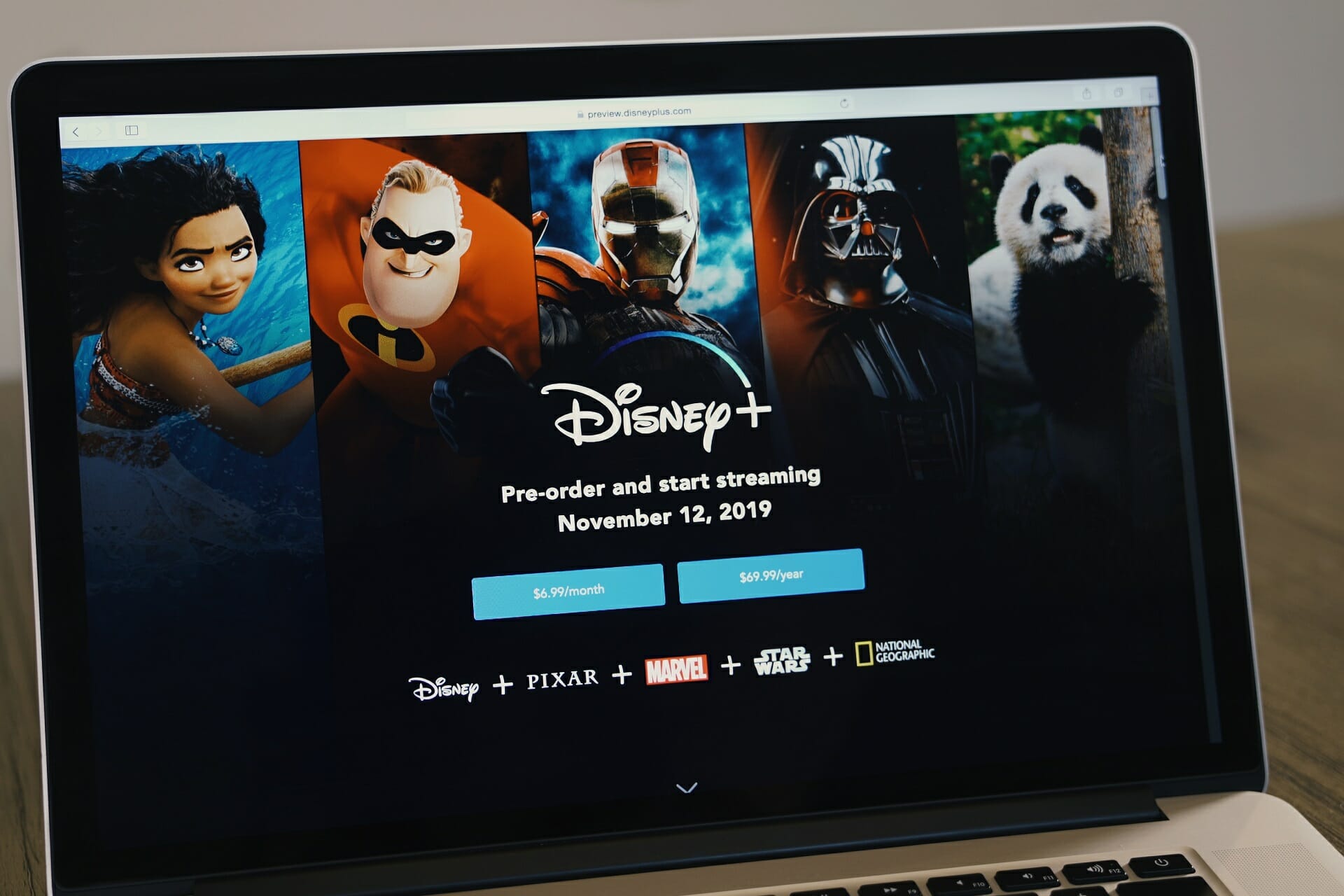
The Disney Plus app not working with VPN is one of the most common issues for streaming fans. When you connect through a VPN, Disney+ may refuse to play content, show black screens, or trigger error codes.
Disney+ blocks VPNs to enforce licensing rules across regions. That often leads to login failures, playback errors, or very low quality streams. The usual causes include blocked VPN servers, cached app data that reveals your real location, or DNS leaks.

Access content across the globe at the highest speed rate.
🔥 Save 81% + 2 bonus months! 🔥
70% of our readers choose Private Internet Access
70% of our readers choose Private Internet Access
2
Browse the web from multiple devices with industry-standard security protocols.
🔥 Save 73%! 🔥

Faster dedicated servers for specific actions (currently discounted)
🔥 Save 69%! 🔥
Table of contents
- Why Disney Plus Blocks VPNs
- Step-by-Step Fixes for Disney+ VPN Errors in 2025
- Fix 1: Switch to a Different VPN Server
- Fix 2: Clear Disney+ App Cache and Data
- Fix 3: Disable GPS and Location Services
- Fix 4: Flush DNS on PC or Laptop
- Fix 5: Use Streaming-Optimized VPN Servers
- Fix 6: Update Disney+ and VPN Apps
- Fix 7: Try Disney+ in a Web Browser
- Fix 8: Reinstall the Disney+ App
- Fix 9: Enable Stealth or Obfuscation Mode
- Fix 10: Use SmartDNS If Your VPN Supports It
- Fix 11: Try Router-Level VPN Setup
- Fix 12: Test on Another Device
- Fix 13: Contact VPN Support for Working Servers
- Fix 14: Upgrade to a Reliable VPN Provider
- Other Key Questions
- Conclusion
- FAQ
Why Disney Plus Blocks VPNs
Disney+ enforces geo-restrictions to respect regional content rights. The platform checks your IP address, DNS requests, GPS data, and cached login history. If any of those signals contradict your account’s region, the app blocks access. A VPN hides your IP, but Disney uses multiple checks to detect mismatches.
Common Symptoms When VPN Fails on Disney+
- Endless buffering or video not starting.
- Black screen when you press play.
- Playback cuts off after a few seconds.
- Login fails only when VPN is enabled.
- Website streams, but the app refuses to work.
- Very low resolution due to overloaded servers.
Typical VPN Error Messages on Disney+
- “Disney+ is not available in your region.”
- “Service unavailable. Please try again later.”
- “Error Code 73: Disney+ is only available in certain regions.”
- “Error Code 83: Something went wrong. Please try again.”
- “We’re sorry, Disney+ is not available in your country.”
- If you also see Error Code 21, the issue usually points to a blocked VPN server or outdated app data.
Step-by-Step Fixes for Disney+ VPN Errors in 2025
Fix 1: Switch to a Different VPN Server
- Open your VPN app and confirm it’s active.
- Disconnect from the current server.
- Select another VPN server in the same region, preferably labeled “Streaming.”
- Restart Disney+ and log in again.
Why this helps
Disney blocks IP ranges it knows belong to VPNs. Each server has its own IP pool. Switching to another server gives you a clean IP that may not yet be flagged.
Fix 2: Clear Disney+ App Cache and Data
- Open device Settings.
- Find Disney+ under Apps.
- Tap Storage > Clear cache and Clear data.
- Relaunch Disney+ and sign in again.
Why this helps
The app stores tokens and region hints. Even if your VPN hides your IP, cached data can betray your real country. Clearing cache forces Disney+ to re-check your current VPN region.
Fix 3: Disable GPS and Location Services
- On iOS/Android, go to Settings > Privacy.
- Turn off location services for Disney+.
- Reconnect VPN and restart the app.
Why this helps
The Disney+ app often cross-checks your GPS with your VPN IP. If those don’t match, playback fails. Disabling GPS removes the mismatch.
Fix 4: Flush DNS on PC or Laptop
- Disconnect VPN.
- Open Command Prompt as Administrator.
- Run
ipconfig /flushdns. - Reconnect VPN and test Disney+.
Why this helps
DNS leaks can reveal your real location. Flushing DNS forces new lookups to pass through your VPN tunnel, aligning with your chosen country.
Fix 5: Use Streaming-Optimized VPN Servers
- Open your VPN app.
- Look for servers labeled “Streaming” or “Disney+.”
- Connect and test playback.
Why this helps
Streaming servers use fresh IPs and stronger peering routes. They reduce buffering and avoid overcrowded IP addresses.
Fix 6: Update Disney+ and VPN Apps
- Update Disney+ via your app store.
- Update your VPN to the latest version.
- Restart your device and retry.
Why this helps
Disney+ tweaks its detection system often. Newer VPN builds adapt by adding stealth features and patching leaks.
Fix 7: Try Disney+ in a Web Browser
- Connect to VPN and confirm your IP location.
- Open Disney+ in Chrome, Firefox, or Edge.
- Use Incognito mode to avoid cookie conflicts.
Why this helps
The app checks GPS and cache. The web version relies mainly on IP, making it easier for VPN use.
Fix 8: Reinstall the Disney+ App
- Uninstall the Disney+ app.
- Restart the device.
- Reinstall from the official store.
Why this helps
Reinstalling removes hidden files and corrupted settings that can reveal your actual region.
Fix 9: Enable Stealth or Obfuscation Mode
- Open VPN settings.
- Enable “Stealth,” “Camouflage,” or “Obfuscation.”
- Reconnect and try Disney+ again.
Why this helps
Obfuscation makes VPN traffic look like normal HTTPS. Disney can’t detect it as easily, reducing blocks.
Fix 10: Use SmartDNS If Your VPN Supports It
- Enable SmartDNS in your VPN dashboard.
- Set it up on your device or router.
- Restart Disney+ and test playback.
Why this helps
SmartDNS reroutes only location checks. It looks normal to Disney+ while unlocking content quickly.
Fix 11: Try Router-Level VPN Setup
- Install VPN on your router firmware.
- Connect all devices to that router’s Wi-Fi.
- Test Disney+ again.
Why this helps
A router tunnel ensures all devices share the same VPN IP. Disney sees consistent signals across your household.
Fix 12: Test on Another Device
- Sign out of Disney+ on your current device.
- Connect VPN on a different device.
- Open Disney+ and test playback.
Why this helps
Testing on another device helps confirm if the issue is account-wide or device-specific. Console users, for example, may run into unique issues—see Disney Plus not working on PS4.
Fix 13: Contact VPN Support for Working Servers
- Open your VPN’s Help or Support chat.
- Share your country, device type, and error code.
- Ask for updated server recommendations.
Why this helps
Top VPNs maintain internal lists of servers that currently bypass Disney+ checks. Support can direct you to those servers.
Fix 14: Upgrade to a Reliable VPN Provider
- NordVPN – SmartPlay streaming tech, strong DNS leak protection, 60+ countries.
- ExpressVPN – Consistent streaming, SmartDNS for TVs and consoles, global servers.
- Surfshark – Unlimited devices, GPS spoofing for Android, obfuscation included.
Why this helps
Budget VPNs recycle small IP pools that get blocked quickly. Premium providers rotate fresh IPs, add stealth protocols, and build features for streaming. For tested options, see the best VPNs for Disney Plus.
If you still face issues after trying these steps, see this broader guide on how to fix VPN not working in general.
Other Key Questions
Does Using a VPN Change Disney+ Availability?
Yes. A VPN changes your visible region. If the VPN server works, you unlock that country’s Disney+ library. If blocked, you see region errors or missing shows.
Is Disney+ Available in All Countries?
No. Disney+ is available in most of North America, Europe, Latin America, Asia-Pacific, and parts of the Middle East. Some regions still lack official support.
Features Blocked When VPN Is Detected
- Login and account stability.
- Regional content library access.
- Playback resolution and speed.
- App performance on smart TVs or consoles.
How to Choose the Best VPN for Disney+
- Frequent IP rotation to avoid bans.
- Leak protection for DNS, IPv6, and WebRTC.
- Support for smart TVs, consoles, and routers.
- High speeds for 4K streaming.
- Stealth/obfuscation to hide VPN traffic.
Conclusion
If the Disney app is not working with VPN, the cause is usually blocked IPs, cached location data, or DNS leaks. Work through the fixes in order: start simple with server switches and cache clears, then escalate to SmartDNS, router setups, or upgrading your VPN.
FAQ
Yes. Disney+ blacklists known VPN IPs and checks for leaks.
It’s possible but rare. Usually, Disney just blocks access while you’re connected.
The app checks GPS and cache, while the website mostly looks at IP.
Error Code 73, triggered by mismatched IP and region.
Yes, but you need a local payment method for that country.


Read our disclosure page to find out how can you help VPNCentral sustain the editorial team Read more


Improve this guide




User forum
1 messages