
IPVanish Download: How to Install It on Android, Windows, Mac, and More


 16 min. read
  Published on
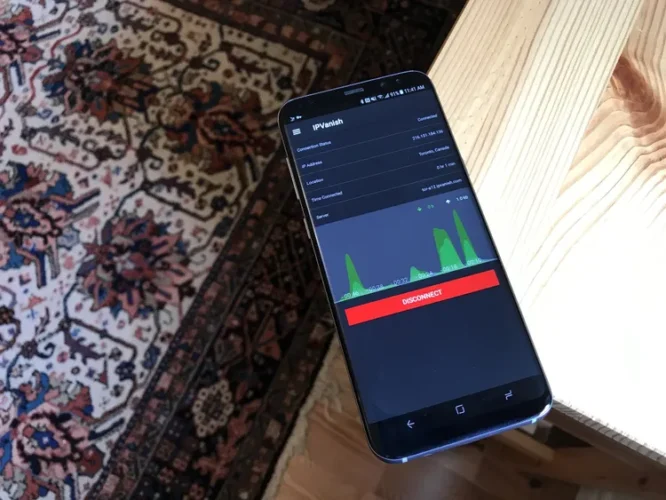
You can download IPVanish on Windows, macOS, Android, iPhone, iPad, Linux, Fire TV, Android TV, Apple TV, and several other platforms. Installation usually takes only a few minutes.
Windows and Mac users should download the installer from the official IPVanish website. Android, iPhone, iPad, and streaming-device users can install the app through their device’s official app store.

Access content across the globe at the highest speed rate.
🔥 Save 81% + 2 bonus months! 🔥
70% of our readers choose Private Internet Access
70% of our readers choose ExpressVPN
2
Browse the web from multiple devices with industry-standard security protocols.
🔥 Save 73%! 🔥

Faster dedicated servers for specific actions (currently at summer discounts)
🔥 Save 69%! 🔥
After installation, sign in with your IPVanish account, approve the requested VPN configuration, select a server, and connect. You need an active IPVanish subscription or eligible mobile trial to use the VPN.
Where to download IPVanish safely
The safest starting point is the official IPVanish apps page. It provides the correct installer or app-store link for each supported platform.
Avoid downloading IPVanish installers from unfamiliar software repositories, adverts, unofficial mirrors, or websites that imitate the brand. A modified VPN installer could monitor traffic, steal account details, or install unwanted software.
Mobile users should confirm that the app comes from IPVanish before installing it. The official Android package uses the IPVanish branding and links back to the company’s website.
| Device | Recommended download source | Installation type |
|---|---|---|
| Windows | Official IPVanish website | Desktop installer |
| macOS | Official IPVanish website | Desktop installer |
| Android | Google Play Store | Mobile app |
| iPhone and iPad | Apple App Store | Mobile app |
| Fire TV | Amazon Appstore | TV app |
| Android TV | Google Play Store | TV app |
| Apple TV | Apple TV App Store | TV app |
| Linux | Official IPVanish website | Linux app or manual configuration |
What you need before installing IPVanish
You need an IPVanish account and an active subscription before you can connect through most desktop applications. You can download the Windows or Mac installer before subscribing, but the app will ask you to sign in.
Mobile users may see a trial or in-app subscription option through Google Play or Apple’s App Store. App-store prices and terms may differ from the offers shown on the IPVanish website.
Before starting, make sure your operating system is updated and that you have permission to install applications. Work or school devices may block VPN installation through administrator policies.
- An active IPVanish account or eligible trial
- A supported device and operating system
- An internet connection for the download
- Administrator access on Windows or macOS
- Permission to add a VPN configuration on mobile devices
How to download IPVanish on Windows
IPVanish provides a dedicated Windows application with server selection, protocol controls, a kill switch, split tunnelling, Double Hop, and other supported features.
Download the installer directly from IPVanish rather than using a third-party download website. Close unnecessary applications before starting the installation.
- Open your browser and go to the official IPVanish website.
- Select Apps or VPN Apps from the site menu.
- Choose Windows.
- Click the button to download the Windows installer.
- Open the downloaded installation file.
- Approve the Windows security prompt when it appears.
- Follow the installer instructions.
- Open IPVanish after installation finishes.
- Enter your IPVanish username and password.
- Select a server and click Connect.
Approve the Windows installation prompts
Windows may ask whether you want to allow the installer to make changes to the device. IPVanish needs this approval to install its application, network components, and VPN connection services.
Check that the installer came from the official IPVanish website before approving it. You can also examine the file’s digital signature through its Windows properties.
After installation, Windows Firewall may display a network-access prompt. Only grant the permissions the app needs, and avoid disabling the firewall completely.
How to configure IPVanish on Windows
The IPVanish Windows app can select a recommended server automatically. This option normally provides the best balance of distance, available capacity, and connection speed.
You can also select a country, city, or individual server. WireGuard provides a suitable default protocol for most users because it offers fast performance and modern encryption.
After connecting, confirm that the app shows a new VPN IP address. You may also enable the kill switch to prevent traffic from leaving the encrypted connection if the VPN disconnects.
- Use the recommended location for the quickest setup.
- Select a nearby server for lower latency.
- Use WireGuard for general browsing and streaming.
- Enable the kill switch before sensitive activity.
- Configure automatic connections on untrusted Wi-Fi.
How to download IPVanish on a Mac
Mac users can download the IPVanish application from the company’s website. The installer may ask for an administrator password and permission to add a VPN configuration or system extension.
These prompts allow macOS to create and manage the encrypted network connection. The wording can vary according to the installed macOS version.
- Visit the official IPVanish website.
- Open the VPN Apps page.
- Select macOS.
- Download the Mac installer.
- Open the downloaded file from the Downloads folder.
- Follow the installation prompts.
- Enter the Mac administrator password when requested.
- Allow the VPN configuration or system extension.
- Open IPVanish from the Applications folder.
- Sign in and select Connect.
Allow IPVanish in macOS settings
Some macOS versions may block a newly installed network extension until the user approves it. IPVanish should show instructions when this happens.
Open System Settings and check the Privacy & Security or Network section for an approval request. The exact location depends on your version of macOS.
Do not approve an extension when the developer name or installation source looks unfamiliar. Return to the official installer when you cannot confirm the file’s origin.
How to download IPVanish on Android
The easiest way to install IPVanish on an Android phone or tablet is through the official IPVanish Google Play listing.
The Android app supports phones, tablets, Chromebooks with Google Play access, Android TV devices, and some Google TV products. Availability can vary by device and region.
- Open the Google Play Store.
- Search for IPVanish VPN.
- Confirm that you selected the official IPVanish application.
- Tap Install.
- Open the app after the download finishes.
- Sign in to your IPVanish account.
- Tap Connect.
- Approve Android’s VPN connection request.
- Select OK to establish the VPN connection.
Why Android asks for VPN permission
Android requires users to approve any application that creates a VPN connection. This system prompt allows IPVanish to route traffic through its encrypted tunnel.
The permission does not mean the app can bypass all Android security controls. It gives IPVanish access to manage the device’s VPN connection while the service is running.
Android usually displays a key or VPN icon when the connection becomes active. The IPVanish app should also show the selected server and assigned VPN address.
Can you install IPVanish with an APK?
IPVanish may offer a direct Android package for devices that cannot access Google Play. Manual installation is also known as sideloading.
Use an APK only when the official Play Store method does not work and download it directly from IPVanish. Never use modified, cracked, or repackaged VPN apps.
Sideloading requires Android to allow installations from the browser or file manager used to open the package. Disable that permission again after installing IPVanish.
- Download the official APK from IPVanish.
- Open Android Settings when prompted.
- Allow installations from the current browser or file manager.
- Return to the downloaded APK.
- Tap Install.
- Open IPVanish and sign in.
- Remove the installation permission from the browser or file manager.
How to download IPVanish on iPhone and iPad
IPVanish is available through the official Apple App Store listing for iPhone and iPad.
You can install the app without paying, but you need an IPVanish subscription or an eligible app-store trial before connecting to its VPN servers.
- Open the App Store on your iPhone or iPad.
- Search for IPVanish.
- Select the official IPVanish VPN app.
- Tap Get.
- Confirm the installation with Face ID, Touch ID, or your Apple Account password.
- Open the IPVanish app.
- Sign in with your account.
- Tap Connect.
- Select Allow when iOS asks to add a VPN configuration.
- Confirm the request with Face ID, Touch ID, or your passcode.
IPVanish permissions on iPhone
Apple requires permission before an app can add or modify a VPN configuration. This applies to all VPN applications distributed through the App Store.
After approval, iOS may display a VPN indicator while the connection is active. You can also view installed VPN configurations in the device’s network settings.
The IPVanish iOS app supports features including WireGuard, IKEv2, automatic connection rules, Threat Protection, split tunnelling for supported domains, and a kill switch.
How to install IPVanish on Fire TV
IPVanish offers a native application for Amazon Fire TV devices. You can install it directly from the Amazon Appstore without manually configuring a VPN protocol.
The app should work on supported Fire TV sticks, televisions, and streaming devices. Older hardware or unsupported operating-system versions may not offer the latest application.
- Open the Find or Search option on the Fire TV home screen.
- Search for IPVanish.
- Select the official IPVanish VPN app.
- Choose Download or Get.
- Open the app after installation.
- Sign in with your IPVanish account.
- Select a server location.
- Choose Connect.
- Approve the VPN connection request.
How to install IPVanish on Android TV and Google TV
Android TV and Google TV users can obtain IPVanish through Google Play. The television interface uses a simplified layout suitable for a remote control.
The setup process resembles the Android phone installation. Search for the app, install it, sign in, and approve the first VPN connection.
You can select a nearby server for better streaming performance or choose a different country when you need an IP address from that location.
How to install IPVanish on Apple TV
IPVanish provides an application for supported Apple TV devices. This removes the need to install the VPN on a router simply to protect Apple TV traffic.
- Open the App Store on Apple TV.
- Search for IPVanish.
- Select the official application.
- Choose Get.
- Open the app after installation.
- Sign in with your IPVanish credentials.
- Select a VPN location.
- Connect and approve the requested VPN configuration.
Apple TV does not offer every feature found in the Windows or Mac applications. The television app focuses primarily on server selection and VPN connectivity.
How to install IPVanish on Linux
IPVanish supports Linux through a graphical application and manual VPN configurations, depending on the distribution and current product availability.
The Linux setup may require more manual work than Windows, macOS, Android, or iOS. Users should follow the instructions for their specific distribution rather than applying commands intended for another Linux family.
The provider’s IPVanish download centre provides current platform options and setup resources.
- Check whether your Linux distribution supports the IPVanish app.
- Download the correct package for the distribution.
- Install it through the supported package manager.
- Sign in or import the required VPN configuration.
- Select WireGuard or OpenVPN when available.
- Confirm that DNS traffic uses the VPN connection.
How to install IPVanish on a router
A router installation protects compatible devices connected to the home network, including products that cannot run a VPN app directly.
Router setup is more complicated because the available options depend on the router model and firmware. Some ASUS-WRT, ASUSWRT-Merlin, and DD-WRT devices support manual IPVanish configurations.
Installing incompatible firmware can damage a router or disconnect the network. Check the exact model and hardware revision before following a setup guide.
- Confirm that your router supports a compatible VPN client.
- Back up the existing router configuration.
- Download the required IPVanish configuration files.
- Sign in to the router’s administration page.
- Open the VPN client settings.
- Import or enter the IPVanish configuration.
- Enter the required VPN credentials.
- Save the profile and connect.
- Check the public IP address from a connected device.
How to download IPVanish on multiple devices
IPVanish allows unlimited simultaneous personal connections. You can install it on multiple computers, phones, tablets, and streaming devices under the same subscription.
Repeat the relevant installation process on each device and sign in with the same account. You do not need to buy another subscription simply because you add another personal device.
https://cdn.jwplayer.com/previews/p1UXEXOr
Each device can connect to a different server. For example, a laptop can use a nearby server while a television uses a server in another country.
How to connect after installing IPVanish
The fastest approach is to let IPVanish select a recommended or optimal server. This normally chooses a suitable server based on location and current performance.
- Open IPVanish.
- Sign in to your account.
- Choose the recommended server or select a location manually.
- Tap or click Connect.
- Approve the VPN request when prompted.
- Wait for the app to show Connected.
- Check the displayed VPN IP address.
Keep the application open during the first connection so you can respond to any system permission or firewall prompt.
Which IPVanish protocol should you use?
Most users should start with WireGuard. It generally offers the best balance of speed, security, and battery efficiency.
| Protocol | Recommended use |
|---|---|
| WireGuard | Everyday browsing, streaming, downloading, and gaming |
| OpenVPN UDP | Secure connections with good performance |
| OpenVPN TCP | Networks where reliability matters more than speed |
| IKEv2/IPSec | Mobile devices that switch between Wi-Fi and cellular networks |
Protocol availability varies by operating system. The IPVanish app may automatically hide options that the current platform does not support.
How to enable the IPVanish kill switch
A kill switch blocks internet traffic if the VPN disconnects unexpectedly. It prevents the device from silently returning to its normal unencrypted connection.
Open the application settings and look for Kill Switch. Enable it before using public Wi-Fi, downloading files, or performing activities where IP exposure would create a problem.
The control works differently across platforms. Test it by connecting to the VPN, opening a webpage, and manually disconnecting the VPN to confirm that traffic stops as expected.
IPVanish will not install on Windows
A Windows installation may fail when an older IPVanish version remains on the system, an antivirus product blocks the installer, or the user lacks administrator privileges.
- Restart Windows and run the installer again.
- Remove an older IPVanish installation first.
- Download a fresh copy from the official website.
- Right-click the installer and select Run as administrator.
- Install pending Windows updates.
- Check whether organisational policies block VPN software.
Do not permanently disable antivirus or firewall protection. When security software blocks the official installer, verify the file and create only the minimum temporary exception required.
IPVanish will not connect on Android
Android may fail to display the connection request when an old VPN configuration or damaged application data remains on the device.
- Open Android Settings.
- Select Network & Internet or Connections.
- Open VPN.
- Remove an old IPVanish configuration if one appears.
- Go to Apps and select IPVanish.
- Open Storage & cache.
- Clear the cache and app data.
- Restart the device.
- Open IPVanish and connect manually.
- Approve the new VPN permission request.
Reinstall the app from Google Play when clearing its data does not solve the problem.
IPVanish will not connect on iPhone or iPad
Connection problems on iOS can result from an outdated VPN profile, network restrictions, or a temporary app error.
- Force-close and reopen IPVanish.
- Switch between Wi-Fi and mobile data.
- Choose a different server.
- Change the VPN protocol in the app.
- Remove the old VPN configuration from iOS settings.
- Restart the device and approve a new VPN profile.
- Update IPVanish through the App Store.
Resetting all network settings should remain a later troubleshooting step because it removes saved Wi-Fi networks and other network preferences.
Is the IPVanish download free?
You can download the IPVanish application without paying. However, connecting to IPVanish servers requires a paid subscription or an eligible trial.
The iOS and Android stores may offer a mobile trial. Trial terms vary and may convert automatically to a paid subscription unless the user cancels through the app store.
Compare the website and app-store prices before purchasing. App-store billing can include different plans, trial conditions, and cancellation procedures.
Is IPVanish safe to download?
IPVanish is safe to download when you obtain it from the company’s official website or the recognised app store for your device.
The official Android IPVanish app and the desktop installers create an encrypted VPN connection and require standard system permissions to operate.
The main download risk comes from unofficial installers. Check the publisher, website domain, app reviews, package name, and requested permissions before proceeding.
What permissions does IPVanish need?
A VPN must receive permission to create a network connection and route device traffic through it. Windows and macOS may also request administrator approval to install network services.
Android and iOS show a dedicated VPN configuration prompt during the first connection. Accepting it allows the application to create the encrypted tunnel.
These requests should appear only after installing the official app. Cancel the process when an unfamiliar installer requests unrelated permissions or system access.
How to uninstall IPVanish
You can remove IPVanish like another application, but you may also need to delete its VPN configuration.
| Platform | Uninstall method |
|---|---|
| Windows | Settings > Apps > Installed apps > IPVanish > Uninstall |
| macOS | Applications > IPVanish > Move to Bin, then follow its removal instructions |
| Android | Settings > Apps > IPVanish > Uninstall |
| iPhone and iPad | Press and hold the app icon, then select Remove App |
| Fire TV | Settings > Applications > Manage Installed Applications |
Deleting the app does not automatically cancel a paid subscription. Cancel website subscriptions through your IPVanish account and mobile subscriptions through Google Play or Apple’s App Store.
Final IPVanish download advice
Installing IPVanish is straightforward on most supported devices. Desktop users should use IPVanish’s official installers, while mobile and television users should choose their platform’s trusted app store.
After installation, sign in, approve the VPN configuration, select a nearby server, and enable the kill switch where available.
The IPVanish iPhone and iPad app, Android app, and desktop clients share the same core purpose, but their features and settings differ. Review the controls on every device rather than assuming each app works identically.
FAQ
Download IPVanish for Windows, macOS, and Linux from the official IPVanish website. Use Google Play for Android, the Apple App Store for iPhone, iPad, and Apple TV, and the Amazon Appstore for Fire TV.
Yes, the IPVanish application is free to download. You need a paid subscription or an eligible mobile trial to connect to its VPN servers.
Download the Windows installer from IPVanish, open the file, approve the administrator prompt, follow the installation steps, and sign in. Select a server and click Connect after the app opens.
Open Google Play, search for IPVanish VPN, select the official app, and tap Install. Open the app, sign in, tap Connect, and approve Android’s VPN connection request.
Yes. IPVanish allows unlimited simultaneous personal device connections, so you can install it on supported computers, phones, tablets, televisions, and streaming devices under one account.
Yes. Search for IPVanish in the Amazon Appstore on your Fire TV, download the official app, sign in, choose a server, and approve the VPN connection request.
The permission allows IPVanish to create an encrypted VPN tunnel and route internet traffic through it. Android, iOS, macOS, and other operating systems require users to approve this change.


Read our disclosure page to find out how can you help VPNCentral sustain the editorial team Read more


Improve this guide

User forum
0 messages