
Windows Reportedly Installs LG Monitor App That Shows McAfee Ads


 7 min. read
  Published on
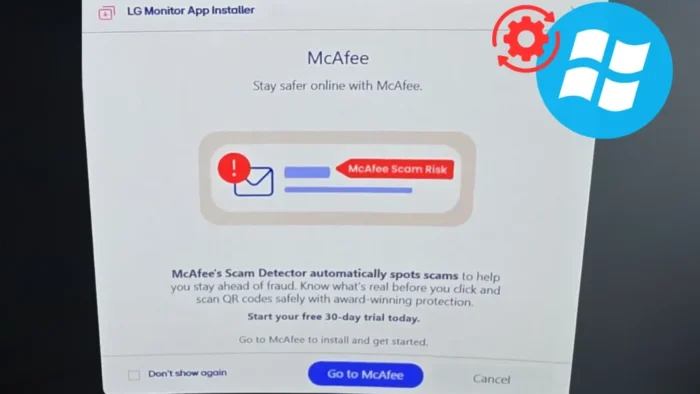
Windows users are raising concerns after an LG monitor-related app reportedly appeared on PCs through a background Microsoft Store or Windows device setup process and displayed a McAfee promotion.
The issue gained attention after a user on Reddit said the “LG Monitor App Installer” appeared without manual installation and then showed a pop-up advertising McAfee, even though McAfee was not installed on the device.

Access content across the globe at the highest speed rate.
70% of our readers choose Private Internet Access
70% of our readers choose ExpressVPN

Browse the web from multiple devices with industry-standard security protocols.

Faster dedicated servers for specific actions (currently at summer discounts)
A Tom’s Hardware report also covered the complaints, noting that the app appeared after a user connected a new LG monitor and that similar concerns have appeared around other device companion apps.
What users reported
The reported behavior centers on LG Monitor App Installer, a Microsoft Store app connected to LG monitor software. The store listing says the app helps users install and use apps supported by their monitor, and it also references McAfee installation from inside the listing.
The controversy is not only that the app exists. The concern is that users say it appeared without a clear opt-in and used its first interaction to promote antivirus software rather than monitor controls or setup features.
The Microsoft Store listing for LG Monitor App Installer describes it as a free app from LG Electronics, which helps explain why Windows may treat it as hardware-related software rather than a random third-party download.
| Reported item | Details | Why it matters |
|---|---|---|
| App name | LG Monitor App Installer | Users may not recognize why it appeared on their PC |
| Distribution path | Microsoft Store or Windows device metadata process | It can look like a Windows Update event to users |
| Advertisement | McAfee promotion | Security software ads can be mistaken for system warnings |
| User concern | No obvious consent prompt | Silent companion app installs reduce trust |
How Windows can install device-related apps
Windows includes mechanisms that let device makers associate software with hardware metadata. This can help users get companion apps for monitors, printers, cameras, headsets, GPUs, and other peripherals.
Microsoft documents a policy named “Prevent automatic download of applications associated with device metadata.” The Microsoft DeviceInstallation policy says enabling the setting stops Windows from downloading apps associated with device metadata for installed devices.
That policy does not prove what happened in every user’s case, but it explains the underlying Windows behavior that users and admins are pointing to. If the setting remains disabled or unconfigured, Windows may use the device installation settings path to retrieve associated apps.
Why users are upset
Hardware companion software can be useful when it adds firmware updates, display controls, color profiles, diagnostics, or accessibility settings. The problem starts when the user sees an unexpected promotional pop-up before any clear value from the app.
Security software ads are especially sensitive because they can resemble scareware or potentially unwanted program behavior. Even when the app comes from a legitimate store listing, an unexpected antivirus promotion can confuse users and damage trust.
In the original user report, the poster said they did not have McAfee installed and that the pop-up came from LG Monitor App Installer. That distinction matters because the complaint focuses on the LG app promoting McAfee, not McAfee already running on the machine.
- Users may not notice when device companion apps install in the background.
- Promotional security pop-ups can look like system alerts.
- Hardware buyers may expect driver support, not advertising.
- Store-delivered apps can appear after device setup or Windows background activity.
- Administrators may need policy controls to stop unwanted companion apps.
How to check if the app was installed
Users can first check Settings, then Apps, then Installed apps for “LG Monitor App Installer.” They can also open Task Manager and check the Startup apps section to see whether the app runs at sign-in.
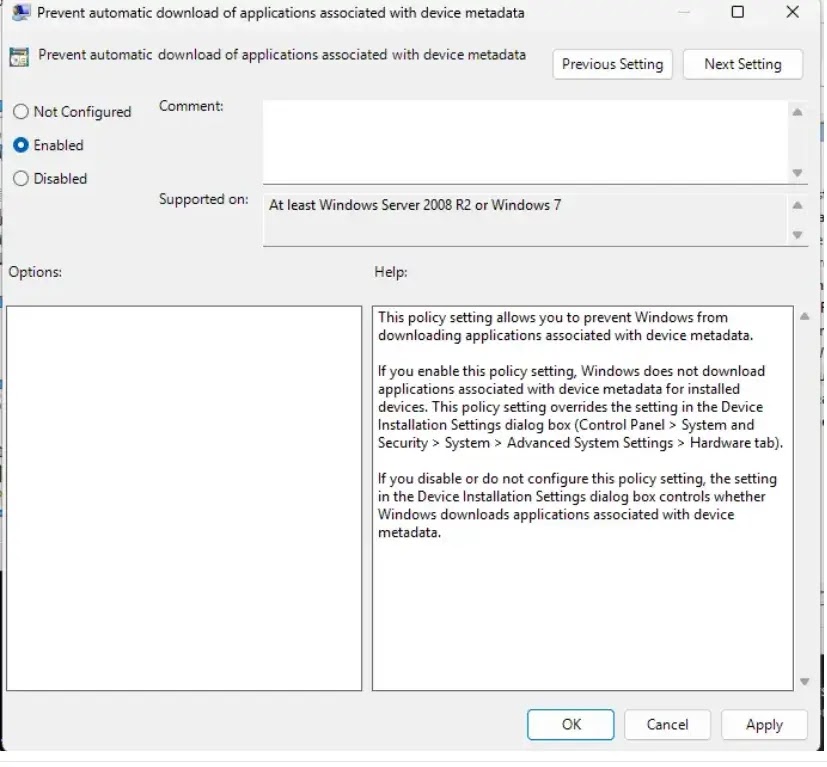
Windows Reliability Monitor can help show when an app appeared. Press Windows + R, type perfmon /rel, and review the timeline for installation events or Microsoft Store activity around the time the monitor was connected or Windows updated.
The Tom’s Hardware coverage also notes that users connected the behavior to the Microsoft Store and device-related auto-installation rather than a manual download from LG’s website.
| Where to check | What to look for | Action |
|---|---|---|
| Installed apps | LG Monitor App Installer | Uninstall if you do not want it |
| Task Manager | Startup entry for LG software | Disable startup if it keeps launching |
| Reliability Monitor | Store or app installation events | Confirm approximate install time |
| Microsoft Store library | Recently installed apps | Review Store-delivered software |
How to stop similar automatic app downloads
Windows Pro, Enterprise, and Education users can use Group Policy to reduce the chance of device companion apps downloading automatically. The relevant setting sits under Computer Configuration, Administrative Templates, System, Device Installation.
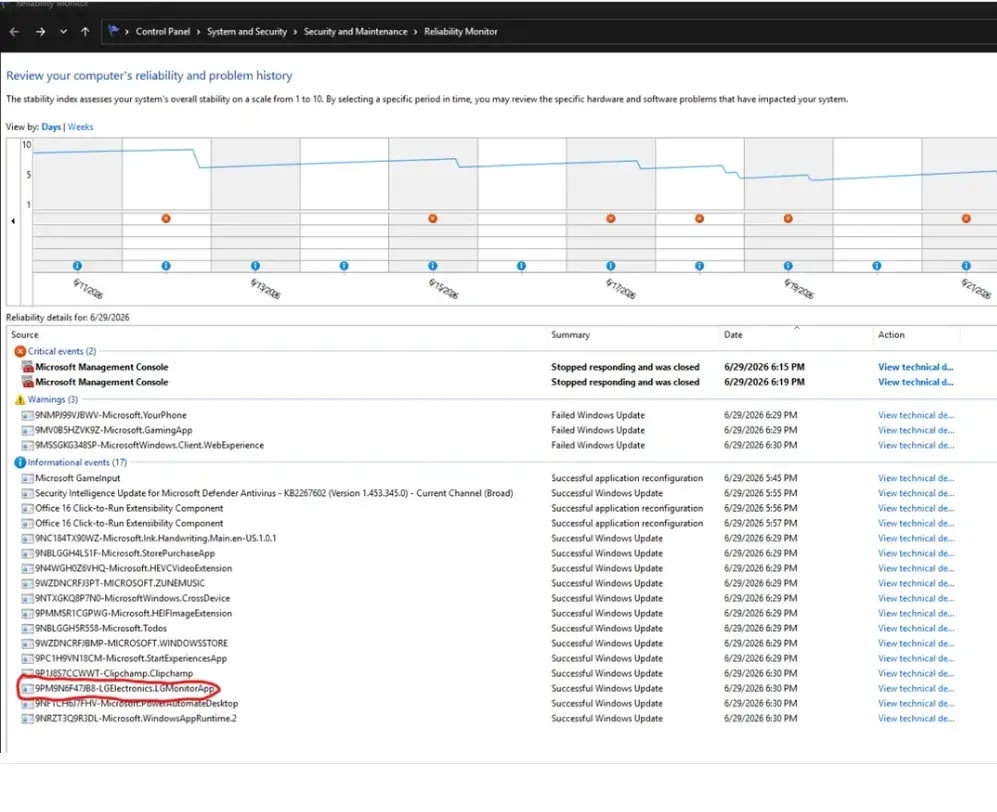
The policy name is “Prevent automatic download of applications associated with device metadata.” Microsoft’s documentation says enabling it prevents Windows from downloading applications associated with device metadata for installed devices.
The same setting appears in the DeviceInstallation CSP for managed environments, with the registry value PreventDeviceMetadataFromNetwork under SOFTWARE\Policies\Microsoft\Windows\Device Metadata.
- Open the Start menu and search for Edit group policy.
- Go to Computer Configuration.
- Open Administrative Templates.
- Go to System, then Device Installation.
- Enable “Prevent automatic download of applications associated with device metadata.”
- Restart the PC or run a policy refresh.
- Review installed apps and remove any unwanted companion software.
What this means for businesses
For home users, the issue may feel like unwanted bloatware. For businesses, it creates a device management concern because background companion apps can add pop-ups, startup entries, telemetry, or support components outside the normal software approval process.
IT teams should decide whether hardware companion apps are allowed, then enforce that decision through Group Policy, MDM, Microsoft Store controls, app inventory tools, and endpoint management policies.
Organizations should also review devices that trigger automatic companion apps, including monitors, gaming peripherals, cameras, printers, and vendor utilities tied to PCs or motherboards.
Is the LG app malware?
There is no public evidence in the reports reviewed here that LG Monitor App Installer behaves as malware. The concern is unwanted installation and advertising, not a confirmed compromise or exploit.
Still, users can reasonably treat unexpected security software promotions as unwanted behavior. Pop-ups that advertise antivirus tools can train users to click security-themed prompts, which creates a separate trust problem.
The LG Monitor App Installer page in the Microsoft Store shows the app’s official store presence, but users who do not want the companion tool can remove it like other Store apps.
The bigger issue
This incident highlights a broader problem in Windows device setup. Automatic companion apps can help users manage hardware, but they need clearer consent, better notification, and stricter limits on advertising.
When a monitor triggers a pop-up for antivirus software, users may not see a helpful setup experience. They may see another example of paid hardware turning into a channel for software promotion.
Microsoft and hardware vendors can reduce frustration by making device app installation more transparent, offering simple opt-outs, and separating driver delivery from promotional companion tools.
FAQ
LG Monitor App Installer is a Microsoft Store app from LG Electronics that is associated with LG monitor software. Users reported that it appeared automatically and displayed a McAfee promotion.
The reports reviewed say McAfee was not installed. Users said LG Monitor App Installer showed an advertisement for McAfee, which is different from McAfee being installed on the PC.
Windows can download apps associated with device metadata for installed hardware. If an LG monitor is connected, Windows may retrieve an associated companion app through the Microsoft Store or device setup process.
On supported Windows editions, enable the Group Policy setting named “Prevent automatic download of applications associated with device metadata” under Computer Configuration, Administrative Templates, System, Device Installation.
Open Settings, go to Apps, then Installed apps, search for LG Monitor App Installer, and uninstall it. You can also check Task Manager startup entries and disable related LG startup items if they remain.


Read our disclosure page to find out how can you help VPNCentral sustain the editorial team Read more


Improve this guide


User forum
0 messages