
Fix: NordVPN Login Failed [15 Easy Workarounds]
Clear any underlying issues and regain access to your favorite VPN.


 6 min. read
  Updated on
Are you experiencing the NordVPN login failed error? If so, I’ll help you fix it shortly.
The problem locks you out of the VPN, making it challenging to secure your online security. Having been there before, I managed to find three solutions that work.

Access content across the globe at the highest speed rate.
🔥 Save 81% + 2 bonus months! 🔥
70% of our readers choose Private Internet Access
70% of our readers choose Private Internet Access
2
Browse the web from multiple devices with industry-standard security protocols.
🔥 Save 73%! 🔥

Faster dedicated servers for specific actions (currently discounted)
🔥 Save 69%! 🔥
But let’s kick-start things by troubleshooting the issue. That way, you’ll have an upper edge in resolving future occurrences.
Why does my NordVPN fail to authenticate login requests?
NordVPN may fail to authenticate your login requests due to several issues, mainly poor connectivity. An unstable internet can break security checks, causing the service to restrict access.
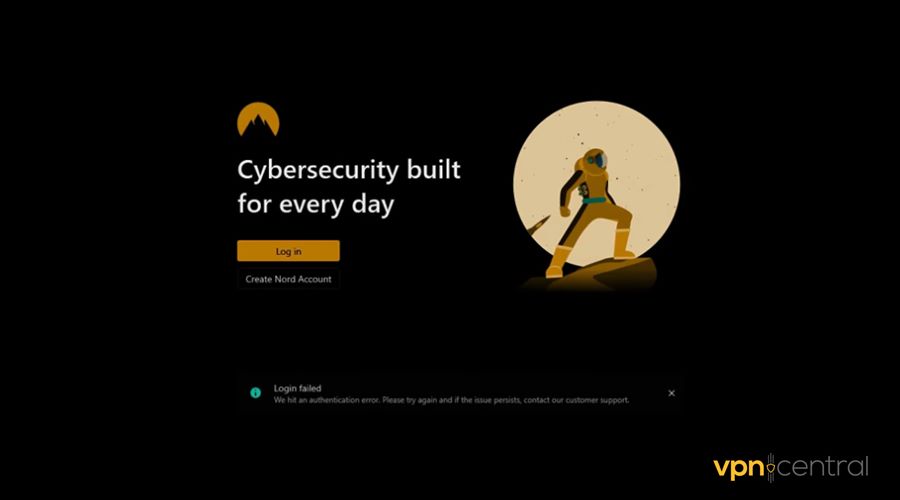
NordVPN’s server-side challenges are a potential cause for failed sign-in attempts. It’s likely to happen if the vendor performs maintenance tasks, leading to disruptions.
Corrupt executable VPN files can also interfere with the fictionality of NordVPN. They may contain outdated data and misconfigurations, which can break login requests.
Fortunately, this problem is easy to resolve!
NordVPN login failed – Fixed
Below are multiple solutions to clear login issues on NordVPN. Follow the step-by-step guides to address the problem.
1) Check your connection
Start by checking your internet connection for faults. You can do this using an online speed check.
Here’s how:
- Go to Speedtest.net or Fast.com and run the check.
- Wait for a few seconds for the test to complete.
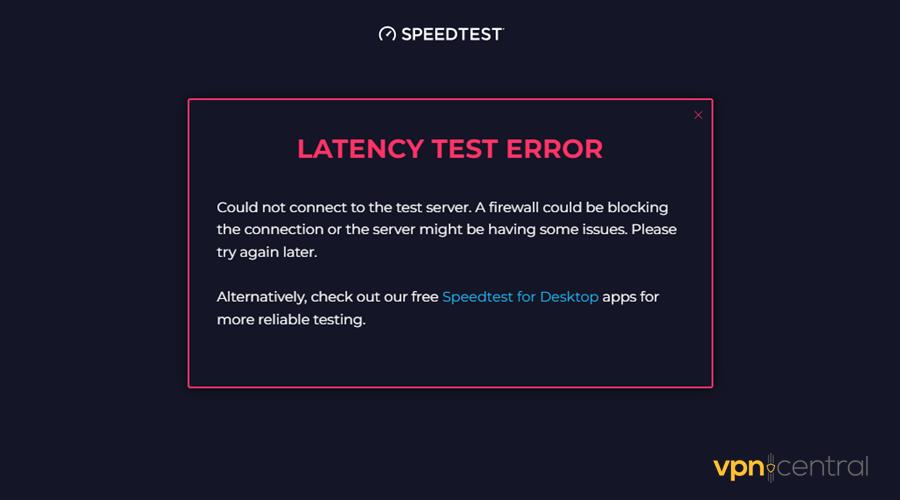
- Audit the results for any inconsistencies.
A successful test will include indicators like upload, download, and latency/ping. However, any missing metric highlights an issue with your internet.
You can reboot your router, switch to a wired connection, or temporarily switch service providers. After making the recommended changes, retry signing into NordPVN.
2) Reset your password
Changing your password is one way to clear NordVPN’s login issues. It resets stored authentication tokens and invalidates your previous login sessions.
Follow these steps:
- Go to NordVPN’s website and select Log In.
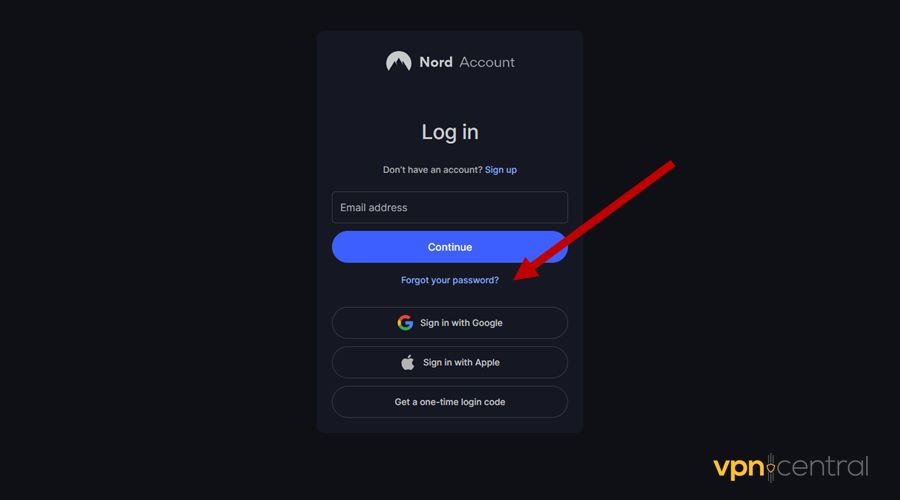
- Choose the Forgot Password option to reset it.
- Provide your email address.
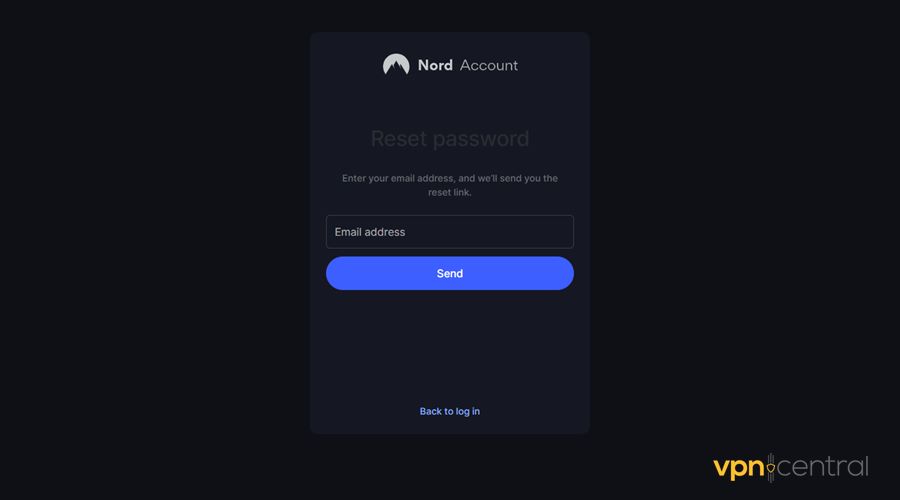
- Check your email inbox for NordVPN’s password reset email.
The measure forces NordVPN to establish a fresh connection with updated credentials. Doing so makes it easy to regain access and use the VPN service.
3. Clear NordVPN’s Cache and App Data
Corrupted local files may prevent successful login.
On Windows:
- Close NordVPN completely (check Task Manager).
- Press
Win + R, type%AppData%, and press Enter. - Delete the
NordVPNfolder inside. - Then go to
C:ProgramDataNordVPNand delete that folder too.
On macOS:
- Go to
~/Library/Application Support/and delete theNordVPNfolder. - You may also want to check
~/Library/Preferencesfor NordVPN-related files.
4. Check Your Device Limit
NordVPN limits users to six simultaneous device connections. If you’re at the limit, new logins may silently fail.
- Log into your account at nordaccount.com
- Go to the Devices section and remove any unused or old devices
- Then try logging in again on your current device
5. Try the Browser Extension
If the desktop app fails, try logging in through the NordVPN browser extension. It uses a different login flow that sometimes works even when the main app doesn’t.
- Install the extension for Chrome or Firefox
- Log in using your Nord account
- Test your connection from the browser
6. Change DNS Settings
Your ISP’s DNS might block or interfere with NordVPN connections, including logins.
To fix this:
- Go to your network adapter settings
- Set custom DNS addresses:
- Primary: 1.1.1.1 (Cloudflare)
- Secondary: 8.8.8.8 (Google)
- Save and reconnect to the internet
7. Use the Command Line Login
Sometimes the graphical user interface has issues, but the CLI login works fine.
On Windows or macOS:
- Open a command prompt (Windows) or terminal (macOS)
- Type:
nordvpn login - This will open a browser window for you to authenticate
- Once logged in, you can control the VPN via CLI or switch back to the app
8. Reinstall NordVPN
If you haven’t already tried this, a clean reinstall can often solve hidden issues.
- Uninstall NordVPN completely
- Delete leftover folders:
- Windows:
%AppData%NordVPNandC:ProgramDataNordVPN - macOS:
~/Library/Application Support/NordVPN
- Windows:
- Reboot your system
- Download and install the latest version from the official site
A fresh installation ensures that all program files are intact and correctly configured. It also restores proper communication with NordVPN servers, eliminating login failures.

NordVPN
Protect your online security and privacy with this reliable VPN service.9. Manually Connect Using OpenVPN or IKEv2
If the app continues to fail, you can bypass it entirely and connect manually.
Steps:
- Log into your Nord Account at nordaccount.com
- Go to Manual Setup and download the OpenVPN configuration files
- Set up a connection using a VPN client like OpenVPN GUI (Windows) or Tunnelblick (macOS)
- Use your NordVPN service credentials (found in your dashboard) to log in manually
10. Disable Proxy Settings or Conflicting VPN Software
System-wide proxy settings or other VPN clients can block NordVPN from connecting or logging in.
On Windows:
- Go to Settings > Network & Internet > Proxy
- Make sure “Use a proxy server” is turned off
On macOS:
- Go to System Preferences > Network > Advanced > Proxies
- Uncheck any enabled proxy settings
Also, uninstall or disable any other VPN software to avoid conflicts.
11. Check for Firewall or Antivirus Interference
Some firewall or antivirus tools can block NordVPN’s login servers.
- Temporarily disable your antivirus and firewall
- Try logging in again
- If it works, add NordVPN to the exceptions list in your security software
12. Check for System Time and Date Mismatch
An incorrect system clock can cause authentication errors.
- Make sure your system’s date, time, and time zone are set correctly
- Enable automatic time sync if available
- Restart NordVPN and try logging in again
13. Try a Different Network
If your current network (especially public Wi-Fi or work networks) blocks VPN traffic, it can prevent login.
- Try connecting to a mobile hotspot or a different Wi-Fi network
- Then attempt to log in again
14. Create a New User Profile on Your OS
Sometimes the user account itself on your computer can have conflicting settings.
- Create a new local user profile on Windows or macOS
- Install NordVPN under that profile
- Try logging in from the clean environment
15. Contact NordVPN Support
If nothing else works, the issue may be tied to your specific account or region.
- Visit https://support.nordvpn.com
- Use the 24/7 live chat to explain the steps you’ve tried
- They can check for backend issues, reset your device list, or help with regional restrictions
Wrapping up
Encountering the NordVPN login failed error can be annoying. The good thing is the problem is so easy to fix.
Since communication glitches cause this, start by checking your internet connection. Resetting your password is another remedy for clearing any underlying issues.
Overall, consider reinstalling NordVPN, especially if the problem persists. It clears app-related glitches and forces the service to reestablish login afresh.


Read our disclosure page to find out how can you help VPNCentral sustain the editorial team Read more


Improve this guide




User forum
2 messages