
How to Fix EA App Not Working With VPN


 4 min. read
  Published on

Many players use a VPN with the EA App for early game unlocks, cheaper prices, or better server connections. But EA App often breaks when a VPN is on.
This happens because of blocked IPs, region mismatches, or network conflicts. Follow these step-by-step fixes to get EA App working smoothly again.

Access content across the globe at the highest speed rate.
🔥 Save 81% + 2 bonus months! 🔥
70% of our readers choose Private Internet Access
70% of our readers choose ExpressVPN
2
Browse the web from multiple devices with industry-standard security protocols.
🔥 Save 73%! 🔥

Faster dedicated servers for specific actions (currently at summer discounts)
🔥 Save 69%! 🔥
Table of contents
Why EA App Fails With VPN
- Blocked VPN IPs: EA blocks many shared or free VPN servers.
- Location mismatch: If your VPN region does not match your EA account or billing info, logins may fail, and it can also affect how you access the cheapest country for EA Play Pro.
- Anti-fraud checks: VPN usage can trigger extra security, preventing you from connecting.
- Network conflicts: Some VPNs disrupt EA’s updates or authentication servers.
Step 1. Close Everything First
- Exit EA App completely.
- Quit your VPN app.
- Save your work, since you will restart the PC later.
Step 2. Clear EA App Cache
Option A (built-in):
- Open EA App → Help → App Recovery → Clear Cache.
- EA App restarts.
Option B (manual):
- Press Windows + R, type
%AppData%, press Enter. - Delete the Cache folder inside
Electronic Arts → EA Desktop. - Do the same in
%LocalAppData%\Electronic Arts\EA Desktop.
Step 3. Reset Network and DNS
- Open Command Prompt as administrator.
- Type these commands, one by one:
ipconfig /flushdns
ipconfig /release
ipconfig /renew
netsh winsock reset- Restart your PC.
Step 4. Change Your VPN Provider
Sometimes the problem is not your setup, it is the VPN itself. Free or cheap VPNs recycle IPs that EA already blocks. To avoid this, switch to a premium provider.
Recommended option: NordVPN
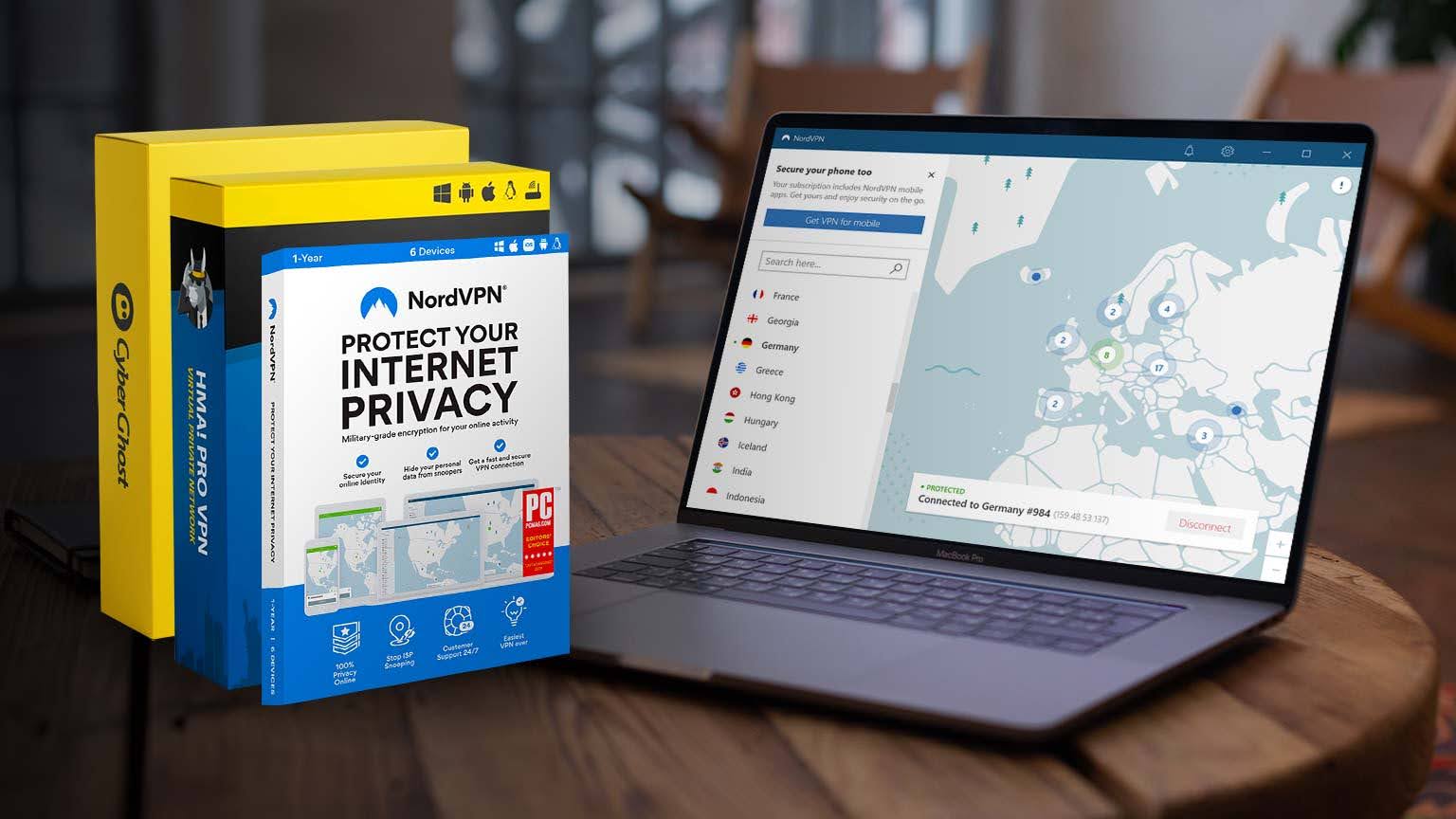
NordVPN works best with EA App because it refreshes IPs often, uses the fast NordLynx (WireGuard) protocol, includes split tunneling on Windows, and offers obfuscated servers that hide VPN traffic from EA.
Do this:
- Sign up for NordVPN here.
- Download and install the NordVPN desktop app.
- Open the app and go to Settings → Auto-connect, then choose NordLynx as your protocol.
- In Split tunneling, add EA App (EADesktop.exe) to “Do not use VPN.”
- Add your game executable to “Use VPN.”
- Connect to a New Zealand server for early unlocks, or the closest server for smooth online play.
This setup makes EA App log in normally while your game benefits from VPN routing.

NordVPN
Get NordVPN now for smooth EA App gaming!Step 5. Use Split Tunneling
- In your VPN, find Split tunneling / App bypass.
- Add EA App (EADesktop.exe) to Bypass VPN.
- Add your game executable to Use VPN.
- If Steam or Epic launches the EA game, add them to Use VPN too.
Step 6. Connect in the Right Order
- Open NordVPN and connect to a server:
- For early unlocks: choose a New Zealand server.
- For better ping: choose the closest NordVPN server to your region.
- Once NordVPN is connected, open EA App.
- Sign in.
- Check Library.
- Launch your game.
If it fails, switch to another NordVPN server and repeat.
Step 7. Fix Common Errors
- Login or update stuck? → Clear cache again.
- Infinite loading? → Disable VPN ad or tracker blockers.
- EA App will not load but game works? → Keep EA App bypassed, only route game via VPN.
- Still blocked? → Log in once without VPN, close app, reconnect VPN, try again.
Step 8. Reinstall EA App (Last Resort)
- Uninstall EA App.
- Delete leftovers:
%ProgramData%\EA Desktop- Both cache folders from Step 2
- Restart PC and reinstall EA App.
FAQs
Because EA blocks many VPN IPs and checks your location for purchases and security.
Yes. Use split tunneling to bypass EA App but keep the game traffic inside VPN.
Yes, usually. Free VPNs use blocked IPs. Paid VPNs like NordVPN rotate IPs and have stealth servers that reduce detection.
Not always, but if you switch VPN regions and EA App will not log in, clearing cache usually fixes it.
Conclusion
EA App often fails with VPN because of blocked IPs, mismatched regions, or network conflicts. You can fix most issues by clearing the cache, resetting DNS, adjusting VPN settings, or switching to a better VPN with fresh IPs. If problems continue, use split tunneling or reinstall EA App for a clean start.


Read our disclosure page to find out how can you help VPNCentral sustain the editorial team Read more


Improve this guide


User forum
0 messages