
How to Fix Ubisoft Connect Not Working With VPN (Quick Steps)


 5 min. read
  Updated on
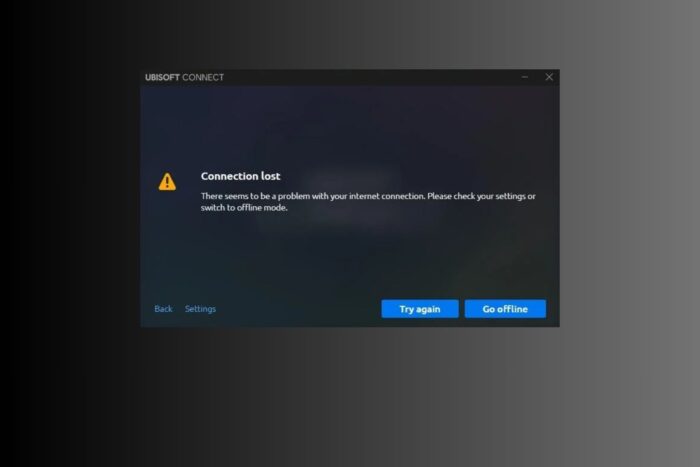
Ubisoft Connect not working with VPN can be a major headache for PC gamers who rely on VPNs for privacy, stability, or access to content. When this happens, you might see errors like “A Ubisoft service is not available at the moment,” failed downloads, or frequent disconnects. These issues usually occur because Ubisoft blocks certain VPN IPs, the VPN alters game traffic, or local network settings interfere with the launcher.
The good news is you do not have to choose between gaming and your VPN. Use the fixes below to restore access and keep your games running smoothly.

Access content across the globe at the highest speed rate.
🔥 Save 81% + 2 bonus months! 🔥
70% of our readers choose Private Internet Access
70% of our readers choose ExpressVPN
2
Browse the web from multiple devices with industry-standard security protocols.
🔥 Save 73%! 🔥

Faster dedicated servers for specific actions (currently at summer discounts)
🔥 Save 69%! 🔥
Table of contents
- How Do I Fix Ubisoft Connect Not Working With VPN?
- 1) Configure Split Tunneling and Kill Switch
- 2) Disable IPv6 and Use IPv4 Only
- 3) Reset Your Network Stack
- 4) Turn Off Proxy Settings
- 5) Whitelist Ubisoft in Firewall and Antivirus
- 6) Update Network Drivers and Reinstall Ubisoft Connect
- 7) Change DNS Servers
- 8) Test With a Different Network
- 9) Clear Ubisoft Cache and Logs
- 10) Reinstall the VPN or Switch Protocol
- 11) Try a Different VPN Provider
- Keep Ubisoft and VPN Working Together
- FAQs
How Do I Fix Ubisoft Connect Not Working With VPN?
1) Configure Split Tunneling and Kill Switch
Some VPNs block app traffic when connections change, which can break Ubisoft Connect. Set routing rules so the launcher is not interrupted.
- Open your VPN settings.
- Find split tunneling.
- Exclude Ubisoft Connect and game executables from the VPN route or route only these apps through the VPN as needed.
- Check the kill switch and ensure Ubisoft apps are not cut off.
- Switch to a different VPN server if the current IP is blocked.
2) Disable IPv6 and Use IPv4 Only
Some users report more reliable Ubisoft connections over IPv4.
- Press Windows + R, type
ncpa.cpl, and press Enter. - Right click your active adapter and choose Properties.
- Uncheck Internet Protocol Version 6 (TCP/IPv6).
- Click OK and restart your PC.
3) Reset Your Network Stack
Corrupt DNS or TCP/IP settings can stop the launcher from authenticating.
ipconfig /flushdns
ipconfig /renew
netsh int ip reset resetlog.txt
netsh winsock reset
Run the commands in an elevated Command Prompt, then restart your PC.
4) Turn Off Proxy Settings
Stacking a proxy on top of a VPN often causes conflicts.
- Open Control Panel and select Internet Options.
- Go to the Connections tab and click LAN settings.
- Uncheck “Use a proxy server for your LAN.”
- Apply changes and try Ubisoft Connect again.
5) Whitelist Ubisoft in Firewall and Antivirus
Firewalls can silently block launcher traffic.
- Open Windows Security and choose Firewall & network protection.
- Click Allow an app through firewall.
- Add UbisoftConnect.exe and UbisoftGameLauncher.exe to private and public lists.
- Add exceptions inside any third-party antivirus as well.
6) Update Network Drivers and Reinstall Ubisoft Connect
Outdated drivers or a corrupt client can trigger connection failures.
- Open Device Manager and expand Network adapters.
- Right-click your adapter and select Update driver.
- Install the latest driver from the manufacturer if available.
- Uninstall Ubisoft Connect and reinstall a clean copy from the official site.
7) Change DNS Servers
Reliable DNS can speed up and stabilize authentication.
- Open Network & Internet settings and click Change adapter options.
- Right click your connection and select Properties.
- Highlight Internet Protocol Version 4 (TCP/IPv4) and click Properties.
- Use the following DNS servers: 8.8.8.8 and 8.8.4.4 or 1.1.1.1 and 1.0.0.1.
- Click OK and reboot.
8) Test With a Different Network
If Ubisoft Connect works on a hotspot or another Wi Fi, your router or ISP is likely interfering and needs adjustments.
9) Clear Ubisoft Cache and Logs
Corrupted cache can block login and update services.
- Exit Ubisoft Connect completely.
- Press Windows + R, type
%localappdata%, and press Enter. - Open the Ubisoft Game Launcher folder.
- Delete the cache folder.
- Launch Ubisoft Connect and sign in again.
10) Reinstall the VPN or Switch Protocol
Bad installs or mismatched protocols can break sessions.
- Uninstall your VPN app and reinstall the latest version.
- In VPN settings, toggle between UDP and TCP.
- Test Ubisoft Connect after each change.
11) Try a Different VPN Provider
Some IP ranges are heavily flagged. If you have tried everything and the launcher still fails, switch to a VPN with strong gaming support, split tunneling, many server options, and low latency. It can also help with region access in titles covered by the Rainbow Six Siege VPN guide, and it may help you get cheaper game prices by purchasing in regions with better deals.
Keep Ubisoft and VPN Working Together
Most issues come from blocked IPs, strict firewall rules, or clashing network settings. With routing tweaks, a clean network stack, and a VPN that plays nice with game launchers, you can keep privacy and smooth gameplay at the same time.
FAQs
Ubisoft typically blocks suspicious IP ranges rather than individual accounts. Region switching against local terms could lead to restrictions, so always follow the rules for your region.
Many VPN IPs are flagged or blocked. Split tunneling, a different protocol, or a different server usually fixes it.
Split tunneling, multiple server locations, fast nearby routes, and a reliable kill switch that does not cut trusted apps.
Yes. Using fast, reliable DNS like Google or Cloudflare can speed up lookups and reduce connection issues.


Read our disclosure page to find out how can you help VPNCentral sustain the editorial team Read more


Improve this guide




User forum
0 messages