
Xbox Cloud Gaming Not Working With VPN? Here’s How To Fix It


 6 min. read
  Published on

If Xbox Cloud Gaming stops working the moment you turn on your VPN, that can be because Xbox Cloud Gaming relies on precise region checks and fast connections, and most VPNs change both. The good news is that you can fix this with a few small network tweaks.
Let’s go over why it happens and how to get Xbox Cloud Gaming running again while keeping your VPN active.

Access content across the globe at the highest speed rate.
🔥 Save 81% + 2 bonus months! 🔥
70% of our readers choose Private Internet Access
70% of our readers choose Private Internet Access
2
Browse the web from multiple devices with industry-standard security protocols.
🔥 Save 73%! 🔥

Faster dedicated servers for specific actions (currently discounted)
🔥 Save 69%! 🔥
Table of contents
Why Xbox Cloud Gaming Fails When Using a VPN
Cloud Gaming needs a steady, low-latency route between your device and Microsoft’s servers. A VPN adds another step in that path, which can confuse the system or slow it down.
Here’s what usually causes the issue:
- Unsupported country
Xbox Cloud Gaming is only available in selected regions. If your VPN connects to a country outside that list, you’ll get a “Not available in your region” message. Learn more about this in the guide on Game Pass not available in your country. - Wrong server location
When your Microsoft account is set to one country and your VPN routes through another, the system blocks access. - High ping or packet loss
Cloud gaming depends on real-time streaming. If your VPN adds too much delay or reroutes through distant nodes, performance drops or the session fails to start. - Port restrictions
Some VPNs block or change ports that Xbox services rely on for authentication. - DNS or IPv6 leaks
If your VPN leaks regional data, Microsoft’s servers can detect it and limit your connection.
How To Fix Xbox Cloud Gaming Not Working With VPN
Follow these steps in order. They go from basic checks to more specific network adjustments.
1. Pick a Supported VPN Server Region
The first thing to check is where your VPN connects. Xbox Cloud Gaming currently supports countries across North America, Western Europe, Asia, and Oceania.
If you’re connected through a server in a non-supported region, you’ll see an error message right away.
- Open your VPN app.
- Choose a server located in a country where Cloud Gaming is supported, such as the United States, United Kingdom, or Germany.
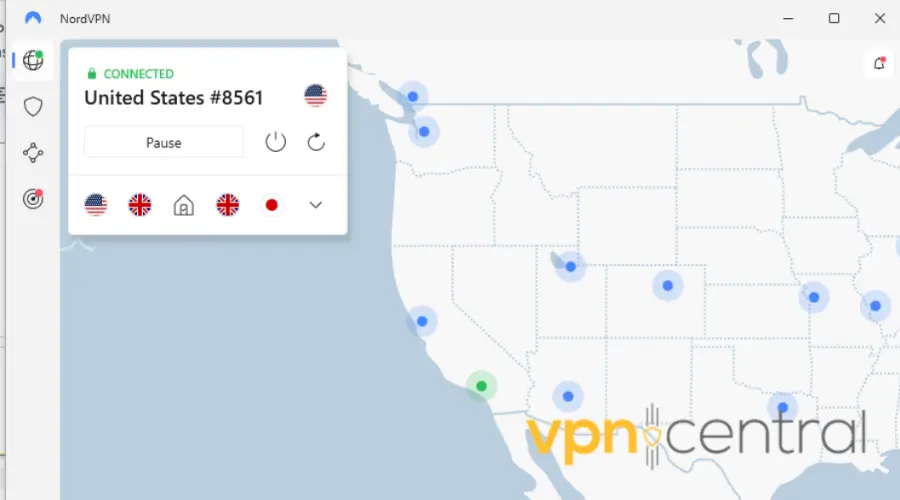
- Reconnect and restart the Xbox app or browser.
If you’re not sure which country works best for your account, see the full region guide in the article about using a VPN for Xbox Cloud Gaming.
2. Match Your VPN Region With Your Microsoft Account
Your Microsoft account region decides what content and Game Pass libraries you can access. When your VPN server doesn’t match that region, Xbox can’t verify your license.
- Go to account.microsoft.com/profile.
- Check your Country or Region setting.
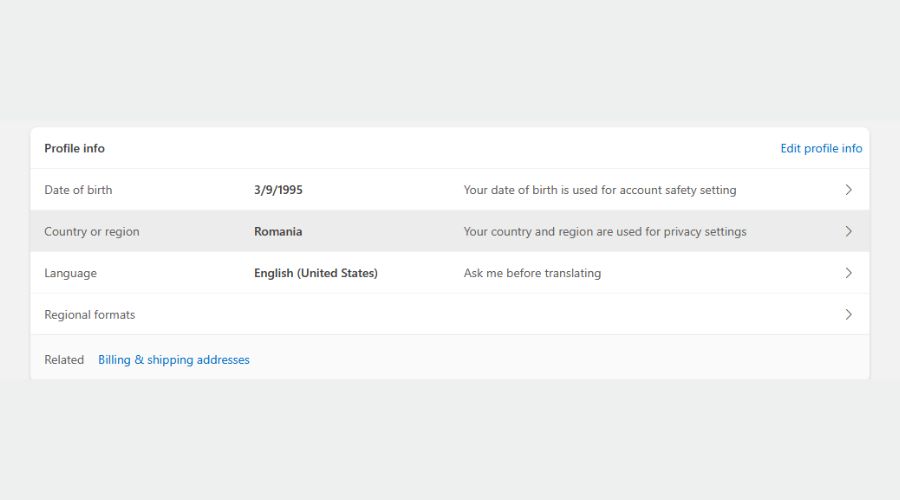
- In your VPN, pick a server from that same location.
- Restart your Xbox app or browser window and sign in again.
If your account is tied to the U.S., pick a U.S. server. If it’s linked to the U.K., stay on a U.K. node. This keeps your IP and account location consistent.
3. Enable Split Tunneling
Split tunneling lets the Xbox app or browser connect directly to the internet while your VPN stays active for everything else. It’s one of the best ways to keep gaming stable without turning off your VPN entirely.
- Open your VPN’s settings.
- Look for Split Tunneling or App Exclusions.
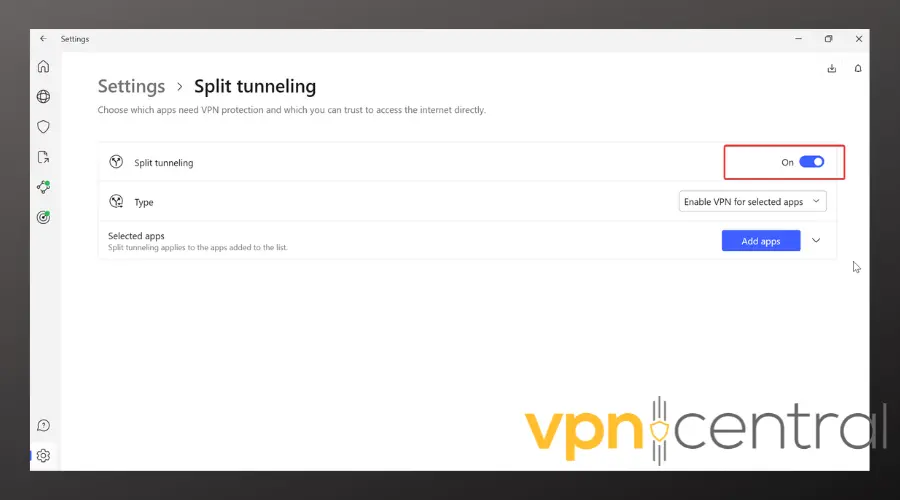
- Add XboxApp.exe or your browser (like Chrome or Edge) to the exclusion list.
- Save and reconnect your VPN.
- Try Cloud Gaming again.
If your VPN doesn’t offer split tunneling, you can try Smart DNS. It routes only streaming traffic through your local network while keeping your VPN active for privacy.
4. Switch to a Faster VPN Protocol
Not all VPN protocols work well for real-time gaming. Some add too much overhead, making the stream choppy or unstable.
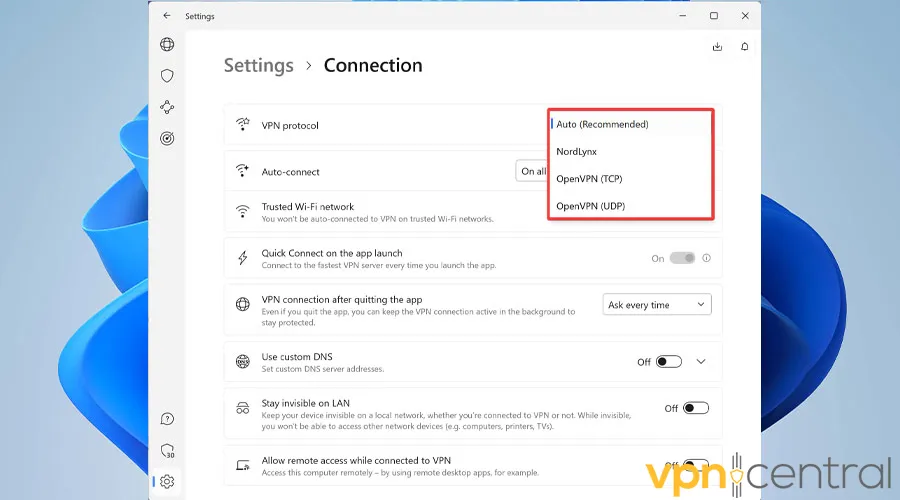
Open your VPN settings and switch to one of these faster options if available:
- WireGuard
- Lightway
- IKEv2
Avoid older ones like OpenVPN TCP for gaming, as they prioritize stability over speed.
5. Restart Xbox and Network Services
Sometimes, the problem isn’t the VPN itself but how Windows handles Xbox services after a network change.
- Press Windows + R, type
services.msc, and hit Enter. - Restart these services:
- Xbox Live Auth Manager
- Xbox Live Networking Service
- Gaming Services
- Close the window and reopen the Xbox app.
If the issue persists, reinstall Gaming Services. Instructions are available in this guide on how to fix Xbox app not working with VPN.
6. Check for Port Blocking
Cloud Gaming needs specific ports to connect to Microsoft’s streaming servers. If your VPN blocks them, you’ll never get past the loading screen.
Make sure these ports are open in your router or VPN firewall settings:
TCP: 3074, 53, 80, 500, 3544, 4500
UDP: 88, 500, 3074, 3544, 4500
Some VPNs offer port forwarding or a gaming mode toggle. Enable it if you see the option. It automatically keeps the Xbox Live ports open.
7. Fix Packet Loss and Lag
If the stream loads but feels choppy or pixelated, you may be dealing with packet loss. This happens when the VPN path isn’t optimized for streaming.
- Switch to a nearby server to shorten the data route.
- Use a wired connection instead of Wi-Fi for more stable performance.
- Check this detailed guide on fixing high packet loss on Xbox.
8. Clear Cache or Reset the Xbox App
Corrupted cache files can cause authentication problems, especially after region or network changes.
- Open Settings → Apps > Installed Apps.
- Find Xbox.
- Select Advanced options → Reset.
- Relaunch the app and sign back in.
If you’re using the older Companion app instead of the new Xbox app, check the fix for Xbox Console Companion not working with VPN.
Extra VPN Tips for Smooth Cloud Gaming
- Choose servers physically close to Xbox data centers in your region.
- Use a dedicated IP address if your VPN provides one. It reduces login errors.
- Avoid double VPN or stealth mode, which slow down streaming.
- Change your VPN DNS settings to Google (8.8.8.8) or Cloudflare (1.1.1.1) if game pages fail to load.
- If possible, connect through Ethernet instead of Wi-Fi for better ping.
- Keep your VPN and Xbox app updated to the latest versions.
Conclusion
If Xbox Cloud Gaming is not working with your VPN, it’s usually because of a region mismatch or slow routing. Matching your Microsoft region, using split tunneling, and switching to a fast protocol like WireGuard can solve it quickly.
Once everything’s aligned, your VPN will protect your connection without breaking the Cloud Gaming experience. You’ll be back to streaming your favorite titles without error messages or lag.


Read our disclosure page to find out how can you help VPNCentral sustain the editorial team Read more


Improve this guide




User forum
0 messages