
MEGA Not Working With VPN (Fix Guide)


 4 min. read
  Published on
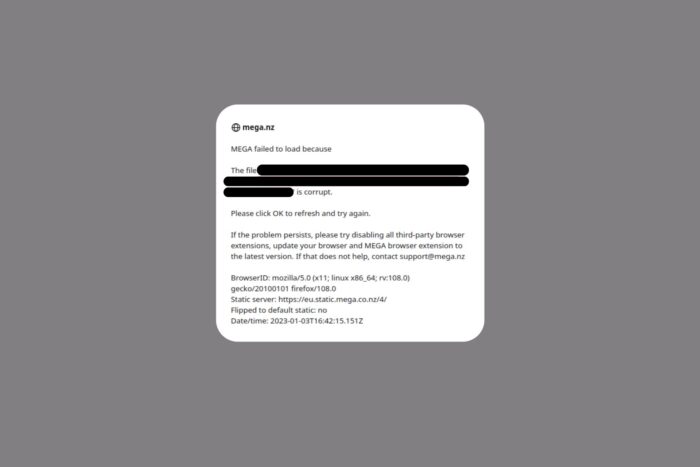
If MEGA isn’t loading, syncing, or downloading files while your VPN is on, you’re not alone. This issue often happens when MEGA detects unusual traffic or blocked IPs from popular VPN servers.
Below, you’ll learn why it happens and how to fix it quickly without losing privacy or security.

Access content across the globe at the highest speed rate.
🔥 Save 81% + 2 bonus months! 🔥
70% of our readers choose Private Internet Access
70% of our readers choose ExpressVPN
2
Browse the web from multiple devices with industry-standard security protocols.
🔥 Save 73%! 🔥

Faster dedicated servers for specific actions (currently at summer discounts)
🔥 Save 69%! 🔥
Table of contents
Why MEGA Stops Working With a VPN
MEGA links its file transfer quotas and security checks to your IP address. When you use a VPN, that IP changes, sometimes several times in one session.
Here’s what can go wrong:
- Quota mismatch: MEGA thinks you’re bypassing transfer limits.
- Blocked VPN IP ranges: Known shared VPN servers are often flagged.
- Traffic filters: Too many users on one IP make MEGA block the connection.
- DNS conflicts: VPNs with custom DNS (or HTTPS scanning) break MEGA’s WebRTC communication.
The good news is that this is fixable in minutes.
How to Fix MEGA Not Working With a VPN
1. Switch VPN Servers
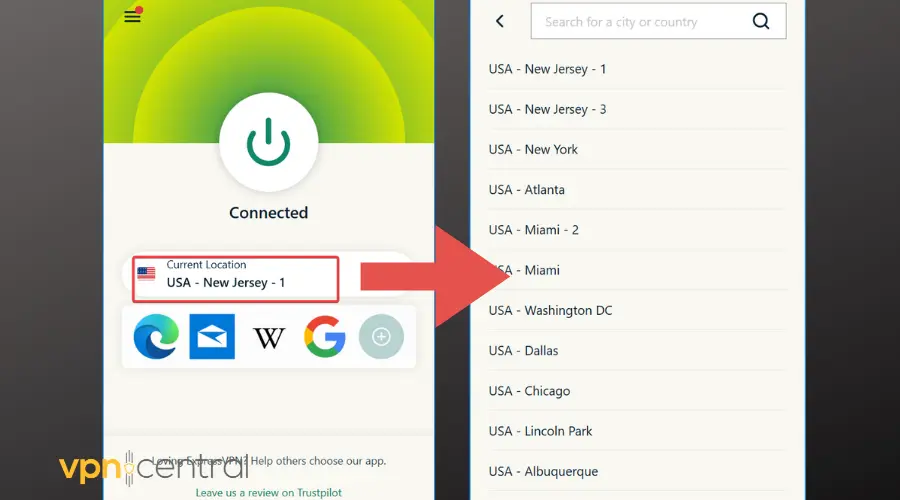
Change to a different server, ideally within the same region. Overloaded or public servers are most often blocked.
If you’re not sure which VPNs perform best with MEGA, check out this detailed MEGA VPN review that compares connection reliability and speed across providers.
2. Disable Split Tunneling
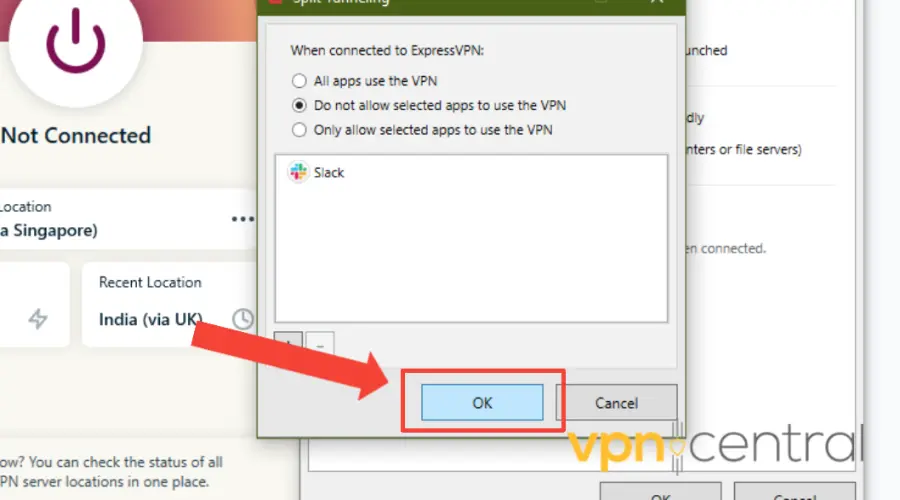
Make sure your browser or desktop app routes fully through the VPN. Partial routing can make MEGA think your session is hijacked.
3. Try the MEGA Desktop App
If the web app freezes or errors out, use the MEGA desktop client. It handles IP and network changes better than browser sessions.
4. Reset DNS and Cache
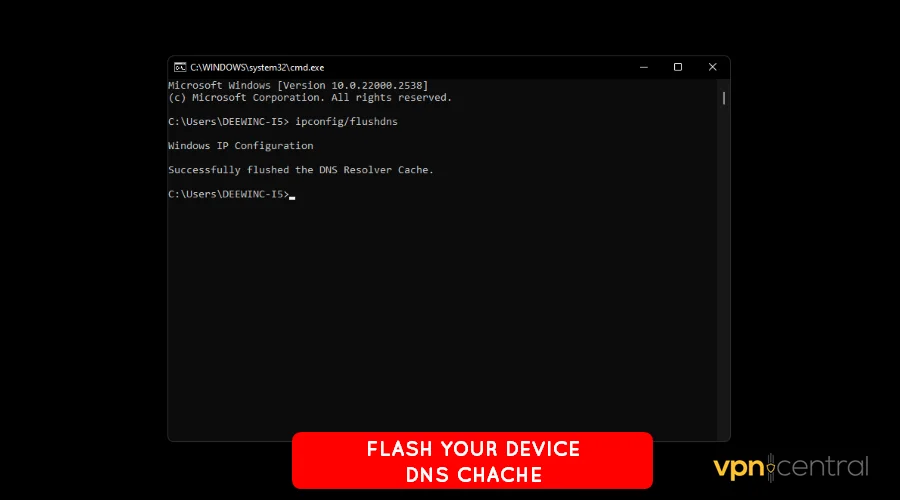
Sometimes, the VPN overrides your system DNS, which confuses MEGA.
To fix it, disconnect the VPN, run ipconfig /flushdns (Windows), then reconnect.
5. Reconnect the VPN
If the app itself won’t connect, it’s not MEGA’s fault. Your VPN might be dropping tunnels or hitting routing issues.
For detailed steps, read this quick guide to resolving VPN connection issues on any provider.
Why Use a VPN With MEGA
A VPN isn’t just for hiding, it helps you stay private and bypass network restrictions. Here’s why users combine both:
- Privacy: MEGA encrypts your files, but your IP still reveals your region.
- Quota bypass: Free MEGA plans have region-based transfer limits; a VPN refreshes the quota.
- Access on restricted networks: Schools, offices, or public hotspots sometimes block MEGA.
If your workplace or café blocks MEGA entirely, this article explains how to fix a VPN not connecting on public Wi-Fi so you can restore full access securely.
- Avoid throttling: Some ISPs slow down large file downloads; a VPN hides that traffic.
- Safer browsing: On open networks, your VPN keeps transfers private from prying eyes.
Extra Tips
- Don’t use free VPNs, they’re slow and often blacklisted by MEGA.
- Avoid switching servers mid-download.
- If you use a browser extension VPN, try a full desktop client instead.
- Disable “HTTPS scanning” in antivirus apps, it can interfere with encrypted transfers.
Final Thoughts
If MEGA isn’t working with your VPN, it’s likely due to blocked IPs, DNS leaks, or a browser conflict.
Try a different server, disable split tunneling, and reconnect through the desktop app.
For consistent performance, use a reputable VPN provider with reliable rotation and strong privacy standards.
FAQs
Not officially, but MEGA blocks IP ranges linked to abuse or quota bypassing. That’s why certain VPN servers fail to connect.
Yes, but only temporarily. Free accounts tie quotas to your IP, and changing it via VPN can reset the limit.
Yes. MEGA handles end-to-end encryption; a VPN only hides your IP and adds connection privacy.
Use a premium VPN with rotating IPs and stable bandwidth. NordVPN, ExpressVPN, and Surfshark are reliable choices for MEGA downloads.


Read our disclosure page to find out how can you help VPNCentral sustain the editorial team Read more


Improve this guide

User forum
1 messages