
How to Fix ITVX Not Working With VPN (Full Guide)


 7 min. read
  Published on
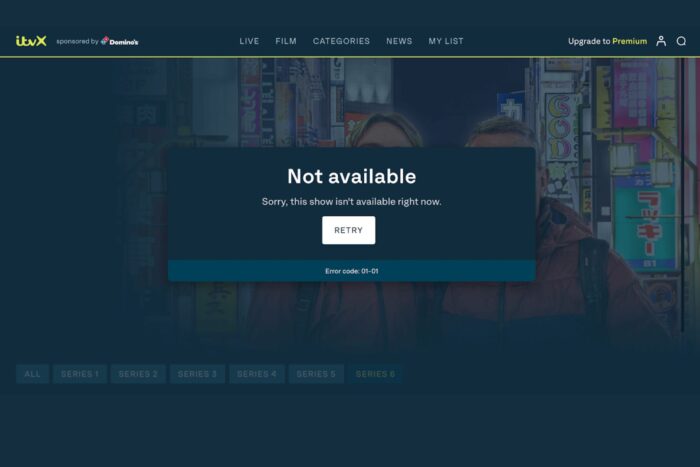
ITVX not working with VPN is one of the most common issues for viewers trying to stream British shows from abroad. This guide explains why ITVX blocks VPNs and how to fix the problem fast.
Table of contents
Why ITVX Is Not Working With VPN
When ITVX detects VPN traffic, it blocks access and shows a “not available in your region” message. Common causes include:

Access content across the globe at the highest speed rate.
🔥 Save 81% + 2 bonus months! 🔥
70% of our readers choose Private Internet Access
70% of our readers choose Private Internet Access
2
Browse the web from multiple devices with industry-standard security protocols.
🔥 Save 73%! 🔥

Faster dedicated servers for specific actions (currently discounted)
🔥 Save 69%! 🔥
- VPN server flagged: ITVX blacklists IPs with too many users.
- Cookies revealing location: your browser still stores old region data.
- DNS or WebRTC leaks: your real IP is visible despite the VPN.
- Non-UK or virtual servers: ITVX verifies that IPs belong to genuine UK ISPs.
- Device location sharing: GPS or Wi-Fi reveals your real position.
If you’re getting an error like “Sorry, this video isn’t available right now,” you might be encountering these issues. Learn how to fix this with our guide on ITV Error Code 01-01.
How to Fix ITVX Not Working With VPN
Follow these steps in order until ITVX starts streaming again.
1. Switch to Another UK Server
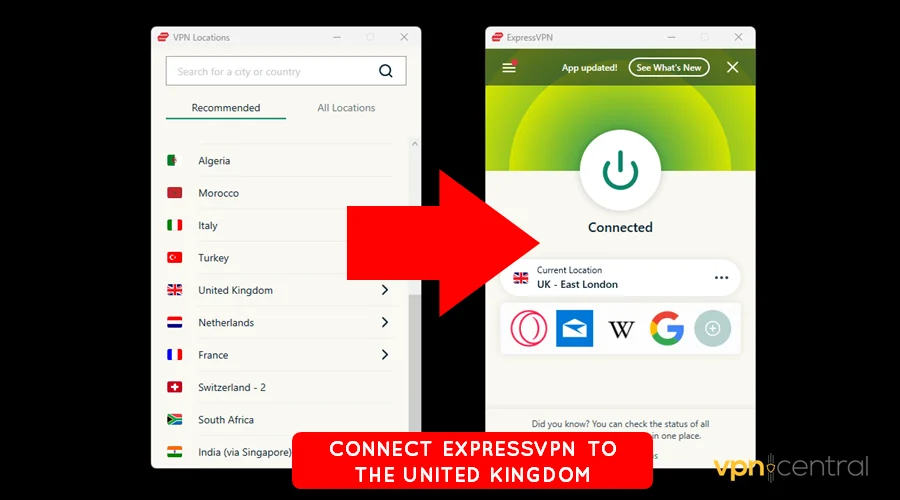
Sometimes a single server may get flagged by ITVX if it detects a lot of users trying to stream at the same time. This can lead to ITVX blocking that particular server.
To resolve this, disconnect from the current server, then reconnect to a different UK server. If your VPN offers a choice of cities, try connecting to London, Manchester, or Bristol. Some cities may have better access depending on the VPN’s load balancing.
If ITVX still doesn’t work, it’s worth switching to a completely different UK-based server to avoid any potential blacklisting. Additionally, consider using a VPN provider with servers that are specifically optimized for streaming to ensure the best performance.
2. Clear Browser Cookies and Cache
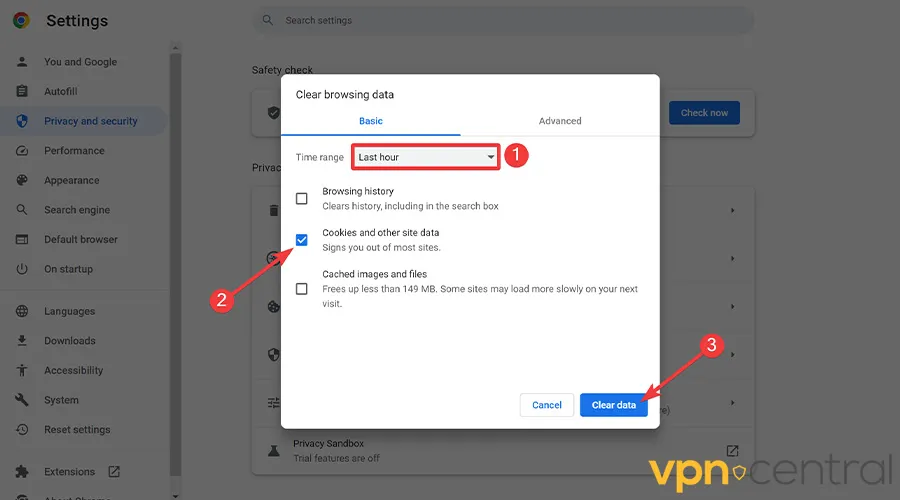
Browsers often store location data in cookies or cache, even after you’ve connected to a VPN. This can prevent ITVX from recognizing your connection as coming from the UK.
To fix this, open your browser settings and clear all cookies and cached images and files. This will remove any stored information about your previous location that might cause the platform to block you.
Here’s a more in-depth guide:
- In Google Chrome, go to Settings → Privacy and Security → Clear Browsing Data.
- Ensure that Cookies and other site data and Cached images and files are selected.
- Click on Clear Data and then close and reopen the browser.
After clearing this data, try reloading ITVX. If you continue to experience issues, restart your computer to ensure no residual data is left in the system.
For more information on troubleshooting ITV Hub issues with a VPN, check out our guide on ITV Hub Not Working with VPN.
3. Disable Location Services
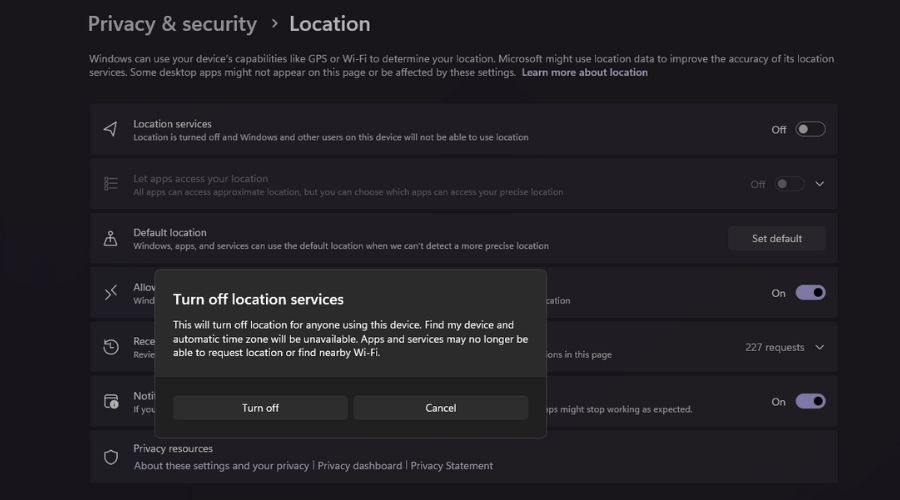
Even if you are using a VPN, your browser or operating system might still be sending your real location through location services, which will reveal that you are outside of the UK.
To prevent this:
- On Windows, go to Settings → Privacy → Location and toggle off the Location setting.
- On Mac, go to System Preferences → Security & Privacy → Privacy and uncheck the box next to Location Services.
- On Google Chrome, go to Settings → Privacy and Security → Site Settings → Location and ensure that ITV.com is blocked from accessing your location.
This will prevent ITVX from detecting your real location and should allow you to access the service from abroad.
4. Enable DNS Leak Protection
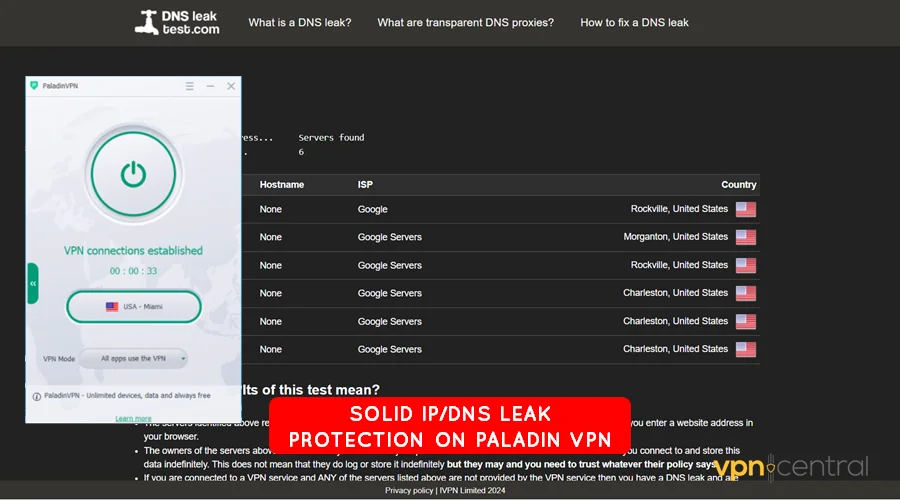
A DNS leak occurs when your device sends requests to the internet through your regular internet service provider’s DNS servers, rather than routing them through your VPN’s servers. This can expose your real location to ITVX.
To ensure that your DNS requests are routed correctly through the VPN:
- Open your VPN app and go to the Settings menu.
- Look for a setting like DNS Leak Protection or Use VPN DNS and toggle it on.
- This will ensure that your VPN’s DNS server handles all requests, preventing any accidental exposure of your real IP.
Many premium VPN providers, such as ExpressVPN and NordVPN, automatically enable DNS leak protection, but it’s always good to double-check.
5. Change VPN Protocol
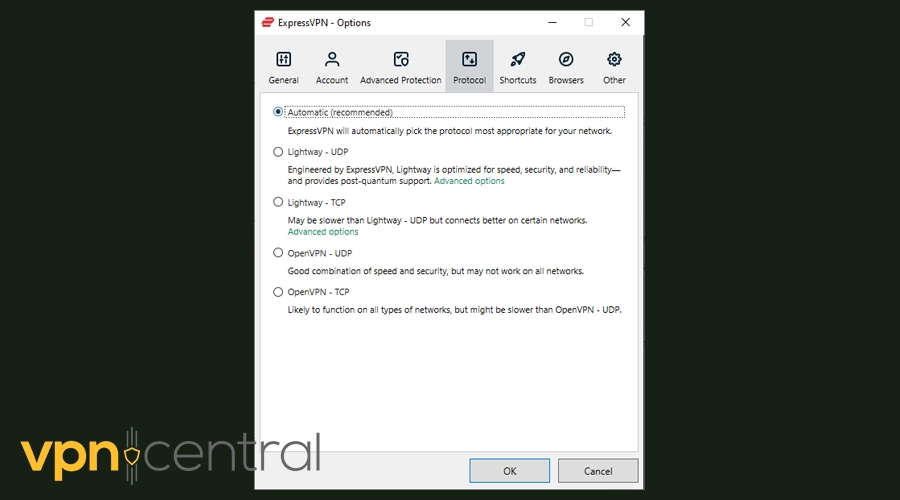
Some VPN protocols are more likely to be detected by ITVX due to their easily recognizable traffic patterns. WireGuard and OpenVPN are generally considered more reliable for unblocking streaming platforms like ITVX.
To change the protocol in your VPN app:
- Open the app’s settings or preferences.
- Locate the section for VPN Protocol and select WireGuard or OpenVPN.
- These protocols encrypt traffic more securely and are less likely to be flagged by ITVX.
Sometimes switching to a different protocol can make a huge difference in bypassing geo-restrictions.
6. Use a Reliable VPN Known to Work With ITVX
If none of the above steps work, the issue might lie in the quality of the VPN itself. ITVX actively blocks many low-quality or free VPN services.
Opt for premium VPNs like:
- ExpressVPN: Known for its high-speed UK servers and strong obfuscation features.
- NordVPN: Uses SmartPlay technology to bypass streaming restrictions reliably.
- Surfshark: Offers unlimited devices and fast streaming speeds with UK servers.
- CyberGhost: Provides dedicated streaming servers optimized for ITVX.
These VPNs are regularly updated to bypass streaming blocks, ensuring reliable access to ITVX and other UK streaming services. Each of these providers offers a money-back guarantee, so you can test them risk-free before committing.
For specific details on accessing ITVX in regions like Ireland, refer to our guide on how to Watch ITVX in Ireland.
How ITVX Detects VPNs
ITVX uses advanced systems to spot VPN traffic:
- Cross-checks IP ownership with UK ISPs.
- Monitors concurrent connections from identical IPs.
- Uses browser fingerprinting and geolocation data.
This means low-quality or free VPNs are easily blocked.
Summary
To watch ITVX safely through a VPN:
First, connect to a verified UK server. This is the most essential step, as ITVX will only allow access from the UK. Once connected, clear cookies and disable location sharing to prevent your real location from being exposed.
Next, turn on DNS leak protection to ensure all traffic is routed through the VPN. If you’re still facing issues, try switching VPN protocols to OpenVPN or WireGuard, which are less likely to be detected.
Finally, consider using a trusted VPN like ExpressVPN or NordVPN. These services have servers that are specifically optimized for streaming and have been shown to bypass ITVX restrictions reliably.
Once you’ve set up your VPN correctly, you’ll regain full access to ITVX’s UK shows from anywhere.
FAQs
ITVX must enforce UK-only streaming rights, so it filters out VPN IPs to comply with licensing laws.
Unlikely. Free VPNs share limited IPs, which ITVX quickly blacklists. Premium VPNs offer rotating UK servers that stay undetected longer.
Yes, as long as you connect to a UK server that isn’t blocked and clear your location data first.


Read our disclosure page to find out how can you help VPNCentral sustain the editorial team Read more


Improve this guide




User forum
0 messages