
How to Find Your IP Address on Any Device and Why You May Need It


 12 min. read
  Published on
You can find your public IP address by opening a web browser and searching for “What is my IP?” To find a device’s private IP address, open its network settings and view the details for the active Wi-Fi or Ethernet connection.
Your public and private IP addresses serve different purposes. The public address identifies your internet connection to websites and online services, while the private address helps your router identify devices inside your home or workplace network.

Access content across the globe at the highest speed rate.
70% of our readers choose Private Internet Access
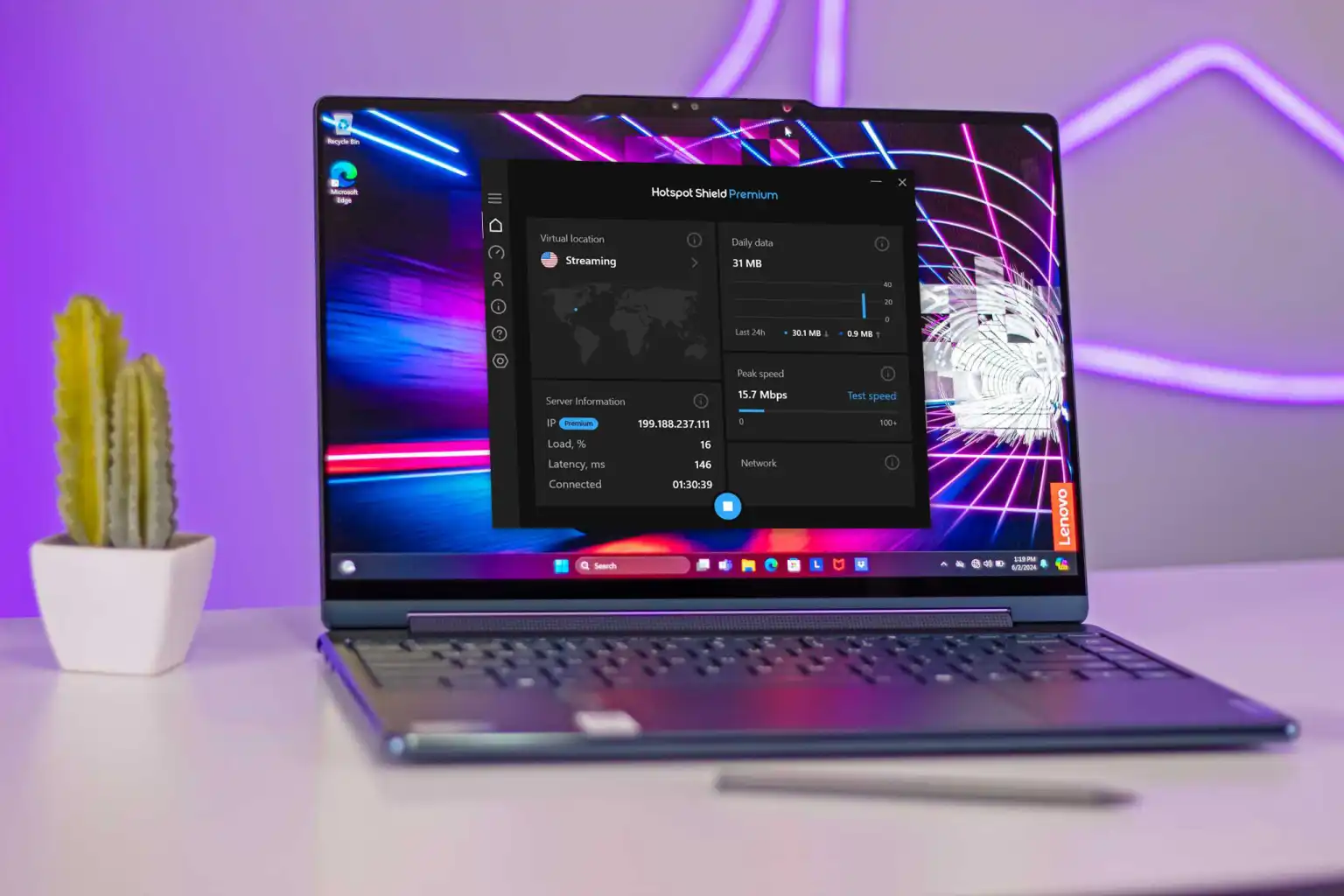
70% of our readers choose ExpressVPN

Browse the web from multiple devices with industry-standard security protocols.

Faster dedicated servers for specific actions (currently at summer discounts)
Knowing the correct address can help you troubleshoot connection problems, configure a router, connect to a printer or local server, allow remote access, and check whether a VPN works. However, simply knowing or changing an IP address does not secure a device.
What is an IP address?
An Internet Protocol address is a numerical label that helps devices send and receive data across a network. Every internet connection needs an address so routers know where to deliver information.
IP addresses generally use either IPv4 or IPv6. An IPv4 address contains four groups of numbers, such as 192.168.1.25. An IPv6 address uses a longer combination of numbers and letters separated by colons.
The Cloudflare IP address guide explains that IPv4 and IPv6 use different formats but perform the same basic function: identifying network destinations so devices can communicate.
| Address type | Example | Main purpose |
|---|---|---|
| Public IPv4 | 203.0.113.25 | Identifies an internet connection to external services |
| Private IPv4 | 192.168.1.25 | Identifies a device inside a local network |
| IPv6 | 2001:db8:85a3::8a2e:370:7334 | Provides a much larger range of internet addresses |
Public IP address vs private IP address
A public IP address faces the wider internet. An internet service provider assigns it to a home router, modem, mobile connection, or business gateway. Websites normally see this address when someone visits without a VPN or proxy.
A private IP address works inside a local network. A router usually assigns a separate private address to each connected computer, phone, television, printer, console, or smart device.
The private IPv4 ranges defined by IETF RFC 1918 are not routed across the public internet. The commonly used ranges begin with 10, 172.16 through 172.31, or 192.168.
| Feature | Public IP address | Private IP address |
|---|---|---|
| Where it works | Across the internet | Inside a local network |
| Usually assigned by | Internet service provider | Router or network administrator |
| Visible to websites | Usually yes | No |
| Shared by household devices | Often yes | No, each device normally has its own |
| Typical use | Internet communication and remote access | Local printers, routers, file servers, and troubleshooting |
How to find your public IP address
The quickest way to find a public IP address is through a web browser. Search for “What is my IP?” and the search engine will usually display the address near the top of the results.
- Connect the device to the internet.
- Open a browser such as Chrome, Edge, Firefox, or Safari.
- Search for “What is my IP?”
- Copy the displayed IPv4 or IPv6 address when needed.
You can also use an IP lookup page. The Cloudflare IP checker displays the address used by the current internet connection.
Every device using the same home router will often show the same public IPv4 address. The router translates traffic between that shared address and the different private addresses assigned to devices inside the network.
How to find your IP address on Windows 11
Windows 11 displays the private address in the properties for the active network. The setting works for Wi-Fi and wired Ethernet connections.
- Open Start and select Settings.
- Select Network & internet.
- Choose Properties beside the active connection.
- Scroll to IPv4 address or IPv6 address.
Microsoft includes these steps in its Windows network settings guide. The same page also displays the DNS servers, physical address, network type, and connection speed.
Find the address with Command Prompt
Windows users can also view network information with the built-in ipconfig command. This method can help when the Settings app does not open or when several network adapters need checking.
- Open Start and type Command Prompt.
- Open Command Prompt.
- Enter
ipconfigand press Enter. - Find the active Wi-Fi or Ethernet adapter.
- Look beside IPv4 Address.
The Default Gateway entry usually shows the router’s private address. Microsoft’s network settings documentation provides a graphical alternative for users who prefer not to enter commands.
How to find your IP address on a Mac
A Mac displays its private IP address in the TCP/IP section for the current network connection.
- Open the Apple menu.
- Select System Settings.
- Choose Network in the sidebar.
- Select Wi-Fi or Ethernet.
- Click Details.
- Select TCP/IP.
The IPv4 address appears beside IP Address. The page may also show an IPv6 address, subnet mask, router address, and DHCP lease information.
Apple documents this route in its Mac TCP/IP settings guide. Users should avoid changing these fields unless their internet provider or network administrator supplies the correct values.
Find a Mac IP address with Terminal
Terminal can display the address without opening System Settings. Enter ipconfig getifaddr en0 for many Wi-Fi connections. Network interface names can differ, so this command may not return a result on every Mac.
The graphical method remains more reliable because it identifies the active service and shows its complete configuration. Apple’s TCP/IP settings page also explains how macOS obtains an address automatically through DHCP.
How to find your IP address on an iPhone or iPad
An iPhone or iPad shows its private Wi-Fi address in the information panel for the connected network.
- Open Settings.
- Tap Wi-Fi.
- Find the network with the blue check mark.
- Tap the information button beside it.
- Scroll to the IPv4 Address section.
The IP Address field identifies the iPhone or iPad on that Wi-Fi network. The Router field shows the local address used to reach the router’s administration page.
Apple confirms that users can access network details through the information button in its iPhone internet connection guide.
Finding the cellular public IP address
The Wi-Fi settings page does not show the public address used by a mobile carrier. To check it, turn off Wi-Fi, leave mobile data enabled, and search for “What is my IP?” in a browser.
Mobile networks may share one public IPv4 address among many customers. The displayed address may also change when the phone reconnects, moves between network areas, or switches between mobile and Wi-Fi connections.
The Apple iPhone connectivity documentation covers Wi-Fi and cellular connection options, including access to the settings for an individual network.
How to find your IP address on Android
Android menu names vary between Google Pixel, Samsung Galaxy, Motorola, OnePlus, and other devices. Most phones display the private address inside the details for the connected Wi-Fi network.
- Open Settings.
- Select Network & internet or Connections.
- Tap Wi-Fi or Internet.
- Select the connected network or tap its settings icon.
- Open Network details or View more.
- Look for IP address.
Some devices place the address under Settings > About phone > Status information. Searching the Settings app for “IP address” can locate the page when the manufacturer uses a different menu structure.
To find the public address, open a browser and search for “What is my IP?” Google notes that an internet connection’s IP address can help services estimate a user’s general location, alongside other available signals.
How to find your router’s IP address
The router’s private IP address acts as the default gateway for devices on the network. You may need it to open router settings, change the Wi-Fi password, review connected devices, configure parental controls, or update the firmware.
- On Windows, look for Default Gateway in the network properties or ipconfig results.
- On a Mac, open Network > Details > TCP/IP and check Router.
- On an iPhone, open the connected Wi-Fi network and check Router.
- On Android, open the Wi-Fi network details and look for Gateway or Router.
Common router addresses include 192.168.0.1, 192.168.1.1, and 10.0.0.1. These addresses fall within the private ranges reserved by RFC 1918, but manufacturers and network administrators can use other private addresses.
Enter the address into a browser’s address bar rather than a search box. The router will then request its administration username and password. These credentials may differ from the Wi-Fi password.
Why do you need to know your IP address?
Most people do not need to memorise their IP address. However, finding it can help with several network and security tasks.
- Troubleshooting a device that cannot connect to the internet
- Finding address conflicts between local devices
- Connecting to a network printer or storage server
- Opening a router’s administration page
- Configuring port forwarding or remote access
- Checking whether a VPN changed the public address
- Allowing an address through a firewall
- Identifying the network connected to an online account
A support technician may ask for a private address, public address, or default gateway depending on the problem. Confirm which one they need before sharing it.
Can an IP address reveal your location?
A public IP address can often reveal an approximate geographical area and the organisation that controls the address range. It usually does not reveal a precise home address, a person’s name, or the exact device behind the connection.
Accuracy varies. An IP lookup may identify the correct country but show the wrong city because the provider registered or routed the address through another area. Mobile networks and VPNs can make the estimate even less precise.
Google explains that an IP address can contribute to general location estimates for advertising, but services may combine it with device location, account activity, and other signals. IP-based location alone does not explain every personalised advertisement.
Can someone hack you with your IP address?
Knowing a public IP address does not automatically give another person access to a computer, phone, or router. An attacker would still need an exposed service, vulnerable application, weak router configuration, stolen credentials, or another security flaw.
An IP address can still support unwanted activity. Someone may scan it for open ports, attempt denial-of-service attacks, estimate a general location, or compare it with information from other sources.
Use a supported router, install firmware updates, keep the firewall enabled, remove unnecessary port-forwarding rules, use strong administration credentials, and disable remote router management unless you need it.
Does hiding your IP address stop tracking?
A VPN replaces the public address visible to websites with the address of a VPN server. This can reduce IP-based location tracking and protect traffic on untrusted networks, but it does not make a user anonymous.
Websites can still recognise people through cookies, account logins, advertising identifiers, browser fingerprints, and information they submit. Google’s advertising location explanation confirms that online services can use IP-derived location alongside activity and other signals.
A proxy can also replace the address seen by a website, but ordinary web proxies do not necessarily encrypt all device traffic. A reputable VPN protects more applications by routing the device’s connection through an encrypted tunnel.
How to check whether a VPN works
- Disconnect the VPN.
- Search for “What is my IP?” and record the result.
- Connect to a VPN server.
- Refresh the IP lookup page.
- Confirm that the address and approximate location changed.
Seeing a different address confirms that the website receives the VPN server’s public address. It does not test every possible DNS, IPv6, or WebRTC leak.
IP-based location remains only one part of online identification. As described in Google’s Display Network location guidance, services can use several types of information to estimate location and personalise content.
Should you change your IP address regularly?
Most home users do not need to change their IP address on a schedule. Internet providers often use dynamic addresses that change automatically, while some connections retain the same address for long periods.
Restarting the router may produce a new public address, but it depends on the provider. Reconnecting a device to Wi-Fi may give it a new private address without changing the household’s public address.
Changing an IP address does not remove malware, secure an account, stop cookie-based tracking, or repair weak router settings. Focus on updates, strong passwords, multi-factor authentication, firewall protection, and safe network configuration instead.
Should you keep your IP address secret?
You do not need to treat an IP address like a password. Websites and online services must receive a public IP address to send data back to the connection.
Still, avoid posting it publicly without a reason. Sharing it can expose general network information and give an attacker a specific address to scan or target.
Never share router passwords, account credentials, recovery codes, or remote access details with someone simply because they claim to need the IP address. A legitimate support agent should explain which address they need and why.
FAQ
Open a web browser and search for “What is my IP?” The result normally shows the public IPv4 or IPv6 address used by your current internet connection.
A public IP address identifies an internet connection to external websites and services. A private IP address identifies a device within a local home or workplace network.
An IP address may reveal an approximate country, region, or city, but it normally does not reveal an exact home address. Accuracy depends on the internet provider, network routing, and whether the user has connected through a VPN or mobile network.
An IP address alone does not give someone access to a device. An attacker would also need an exposed service, vulnerable router, weak password, malicious software, or another security flaw.
A VPN replaces the public address visible to websites with the VPN server’s address. It reduces IP-based tracking but does not prevent identification through cookies, account logins, browser fingerprints, or personal information.
Most users do not need to change their IP address regularly. Changing it does not remove malware or prevent every type of tracking. Software updates, strong passwords, multi-factor authentication, and secure router settings provide more meaningful protection.


Read our disclosure page to find out how can you help VPNCentral sustain the editorial team Read more


Improve this guide


User forum
0 messages