
Can a VPN Be Used with Office 365 (Microsoft 365)? Yes! Here’s the Right Way


 7 min. read
  Updated on

Short answer: Yes, you can use a VPN with Microsoft 365. For best performance and reliability, route Microsoft 365 traffic outside the full-tunnel VPN using split tunneling and allow it to connect directly to Microsoft’s nearest servers. This is the recommended design for Teams, Outlook, and OneDrive.
Table of contents
Why use a VPN with Office 365?
A VPN (Virtual Private Network) hides your internet activity and secures your connection. Companies often use VPNs so employees can safely connect to work tools from anywhere.
Here’s why a VPN is sometimes used with Office 365:
- Extra security: A VPN keeps your data encrypted, especially on public Wi-Fi. Learn more about how a VPN improves security.
- Access control: It makes your connection look like it’s coming from the company network, so company rules still apply.
- Compliance: Some industries require logging and monitoring of all traffic, even cloud apps like Microsoft 365.
- Consistency: IT admins get one clean, controlled connection instead of many random home IP addresses.
Heads-up: Forcing all Microsoft 365 traffic through a VPN can slow down emails, make Teams calls lag, and break OneDrive sync. The fix is simple: use split tunneling, where only work traffic goes through the VPN and Microsoft 365 traffic goes direct.
Before you start
- Check if your company requires VPN for everything or allows bypassing it for Microsoft 365.
- Make sure your VPN/firewall app is updated so it can recognize Microsoft’s servers automatically.
- It’s worth noting news around Microsoft 365 shutting down its free VPN, which is why organizations still rely on external VPN setups.
- If your company uses extra login checks (MFA/Conditional Access), let IT know you’ll be on a VPN so they can whitelist your VPN’s IP if needed.
Step-by-step: Safely using a VPN with Microsoft 365
Follow these steps in order:
1) Turn on split tunneling in your VPN app
- Open your VPN settings.
- Look for “split tunnel” or “exclude apps/sites.”
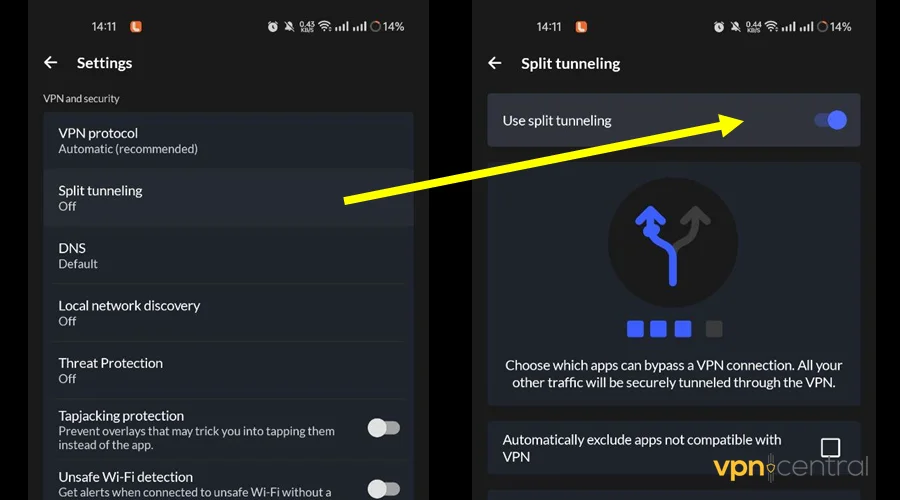
- Add Outlook, Teams, OneDrive, SharePoint so they connect directly instead of going through the VPN.
- Some VPNs let you set up WireGuard split tunneling to make this even easier.
2) Keep Microsoft’s server list updated
- Microsoft changes server addresses often.
- Most modern VPNs and firewalls can auto-sync these addresses.
- Enable automatic updates so Office 365 stays reliable.
3) Allow Teams and Outlook to connect freely
- Teams calls need UDP ports 3478–3481 open.
- Check your firewall/VPN settings and ensure these aren’t blocked.
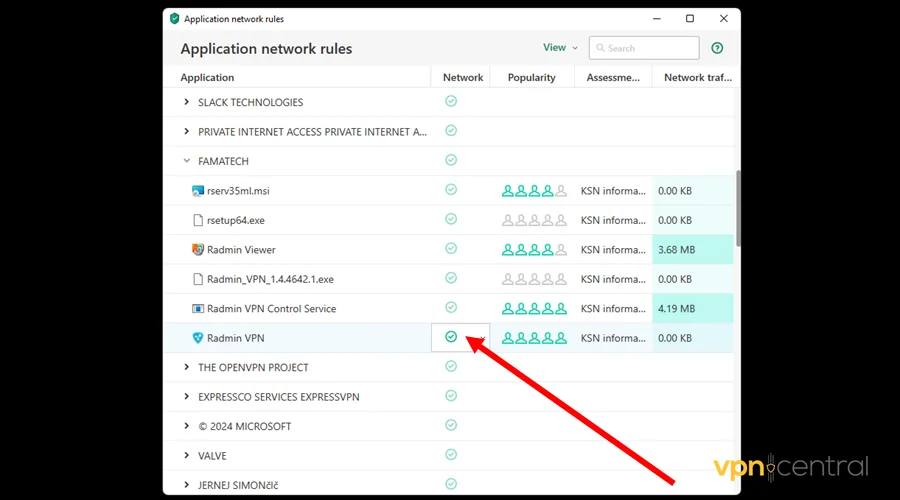
- If your app asks for port numbers, copy/paste them exactly.
4) Don’t use SSL inspection or extra proxies for Microsoft 365
- SSL inspection acts like a “middleman” and can slow apps or cause errors.
- Ask IT to bypass inspection for Microsoft 365 traffic.
5) Fix login and MFA issues
- If you keep getting blocked logins or repeated MFA prompts, add your VPN’s IP address to trusted locations so Microsoft recognizes it as safe.
- If you’re unsure, here’s a quick primer on what an IP address is.
6) Test your setup
- Go to connectivity.office.com.
- Run the test and check for “VPN detected.”
- If latency or distance is high, refine split tunneling until performance improves.
Quick fixes if things still don’t work
- Teams calls sound bad? Double-check UDP 3478–3481 are open and that Teams is excluded from the VPN tunnel.
- OneDrive won’t sync? Make sure the Microsoft server list in your VPN is updated.
- Too many MFA prompts? Whitelist your VPN IP in Conditional Access settings.
- If performance is still poor, consider using a VPN only for certain sites instead of tunneling everything.
Need a reliable option you can deploy right now? Check our best VPNs for urgent needs to pick a fast, easy-setup provider in minutes. If OneDrive still refuses to sync while connected to a VPN, follow this step-by-step guide on how to fix OneDrive not working with VPN so you can restore smooth access to your files.
Top 5 VPNs for Office 365 – Best Picks for Speed, Security, and Ease of Use
Choose a VPN that keeps Teams calls smooth, Outlook fast, and OneDrive reliable—without complicated setup. These are our top recommendations and why they’re worth it:
1. NordVPN – Best Overall
NordVPN is one of the fastest options, so your Teams meetings won’t lag and file syncs stay quick. It includes split tunneling to send Microsoft 365 traffic directly while keeping everything else encrypted. Strong security and support for up to 10 devices make it a well-rounded choice.

NordVPN
Stay productive with the fastest VPN for Microsoft 365.2. ExpressVPN – Easiest to Use
ExpressVPN’s simple interface lets anyone set it up in minutes. Its Lightway protocol keeps Outlook and OneDrive running smoothly. If you want speed without fiddling with settings, this is a top pick.

ExpressVPN
Set up in minutes and enjoy lightning-fast Office 365.3. Surfshark – Best Value for Families and Teams
Surfshark covers unlimited devices on one account, great for securing laptops, phones, and tablets without extra fees. It’s affordable, fast, and includes split tunneling, so it’s friendly on both performance and budget.

Surfshark VPN
Protect every device at home with one low plan.4. ProtonVPN – Privacy First
Proton VPN, from the team behind ProtonMail, focuses on privacy with features like Secure Core servers. It supports split tunneling so Microsoft 365 apps stay fast while other traffic stays private.

ProtonVPN
Work securely with the most privacy-focused VPN option.5. CyberGhost – Beginner Friendly with Extras
CyberGhost has a clean, one-click dashboard and helpful extras like ad- and tracker-blocking. It’s backed by a no-logs policy and lots of server locations for both speed and peace of mind.

CyberGhost
One-click VPN with built-in ad and tracker blocking.For small businesses needing robust and business-focused VPN options, check out the 6 Best VPNs for Your Small Business which compares services like NordLayer, Surfshark Business and Proton VPN for Business.
Security & compliance considerations
- Conditional Access & MFA: VPN egress IPs can change your sign-in “location.” Use named locations or compliant network features to reduce false prompts.
- Risk/anomaly detections: “Impossible travel” and “anonymous IP” alerts can be influenced by VPN usage. This ties directly into understanding whether network admins can see VPN traffic.
- Zero Trust posture: Keep endpoint protections on devices and rely on Microsoft’s cloud security controls instead of heavy inline inspection for Microsoft 365 traffic.
FAQs
Not for Microsoft’s security, Microsoft 365 already encrypts traffic. But your company might require a VPN for compliance or control.
Yes, but it may cause login issues. Use your company’s official VPN if possible.
No. It’s overkill for most users and typically reserved for niche, regulated scenarios.
Enable your VPN/firewall to auto-update Microsoft’s IP/URL endpoints and follow the Optimize/Allow/Default guidance.
Summary (easy checklist)
- Enable split tunneling in your VPN.
- Auto-update the Microsoft 365 server list in your VPN/firewall.
- Allow UDP 3478–3481 for Teams calls.
- Bypass SSL inspection for Microsoft traffic.
- Whitelist your VPN IP to reduce MFA friction.
- Test at connectivity.office.com.
Conclusion
Yes, VPNs work with Microsoft 365 when you set them up the right way. Don’t route everything through the tunnel. Use split tunneling, keep Microsoft’s server list current, and test regularly. You’ll stay secure without slowing down Outlook, Teams, or OneDrive.


Read our disclosure page to find out how can you help VPNCentral sustain the editorial team Read more


Improve this guide




User forum
0 messages