
Chatroulette Ban: How to Unblock and Get Unbanned


 5 min. read
  Published on
This guide explains why Chatroulette bans happen and shows practical ways to regain access, from clearing browser data to using a VPN.
Chatroulette is a random video chat platform that pairs strangers in webcam conversations. To keep the service safe, it enforces strict rules and bans users or IP addresses that break them. These bans can feel sudden and unfair, but in most cases, you can fix them.
Table of contents
Why You Might Be Banned from Chatroulette
- Inappropriate content: Nudity, explicit acts, or harassment can cause instant bans.
- Spamming or advertising: Posting links or promos violates the terms of service.
- Multiple reports: If three people report you within minutes, the system usually blocks your IP.
- Technical violations: Running bots, scripts, or abusing VPNs may lead to permanent suspension.
Bans can last from 24–72 hours for minor issues to permanent blocks for repeated or severe violations.
Signs You’ve Been Banned
- Errors like “Connection Error” when starting chats.
- Inability to log in, even with correct details.
- Chats dropping suddenly or disconnecting after a few seconds.
- A message explicitly stating your account or IP is blocked.
How to Unban Chatroulette – Step by Step
1. Wait It Out
If the ban was for a minor issue, it may only last 24–72 hours. To test, try logging in once a day. If you regain access, avoid repeating the same behavior to prevent longer bans.
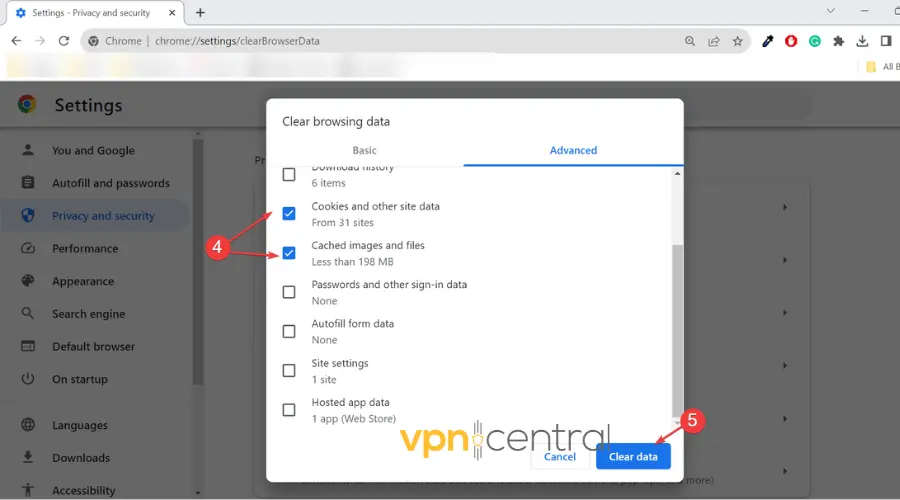
2. Clear Cookies and Cache
Sometimes bans are tied to your browser data. Clearing cookies and cache resets your session.
- In Opera: Go to Settings → Privacy & Security → Clear browsing data. Select “Cookies and site data” and “Cached images and files,” then click Clear data.
- In Chrome/Edge: Press
Ctrl + Shift + Delete(Windows) orCommand + Shift + Delete(Mac) and clear cookies/cache. - Restart the browser and try Chatroulette again.
3. Use a Different Device or Browser
If clearing data doesn’t help, switch devices or browsers.
For example, if you’re banned on Chrome, try Opera. Each browser uses separate storage, so Opera will give you a clean slate. On mobile, install the Opera app from the App Store or Google Play and log in from there.
4. Change Your Network
Chatroulette often blocks IP addresses. Switching networks gives you a new one.
- Disconnect from your home Wi-Fi.
- Turn on mobile data or connect to another Wi-Fi network.
- Reload Chatroulette — you should appear as a new user with a fresh IP.
This is a quick way to check if the ban is tied to your home IP address.
5. Use a VPN to Change Your IP
A VPN masks your real IP by routing traffic through a secure server. This makes Chatroulette see you as a new user. For Chatroulette, we highly recommend NordVPN due to its safety and trustworthy pool of unbanned IPs.
- Download and install NordVPN.
- Open the app and connect to a server in another country.
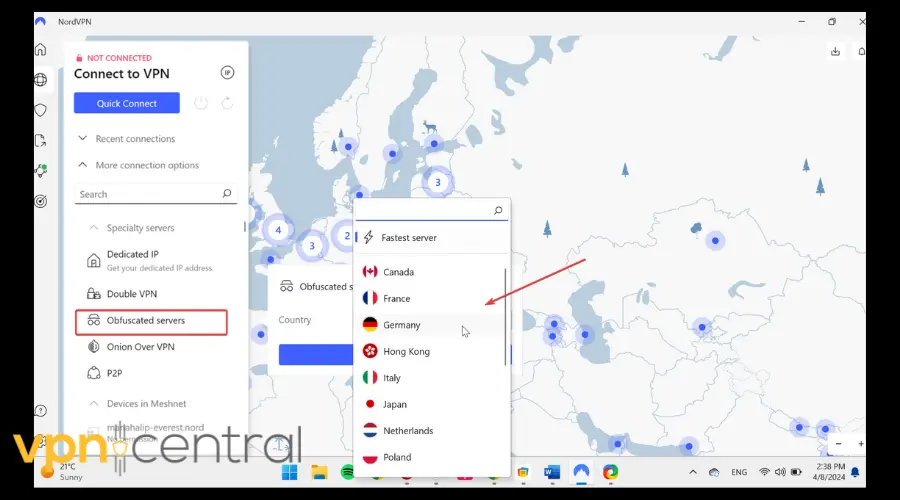
- Visit Chatroulette, the platform will register your new IP.
- If your old account is banned, create a new one while connected.
⚠️ Free VPNs are too slow for video chat. A reliable paid service ensures stable, lag-free connections. If you have issues, see our guide on what to do if Chatroulette is not working with a VPN.
NordVPN has 6,000+ servers in 60+ countries, giving you endless fresh IPs. It’s fast enough for smooth video chats and adds privacy features like Threat Protection. Opera users can also pair it with NordVPN for extra security.

NordVPN
👉 Get NordVPN to unblock Chatroulette instantly6. Contact Chatroulette Support
If you believe you were banned unfairly, go to Chatroulette’s support page and explain your case. Include your username and the approximate time of the ban. While not guaranteed, they may remove the block if it was triggered by mistake.
Methods Summary
| Method | Pros | Cons |
|---|---|---|
| VPN (recommended) | New IP, encrypted traffic, fast on premium services | Requires subscription |
| Proxy server | Free or cheap | No encryption, often too slow for video |
| Different Network | Quick to try | Limited options if networks are restricted |
| Clear Cookies | Simple, no tools needed | Only helps for local bans |
| Support Appeal | May restore account | Not guaranteed, slow response |
Alternatives to Chatroulette
If you’d rather not wait for an unban, you can try other platforms. For instance, there are several Omegle alternatives that also provide random video chat features. Likewise, OmeTV and Tinychat have their own communities, though they also enforce strict rules. If you encounter issues there, see our guides on handling an OmeTV ban, 321Chat bans, or a Tinychat ban.
If you choose OmeTV, make sure to use one of the best VPNs for OmeTV to avoid restrictions and stay private.
FAQs
Temporary bans usually last 24–72 hours. Serious or repeated violations may lead to permanent blocks.
Free VPNs are slow, crowded, and may log your data. They’re not reliable for video chat.
Yes, if the ban is IP-based. But if your account is permanently banned, you’ll need to create a new one.
Many networks restrict it as non-work content. A VPN can help bypass local restrictions.
Follow Chatroulette’s rules, treat users respectfully, and avoid spammy behavior.
Conclusion
Chatroulette bans happen when users break rules or get mass-reported. Luckily, most bans aren’t permanent. Simple fixes like clearing cookies or switching networks can work, but using a VPN is the most reliable method. It changes your IP, keeps your chats private, and lets you rejoin the platform without hassle.
For more guides, check our resources on [VPN troubleshooting] and [internet privacy tips].


Read our disclosure page to find out how can you help VPNCentral sustain the editorial team Read more


Improve this guide


User forum
0 messages