
Hackers Abuse Microsoft Teams Collaboration Features to Impersonate IT Helpdesk Staff


 9 min. read
  Published on
Attackers are abusing Microsoft Teams external collaboration features to contact employees directly, impersonate IT helpdesk staff, and push victims toward remote access tools or malicious commands. Microsoft documented this pattern in a Teams vishing investigation, where its incident response team found that attackers relied on deception and legitimate tools rather than a software exploit.
The attack works because Teams is a trusted workplace channel. A message or call that appears inside the collaboration app can feel more believable than a suspicious email, especially when the attacker uses a helpdesk name, urgent language, or a fake support workflow.

Access content across the globe at the highest speed rate.
70% of our readers choose Private Internet Access
70% of our readers choose ExpressVPN

Browse the web from multiple devices with industry-standard security protocols.

Faster dedicated servers for specific actions (currently at summer discounts)
Microsoft says Teams external access can allow users to find, chat, and call people from outside the organization when administrators permit it. That feature is useful for business collaboration, but it can also create a path for unsolicited contact from external accounts if not restricted.
How Teams Helpdesk Impersonation Attacks Work
The intrusion often begins with an external Teams account contacting an employee as “IT support” or “helpdesk.” The attacker may claim that the user’s device is infected, email is broken, MFA needs to be reset, or a security tool must be installed.
From there, the attacker tries to move the conversation into a call or screen-sharing session. Some campaigns ask the victim to launch Quick Assist, approve remote access, run commands, or download remote monitoring and management software.
CyberProof documented a related incident where an external user contacted employees over Teams, claimed to be IT support, and pushed a Quick Assist flow after sharing a phishing URL. The CyberProof Teams social engineering report also described credential theft and abuse of legitimate remote access tools during the attack chain.
| Attack stage | What the victim sees | Defender focus |
|---|---|---|
| External contact | A Teams message or call from someone claiming to be IT support | Check sender tenant, external markers, and first-contact activity |
| Social engineering | Urgent request to fix a device, account, or spam problem | Look for helpdesk impersonation language and repeated targeting |
| Remote access push | Instructions to open Quick Assist or another RMM tool | Correlate Teams activity with endpoint process events |
| Post-access activity | Commands, credential prompts, downloads, or tool installation | Review PowerShell, browser, file, and remote tool telemetry |
Why Unified Audit Log Data Matters
Microsoft 365 Unified Audit Log data can help investigators reconstruct Teams-based social engineering incidents. Microsoft’s Teams audit log documentation says Teams activity data can be retrieved through Microsoft Purview when auditing is enabled.
For these incidents, defenders need more than one event. A call event may show that a conversation happened, while message events, URL events, and endpoint telemetry show what the attacker asked the user to do next.
The Search-UnifiedAuditLog cmdlet can search Microsoft 365 audit data across services such as Exchange Online, SharePoint, OneDrive, Microsoft Entra ID, Microsoft Teams, and Power BI. This makes it useful during incident response when Teams activity needs to be correlated with other Microsoft 365 events.
CallParticipantDetail Can Help Rebuild the Timeline
Security researcher Maurice Fielenbach highlighted CallParticipantDetail as a valuable Teams audit artifact for vishing investigations. The event can record participant identity, tenant origin, join and leave times, connection metadata, and whether an interaction involved an external or federated user.
Analysts should not depend on one field or one event type. Field availability can vary by tenant and ingestion path, so detection rules need validation before teams rely on them in production.
ChatCreated also should not be treated as a perfect signal. Its absence does not prove that a chat never happened. Investigators should correlate Teams call records with MessageSent, MessageCreatedHasLink, endpoint events, and any remote access tool activity.
| Evidence source | What it can show | Investigation use |
|---|---|---|
| CallParticipantDetail | Call participants, timestamps, and external indicators | Build the call timeline |
| MessageSent | Message activity in Teams | Find contact before or after a call |
| MessageCreatedHasLink | Messages containing URLs | Identify phishing links or tool download prompts |
| Endpoint telemetry | Process launches, downloads, remote access tools, scripts | Confirm whether the user followed attacker instructions |
| eDiscovery or Content Search | Message body content where available and permitted | Review what the attacker actually said |
External Access Settings Can Reduce Exposure
Organizations should review whether every employee needs open external Teams communication. Microsoft’s documentation explains that external access can be restricted by allowing or blocking specific domains, blocking all domains, or limiting which users can use the feature.
The Microsoft external meetings and chat guidance also says external access policies can give administrators granular control over external collaboration for users and groups. This lets security teams allow external contact only where the business needs it.
That approach matters because attackers often target employees who are not expecting external support contact. Reducing who can receive cross-tenant messages and calls shrinks the social engineering surface.
Useful Audit Events for Detection
Microsoft’s broader audit log activities reference lists several Teams events that can help defenders enrich investigations. These include TeamsImpersonationDetected and SecurityRiskInCallDetected.
TeamsImpersonationDetected can flag potential impersonation activity by an external message sender. SecurityRiskInCallDetected can surface risks during an incoming Teams call, such as brand, domain, or user impersonation.
These events should not replace human review. They work best as enrichment signals that point analysts toward calls, users, and tenants that need deeper inspection.
- Review TeamsImpersonationDetected when an external sender appears to mimic internal staff.
- Review SecurityRiskInCallDetected when a Teams call appears suspicious.
- Search for MessageCreatedHasLink after first-contact external messages.
- Correlate Teams events with QuickAssist.exe, RMM tools, PowerShell, cmd, and browser downloads.
- Check whether multiple users received similar Teams messages from the same external tenant.
- Preserve audit data quickly because retention depends on license and configuration.
What Security Teams Should Hunt For
Security teams should treat unsolicited external Teams messages as triage context, especially when they come before a call, URL share, Quick Assist launch, script execution, or remote tool installation.
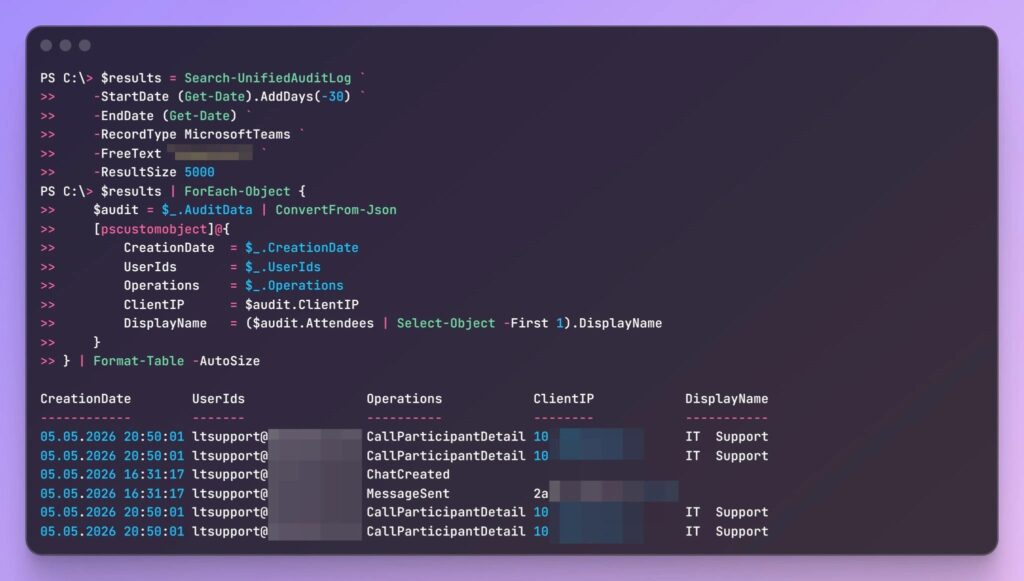
The Microsoft Teams audit log page says audit data is only visible if auditing is turned on. It also notes that the length of time audit records remain searchable depends on the Microsoft 365 subscription and user licensing.
For PowerShell-based investigations, the Unified Audit Log search documentation explains that analysts can filter by date range, user, operation, record type, object IDs, and other criteria. Larger investigations may require pagination or Microsoft 365 Management Activity API workflows.
| Hunting question | Where to look |
|---|---|
| Did an external user contact an employee first? | Teams audit events, sender tenant, external flags |
| Did the interaction become a call? | CallParticipantDetail and related call records |
| Did the attacker send a link? | MessageCreatedHasLink and message investigation workflows |
| Did the user open Quick Assist or RMM software? | Endpoint process telemetry and software inventory |
| Did multiple employees receive the same approach? | Tenant-wide UAL searches and external sender clustering |
Quick Assist and RMM Tools Need Extra Controls
Remote access tools are useful for real support teams, but they also give attackers a simple way to take over a workstation once a victim follows instructions. Quick Assist is especially attractive because it is familiar and can look legitimate to users.
CyberProof’s incident write-up described a Teams social engineering chain that led to Quick Assist execution and suspicious command activity. The same CyberProof analysis recommended hunting for external Teams interactions and remote support activity together.
Organizations should block or restrict remote support tools that users do not need. Where support tools remain allowed, employees should verify every support request through a known internal channel before sharing screens, approving access, or running commands.
What Microsoft Has Already Reported
Microsoft’s DART team described a November 2025 incident where a threat actor used persistent Teams voice phishing, impersonated IT support, and targeted multiple employees. The company said the intrusion relied more on deception and legitimate tools than on exploited vulnerabilities.
The same Microsoft report framed the incident as an identity-first, human-operated intrusion. That framing is important because email security alone will not catch attacks that start in collaboration platforms.
Teams is now a primary work channel for many organizations. Attackers know users are trained to distrust email links, so they are shifting toward chat, calls, and trusted internal-looking collaboration flows.
Recommended Mitigations
Admins should start by reviewing external access and guest access policies. Users who do not need external communication should not receive unsolicited messages or calls from outside tenants.
The Teams external collaboration policy guidance supports domain allow and block controls, as well as user and group-level policies. That gives organizations a practical way to reduce exposure without turning off all external collaboration.
Security teams should also review the Microsoft 365 audit activity list and decide which Teams events belong in alerting, hunting, and incident response playbooks.
- Limit external Teams federation to approved users, groups, or domains.
- Block communication with unmanaged external Teams accounts where not needed.
- Train users to verify all helpdesk requests outside Teams before granting access.
- Restrict Quick Assist and third-party RMM tools to approved support staff.
- Monitor Teams calls from external tenants followed by remote tool launches.
- Use eDiscovery or Content Search when message body review is required.
- Validate UAL schemas before building automated detections around specific fields.
The Bottom Line
Microsoft Teams helpdesk impersonation attacks show how collaboration platforms have become part of the phishing surface. The attacker does not need a Teams exploit if they can convince a user to trust a fake support call.
Defenders should respond by tightening external collaboration, reducing remote access tool abuse, and treating Teams audit data as a key evidence source. The strongest investigations will combine Teams UAL records, endpoint telemetry, identity logs, and message review workflows into one timeline.
FAQ
Attackers are using external Teams accounts to contact employees, impersonate IT helpdesk staff, and convince victims to open remote support tools, run commands, approve sessions, or visit phishing links.
No. The reports describe social engineering and external collaboration abuse, not a software vulnerability in Teams. The risk comes from trusted communication workflows and weak restrictions on external contact.
CallParticipantDetail is a Teams audit event that can help investigators review call participants, timestamps, tenant details, and external or federated indicators. It should be correlated with message and endpoint telemetry.
Quick Assist is a legitimate remote support tool, so attackers can use it as part of a believable helpdesk story. If the victim approves the session, the attacker may gain interactive access to the device.
Organizations should restrict external Teams access, limit federation to approved domains or users, block unnecessary remote support tools, monitor Teams audit logs, and require employees to verify all helpdesk requests through a known internal channel.


Read our disclosure page to find out how can you help VPNCentral sustain the editorial team Read more


Improve this guide



User forum
0 messages