
How to Hide Your IP on Telegram (Step-by-Step Guide, Easy Fix)


 5 min. read
  Published on

Telegram is more private than most social apps, but it still logs your IP address and device details temporarily for security. If you want to stay truly anonymous or protect your identity, you need to mask your IP every time you use it.
Below, you’ll learn how Telegram tracks IPs, how a VPN or proxy hides them, and the exact steps to set everything up safely.
Table of contents
Does Telegram Track Your IP Address?
Yes, Telegram records your IP and device info each time you log in or send messages. This data helps prevent spam and detect suspicious activity, like logins from unusual locations.
You can check it yourself in Settings → Privacy and Security → Active Sessions.
Each session shows:
- Device type (Android, iPhone, Windows, etc.)
- IP address and approximate location
- Login date and time
Telegram stores this data for up to 12 months before deleting it. It doesn’t sell or share IP logs, except for major criminal investigations.
Step-by-Step: Hide Your IP on Telegram
Use a reliable VPN
1. Choose a trusted VPN
Pick a VPN with a strict no-logs policy, kill switch, and leak protection.
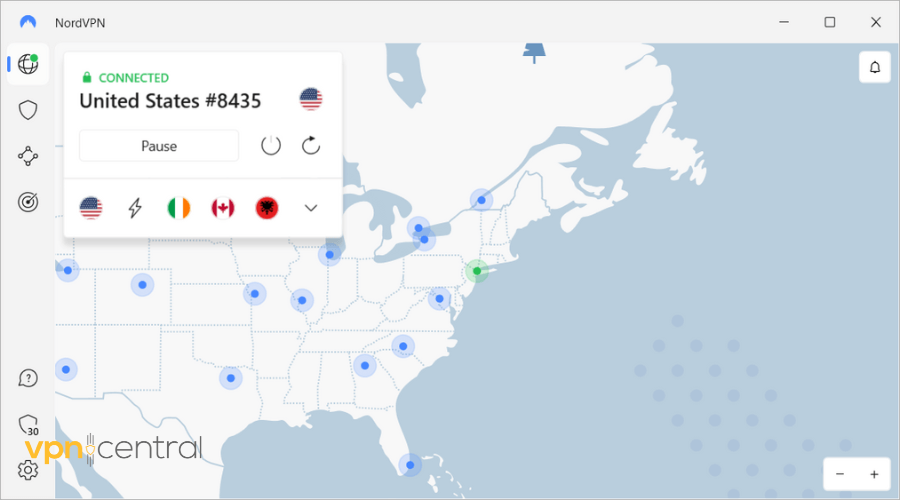
NordVPN is a reliable example as it offers:
- 5,000+ servers in 60 countries
- Automatic kill switch
- DNS and IPv6 leak protection
- Apps for Android, iOS, Windows, and macOS
2. Install and sign in
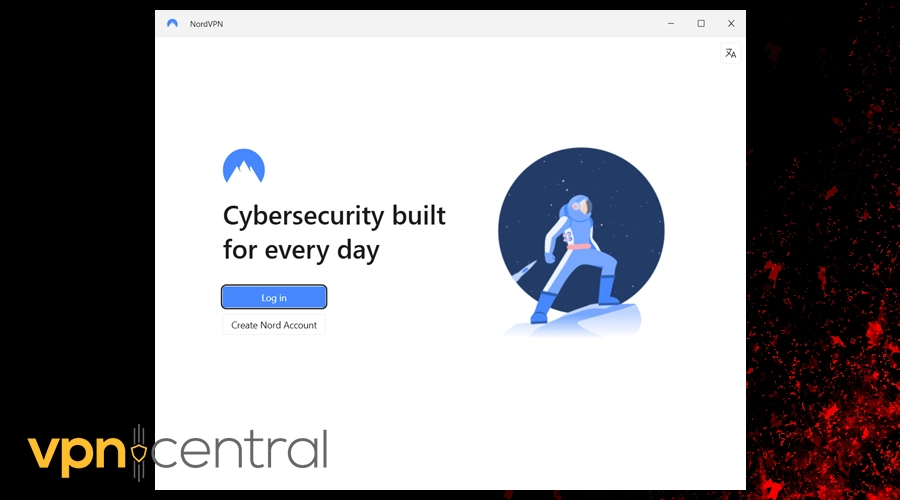
- Download the NordVPN app from the official store or NordVPN website.
- Sign in with your credentials.
3. Enable key privacy settings
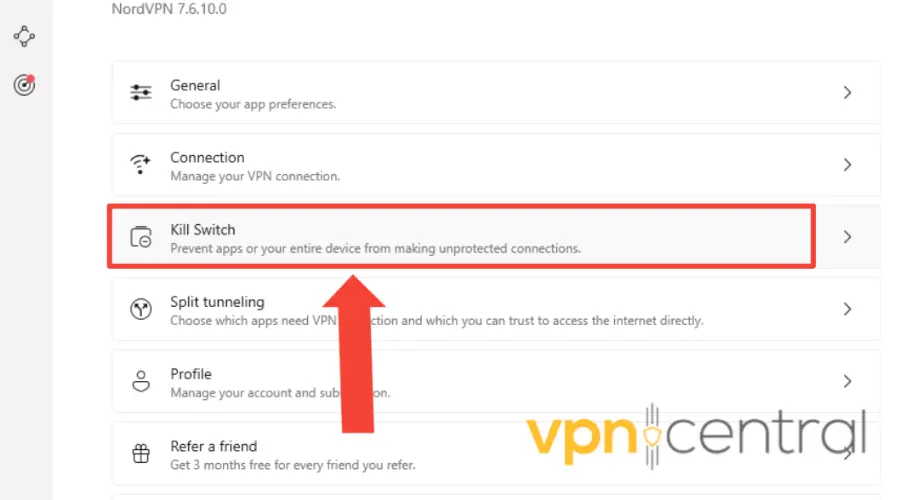
In the app settings:
- Turn on the Kill Switch (stops traffic if VPN drops).
- Enable DNS Leak Protection.
- Disable IPv6 or enable its leak protection.
- Set Auto-connect on Untrusted Networks (for public Wi-Fi).
4. Connect to a server
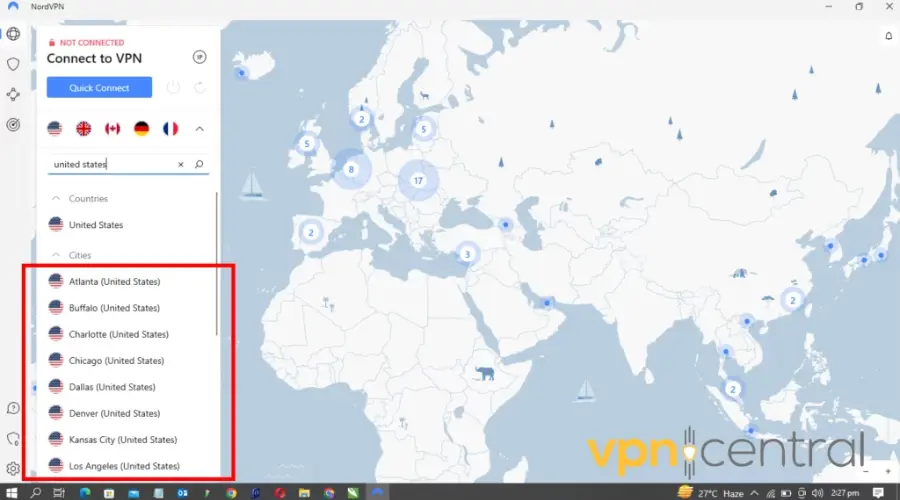
- Pick a nearby server for speed or another country for privacy.
- Wait for the connection confirmation.
5. Open Telegram
- Launch Telegram once the VPN is active.
- All traffic now routes through the VPN’s IP.
6. Verify your new IP
Visit an IP-check website. It should show the VPN’s IP and country, not your real one.
7. Test for leaks
Run a WebRTC and DNS leak test in your browser. No leaks should reveal your actual IP.
Setting Up a Proxy Instead of a VPN
Telegram supports two proxy types: SOCKS5 and MTProto. These reroute Telegram’s traffic only, unlike VPNs that protect all your apps.
How to add a proxy:
- Open Telegram → Settings → Data and Storage → Proxy Settings.
- Toggle Use Proxy on.
- Add the proxy details (server, port, username, password if needed).
If you want help picking one, check the best proxy options for Telegram or learn more about how Telegram proxies work.
Note:
Proxies don’t encrypt traffic system-wide, and many free ones expose your data. For full anonymity, a VPN remains safer.
Combine VPN + Secret Chats for Maximum Privacy
Using a VPN alone hides your IP, but combining it with Telegram’s built-in encryption tools gives stronger privacy:
- Start Secret Chats – Tap a contact → Start Secret Chat.
- End-to-end encryption keeps messages off Telegram’s servers.
- Use self-destruct timers for added security.
- Disable Contact Sync –
- Go to Settings → Privacy and Security → Sync Contacts → Off.
- Tap Delete Synced Contacts to remove uploaded data.
- Hide Number and Status –
- Settings → Privacy and Security → Phone Number → Nobody
- Last Seen & Online → Nobody
- Clear Stored Data –
- Settings → Data and Storage → Storage Usage → Clear Cache
When combined, these steps prevent Telegram, ISPs, or hackers from tracing activity back to your real IP or identity.
What Telegram Actually Tracks
- Phone number and username, required to create an account
- Contacts: if you sync your address book
- IP address and device info: used for login and spam prevention
- Usage data: stickers, bots, and channels you use
- Cloud messages: stored encrypted on Telegram servers (not end-to-end encrypted)
What Telegram Doesn’t Track
- End-to-end encrypted message content (Secret Chats only)
- Ad or tracking profiles
- Cross-app or web activity
Telegram’s privacy standards are solid, but hiding your IP takes an extra step, using a VPN or proxy.
Tips to Avoid IP Leaks
- Use Always-on VPN mode on Android or iOS.
- Avoid free VPNs or proxies that log data.
- Use wired connections when possible — public Wi-Fi can inject leaks.
- Test your setup regularly on IPLeak.net or BrowserLeaks.com.
- Consider installing your VPN on a router to protect every device.
If Telegram suddenly stops working while using a VPN, it might block certain IP ranges. You can fix that with a few adjustments, see Telegram not working with VPN.
Comparison: VPN vs Proxy for Telegram
| Feature | VPN | Proxy |
|---|---|---|
| Hides IP | ✅ Yes | ✅ Yes |
| Encrypts data | ✅ Fully | ❌ Partially |
| Protects all apps | ✅ Yes | ❌ Only Telegram |
| Speed impact | ⚖️ Slight | ⚡ Faster |
| Best for | Privacy & security | Light access or bypassing blocks |
A VPN offers stronger, system-wide protection. A proxy is faster but limited to Telegram traffic.
Tips for Staying Private on Telegram
- Prefer Secret Chats for sensitive messages.
- Delete old sessions from Settings → Privacy and Security → Active Sessions.
- Don’t share your phone number publicly in groups or channels.
- Use a username instead of your number for contact discovery.
- Clear cache and chat history regularly.
- Connect through a VPN before logging in on a new device.
Keep Your Telegram Use Private
Telegram doesn’t monetize your data or track your every move, but your IP can still reveal your country and ISP. Using a VPN or proxy ensures no one, not even Telegram, can trace messages or sessions to your real network.


Read our disclosure page to find out how can you help VPNCentral sustain the editorial team Read more


Improve this guide




User forum
0 messages