
Jio AirFiber Not Working With VPN: How to Fix It


 9 min. read
  Published on
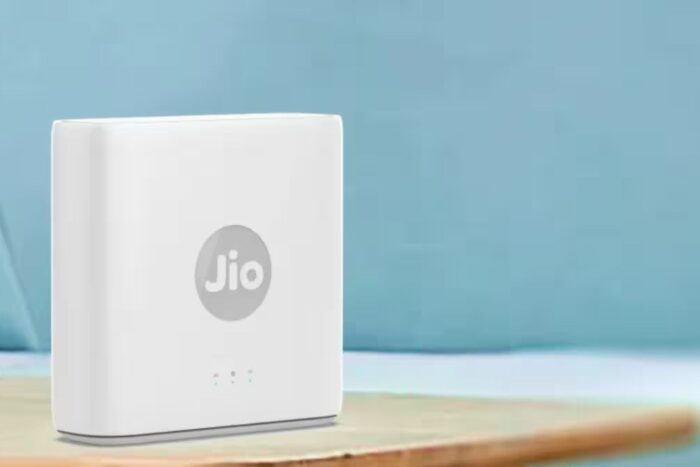
Jio AirFiber not working with VPN is a common problem users face when trying to secure connections, access region-locked content, or work remotely. Many subscribers report connectivity drops, slow speeds, and VPN failures that make online activities frustrating. Understanding why this happens and how to troubleshoot it is key to restoring fast and stable internet.
Jio AirFiber uses fixed wireless access technology to deliver high-speed internet without physical fiber cables, but this setup sometimes conflicts with VPN protocols or network configurations. Users may experience slow VPN connections, frequent disconnections, or even complete inability to connect while the VPN is active.
Quick fixes you can try immediately (more details below):
- Restart your device (computer or phone)
- Toggle airplane mode on and off
- Reconnect to Wi-Fi
- Ensure your VPN subscription is active
- Check for loose cables or power issues on the router/ODU
Table of contents
- Why Jio AirFiber Is Not Working With VPN
- Jio AirFiber Issues: Common Symptoms And What They Mean
- Typical Jio AirFiber Error Messages
- Step By Step Fixes to Make Jio AirFiber Work With VPN
- 1) Restart Your Jio AirFiber Router and ODU
- 2) Check VPN Protocol Compatibility
- 3) Switch to a Different VPN Server
- 4) Reposition the Outdoor Unit (ODU)
- 5) Update Firmware on IDU and ODU
- 6) Disable Bandwidth-Heavy Apps While Using VPN
- 7) Flush DNS and Renew IP on Your Device
- 8) Try Alternative VPN Providers
- 9) Contact Jio Support for Port-Specific Assistance
- 10) Test Connection Without VPN
- 11) Change DNS Settings on Your Device
- 12) Disable IPv6 on Your Device or Router
- 13) Limit Connected Devices on Your Network
- 14) Reset the Jio AirFiber Network Configuration
- 15) Use a Wired Ethernet Connection for VPN
- 16) Optimize VPN MTU Settings
- Does Using VPN Change What’s Available on Jio AirFiber?
- Is Jio AirFiber Available Worldwide?
- Jio AirFiber Features Affected By VPN
- How To Choose the Best VPN For Jio AirFiber
- Conclusion: Fixing Jio AirFiber Not Working With VPN
- FAQ About Jio AirFiber And VPN
Why Jio AirFiber Is Not Working With VPN
Several factors can cause Jio AirFiber to fail with VPN connections. Root causes often include network-level restrictions, hardware placement, weather interference, or device limitations. Region-specific routing and port blocking on Jio’s FWA network may prevent certain VPN protocols from establishing stable connections. Line-of-sight requirements and distance from the nearest tower further influence connectivity.
Jio AirFiber Issues: Common Symptoms And What They Mean
- Frequent disconnections: Obstructions, tower distance, or weather interference.
- Intermittent drops while on VPN: NAT/firewall issues or VPN protocol incompatibility.
- Speeds much lower than advertised: Network congestion, distance from tower, or device limitations.
- VPN works but is slow or unstable: Network prioritization or throttling affects VPN traffic.
- Cannot connect to Wi-Fi: Router not synced with ODU or firmware glitches.
- Outdoor unit LED flashing red/orange: Weak or lost connection to the tower.
Typical Jio AirFiber Error Messages
- “No Signal” – ODU cannot detect the tower; check placement/alignment.
- “Limited Connectivity” – Device connected to Wi-Fi but no internet; may indicate router or ISP issue.
- “IP Address Not Assigned” – DHCP failure; restart router or check service provisioning.
- “VPN Failed to Connect” – VPN protocol blocked or misconfigured.
- “Slow Internet” – Alert from speed test apps or router dashboard indicating low throughput.
Step By Step Fixes to Make Jio AirFiber Work With VPN
1) Restart Your Jio AirFiber Router and ODU
- Power off your indoor unit (IDU) and outdoor unit (ODU).
- Wait 30 seconds to 1 minute.
- Power the units back on and wait for the connection to stabilize.
Why this helps: Restarting resets your connection, clears temporary network errors, and refreshes the DHCP lease, which can resolve VPN handshake failures caused by stale IP or NAT issues.
2) Check VPN Protocol Compatibility
- Open your VPN app settings.
- Switch to OpenVPN, IKEv2, or WireGuard protocols.
- Test the connection with each protocol.
- Save the best-performing protocol for regular use.
Why this helps: Different VPN protocols use distinct ports and handshake mechanisms. Aligning your VPN protocol with Jio AirFiber’s network handling prevents blocked connections and slow speeds. For reference, see VPN not working with Jio for common protocol conflicts and solutions.
3) Switch to a Different VPN Server
- In your VPN app, select a server in a nearby region.
- Connect and test speeds on websites or speed tests.
- Try multiple servers if initial attempts fail.
Why this helps: Network congestion or regional port restrictions may affect certain VPN endpoints. Switching servers reduces latency and avoids restricted routes.
4) Reposition the Outdoor Unit (ODU)
- Check the line-of-sight from your rooftop ODU to the nearest Jio tower.
- Adjust ODU height and orientation for maximum signal strength.
- Remove obstacles like trees or antennas if possible.
- Use a signal strength app to verify improvement.
Why this helps: AirFiber relies on fixed wireless access, requiring clear paths between your ODU and Jio tower. Improved alignment enhances throughput and stabilizes VPN connections.
5) Update Firmware on IDU and ODU
- Log in to your Jio AirFiber admin panel.
- Check for available firmware updates for IDU and ODU.
- Download and install updates.
- Reboot the devices after installation.
Why this helps: Firmware updates fix bugs, optimize wireless performance, and improve VPN compatibility by ensuring proper handling of network protocols and NAT configurations.
6) Disable Bandwidth-Heavy Apps While Using VPN
- Close video streaming, cloud backups, or large downloads.
- Test VPN performance again.
- Schedule bandwidth-heavy activities outside VPN sessions.
Why this helps: VPNs encrypt traffic, which adds overhead. High-demand applications on the same network can saturate bandwidth, causing slow VPN speeds and unstable connections.
7) Flush DNS and Renew IP on Your Device
On Windows, open Command Prompt and run:ipconfig /flushdns
ipconfig /renew
On macOS, open Terminal and run:sudo dscacheutil -flushcache; sudo killall -HUP mDNSResponder
Reconnect to your VPN and test connectivity.
Why this helps: Flushing DNS clears stale records that may prevent VPNs from resolving hostnames correctly. Renewing IP ensures a fresh lease compatible with VPN routing.
8) Try Alternative VPN Providers
- ProtonVPN – Secure, privacy-focused, supports multiple protocols, and optimized for wireless networks.
- NordVPN – Fast servers worldwide, robust encryption, and easy server switching to avoid ISP restrictions.
- ExpressVPN – Reliable connections, strong mobile app support, and flexible protocol options for stable VPN access.
Why this helps: Some VPNs are better optimized for wireless networks like Jio AirFiber. Alternative providers may bypass ISP restrictions and offer better server options for faster, reliable VPN connections.
9) Contact Jio Support for Port-Specific Assistance
- Call 1800-8899-333 or email [email protected].
- Describe your VPN issue and the protocols used.
- Ask for guidance on port unblocking or network troubleshooting.
Why this helps: Jio can provide insight into restricted ports or NAT handling, which often block VPN connections. Support can suggest configuration adjustments to restore VPN functionality.
10) Test Connection Without VPN
- Disconnect from the VPN.
- Run speed tests and browse websites normally.
- Compare results to VPN performance.
Why this helps: Testing without VPN isolates the problem. If speeds and stability improve without VPN, the issue is protocol- or port-related rather than general network problems.
11) Change DNS Settings on Your Device
- Open network settings on your computer or router.
- Set DNS manually to Google DNS (8.8.8.8, 8.8.4.4) or Cloudflare DNS (1.1.1.1, 1.0.0.1).
- Save settings and reconnect to the VPN.
- Run a speed test or browse websites to check performance.
Why this helps: Custom DNS can bypass ISP-level DNS filtering or slow lookup issues, which often interfere with VPN connections and cause “VPN failed to connect” errors.
12) Disable IPv6 on Your Device or Router
- Go to network adapter settings.
- Locate IPv6 and uncheck or disable it.
- Reboot your router and reconnect devices.
Why this helps: Some VPNs do not fully support IPv6, which can cause routing conflicts, dropped packets, or partial connectivity issues on Jio AirFiber.
13) Limit Connected Devices on Your Network
- Disconnect devices not actively using the network.
- Prioritize VPN device usage through router QoS settings if available.
- Test VPN performance with fewer devices online.
Why this helps: High-density connections reduce bandwidth per device. Limiting active devices frees up capacity for VPN traffic, stabilizing speeds and reducing latency.
14) Reset the Jio AirFiber Network Configuration
- Log into the Jio AirFiber admin panel.
- Find the option to reset network or restore factory settings.
- Confirm the reset and set up your Wi-Fi again.
- Reconnect VPN after configuration is restored.
Why this helps: A network reset clears misconfigurations, routing errors, or corrupted profiles that can block VPN connections or throttle speeds.
15) Use a Wired Ethernet Connection for VPN
- Connect your device directly to the IDU using an Ethernet cable.
- Disable Wi-Fi on the device to ensure traffic uses the wired connection.
- Connect the VPN and test speeds.
Why this helps: Wired connections eliminate Wi-Fi interference and improve throughput. For VPN-heavy tasks, direct connection reduces packet loss and stabilizes encryption handshakes.
16) Optimize VPN MTU Settings
- Open VPN client advanced settings.
- Lower the Maximum Transmission Unit (MTU) to 1400–1450 bytes.
- Save changes and reconnect to the VPN.
- Test connectivity with speed tests or streaming.
Why this helps: Adjusting MTU prevents packet fragmentation on Jio AirFiber’s fixed wireless network. This improves VPN stability, reduces latency spikes, and avoids random drops.
Does Using VPN Change What’s Available on Jio AirFiber?
Using a VPN can alter access to certain region-locked content or websites. For example, you can access Jio Cinema in Canada using a VPN to bypass geo-restrictions.
Is Jio AirFiber Available Worldwide?
Jio AirFiber is currently limited to cities covered by Jio’s 5G network. Users outside these regions cannot receive the advertised speeds or service.
Jio AirFiber Features Affected By VPN
- Streaming speed: VPN encryption may slightly reduce throughput.
- Latency: Online gaming or video calls may experience minor delays.
- Region-specific content: Certain apps may block VPN IP addresses.
How To Choose the Best VPN For Jio AirFiber
- Server Location – Choose VPNs with servers near your region for lower latency.
- Protocol Support – Ensure compatibility with OpenVPN, WireGuard, or IKEv2.
- Speed & Stability – Look for VPNs optimized for wireless networks.
- Security & Privacy – Prioritize strong encryption and no-log policies.
For guidance on streaming apps, check how to watch Jio Hotstar in UAE.
Conclusion: Fixing Jio AirFiber Not Working With VPN
Follow the quick preliminary fixes first, then the 16-step troubleshooting guide to restore VPN functionality. Start with device restarts, VPN protocol adjustments, and ODU alignment, and move toward advanced fixes like DNS changes and MTU optimization. Using the right VPN provider ensures reliable, fast, and secure connections on Jio AirFiber.
FAQ About Jio AirFiber And VPN
A: Certain VPN protocols may be restricted, causing connection failures.
A: Network congestion, protocol mismatch, or Wi-Fi interference can reduce speeds.
A: Yes, some VPNs are optimized for geo-unblocking Jio apps like Jio Cinema.
A: Yes, updates can resolve bugs and improve VPN compatibility.


Read our disclosure page to find out how can you help VPNCentral sustain the editorial team Read more


Improve this guide




User forum
0 messages