
Sky Go Not Working With VPN (Detailed Fix Guide)


 8 min. read
  Published on

Sky Go is a streaming platform from Sky that lets subscribers watch live TV and on-demand content on laptops, tablets, phones, or consoles. It includes channels like Sky Sports, Sky Cinema, and Sky News.
However, since Sky Go is officially available only in the UK and Ireland, it often blocks users who connect via VPNs. If you’re seeing location or playback errors while using a VPN, this guide explains why it happens and how to fix it.
Table of contents
How To Fix Sky Go Not Working With VPN
You can usually fix the issue by refreshing your connection, clearing stored region data, or using a different VPN configuration. Try the steps below, one by one, while staying connected to a UK server.
1. Switch To A Different UK Server
Sky Go often blocks servers that have too many simultaneous users.
If your VPN connects to “UK London” by default, that’s likely overcrowded.
What to do:
- Open your VPN app and disconnect.
- Choose another UK server, such as “Manchester” or “Glasgow.”
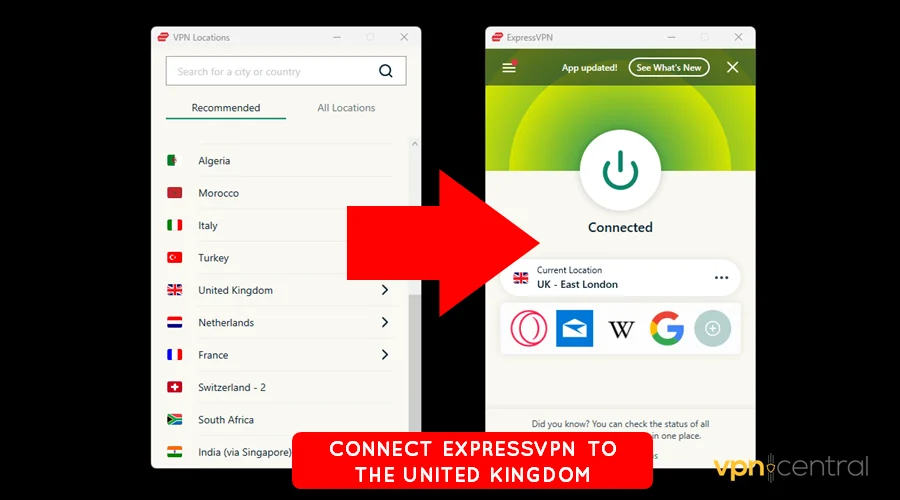
- Reconnect and launch Sky Go again.
If it still doesn’t work, repeat the process a few times. VPNs like NordVPN or ExpressVPN provide multiple server clusters per city, one of them usually works when others don’t.
2. Clear Sky Go Cache And Data
Sky Go saves temporary files that store your previous location and session data. If you’ve switched regions recently, the cache might still hold your old IP information, causing connection errors.
Windows
- Close the Sky Go app completely.
- Press Windows + R, type
%appdata%, and hit Enter.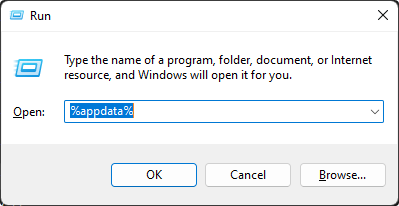
- Open the “Sky Go” folder and delete its contents.
- Reopen Sky Go while connected to your VPN.
Android
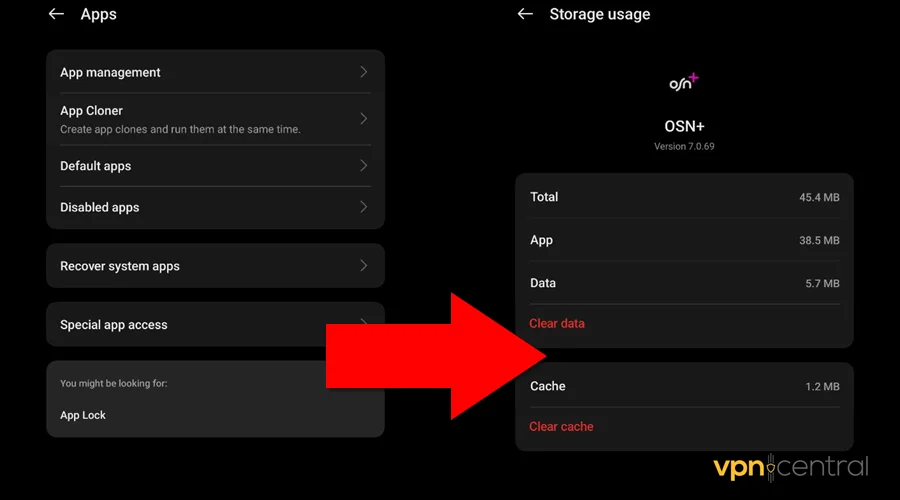
- Open Settings → Apps → Sky Go → Storage.
- Tap Clear cache and then Clear data.
iPhone/iPad
- Tap and hold the Sky Go icon → choose Remove App.
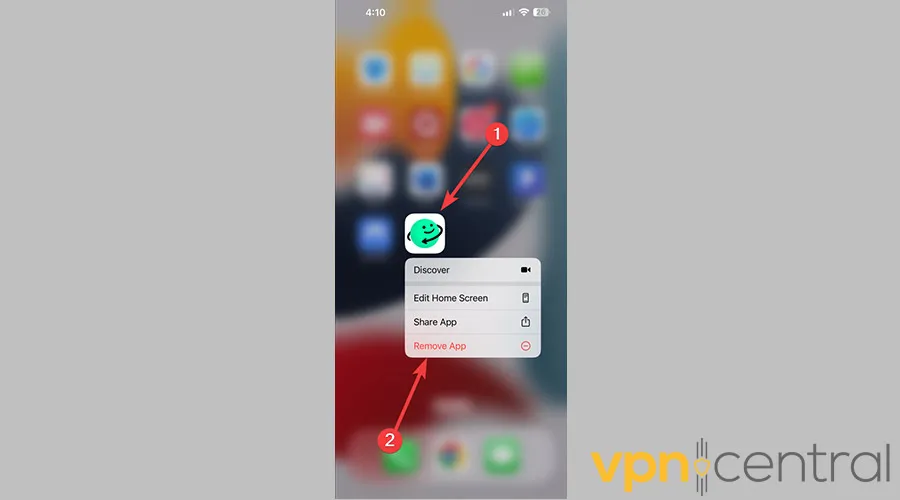
- Reinstall the app from the App Store.
After clearing the cache, the app rebuilds its data with your new VPN IP address.
3. Change VPN Protocol
Every VPN protocol routes traffic differently. Sky Go may easily detect one protocol but not another.
If your VPN offers WireGuard, OpenVPN, and IKEv2, experiment with them.
Steps:
- Open your VPN app → go to Settings → Protocol.
- Switch from WireGuard to OpenVPN (UDP), or vice versa.
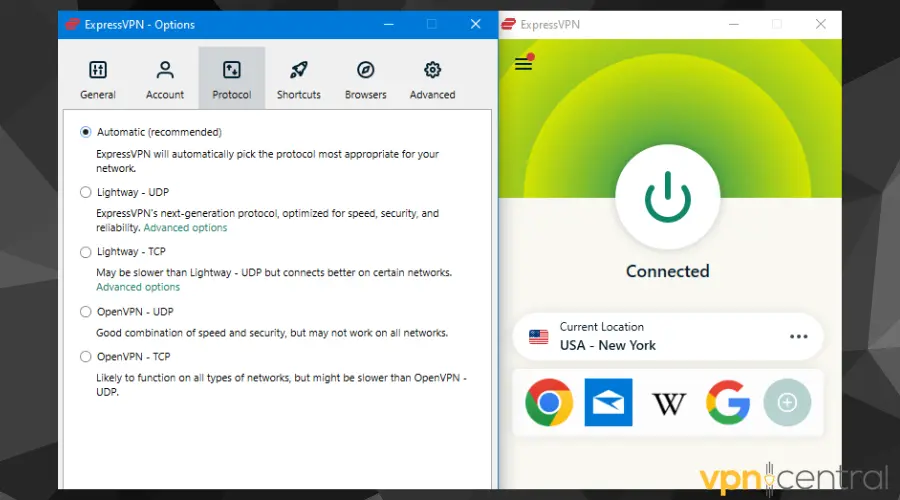
- Reconnect and retry Sky Go.
OpenVPN often works better for streaming because it allows more customization and obfuscation.
4. Turn Off Device Location Services
Even if your IP appears in the UK, Sky Go can cross-check your GPS or system location data and block you if there’s a mismatch.
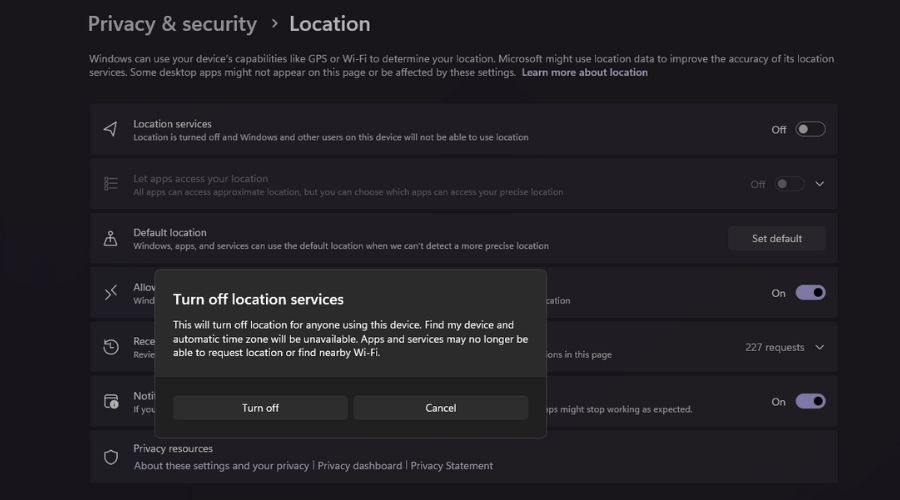
On Windows:
Go to Settings → Privacy & Security → Location, then toggle it Off.
On Android or iPhone:
Open Settings → Location (or Privacy → Location Services) and disable it completely.
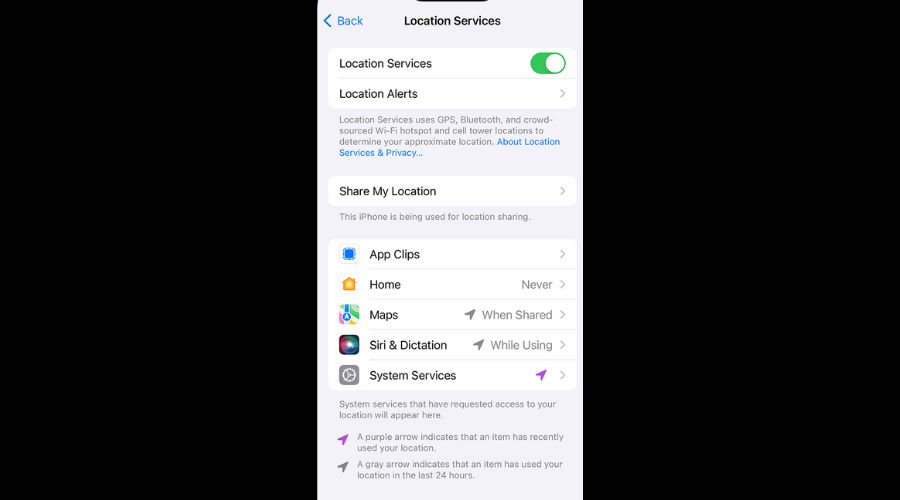
Restart the Sky Go app afterward so it stops pulling real GPS data.
5. Adjust Split Tunneling Settings
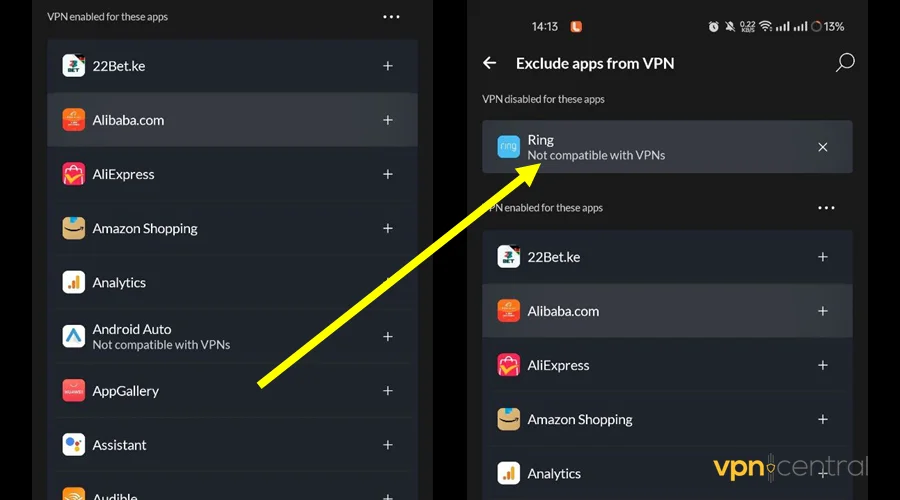
Some VPNs use split tunneling, which lets you route only selected apps through the VPN.
If Sky Go isn’t included in that list, part of its connection might go through your real IP, instantly triggering a block.
To fix it:
- Open your VPN app.
- Go to Split Tunneling or App Exclusions.
- Turn it off to route all traffic through the VPN.
- Or, if it’s already off, turn it on and make sure Sky Go is checked as a tunneled app.
This ensures no leaks between your VPN and regular network.
6. Change DNS Settings (Windows)
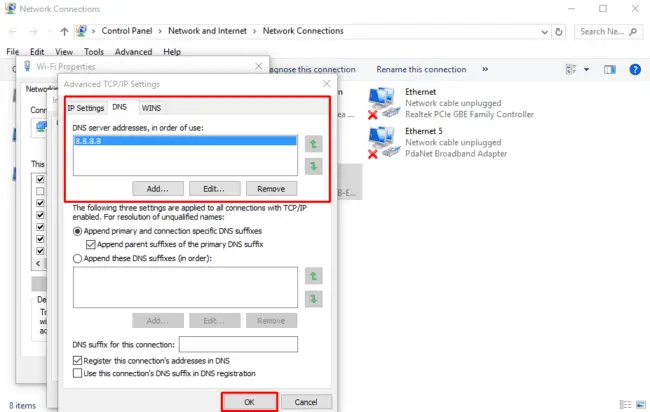
Sky Go also checks your DNS requests, and if those go through your real region instead of the VPN, you’ll be flagged.
Using a public DNS like Google’s often solves this.
Steps:
- Press Windows + R, type
ncpa.cpl, and press Enter. - Right-click your active network → Properties.
- Choose Internet Protocol Version 4 (TCP/IPv4) → Properties.
- Select “Use the following DNS server addresses”:
- Preferred: 8.8.8.8
- Alternate: 8.8.4.4
- Click OK, reconnect to your VPN, and relaunch Sky Go.
This forces all lookups through consistent servers, minimizing region mismatches.
7. Log Out And Back In
Sky Go sometimes locks your login session to a region when you first sign in.
Logging out clears that stored session and lets the app re-authenticate under your VPN connection.
Steps:
- In the Sky Go app, log out of your account.
- Close the app completely (not just minimize).
- Reopen it and log in again while connected to your VPN.
This simple refresh often resolves playback restrictions.
8. Update The Sky Go App
Outdated app versions can contain old regional enforcement logic or certificate issues.
Visit the App Store, Play Store, or Sky’s official website to make sure you’re running the latest version.
Then reconnect your VPN and check again.
If you still can’t connect, follow this comprehensive troubleshooting guide for Sky not working with VPN which covers deeper network and app resets.
Why Sky Go Does Not Work With VPN
Sky Go uses strict geo-restriction technology to ensure that its content is only available to users in supported regions. The app checks your device’s IP address and location data to confirm whether you’re physically in the UK or Ireland.
When it detects a mismatch, for instance, if you’re connecting from a data-center IP or a known VPN subnet, it blocks playback and shows an error such as:
- “Sky Go is only available in the UK or Ireland.”
- “Video unavailable in your region.”
- “An error occurred, please try again later.”
These blocks are constantly updated. The platform keeps a database of IPs linked to VPNs, and once a server appears on that list, it’s immediately blacklisted. Even if your VPN claims to have UK servers, shared IP addresses are a red flag to Sky’s detection systems.
If you’re abroad and trying to watch your account safely, read how to watch Sky Go in France for a tested workaround.
When To Replace Your VPN
If none of the above solutions help, your current VPN may simply be unable to bypass Sky Go’s detection.
This is common with budget or free VPNs that reuse the same IP addresses for thousands of users.
When that happens, Sky Go quickly adds those IPs to its blocklist.
To solve this, switch to a provider that maintains dedicated streaming servers and rotates IPs regularly.
What to look for in a VPN that works with Sky Go:
- Multiple UK servers (London, Manchester, Glasgow, Dublin).
- Frequent IP refresh cycles.
- Streaming-optimized or obfuscated servers.
- Fast speeds for HD streaming.
- A proven record of bypassing UK geo-blocks.
Replacing your VPN is often faster and more reliable than repeatedly clearing data or changing settings.
Best VPNs For Sky Go (2025 Recommendations)
Below are VPNs that users consistently report as working best for Sky Go access:
| VPN | Reliability | Highlight |
|---|---|---|
| NordVPN | Excellent | Obfuscated UK servers and fast switching between IPs |
| ExpressVPN | Very high | Streaming-optimized UK nodes refreshed daily |
| Surfshark | Great for multiple devices | Rotating dynamic IPs and unlimited connections |
| CyberGhost | Solid budget pick | Dedicated streaming servers for UK media |
| Proton VPN | Secure and transparent | Swiss-based privacy with UK gateways |
If you use ExpressVPN and it still fails, follow this guide about ExpressVPN not working with Sky Sports which includes specific streaming fixes.
FAQs
Because Sky Go knows many VPN providers share identical IP ranges. Once a VPN server is flagged, the service blocks it to comply with licensing restrictions.
Yes, but only if you’re a UK subscriber traveling temporarily and use a VPN with UK servers. Learn how in how to watch Sky Go in France.
While not illegal, it does breach Sky’s Terms of Service. They can restrict or suspend your access if you misuse VPNs to bypass content limits.
Summary
When Sky Go isn’t working with your VPN, the issue usually lies with blocked servers, cached region data, or DNS leaks.
Start by switching UK servers, clearing app data, and disabling GPS or split tunneling.
If nothing works, the most efficient fix is to replace your VPN with one that provides regularly refreshed UK IPs and streaming-optimized nodes.
Doing so restores smooth access to Sky Go’s live channels and on-demand shows wherever you are.


Read our disclosure page to find out how can you help VPNCentral sustain the editorial team Read more


Improve this guide




User forum
0 messages