
How to Speed Up uTorrent Downloads: 12 Effective Fixes


 14 min. read
  Published on
You can speed up uTorrent by choosing a healthy torrent, limiting simultaneous downloads, setting a sensible upload cap, allowing incoming connections, and using a nearby wired or stable Wi-Fi connection.
The number and upload capacity of available seeders still set the maximum possible speed. No uTorrent setting can make a poorly seeded torrent download quickly when the few available peers have slow connections.

Access content across the globe at the highest speed rate.
🔥 Save 81% + 2 bonus months! 🔥
70% of our readers choose Private Internet Access
70% of our readers choose Private Internet Access
2
Browse the web from multiple devices with industry-standard security protocols.
🔥 Save 73%! 🔥

Faster dedicated servers for specific actions (currently discounted)
🔥 Save 69%! 🔥
Use torrents only for files that you have permission to download and share. Open-source software, public-domain media, and files released by their creators provide legal ways to test and use BitTorrent.
Quick ways to make uTorrent faster
| Fix | Expected effect | Difficulty |
|---|---|---|
| Choose a torrent with more seeders | Potentially large improvement | Easy |
| Pause other downloads | Gives one torrent more bandwidth | Easy |
| Set an appropriate upload limit | Prevents upload saturation | Medium |
| Allow uTorrent through the firewall | Improves incoming peer connectivity | Medium |
| Enable UPnP or configure port forwarding | May improve connectability | Medium |
| Use Ethernet or stronger Wi-Fi | Improves local network stability | Easy |
| Save downloads to an SSD | Helps with disk-heavy torrents | Easy |
| Update the client | Provides current fixes and compatibility | Easy |
1. Choose a torrent with enough seeders
The most important factor is the health of the torrent swarm. A seeder has the complete file and shares it with other users. A peer may hold only part of the file.
A torrent with many active seeders usually downloads faster than one with only one or two. However, the displayed number does not guarantee speed because some seeders may have strict upload limits, overloaded connections, or temporary connectivity problems.
When several legal torrents contain the same file, compare their seed-to-peer ratios. A torrent with 100 seeders and 20 peers often provides a better opportunity than one with 10 seeders and 500 peers.
- Prefer torrents published by the official project or creator.
- Check the number of connected seeders, not only the number listed.
- Avoid abandoned torrents with no complete source.
- Read the file description and verify checksums when available.
- Do not assume a popular torrent is legal or safe.
2. Test your actual internet speed
Before changing uTorrent, test the connection without any active downloads. The result gives you a realistic baseline for the maximum speed your internet service can deliver.
Internet plans often use megabits per second, written as Mbps. uTorrent may display megabytes or kilobytes per second. Eight megabits equal approximately one megabyte.
| Internet plan speed | Approximate maximum download rate |
|---|---|
| 25 Mbps | 3.1 MB/s |
| 50 Mbps | 6.25 MB/s |
| 100 Mbps | 12.5 MB/s |
| 300 Mbps | 37.5 MB/s |
| 500 Mbps | 62.5 MB/s |
| 1 Gbps | 125 MB/s |
Real downloads rarely reach the full theoretical figure. Network overhead, Wi-Fi conditions, disk activity, peer capacity, and distance reduce the final rate.
3. Set the upload limit correctly
BitTorrent needs upload bandwidth to communicate with peers and share downloaded pieces. Setting the upload rate to zero does not necessarily disable uploading in uTorrent. In many versions, zero means unlimited.
An unlimited upload can saturate the connection. When this happens, acknowledgement packets and other traffic struggle to leave the computer, which can slow downloads and make ordinary browsing feel unresponsive.
µTorrent’s official connection optimization guide recommends measuring upload speed, converting it to kilobytes per second, and setting the limit to around 70% of the measured maximum.
- Pause all active torrents.
- Run an internet speed test.
- Note the upload result in Mbps.
- Multiply the result by 1,000 to estimate Kbps.
- Divide that result by eight to convert it to KB/s.
- Multiply the KB/s result by 0.7.
- Enter that figure as the maximum upload rate.
For example, a measured upload speed of 20 Mbps equals approximately 2,500 KB/s. Seventy percent would produce an initial uTorrent upload limit of about 1,750 KB/s.
4. Do not use arbitrary bandwidth values
A fixed upload limit of 14 KB/s may have worked on a very slow connection years ago. On a modern fibre or cable connection, it can severely restrict sharing and reduce the number of peers willing to send data back.
The same problem affects fixed connection limits. Setting thousands of global connections can overload a home router, increase CPU and memory use, and create connection failures without increasing useful peer activity.
Start with uTorrent’s defaults or its connection guide rather than copying one set of values from another computer. Every internet connection, router, and torrent swarm behaves differently.
| Setting | Safer approach |
|---|---|
| Maximum upload rate | Use about 70% to 80% of measured upload capacity |
| Maximum download rate | Leave unlimited unless you need bandwidth for other tasks |
| Global connections | Keep the default first, then adjust gradually |
| Peers per torrent | Avoid extremely high values |
| Upload slots | Use enough slots to share effectively without splitting upload too thinly |
5. Limit active downloads
Downloading many torrents at once divides bandwidth, disk access, and connections among them. This often makes every individual download appear slow.
Pause less important items and allow the highest-priority torrent to use the available resources. You can also change queue settings so uTorrent starts only a small number of downloads at once.
- Open Options.
- Select Preferences.
- Open the Queueing section.
- Set the maximum active downloads to one or two.
- Choose a reasonable maximum number of active torrents.
- Select Apply and then OK.
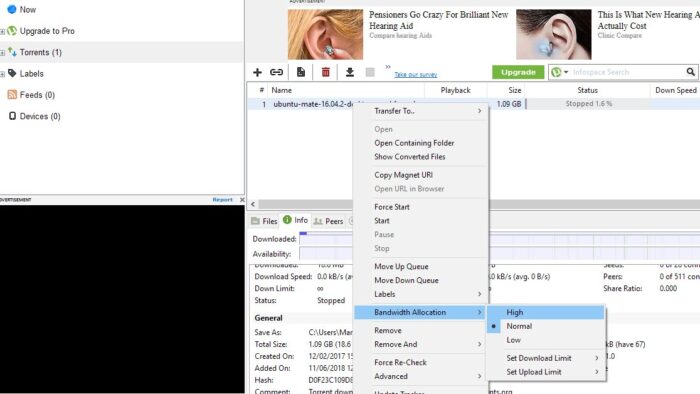
You can also right-click a torrent, open Bandwidth Allocation, and choose High. Set other active torrents to Normal or Low rather than assigning High priority to everything.
6. Check whether uTorrent has an incoming connection
A connectable client can accept incoming connections from more peers. A blocked client can still make outgoing connections, but the smaller peer pool may reduce performance.
Firewalls, routers, carrier-grade NAT, and internet service provider restrictions can interfere with incoming traffic. uTorrent may show a warning or connection-status indicator when it cannot receive connections properly.
Do not disable the firewall entirely. Microsoft recommends allowing a specific trusted application rather than opening unnecessary ports or switching off protection. Its Windows Firewall guidance explains the security difference.
7. Allow uTorrent through Windows Firewall
If Windows Firewall blocks uTorrent, allow the installed application through the firewall while keeping the firewall enabled.
- Open the Start menu.
- Search for Allow an app through Windows Firewall.
- Open the matching control panel result.
- Select Change settings.
- Find uTorrent in the list.
- Allow it on the appropriate trusted network type.
- Select OK.
Use caution on public networks. Allowing unsolicited incoming connections on airport, hotel, or café Wi-Fi may create unnecessary exposure.
Microsoft’s firewall risk documentation says adding an application exception is generally safer than leaving a port permanently open.
8. Enable UPnP and NAT-PMP when appropriate
UPnP and NAT-PMP can ask a compatible router to create the required port mapping automatically. This may improve incoming connectivity without manual router configuration.
- Open uTorrent Classic.
- Select Options and then Preferences.
- Open Connection.
- Enable UPnP port mapping.
- Enable NAT-PMP port mapping if the router supports it.
- Keep the random port setting disabled when configuring a fixed manual forward.
- Select Apply.
Automatic port mapping may fail when the network uses multiple routers, carrier-grade NAT, a restrictive firewall, or a router with UPnP disabled.
The official uTorrent connection guide also recommends authorizing the client in the firewall and configuring an appropriate upload rate.
9. Consider manual port forwarding
Manual port forwarding can help when automatic mapping does not work. The steps differ by router, so consult the router manufacturer’s instructions rather than following generic screenshots for another model.
You normally need the computer’s local IP address, uTorrent’s incoming port number, and access to the router administration page. Reserve the computer’s local IP address so the forwarding rule does not point to a different device later.
Manual forwarding may not work when the internet provider uses carrier-grade NAT. In that configuration, the home router does not receive a unique public IPv4 address.
- Use one high-numbered incoming port.
- Do not forward large ranges of ports.
- Match the port in the router and uTorrent.
- Keep the Windows Firewall application rule enabled.
- Remove old forwarding rules that you no longer use.
- Do not expose router administration to the internet.
10. Use Ethernet or improve Wi-Fi
An Ethernet connection can provide more stable throughput and lower latency than congested Wi-Fi. It also avoids interference from walls, neighbouring networks, Bluetooth products, and other wireless devices.
When Ethernet is unavailable, move closer to the router and use a 5 GHz or 6 GHz network where supported. These bands often provide higher speed at short range, while 2.4 GHz can work better through walls but faces more interference.
- Move the computer closer to the router.
- Restart the router when performance has degraded.
- Use a less congested Wi-Fi channel.
- Disconnect unused high-bandwidth devices.
- Pause cloud backups and game updates.
- Use Ethernet for large legal downloads.
Connecting the computer directly to the modem may remove router protection or interrupt other household services. Connect through the router unless the internet provider specifically requires a different arrangement.
11. Avoid unnecessary trackers
Adding a long copied list of public trackers does not increase the number of people who possess the file. Trackers only help clients discover peers participating in the same torrent swarm.
Duplicate, dead, or unrelated trackers can create extra network requests and disclose the torrent’s identifier to more operators. Private torrents may also prohibit adding outside trackers.
Keep the trackers supplied by the authorised publisher. Distributed Hash Table and peer exchange can also discover peers when the torrent permits those features.
12. Give uTorrent enough disk performance
High-speed torrents can become limited by storage rather than the internet connection. This happens more often with torrents containing thousands of small files or when the drive is nearly full.
Download to an SSD when possible and leave enough free space for the completed files. Avoid running several disk-intensive tasks, such as game installations, large file copies, and antivirus full scans, at the same time.
| Disk-related problem | Possible fix |
|---|---|
| Disk overloaded at 100% | Pause other disk-heavy applications |
| Very little free space | Clear space or select another drive |
| External drive disconnects | Use another cable or a powered port |
| Slow mechanical drive | Download to an SSD when available |
| Antivirus scans every piece | Keep protection enabled but schedule full scans separately |
Do not disable antivirus protection to improve torrent speeds. A small performance gain does not justify the risk of opening an unsafe executable or archive.
13. Update uTorrent through the official website
Older builds can contain bugs, compatibility problems, and outdated components. Install updates through the application or the official publisher rather than through third-party download portals.
The official uTorrent Classic download page provides the current Windows installer and distinguishes the free, ad-free, Pro, and Pro+VPN editions.
Paid versions cannot make a poorly seeded torrent faster. Their main differences involve advertising, support, streaming, security scanning, and bundled services.
14. Test with a known legal torrent
When every download appears slow, test uTorrent with a healthy torrent published by a trusted open-source project. This helps separate a client or network problem from a weak torrent swarm.
Ubuntu publishes official torrent files for its operating-system images on its alternative downloads page. A current Ubuntu torrent often has many seeders and provides a useful legal connectivity test.
- Pause other downloads.
- Download an official Ubuntu torrent.
- Open it in uTorrent.
- Wait several minutes for peer discovery.
- Compare its speed with the slow torrent.
- Delete the test files later if you do not need them.
If the Ubuntu torrent reaches high speeds, uTorrent and the connection probably work correctly. The original torrent likely has too few seeders or low peer upload capacity.
If the official Ubuntu torrent also remains slow, review the firewall, port, bandwidth, router, and disk settings.
15. Enable protocol encryption only when needed
Protocol encryption can make BitTorrent traffic less obvious to basic network-management systems. It does not provide the same privacy or security as full VPN encryption.
µTorrent recommends setting outgoing protocol encryption to Enabled for most affected users. The Forced option can reduce the number of compatible peers because it rejects connections that do not support encryption.
- Open Options and Preferences.
- Select BitTorrent.
- Find Protocol Encryption.
- Set Outgoing to Enabled.
- Allow incoming legacy connections unless you have a reason not to.
- Select Apply.
Do not expect this setting to bypass every provider or network restriction. Some workplaces, schools, hotels, and public networks block peer-to-peer traffic by policy.
16. Check whether a VPN is limiting the speed
A VPN adds encryption and sends traffic through another server, so it can reduce speed. The effect depends on the VPN provider, server distance, protocol, load, and whether the service supports port forwarding.
Connect to a nearby server and use a modern protocol when available. Some VPNs do not permit incoming port forwarding, which can reduce the number of peers that can connect directly.
A VPN does not make copyright infringement legal and does not scan downloaded files for malware. Use it for legitimate privacy needs rather than as a substitute for licences, security software, or careful file verification.
17. Replace uTorrent when the client remains the problem
If uTorrent continues to behave poorly after network and torrent testing, try another client with the same legal torrent. This comparison can reveal whether the problem lies in uTorrent’s configuration.
qBittorrent is a free, open-source alternative without advertising in its official builds. Download it only through the qBittorrent project website.
Do not run two torrent clients on the same port at the same time. Pause or close one client before testing the other, and avoid downloading duplicate copies of a large file.
The official qBittorrent download page provides builds for Windows, macOS, Linux, and other supported platforms.
Why uTorrent may still download slowly
Some problems cannot be solved through client settings. The source swarm or network may impose a hard limit.
- The torrent has no active seeder.
- Seeders have slow upload connections.
- The file is unpopular or abandoned.
- The internet provider or local network blocks P2P traffic.
- Carrier-grade NAT prevents incoming connections.
- The VPN server is overloaded or far away.
- The storage drive cannot write data quickly enough.
- Other household devices consume the connection.
- The router cannot handle many simultaneous connections.
Waiting may help when seeders come online only at certain times. However, a torrent with no complete copy in the swarm cannot finish until someone with the missing pieces reconnects.
Recommended uTorrent settings
There is no universal perfect configuration, but these starting points suit many home connections.
| Setting | Recommended starting point |
|---|---|
| Maximum download rate | 0, meaning unlimited |
| Maximum upload rate | About 70% to 80% of measured upload capacity |
| Maximum active downloads | 1 to 3 |
| Maximum active torrents | 3 to 6 |
| UPnP port mapping | Enabled when supported and trusted |
| NAT-PMP port mapping | Enabled when supported |
| Protocol encryption | Enabled, not Forced, as a starting point |
| Random port on startup | Disabled when using manual port forwarding |
Change one setting at a time and test the same healthy torrent. Changing many values simultaneously makes it difficult to identify which adjustment helped or caused a new problem.
Final verdict
The fastest way to improve uTorrent usually involves choosing a healthier torrent and reducing competition from other downloads. Bandwidth settings cannot create seeders or exceed the connection speed supplied by the available peers.
Set the upload cap according to a real speed test, keep the firewall enabled, allow uTorrent as a trusted application, and configure incoming connectivity only when necessary. Avoid copied tracker lists and extreme connection values.
Install uTorrent from the official Windows download page, keep security software active, and use authorised torrents. These steps improve performance without creating unnecessary legal or security risks.
FAQ
The torrent may have too few seeders, the available peers may have low upload speeds, or your connection may be limited by Wi-Fi, firewall settings, upload saturation, disk activity, or network restrictions.
Start with approximately 70% to 80% of your measured upload capacity. Setting the upload rate too low can hurt peer performance, while leaving it unlimited may saturate the connection.
Not necessarily. Trackers help discover peers but cannot create new seeders or increase their upload capacity. Adding random tracker lists may provide no benefit and can create extra privacy exposure.
UPnP can improve incoming connectivity when you trust the router and local network. Manual port forwarding may work better when automatic mapping fails, but you should not disable the firewall.
Ethernet can provide a more stable connection than congested or weak Wi-Fi. It cannot exceed your internet plan or the upload capacity of the torrent’s seeders.
Usually, a VPN introduces some speed loss because of encryption and additional routing. It may help only when a network specifically slows identifiable P2P traffic or uses an inefficient route.


Read our disclosure page to find out how can you help VPNCentral sustain the editorial team Read more


Improve this guide




User forum
0 messages