
Microsoft Office for the Web and Teams File Access Outage Has Been Resolved


 7 min. read
  Published on
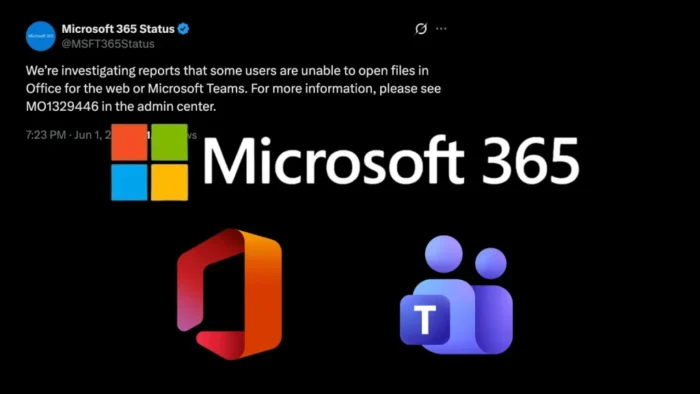
Microsoft has resolved a Microsoft 365 outage that prevented some users from opening files in Office for the web and Microsoft Teams. The company tracked the incident as MO1329446 in the Microsoft 365 admin center and said final details were being provided there after the impact ended.
The issue affected file access in web-based Microsoft 365 workflows. Users attempting to open documents through Office for the web or Teams saw failures, which disrupted collaboration for organizations that rely on browser-based Word, Excel, PowerPoint, and Teams file sharing.

Access content across the globe at the highest speed rate.
70% of our readers choose Private Internet Access
70% of our readers choose ExpressVPN

Browse the web from multiple devices with industry-standard security protocols.

Faster dedicated servers for specific actions (currently at summer discounts)
Microsoft first confirmed the problem through its Microsoft 365 Status channel, saying it was investigating reports that some users could not open files in Office for the web or Microsoft Teams. A later Microsoft 365 Status update said the impact was no longer occurring.
What happened during the Microsoft 365 outage
The disruption centered on file opening rather than general access to Microsoft 365 accounts. That distinction matters because Teams chats, meetings, and channels can still lose much of their value when users cannot open the files attached to those conversations.
Microsoft said it detected elevated error rates across Office for the web services while investigating the reports. The company did not publicly identify a root cause in its brief public updates, but it directed administrators to the Microsoft 365 admin center for final incident details under MO1329446.
Microsoft 365 for the web lets users edit and share Word, Excel, PowerPoint, and OneNote files in a browser. When file opening fails across these services, the impact can reach document reviews, shared spreadsheets, presentations, approvals, and daily team workflows.
Key details at a glance
| Item | Details |
|---|---|
| Incident ID | MO1329446 |
| Affected services | Office for the web and Microsoft Teams file access |
| Main symptom | Some users could not open files |
| Status | Microsoft said the impact was no longer occurring |
| Where admins can check details | Microsoft 365 admin center, Service health page |
The outage also highlighted how tightly Teams and Office file experiences connect inside Microsoft 365. A Teams workspace often depends on Word documents, Excel files, PowerPoint decks, Loop content, and SharePoint-backed file storage, so a file-opening issue can quickly become a broader collaboration problem.
The Microsoft Teams help site describes Teams as a collaboration hub for chat, meetings, calling, and files. For many businesses, file access inside Teams is not a side feature. It is part of how projects, approvals, and shared work move forward.
Microsoft says the impact has ended
Microsoft’s follow-up notice said the impact was no longer occurring and that final details were being provided under MO1329446 in the admin center. That means tenant administrators with access to Microsoft 365 health information should use the admin portal for the full post-incident timeline and any tenant-specific information.
The public resolution update did not name a specific root cause. Microsoft typically shares more complete outage information inside the Service health experience because it can show tenant impact, affected workloads, and incident history for paying customers.
Administrators can review active and recent service incidents through the Microsoft 365 Service health dashboard. Microsoft’s documentation says admins can find it in the admin center under Health, then Service health.
Why file access outages affect business workflows
File access outages can feel narrow at first, but they often disrupt the core of daily work. A sales team may lose access to a pricing spreadsheet. A finance team may be unable to review a workbook. A project team may not open a presentation during a meeting.
In web-first Microsoft 365 environments, users often expect files to open inside the browser or inside Teams without switching apps. When that fails, the fallback process can vary by tenant settings, file type, desktop app availability, and user permissions.
That makes communication important during service incidents. Admins should tell users which workloads are affected, whether desktop Office apps still work, whether files can be opened from OneDrive or SharePoint directly, and when the next update will arrive.
What Microsoft 365 admins should do after the outage
- Review incident MO1329446 in the Microsoft 365 admin center.
- Check whether the tenant shows any remaining advisory or service degradation notice.
- Ask help desk teams to close duplicate tickets only after confirming users can open files again.
- Review Teams, SharePoint, OneDrive, and Office for the web reports for related complaints.
- Update internal incident notes with the outage timeline and user impact.
- Confirm that admin alerting is enabled for Microsoft 365 service incidents.
Microsoft’s Service health documentation also explains that the dashboard shows the health state of each cloud service in a table. That view helps admins separate tenant-specific problems from wider service issues.
Organizations should also check their internal support process. During this kind of outage, users may file tickets for Teams, Excel, PowerPoint, SharePoint, OneDrive, or browser errors even though the underlying problem belongs to a shared Microsoft 365 service layer.
How users can work during a similar outage
| Problem | Possible temporary action |
|---|---|
| File will not open in Teams | Try opening the file directly from OneDrive or SharePoint if available |
| Office for the web shows an error | Try the desktop Office app if the organization licenses and allows it |
| Users do not know whether the issue is local | Check internal IT notices or ask the help desk for service status |
| Teams collaboration slows down | Share status updates in chat and delay file-dependent approvals where possible |
These steps may not work in every tenant, but they can reduce downtime when the affected service path involves browser-based file opening. Administrators should avoid promising a workaround until they test it in their own environment.
The incident also shows why businesses should keep clear fallback paths for critical files. If a department relies entirely on Teams file links during live operations, a file access outage can slow work even when email, chat, and meetings remain available.
Microsoft 365 reliability depends on fast admin visibility
Microsoft 365 outages often create confusion because users experience them through different apps. One employee may say Teams is broken, another may report Excel for the web, and another may blame a browser. Admins need a single health view to connect those reports.
That is where the admin center matters. The Service health page can help IT teams identify whether a problem sits with a user device, a tenant configuration, or a wider Microsoft service incident.
For users, the practical takeaway is simple. If files suddenly fail to open in Office for the web or Teams, check with IT before spending time on local troubleshooting. A cloud service incident may require Microsoft-side remediation rather than device-level fixes.
FAQ
MO1329446 was a Microsoft 365 service incident that affected some users’ ability to open files in Office for the web and Microsoft Teams. Microsoft later said the impact was no longer occurring.
The main affected experiences were Office for the web and Microsoft Teams file access. Users had trouble opening files through web-based Office experiences or Teams.
Yes. Microsoft said the impact was no longer occurring and that final details were available under MO1329446 in the Microsoft 365 admin center.
Admins can check outage details in the Microsoft 365 admin center under Health, then Service health. The incident details for this outage were listed under MO1329446.
Users should check with their IT admin first, especially during a known service incident. If allowed, they can try opening the file directly from OneDrive, SharePoint, or a desktop Office app while admins confirm service status.


Read our disclosure page to find out how can you help VPNCentral sustain the editorial team Read more


Improve this guide




User forum
0 messages