
VPN Won’t Connect on Hotel Wi-Fi? Check the Sign-In Page First
Enjoy secure internet access through your hotel WiFi on the go!


 3 min. read
 Updated on

If your device joins the hotel Wi-Fi but your VPN stays on “Connecting,” check whether the hotel has given you internet access. Many hotels let you join the wireless network before they ask for a room code or acceptance of terms. Until you finish that step, the VPN may be unable to reach its server.
Open the hotel sign-in page
Confirm the network name and sign-in method with the front desk. Select that network and wait for its welcome screen. On an iPhone or iPad, open Settings → Wi-Fi and tap the network name. If the page does not appear, tap the information button beside the network and choose Join Network if offered.

Access content across the globe at the highest speed rate.
🔥 Save 84% + 4 bonus months! 🔥
70% of our readers choose Private Internet Access
70% of our readers choose Private Internet Access
2
Browse the web from multiple devices with industry-standard security protocols.
🔥 Save 81% + 4 bonus months! 🔥

Faster dedicated servers for specific actions (currently discounted)
🔥 Save 77% + 3 bonus months! 🔥

Choosing Without Internet keeps the device on the Wi-Fi without completing sign-in. If the welcome page asks for unexpected details, check with staff. Once you finish the hotel login, connect your VPN and check its status before opening other apps. Apple’s captive Wi-Fi guide explains what each option does.
What if the VPN itself prevents hotel sign-in?
A kill switch can prevent the browser from reaching the hotel’s welcome page because that connection needs to happen outside the VPN. On an employer-managed device, keep the required settings in place. Use an approved cellular hotspot or contact IT for the supported sign-in procedure.
On your own device, first check the VPN provider’s captive-portal instructions. NordVPN advises noting your current settings, pausing auto-connect, temporarily turning off the kill switch, and disconnecting the VPN if it is active. Other apps can send data during this interval. Complete the hotel sign-in, reconnect the VPN, and restore your previous settings before resuming work. NordVPN’s sign-in instructions describe the sequence.
If the hotel login worked but the VPN still fails
| What happens | What to check next |
|---|---|
| Ordinary websites also fail | Ask the front desk to verify the room code, device limit and whether your access has expired. |
| The VPN connects over cellular but fails on hotel Wi-Fi | Give the hotel or your VPN provider the exact error and the result on cellular. Ask which VPN connections the guest network supports. |
| The VPN fails on both connections | Check account sign-in and the provider’s service status. Try a different available server in the app. |
If the hotel permits VPN use and your provider recommends another supported protocol, note the original setting and change one option at a time. Reconnect and check the result. Choosing weaker encryption is unnecessary for completing a hotel login.
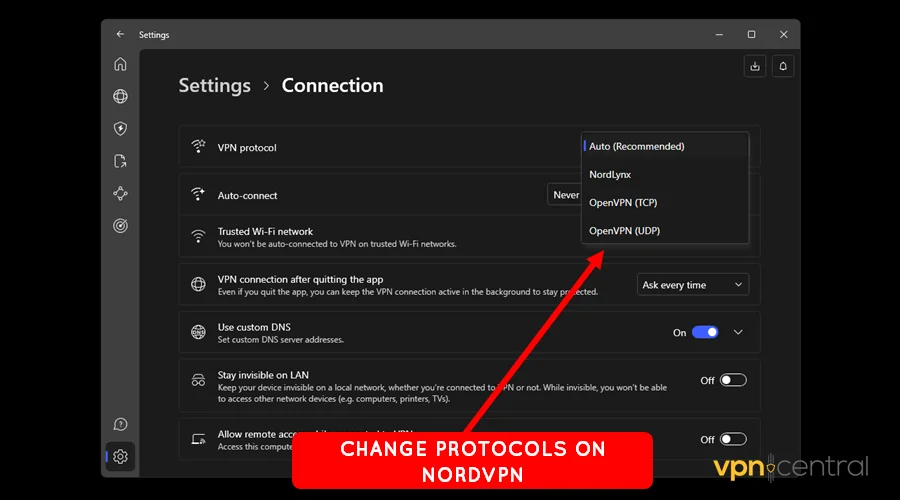
If a connection that worked yesterday stops the next morning, look for the welcome screen again. A room login can expire during a stay. For problems on more than one public network, see our public Wi-Fi VPN troubleshooting guide.


Read our disclosure page to find out how can you help VPNCentral sustain the editorial team Read more


Improve this guide




User forum
0 messages