
Fix ESPN.com Website Access Denied On This Server Error


 8 min. read
  Updated on
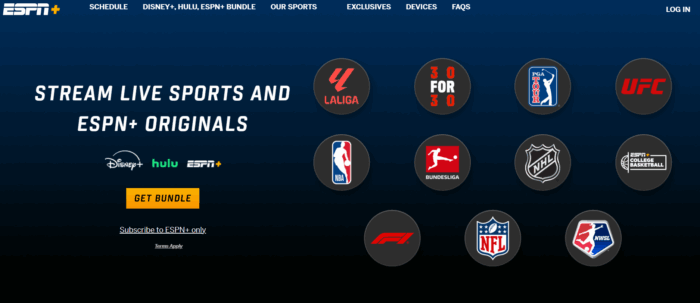
When you try to access plus.espn.com or ESPN+ from outside the U.S., you might get an error like:
Access Denied. You don’t have permission to access this server. Reference #18…
This message typically means the content is geo-blocked – ESPN.com is officially limited to users in the United States, and it may happen that you are not inside the US to access all that ESPN Plus feature can offer. However, there are proven ways to fix the issue (really). In this guide, you’ll find effective methods that work, starting with the one that delivers the fastest results.

Access content across the globe at the highest speed rate.
🔥 Save 81% + 2 bonus months! 🔥
70% of our readers choose Private Internet Access
70% of our readers choose Private Internet Access
2
Browse the web from multiple devices with industry-standard security protocols.
🔥 Save 73%! 🔥

Faster dedicated servers for specific actions (currently discounted)
🔥 Save 69%! 🔥
Table of contents
- How to access plus.espn.com outside US?
- 1. Use a VPN
- 2. Confirm the Problem Was a Geo-Block
- 3. Clear ESPN Cookies and Cache
- 4. Use Incognito Mode and Disable Extensions
- 5. Change Your DNS to Google or Cloudflare
- 6. Use a Smart DNS to Mimic a U.S. Location (Without VPN)
- 7. Change Your Browser Headers and Language Settings
- 8. Consider ESPN Player as an Official Alternative
- What have we learned about accessing plus.espn.com from outside the US?
- FAQs
How to access plus.espn.com outside US?
1. Use a VPN
The most reliable way to fix the ESPN+ access error is by using a VPN that offers U.S.-based servers. Once connected, the site treats your IP as American and lets you in. I know all of you will think that I am trying to sell something like anyone else, but hear me out: after encountering the error abroad, I tested this by enabling a VPN myself to see if it works.
Yes, it works. The restriction was based purely on geographic IP detection.
Here is how to access plus.espn.com with a VPN when the error Access Denied on this server appears:
Time needed: 7 minutes
- Get Express VPN App
Go to the Express VPN Website and download the app
- Install Express VPN App
Install the app on your PC and open it to see if it runs properly
- Check again if plus.espn.com access is still denied
Make sure once again that plus.espn.com is still displaying the error
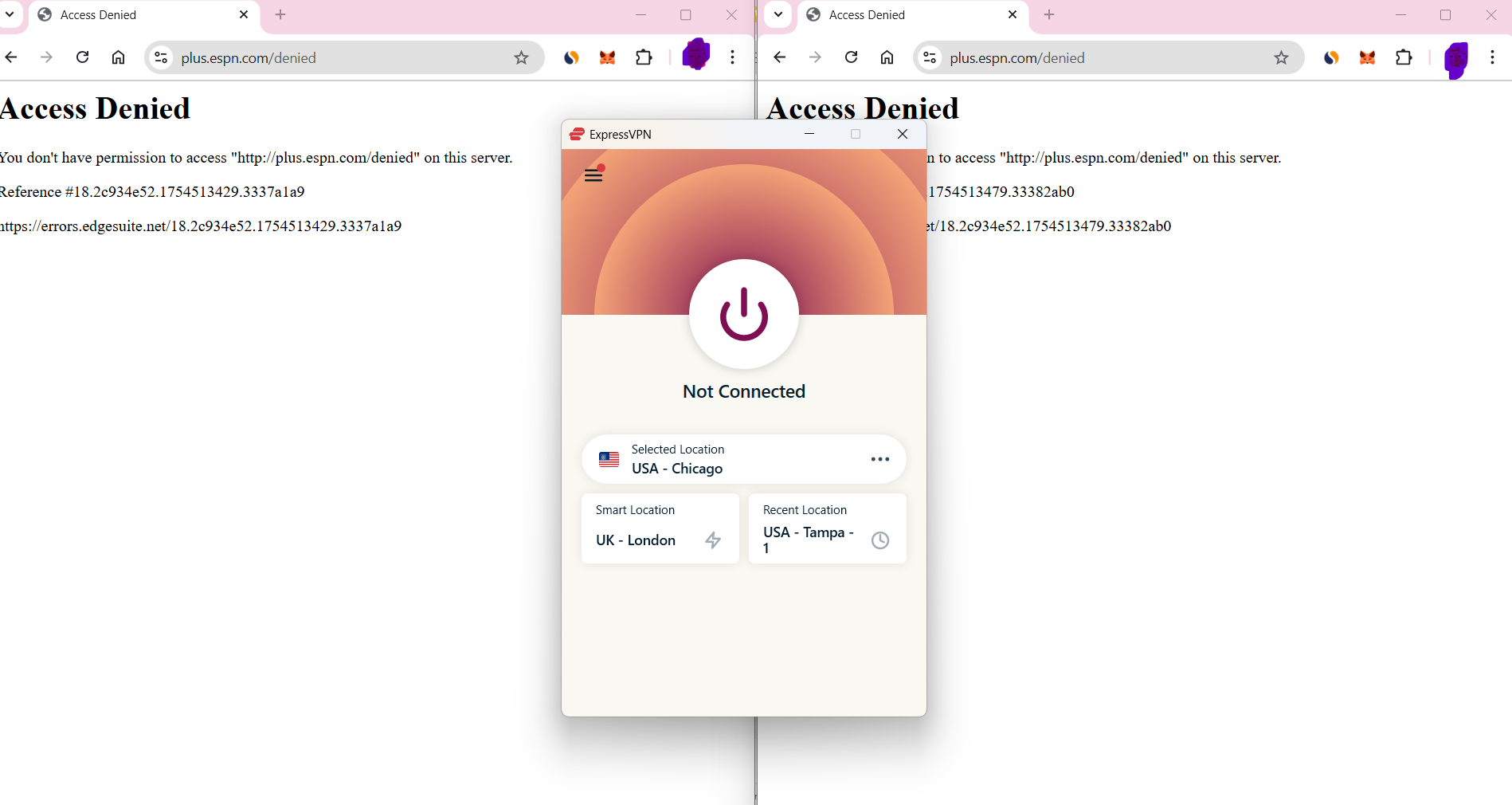
- Connect to US server
Connect to a server located in the United States (I used Chicago)
- Clear cookies and go Incognito
Use incognito mode and clear your cookies before visiting plus.espn.com.
- Access plus.espn.com again, with VPN on
Access plus.espn.com again (the right browser is the one that I reopened after connecting to US Server):
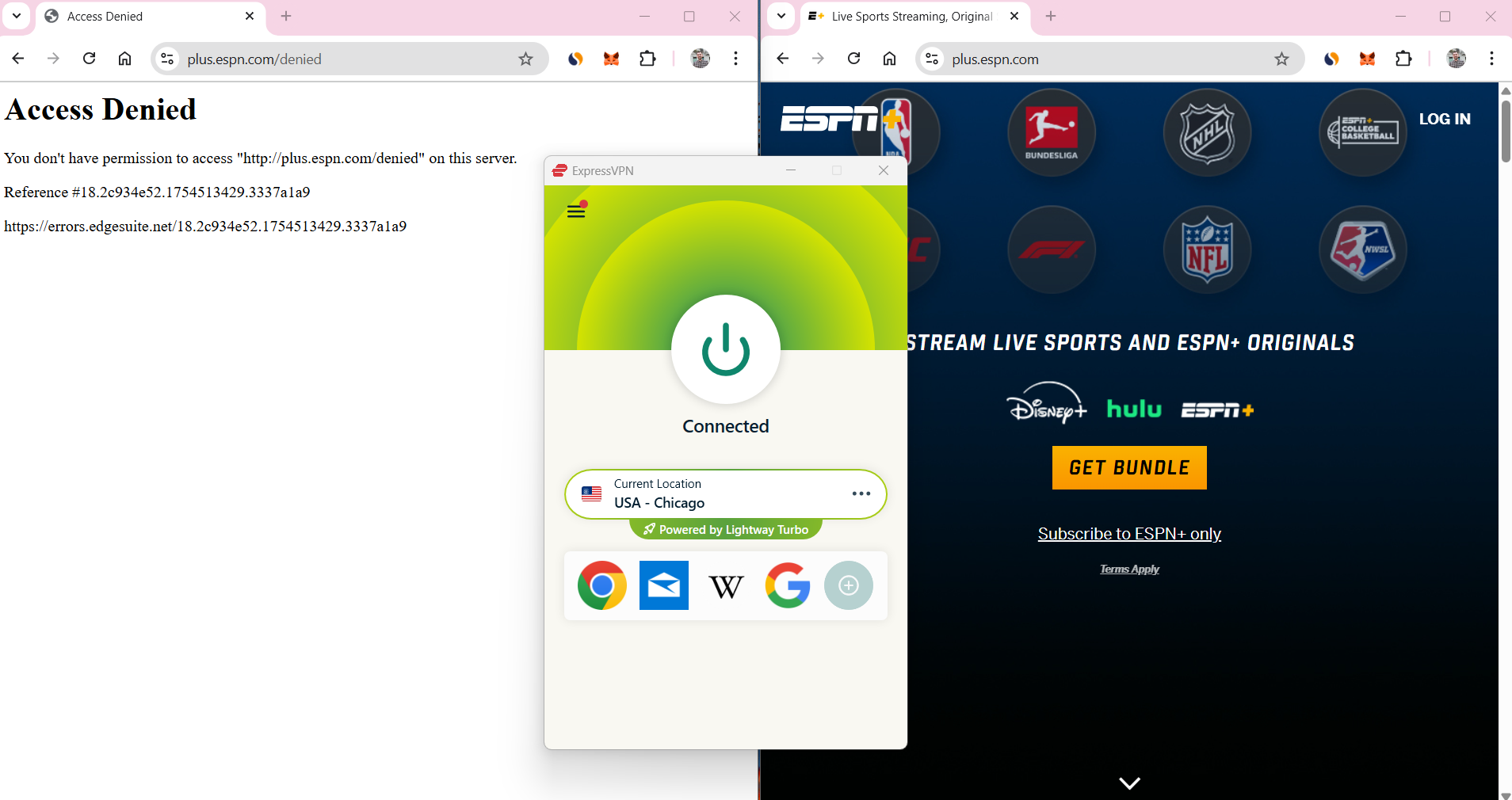
As you can see, I managed to access it. You can try as well, even if Express VPN needs to be paid for, but they have great plans, and also it’s really working, so I could watch the NHL without any issues.
In some cases, ESPN+ may still block you even when connected to a VPN. This happens if the streaming platform has already identified and blacklisted the server you are using. If that’s your situation, follow this detailed guide on how to fix ESPN+ not working with VPN to troubleshoot step by step.
Many users facing similar issues have successfully used this solution. If you’re in a region like Germany and want to access your subscription, here’s how to unblock ESPN+ in Germany.
Likewise, viewers in Mexico often ask how to access U.S. ESPN streams. You can follow this helpful guide on how to watch American ESPN in Mexico, which uses a similar VPN-based approach.
Just keep in mind: using a VPN to bypass region restrictions might go against ESPN’s terms of service, even though it’s not illegal.
2. Confirm the Problem Was a Geo-Block
Once ESPN+ works with a VPN, it’s clear that your original IP was the reason you were blocked. The site detected you were not in the U.S., and denied access based on content licensing rules.
This exact scenario is also covered in VPN Central’s article about how to handle errors when apps aren’t available in your current region. It’s another common example of geo-fencing that VPNs can help bypass.
3. Clear ESPN Cookies and Cache
If you’ve previously accessed ESPN+ without a VPN or Smart DNS, your browser may have stored location data in cookies or cache, which can still cause blocks even after you connect through a U.S. IP.
To reset everything:
- In Chrome: go to Settings → Privacy → Clear browsing data → select “All time”, and clear cookies for espn.com.
- In Firefox: go to Settings → Privacy & Security → Manage Data → search for “espn” and remove entries.
- Edge and Opera have similar settings under their privacy and site data controls.
Once cleared, close and reopen your browser to retry access.
4. Use Incognito Mode and Disable Extensions
Private browsing mode helps eliminate hidden variables like cached content, stored cookies, or extension conflicts.
Steps:
- Open a private or incognito window (Ctrl+Shift+N or Ctrl+Shift+P).
- Disable extensions like ad blockers, VPN proxies, or privacy filters.
- Visit ESPN+ again.
If the site works in this mode, something in your main browsing environment is interfering. Re-enable extensions one by one to isolate the issue.
5. Change Your DNS to Google or Cloudflare
Sometimes, your DNS provider (usually your ISP) can misroute ESPN requests or return location-specific server results. This can cause problems even if your IP is U.S.-based.
Instead, try switching to:
- Google DNS: 8.8.8.8 and 8.8.4.4
- Cloudflare DNS: 1.1.1.1 and 1.0.0.1
After changing your DNS:
- On Windows, run
ipconfig /flushdnsin Command Prompt. - On macOS, go to System Preferences → Network → Advanced → DNS tab.
Enable DNS-over-HTTPS (DoH) in your browser as well for better privacy and consistency.
6. Use a Smart DNS to Mimic a U.S. Location (Without VPN)
If you want an alternative to VPNs, Smart DNS services offer a clean workaround by rerouting only ESPN-related traffic through a U.S. location, while leaving the rest of your internet traffic untouched.
Providers like Unlocator or SmartDNS Proxy let you:
- Set U.S.-based DNS servers in your device or router.
- Register your IP on their dashboard.
- Select the ESPN+ region manually (usually “U.S.”).
This is often faster than VPNs and works well on smart TVs, consoles, and routers.
Smart DNS is a popular solution for streaming U.S.-only content, especially when VPNs are too heavy or not supported on your device.
7. Change Your Browser Headers and Language Settings
Some ESPN access errors have been triggered by unusual browser configurations, such as:
- An outdated or obscure User-Agent string
- A non-English language preference (e.g. Romanian or German)
To address this:
- Open Developer Tools in Chrome or Edge → go to Network Conditions → set a common User-Agent (like Chrome on Windows).
- In Firefox, install a User-Agent switcher extension.
- Change your browser language settings to English (United States).
This trick has helped users bypass blocks caused by Safari or specific browser versions. It’s a simple way to make your browser look like a typical U.S. visitor.
8. Consider ESPN Player as an Official Alternative
If your region doesn’t support ESPN+, ESPN Player is ESPN’s official international platform. It’s available in parts of Europe and Asia, and may offer similar coverage depending on where you are.
Do note that it’s a separate subscription, and the content differs slightly.
What have we learned about accessing plus.espn.com from outside the US?
- A VPN with a U.S. server is the easiest and most effective solution.
- Clearing cookies and disabling browser extensions resolves most local issues.
- Switching to public DNS ensures accurate routing.
- Smart DNS is a lightweight workaround for streaming devices.
- Browser header changes and IP reputation checks help in rare cases.
If you’re outside the U.S., ESPN+ will block your access by default, but by following these steps, you can resolve the error and regain access safely.
FAQs
It’s a region restriction — your IP is outside the U.S., and ESPN+ blocks non-domestic traffic.
Yes, it works well. Once you connect to a U.S. server, the site treats you like a domestic viewer.
It’s not illegal, but it may violate ESPN’s terms of service. There’s a small risk of account suspension if detected.
Yes, ESPN Player is available in some regions outside the U.S., though it requires a separate subscription.


Read our disclosure page to find out how can you help VPNCentral sustain the editorial team Read more


Improve this guide




User forum
0 messages