
How to Change DNS in Windows 11 (Step-by-Step)


 6 min. read
  Updated on
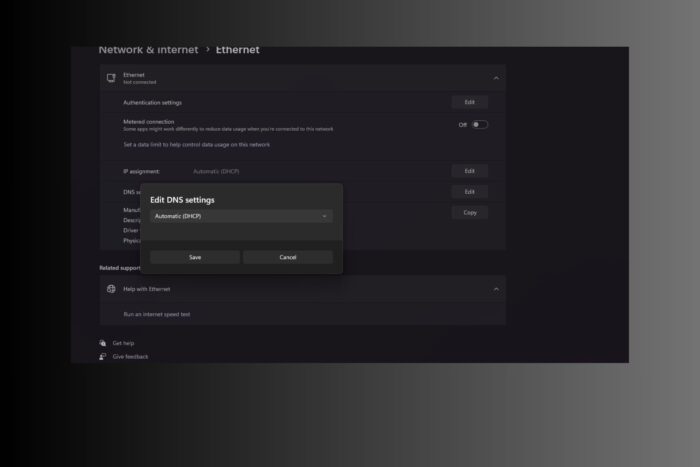
Changing your DNS server on Windows 11 can improve internet speed, increase privacy, and make browsing more reliable. This guide explains DNS in plain terms, shows step-by-step methods to update DNS settings using both the graphical interface and the command line, compares top DNS providers, and offers troubleshooting tips. You also learn how these changes apply on other operating systems.
Table of contents
What is DNS and why change it?
DNS, or Domain Name System, works like the internet’s phonebook. When you type a website address such as example.com, DNS translates it into the numerical IP address that identifies the server. Without DNS, you would need to memorize long strings of numbers for every site.

Access content across the globe at the highest speed rate.
🔥 Save 81% + 2 bonus months! 🔥
70% of our readers choose Private Internet Access
70% of our readers choose ExpressVPN
2
Browse the web from multiple devices with industry-standard security protocols.
🔥 Save 73%! 🔥

Faster dedicated servers for specific actions (currently at summer discounts)
🔥 Save 69%! 🔥
Windows uses your ISP’s DNS servers by default. While these usually work, they can run slower, prove less reliable, or log your activity. Switching to a reputable public DNS service can:
- Speed up browsing: Faster lookups help pages start loading quicker.
- Improve uptime: Global providers run large, redundant networks.
- Enhance privacy: Some providers reduce or avoid logging and support encrypted DNS.
- Add features: Options like malware blocking or parental controls.
Step-by-Step Instructions to Change DNS in Windows 11
Method 1: Change DNS via Windows 11 Settings (GUI)
The Settings app in Windows 11 lets you switch DNS servers without legacy menus. Follow these steps.
- Open Settings with
Win + Ior from Start. - Go to Network & Internet.
- Select your connection:
- Wi-Fi: click Wi-Fi, then Properties for the connected network.
- Ethernet: click Ethernet.
- Scroll to DNS server assignment and click Edit.
- Set Manual, then toggle IPv4 On.
- Enter your DNS servers:
- Google DNS:
8.8.8.8(Preferred),8.8.4.4(Alternate) - Cloudflare DNS:
1.1.1.1,1.0.0.1 - OpenDNS:
208.67.222.222,208.67.220.220
- Google DNS:
- (Optional) Enable DNS over HTTPS if your provider supports it.
- Click Save.
Your PC starts using the new DNS servers right away. If something looks off, restart the PC to apply settings cleanly.
Method 2: Change DNS via command line
The command line gives you control and makes automation easy. Use Command Prompt or PowerShell with admin rights.
Steps with Command Prompt:
- Open Command Prompt or Windows Terminal as Administrator.
- List interfaces:
netsh interface show interfaceIdentify your active adapter (for example,Wi-FiorEthernet). - Set a primary DNS:
netsh interface ip set dns name="Wi-Fi" source=static address=1.1.1.1ReplaceWi-Fiwith your adapter name and use your chosen DNS IP. - Add a secondary DNS:
netsh interface ip add dns name="Wi-Fi" addr=1.0.0.1 index=2 - Test resolution:
nslookup google.com
PowerShell one-liner:
Set-DnsClientServerAddress -InterfaceAlias "Wi-Fi" -ServerAddresses ("1.1.1.1","1.0.0.1")Why use the command line? You script changes, move faster, and confirm results immediately.
Comparing popular DNS providers
Choose a provider based on your priorities: speed, privacy, or features.
| Provider | Addresses | Strengths | Considerations |
|---|---|---|---|
| Google DNS | 8.8.8.8 / 8.8.4.4 | Fast, reliable worldwide, simple to set up | Run by Google; some users prefer alternatives for privacy |
| Cloudflare DNS | 1.1.1.1 / 1.0.0.1 | Very fast, privacy-first, supports encrypted DNS | No built-in content filtering unless you add extra services |
| OpenDNS | 208.67.222.222 / 208.67.220.220 | Reliable, customizable parental controls, malware blocking | Slightly slower than Google/Cloudflare; accounts required for filters |
Quick picks: Choose Google for speed and simplicity, Cloudflare for privacy, and OpenDNS for family filtering.
Troubleshooting DNS problems
If sites fail to load after the change, run through these fixes in order.
- Check connectivity: Restart your router or modem and confirm a live connection.
- Verify addresses: Re-enter DNS IPs carefully; one wrong digit breaks lookups.
- Flush DNS cache:
ipconfig /flushdns - Restart the PC: Apply changes cleanly.
- Switch providers: Try another public DNS to rule out service issues.
- Reset networking (last resort):
netsh int ip reset netsh winsock reset - Check VPN or proxy: These can override your DNS. If you use a VPN, review how it handles DNS. For a deeper dive, read does a VPN encrypt DNS.
Tips for smarter DNS management
- Set DNS on your router to cover all devices at home.
- Save your original settings so you can revert quickly.
- Stick to well-known providers for performance and trust.
- Remember: DNS improves lookup time, not your bandwidth limit.
- Use filtering DNS (OpenDNS, Quad9) for parental control or malware blocking.
- Review DNS after using public Wi-Fi or corporate networks.
- Play games online? See targeted tips in changing DNS for gaming.
Benefits beyond Windows 11
You can change DNS on other systems and enjoy similar gains in speed, reliability, and privacy.
- Windows 10: Follow almost the same steps. The Settings app lacks built-in DNS over HTTPS. You still gain faster lookups and stable connections.
- macOS: Go to System Settings > Network > Advanced > DNS. macOS applies the change system-wide and integrates well with built-in security.
- Linux: Use Network Manager or edit
/etc/resolv.conf. Linux gives you flexible pairing with firewalls, VPNs, and automation scripts.
Across every platform, switching to a trustworthy DNS provider reduces page load delays, boosts reliability, and strengthens privacy.
FAQ
No. DNS speeds up how quickly pages start loading by resolving names faster. Your download and upload speeds depend on your ISP plan and network conditions.
Change DNS on the router if you want the entire network to benefit. If you only want to affect one computer, change it locally on that device.
Yes, when you use reputable providers such as Google, Cloudflare, or OpenDNS. Avoid unknown DNS services.
Yes. Most providers offer IPv4 and IPv6 addresses. Configure both if your ISP and network support IPv6.
Android users can follow step-by-step fixes in how to fix DNS leaks on Android.
Conclusion
Changing DNS in Windows 11 takes only a few minutes and brings real benefits. Whether you use the Settings app or the command line, switching to a provider such as Google, Cloudflare, or OpenDNS can make browsing faster, more reliable, and more private. For a broader walkthrough across platforms, see how to change DNS and apply the same principles on every device you use.


Read our disclosure page to find out how can you help VPNCentral sustain the editorial team Read more


Improve this guide




User forum
0 messages