
VPN Error Code 809: What It Means & How to Fix It (Windows Edition)


 5 min. read
  Updated on
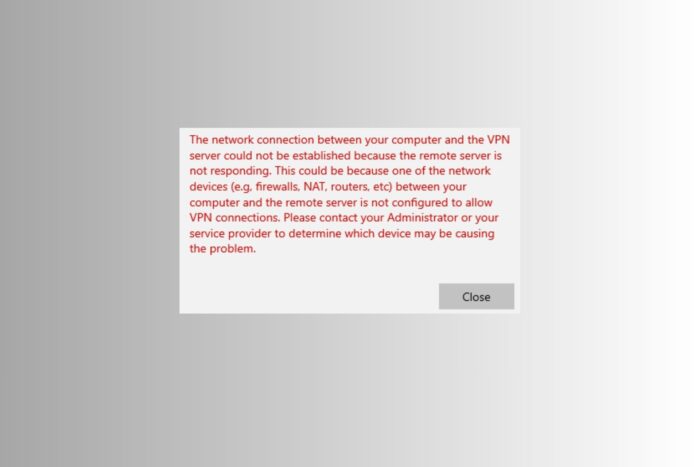
If you try to connect to a VPN on Windows and see error code 809, it means your computer cannot reach the VPN server. This usually happens because of blocked ports, router issues, or strict network rules. The good news is that there are simple steps you can take to fix it.
Table of contents
VPN Error Code 809: Meaning, Causes, and Fixes
Understanding the Error
If you use a VPN on Windows, you might have seen error code 809. The full message says: “The network connection between your computer and the VPN server could not be established.” This error is common and usually means your computer cannot complete the secure connection to the VPN server. The problem often comes from your firewall, router, or network settings blocking the traffic. The good news is that most users can fix it quickly with some simple steps.

Access content across the globe at the highest speed rate.
🔥 Save 81% + 2 bonus months! 🔥
70% of our readers choose Private Internet Access
70% of our readers choose Private Internet Access
2
Browse the web from multiple devices with industry-standard security protocols.
🔥 Save 73%! 🔥

Faster dedicated servers for specific actions (currently discounted)
🔥 Save 69%! 🔥
The most common reasons include:
- Blocked VPN ports: Each VPN protocol uses specific internet ports. If they are closed, your connection will fail.
- NAT Traversal issues: When your computer is behind a router, special settings called NAT-T are needed. Without them, VPN traffic can be dropped.
- IKEv2 fragmentation problems: Some VPNs send packets that are too large for the network to handle.
- Software conflicts: Programs like SmartByte or antivirus tools can accidentally block VPN traffic.
- Network restrictions: Some schools or workplaces block VPNs. In these cases, you may need a VPN not blocked by school to connect securely.
Quick Fixes for Beginners
- Open firewall ports: Check that your firewall or router is not blocking the VPN’s ports.
- Enable NAT-T: If your router has an “IPSec passthrough” option, turn it on.
- Use the server IP instead of hostname: This avoids DNS errors. If your VPN connects but the location is wrong, see this guide on a VPN not changing location.
- Turn off security software temporarily: Antivirus tools sometimes confuse VPN traffic for suspicious activity.
- Disable SmartByte or similar programs: These apps can slow or block your VPN.
- Try a different network: Connect to a mobile hotspot to see if your ISP is the problem.
These steps solve the issue for many users. If not, move on to advanced fixes.
Advanced Solutions
Registry tweak for NAT-T
If both your computer and the VPN server are behind routers, a registry edit may be required. This solution is also used for related issues like VPN error 789.
- Press Win + R, type
regedit, and press Enter. - Go to
HKEY_LOCAL_MACHINE\SYSTEM\CurrentControlSet\Services\PolicyAgent. - Right-click, create a new DWORD (32-bit) named
AssumeUDPEncapsulationContextOnSendRule. - Set the value to:
2if both client and server are behind NAT1if only the client is behind NAT0if no NAT is used
- Restart your computer.
Enable IKEv2 fragmentation
On Windows Server 2019 or later, admins can enable fragmentation to prevent large VPN packets from being blocked.
Reinstall WAN Miniports
If the VPN drivers are corrupted, removing them and letting Windows reinstall can help. Many users with disconnection problems, such as VPN error 628, fix them this way.
Router and firewall adjustments
Forward the correct ports and enable GRE for PPTP where required. Misconfigured routers can also cause VPN error 619 and VPN error 720.
Preventing VPN Error 809 in the Future
- Update router firmware: This keeps VPN compatibility up to date.
- Use flexible VPN protocols: SSTP on TCP 443, OpenVPN, or WireGuard are less likely to be blocked. These can also solve issues similar to VPN error 800.
- Use static IP or DDNS: Prevents DNS resolution issues when connecting.
- Whitelist VPN apps: Add your VPN to antivirus and firewall exceptions. This is also helpful for avoiding VPN error 806.
Extra tip: Some sysadmins on Reddit’s VPN troubleshooting threads suggest switching from IKEv2 to SSTP when error 809 appears. Others recommend clearing stuck IPsec sessions in PowerShell.
Quick Troubleshooting Checklist
- Test on a mobile hotspot. If it works, your ISP or local network is blocking VPN traffic.
- Open firewall or router ports.
- Enable NAT-T if behind a router.
- Apply the registry tweak if needed.
- Enable IKEv2 fragmentation on the server.
- Switch to a different VPN protocol.
- Reinstall WAN Miniports and try again.
Final Takeaway
VPN Error 809 can be frustrating, but it is usually easy to fix. Start with beginner-friendly steps like opening firewall ports, trying another network, or disabling antivirus temporarily. If the problem continues, apply advanced fixes such as registry edits or router adjustments. With these solutions, you should be able to reconnect your VPN and avoid related issues in the future. If the tunnel reaches the server but drops mid-connection, check VPN Error 807 for fixes to server or network interruptions.
Frequently Asked Questions
It means your computer cannot talk to the VPN server, usually because something is blocking the connection.
Yes. Some ISPs block certain VPN protocols. Testing on a mobile hotspot is a good way to check.
Yes, if you follow instructions carefully. Only change the value mentioned above and restart your computer.
SSTP on port 443 and OpenVPN over TCP are less likely to be blocked by networks.
Not always. Most of the time, the problem is caused by settings or blocked ports, not the app itself.


Read our disclosure page to find out how can you help VPNCentral sustain the editorial team Read more


Improve this guide




User forum
0 messages