
How to Fix VPN Not Working (Easy Fixes)


 10 min. read
  Updated on
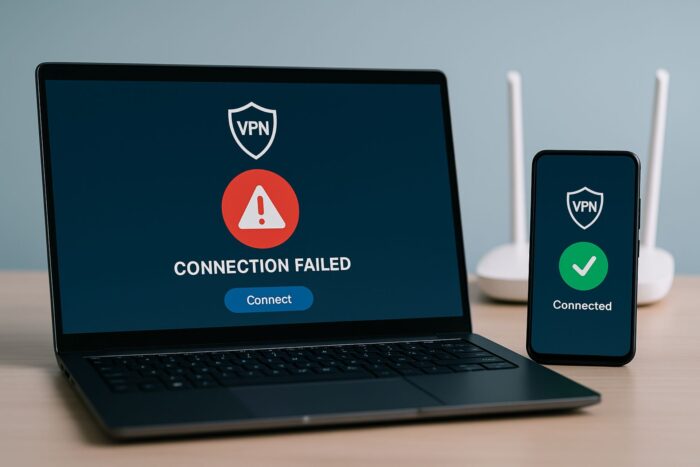
When your VPN is not working, it’s usually something simple: an overloaded server, a blocked port, or an outdated app. You don’t need technical skills to fix it.
This guide starts with the fastest wins, then covers real-world scenarios like Windows errors, mobile data issues, streaming blocks, and travel restrictions.

Access content across the globe at the highest speed rate.
🔥 Save 81% + 2 bonus months! 🔥
70% of our readers choose Private Internet Access
70% of our readers choose Private Internet Access
2
Browse the web from multiple devices with industry-standard security protocols.
🔥 Save 73%! 🔥

Faster dedicated servers for specific actions (currently discounted)
🔥 Save 69%! 🔥
Table of contents
- Why Is My VPN Not Working?
- Fix 1: Check Internet Without VPN
- Fix 2: Switch VPN Server
- Fix 3: Change VPN Protocol and Port
- Fix 4: Allow VPN Through Firewall or Antivirus
- Fix 5: Reset Network Stack (Windows)
- Fix 6: Use a More Reliable DNS
- Fix 7: Check Date, Time, and Account
- Fix 8: Update or Reinstall the VPN App
- VPN Connected but Nothing Loads
- VPN Stuck on “Connecting”
- VPN Not Working on Mobile Data
- VPN Not Working on Windows 11
- VPN Not Working with Streaming Services
- VPN Blocked on Gambling Sites
- Advanced Fixes for VPN Not Working
- VPN Not Working on Public Wi-Fi
- VPN Not Working on Router
- VPN Not Working for Gaming
- VPN Not Working in Restricted Countries
- VPN Connected but Too Slow
- VPN Not Working Because of ISP Blocks
- When to Contact VPN Support
- Fixes at a Glance (Comparison Table)
- Tips to Prevent VPN Problems
- Quick Fix Summary
- FAQs
Why Is My VPN Not Working?
A VPN can fail if the server is blocked, your firewall is interfering, or your device has cached bad settings. Sometimes it’s as minor as an incorrect system time. Start with the easy fixes and work up.
Fix 1: Check Internet Without VPN
First confirm your internet works normally. This tells you if the problem is the VPN or your connection.
- Open your VPN app and disconnect.
- Launch your browser and visit a simple site like example.com.
- If it won’t load, unplug your router for 15 seconds, plug it back in, then restart your device.
If you can’t browse without the VPN: fix your internet first, then return here.
Fix 2: Switch VPN Server
Servers get overcrowded or blocked. Swapping to a better node often restores everything instantly.
- Open your VPN app and go to the Server List.
- Pick a nearby location labeled “low load” or “streaming.”
- Reconnect and reload the website you’re testing.
Fix 3: Change VPN Protocol and Port
Protocols are like different “roads” your VPN can use; some networks block certain ones. Port 443 is usually allowed because it looks like normal HTTPS.
- In your VPN app, open Settings → Protocol.
- Try this order: WireGuard → OpenVPN UDP → OpenVPN TCP → IKEv2.
- If available, set the port to 443, then reconnect.
Fix 4: Allow VPN Through Firewall or Antivirus
Security software may block your VPN traffic without telling you.
- Close the VPN app.
- Windows: Settings → Privacy & Security → Windows Security → Firewall & network protection → Allow an app through firewall.
- Allow your VPN on Private and Public. If missing, click Allow another app and add it.
- In third-party antivirus, whitelist your VPN under network/web protection.
- Reopen the VPN and test again.
Fix 5: Reset Network Stack (Windows)
On Windows, cached network errors can silently block VPNs. Resetting the stack clears them.
- Press Win + R, type
cmd, then press Ctrl + Shift + Enter to open Command Prompt as admin. - Run these commands one by one:
ipconfig /flushdns
ipconfig /release
ipconfig /renew
netsh winsock reset
netsh int ip reset
- Restart your PC and reconnect the VPN.
Fix 6: Use a More Reliable DNS
Unstable DNS causes “site not loading” while the VPN looks fine. Switching to a trusted resolver is quick and effective.
- Open Control Panel → Network and Internet → Network Connections.
- Right-click your active adapter → Properties → select Internet Protocol Version 4 (TCP/IPv4) → Properties.
- Choose Use the following DNS server addresses and enter
1.1.1.1and1.0.0.1. Save, reconnect VPN, and test.
Fix 7: Check Date, Time, and Account
Certificates fail if your clock is wrong, and logins fail if the session is stale.
- Set system Date & Time to Automatic.
- Sign out of your VPN app and sign back in carefully.
- Confirm your subscription is active in the provider dashboard.
Fix 8: Update or Reinstall the VPN App
Outdated apps and drivers cause connection failures.
- Check for updates inside your VPN app and install them.
- If problems persist, uninstall the VPN, reboot, download the latest app from your provider, reinstall, and log in again.
This is going to work when VPN interferes with certain apps and services such as Linkvertise.
VPN Connected but Nothing Loads
If the VPN shows “connected” but sites don’t open, you likely have DNS conflicts or split tunneling excluding your browser. Disable split tunneling temporarily and set DNS to Cloudflare (see Fix 6). If the network is restrictive, switch to OpenVPN TCP on port 443 and try a different server. For a deeper, step-by-step walkthrough that mirrors this exact symptom, see VPN connected but not working.
VPN Stuck on “Connecting”
When the app never moves past “connecting,” the tunnel can’t establish. Switch protocols (WireGuard → UDP → TCP → IKEv2), reset the network stack (Fix 5), and make sure your firewall isn’t blocking the app (Fix 4). If it’s still stuck, follow the OS-specific checklist in VPN not connecting.
VPN Not Working on Mobile Data
VPNs often work on Wi-Fi but fail on 4G because carriers block VPN ports. Toggle Airplane mode on/off, enable “Allow on mobile data” in your VPN app, and switch to TCP on port 443. If Android has “Always-on VPN” with “Block connections without VPN,” temporarily disable the block while reconnecting. For device-specific steps, use VPN not working on 4G or VPN not working on mobile data.
Such interference could result in Just Eat not working with VPN as well as other primarily mobile apps.
If Samsung Quick Share fails while the VPN is active, follow this guide on how to fix Quick Share not working with VPN for device-specific steps.
VPN Not Working on Windows 11
After Windows updates, VPNs break due to reset drivers or firewall rules. Install pending Windows updates, re-allow the VPN app through Firewall (Fix 4), then reset the network stack (Fix 5). If needed, re-enable or reinstall the VPN/TAP adapter in Device Manager. Full steps are in VPN not working on Windows 11.
VPN Not Working with Streaming Services
YouTube and other platforms block shared VPN IPs. Clear cookies/cache, connect to a streaming-optimized server in the correct region, and enable Stealth/Obfuscation if available. For YouTube-specific symptoms and quick tests, see YouTube not working with VPN.
VPN Blocked on Gambling Sites
Gambling platforms verify precise location. If your VPN is not working there, connect to a server in the licensed region and try a fresh browser profile. If detection persists, ask your provider about a dedicated IP or stealth mode. Learn the safer approaches in VPN not working on gambling sites.
If you’re troubleshooting an app like yt-dlp, see how to fix yt-dlp not working with VPN.
Advanced Fixes for VPN Not Working
- Lower MTU if pages half-load: set to ~1350 in your VPN app.
- Remove conflicting VPN apps/adapters: uninstall old clients and disable leftovers in Network adapters.
- Use TCP/443 on restrictive networks: looks like HTTPS, so it’s rarely blocked.
- Read VPN logs: check Diagnostics/Logs for authentication errors or blocked ports to pinpoint the fix.
VPN Not Working on Public Wi-Fi
- Switch to OpenVPN TCP on port 443.
- Enable Stealth/Obfuscation if your app offers it.
- Test with your phone’s hotspot to confirm if the venue is blocking VPNs.
VPN Not Working on Router
- Enable VPN passthrough and update router firmware.
- Verify your router supports your chosen VPN protocol.
- Restart router and modem, then reapply the VPN configuration.
VPN Not Working for Gaming
- Pick a server close to the game server to reduce ping.
- Use UDP-based protocols like WireGuard for smoother gameplay.
- If blocked, ask your provider about static/dedicated IPs for gaming.
VPN Not Working in Restricted Countries
- Enable Stealth/Obfuscation before you travel.
- Connect to nearby regions instead of distant ones.
- If available, try double-VPN/multi-hop routes for more reliability.
VPN Connected but Too Slow
- Choose servers with low ping/load instead of just the closest country.
- Switch to faster protocols like WireGuard or IKEv2.
- Test over wired Ethernet to rule out Wi-Fi congestion.
VPN Not Working Because of ISP Blocks
- Enable obfuscation/stealth to disguise VPN traffic.
- Ask your provider for ISP-specific workarounds or recommended servers.
- Test on a different network to confirm your ISP is the cause.
When to Contact VPN Support
- Collect logs from your VPN app (Settings → Diagnostics).
- Note server, protocol, and the exact error or timestamp.
- Use in-app chat or email; support can point you to known working servers quickly.
Fixes at a Glance (Comparison Table)
| Fix Type | Works Best For | Difficulty |
|---|---|---|
| Switch servers | Blocked or overloaded connections | Easy |
| Change protocol/port | Restricted networks, school/work Wi-Fi | Easy |
| Allow through firewall | App blocked by antivirus/firewall | Medium |
| Reset network stack | Windows DNS/IP errors | Medium |
| Change DNS | Failed lookups, pages not loading | Medium |
| Lower MTU | Sites partially loading or stalling | Medium |
| Remove old VPN apps | Conflicting virtual adapters | Medium |
| Stealth/obfuscation | Travel or censorship-heavy countries | Medium+ |
| Dedicated streaming IP | Netflix, YouTube, gambling | Medium+ |
| Provider support help | Persistent problems across setups | Easy |
Tips to Prevent VPN Problems
- Enable auto-updates for your VPN app and operating system.
- Save two fallback servers: one local, one stealth/obfuscated.
- Turn on the kill switch if privacy is critical.
- Note the server + protocol combo that worked for quick recovery next time.
Quick Fix Summary
Most vpn not working issues vanish after switching servers, changing protocols, resetting your network, or reinstalling the app.
If your issue is with sending or receiving emails while the VPN is active, the problem is usually related to blocked ports (like SMTP 25/465), mail server restrictions, or authentication errors. For detailed steps, check this guide on how to fix email not working with VPN.
FAQs
DNS or split tunneling is likely misconfigured. Change DNS (Fix 6) or disable tunneling and test again.
Carriers block some VPN ports. Switch to TCP on port 443, toggle Airplane mode, and try again.
Updates reset drivers or firewall rules. Re-allow the app through Firewall, reset the network stack, and re-enable the TAP adapter.
The server may be overloaded. Choose a low-ping server, try WireGuard for speed, and test over Ethernet.
Platforms block shared VPN IPs. Use streaming-optimized or obfuscated servers and clear cookies.
Hotels/airports block common VPN ports. Use OpenVPN TCP on port 443 or enable obfuscation.
Games block shared IPs. Pick a server near the game server, use UDP protocols, or ask for a dedicated IP.
Unstable Wi-Fi or aggressive firewalls cause dropouts. Enable the kill switch and try OpenVPN TCP for stability.
Some countries restrict VPNs. Enable obfuscation, connect to nearby regions, and try multi-hop if available.
If nothing works, gather logs and details (server, protocol, time) and contact support; they can point you to known working servers.


Read our disclosure page to find out how can you help VPNCentral sustain the editorial team Read more


Improve this guide




User forum
0 messages