
HP Printer Not Working with VPN: Quick Fixes That Actually Work


 9 min. read
  Published on
If your HP printer isn’t working with a VPN, it’s because the VPN changes how your computer connects to your local network. When a VPN is active, your PC behaves like it’s somewhere else entirely, so your HP printer, sitting on your home or office Wi-Fi, can’t be reached.
Whether you’re using a VPN to work remotely or protect your privacy at home, this problem can interrupt your workflow fast. Below, you’ll find practical solutions that show exactly how to fix your HP printer not printing through VPN without turning it off completely.

Access content across the globe at the highest speed rate.
🔥 Save 81% + 2 bonus months! 🔥
70% of our readers choose Private Internet Access
70% of our readers choose ExpressVPN
2
Browse the web from multiple devices with industry-standard security protocols.
🔥 Save 73%! 🔥

Faster dedicated servers for specific actions (currently at summer discounts)
🔥 Save 69%! 🔥
Table of contents
- How to Fix HP Printer Not Working with VPN: Step-by-Step Solutions
- 1. Allow Local Network Access or Enable Split Tunneling
- 2. Reinstall Your HP Printer Using Its IP Address
- 3. Turn Off VPN Features That Block Local Devices
- 4. Check Firewall and Antivirus Settings
- 5. Update HP Printer Drivers and VPN Software
- 6. Disconnect VPN Temporarily During Setup
- 7. Use a USB Connection for Printing
- 8. Add a Manual Route to Your Local Network
- 9. Set Your Network Profile to Private
- 10. Use the HP Smart App to Troubleshoot
- 11. Enable App-Based Split Tunneling
- 12. Adjust Router or VPN Device Settings
- 13. Switch to a VPN Optimized for Printers and Local Network Access
- Understanding Why VPNs Block HP Printers
- Home VPN vs. Work VPN Printing Differences
- Conclusion
- FAQ
How to Fix HP Printer Not Working with VPN: Step-by-Step Solutions
These are the most reliable fixes for your HP printer not printing when VPN is active. Try them in order for the fastest results.
1. Allow Local Network Access or Enable Split Tunneling
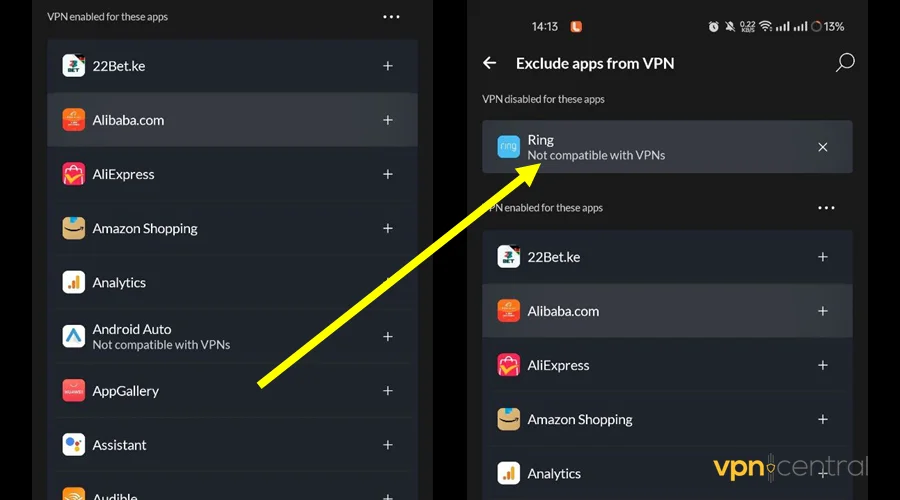
Your VPN likely has a “Local Network Access” or “Split Tunneling” option that lets your printer stay visible on your Wi-Fi while keeping your internet traffic secure.
For popular VPNs:
- NordVPN: Go to Settings → General and disable “Invisibility on LAN.”
- ExpressVPN: Open Options → General and check “Allow access to devices on the local network.”
- OpenVPN: In some cases, OpenVPN not forwarding traffic can prevent printing. Remove “redirect-gateway def1” in the config file or manually route your printer IP through your LAN.
If you’re using a work VPN, ask your IT admin to enable “Allow Local LAN Access.”
2. Reinstall Your HP Printer Using Its IP Address
Adding your HP printer by its IP address instead of its name can help bypass VPN-related DNS issues.
On Windows:
- Go to Settings → Bluetooth & devices → Printers & scanners.
- Click Add device → Add manually.
- Choose Add a printer using a TCP/IP address.
- Enter your printer’s IP (for example, 192.168.1.50).
On Mac:
- Go to System Settings → Printers & Scanners.
- Click Add Printer (+).
- Select the IP tab and enter your printer’s IP address.
Once installed, your computer communicates directly with the printer over the LAN, bypassing VPN routes.
3. Turn Off VPN Features That Block Local Devices
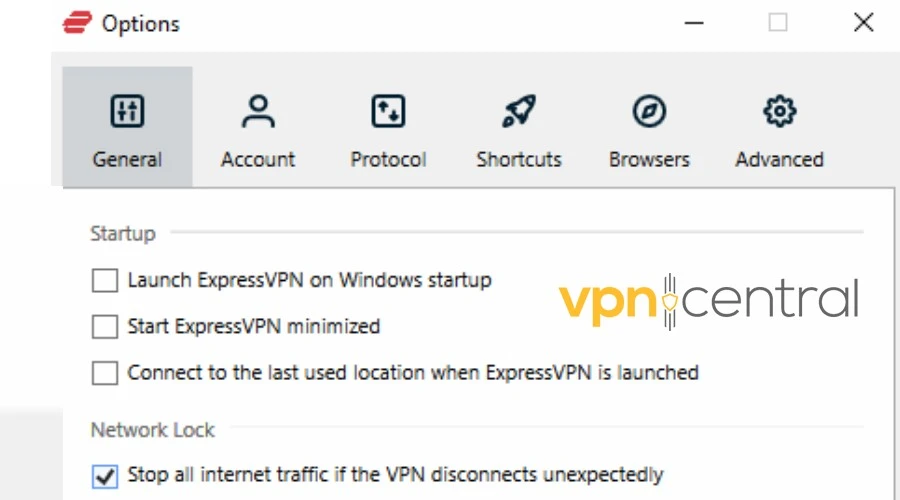
Some VPNs hide your computer from local devices entirely. Check for settings like:
- “Block LAN traffic”
- “Hide my device on local network”
- “Network Lock” or “Kill Switch”
Turn these off temporarily or whitelist your printer’s IP address.
4. Check Firewall and Antivirus Settings
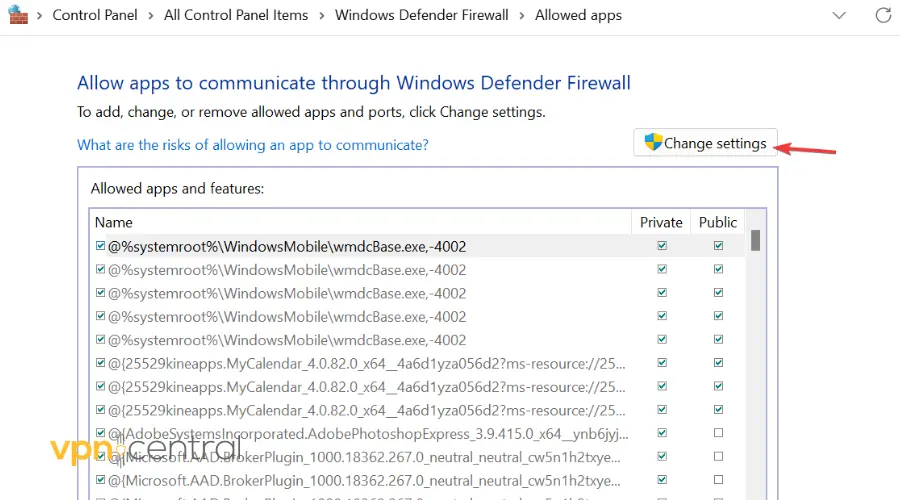
Security software with integrated VPNs often blocks printer traffic. Switch your Wi-Fi network from “Public” to “Private,” add your printer to the trusted list, and make sure your firewall allows TCP 9100 and UDP 5353 ports used by HP printers.
5. Update HP Printer Drivers and VPN Software
Outdated drivers or VPN clients can break local network communication.
To update HP printer drivers via Device Manager:
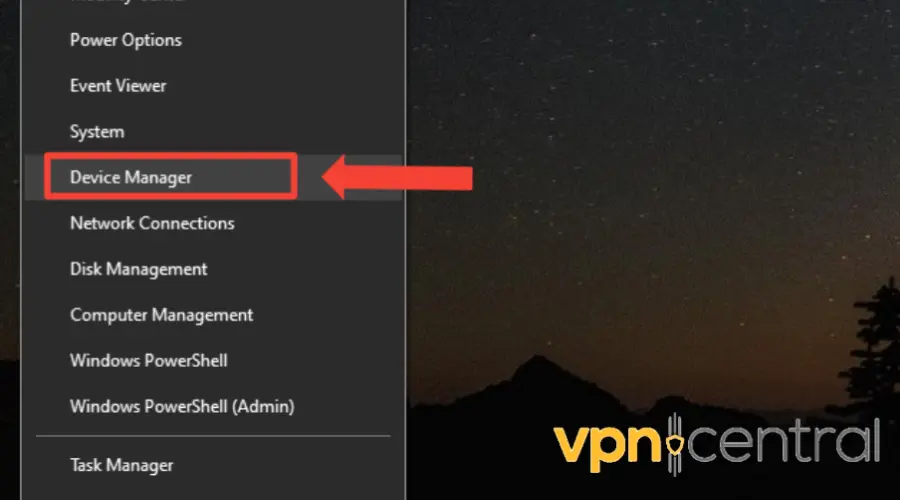
- Press Windows + X → choose Device Manager.
- Expand Print queues.
- Right-click your HP printer → select Update driver.
- Choose Search automatically for drivers.
Alternatively, download them from the official HP Support page.
You can also use a dedicated tool like PC HelpSoft Driver Updater to automatically detect and update your printer and network drivers. After that, restart your PC and update your VPN app as well.
6. Disconnect VPN Temporarily During Setup
HP recommends installing your printer while the VPN is off. Once your printer is set up, reconnect your VPN and try printing.
7. Use a USB Connection for Printing
VPNs only affect network traffic. If you connect your printer directly via USB, printing works without interference.
8. Add a Manual Route to Your Local Network
Advanced users can manually add a route to their local network so the printer stays visible even when VPN is active. In Command Prompt (Admin):
route add 192.168.1.0 mask 255.255.255.0 192.168.1.1
Adjust the IP range for your network. This forces Windows to send printer traffic directly to your router instead of through the VPN tunnel.
9. Set Your Network Profile to Private
If your Wi-Fi network is set to “Public,” your PC will block printer discovery.
- Go to Settings → Network & Internet → Wi-Fi.
- Select your network.
- Under Network profile type, choose Private.
Restart your device, then try printing again.
10. Use the HP Smart App to Troubleshoot
The HP Smart App includes network diagnostics that can detect VPN-related issues. Open it, go to Printer Settings → Advanced Settings → Network Diagnostic Tool, and let it identify and repair problems automatically.
11. Enable App-Based Split Tunneling
Some VPNs let you exclude specific apps from using the VPN. Add HP Smart or spoolsv.exe (Windows Print Spooler) to the exclusion list.
12. Adjust Router or VPN Device Settings
If your VPN runs on your router, your printer may be routed through the VPN as well. Connect your printer to a non-VPN Wi-Fi or disable VPN on the router.
Another option is to use VPN only on your PC so it doesn’t interfere with your printer’s local connection. Learn more about the differences between a VPN and VLAN for understanding how local traffic is affected.
13. Switch to a VPN Optimized for Printers and Local Network Access
If your current VPN doesn’t support local network access or split tunneling, consider switching to a VPN that does.
For instance, Surfshark offers a dedicated IP feature that allows you to route only browser traffic through a static IP, providing more control and flexibility without affecting the entire device. This feature can be particularly useful for printing over a VPN.
Additionally, Norton VPN has reinforced its commitment to privacy with features like Double VPN and IP Rotation, which enhance security while keeping local printer access functional.
Switching to a VPN that supports local network access can simplify the process of printing over a VPN and reduce the need for complex configurations.
Understanding Why VPNs Block HP Printers
VPNs are designed for online privacy, not for managing local devices. They encrypt and reroute traffic through remote servers, which hides your printer’s IP. Since most printers rely on local network discovery, the VPN tunnel effectively makes your printer invisible. If your VPN is not connecting properly, local network troubleshooting will not help, as the VPN must first be active and stable.
Why Your HP Printer Won’t Print When VPN Is On
- VPN routing: All your traffic gets rerouted through a remote server, so your printer’s local IP address becomes unreachable. Learn more about how a VPN server works.
- Local network blocking: Most VPNs disable LAN visibility by default to improve privacy.
- Name resolution issues: HP printers use local DNS names that can’t be resolved through a VPN tunnel.
- Security policies: Some corporate VPNs, like Cisco AnyConnect or FortiClient, are set to block all local connections for security reasons.
- Firewall restrictions: Security suites with built-in VPNs, like Norton or Kaspersky, may block your printer as an “untrusted” device.
Home VPN vs. Work VPN Printing Differences
If you’re using a personal VPN like NordVPN or Surfshark, the fix is simple: allow local access or use split tunneling. Corporate VPNs are stricter. They often block LAN connections entirely unless IT explicitly allows it. Learn how a VPN works for remote work to understand why some office printers are unreachable.
Conclusion
When your HP printer stops working with a VPN, it’s usually not a hardware problem but a simple network conflict. VPNs are built to protect your connection, but they also isolate your computer from local devices like printers.
Most of these issues have quick fixes. Allowing LAN access, setting up split tunneling, reinstalling the printer by IP address, or updating drivers can restore printing in minutes. For more stubborn cases, checking firewall settings, adding a manual route, or switching to a VPN optimized for local network access will usually solve the problem. With these steps, both home and office users can keep their HP printers running smoothly while benefiting from VPN protection.
FAQ
Not all HP printers are affected the same way. USB-connected printers bypass the network entirely and work fine. Network printers, especially Wi-Fi/Ethernet models like HP LaserJet Pro and OfficeJet Pro series, can go offline unless split tunneling or local network access is enabled.
Temporarily disconnect the VPN and try printing. If it works, the VPN is the cause. Also, if your VPN is not connecting, printer troubleshooting alone won’t solve the issue.
You can manually add routes using route add commands to ensure your printer subnet goes directly to your local gateway. This is more common with routed VPN setups.
Yes. Some users run one VPN for general browsing and a second, printer-friendly VPN like Surfshark for devices needing local network access.
VPNs with split tunneling, dedicated IPs, or explicit LAN access like Surfshark and Norton VPN generally handle printer access more reliably.


Read our disclosure page to find out how can you help VPNCentral sustain the editorial team Read more


Improve this guide




User forum
0 messages