
Fix L2TP/IPsec VPN with Pre-Shared Key Not Working on Windows 11


 6 min. read
  Published on
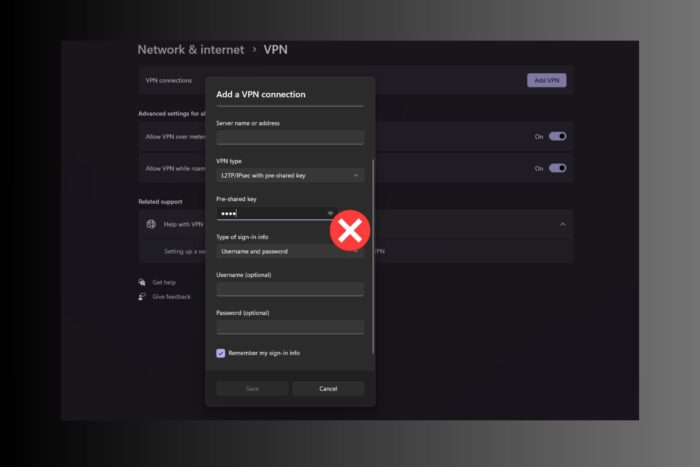
If your L2TP/IPsec VPN won’t connect on Windows 11, you might see an error like “The L2TP connection attempt failed because the security layer encountered a processing error.” This problem often appears after Windows updates or when certain security services are turned off.
The good news is that most issues come from a few simple causes — like the wrong pre-shared key, blocked VPN ports, or Windows 11’s extra security settings. Follow these practical fixes to get your VPN connection working again. You can also check the Windows 10 L2TP/IPsec troubleshooting guide for comparison if you use multiple systems.

Access content across the globe at the highest speed rate.
🔥 Save 81% + 2 bonus months! 🔥
70% of our readers choose Private Internet Access
70% of our readers choose ExpressVPN
2
Browse the web from multiple devices with industry-standard security protocols.
🔥 Save 73%! 🔥

Faster dedicated servers for specific actions (currently at summer discounts)
🔥 Save 69%! 🔥
How to Fix L2TP/IPsec VPN with Pre-Shared Key Not Working on Windows 11
Table of contents
- How to Fix L2TP/IPsec VPN with Pre-Shared Key Not Working on Windows 11
- 1. Recheck Your VPN Configuration
- 2. Start Required Windows Services
- 3. Enable NAT-Traversal in the Registry
- 4. Disable Credential Guard (Windows 11 Exclusive)
- 5. Allow VPN Ports and Protocols
- 6. Reinstall WAN Miniport Adapters
- 7. Uninstall Problematic Windows Updates
- 8. Turn Off IPv6
- 9. Flush DNS and Reset Winsock
- 10. Fix Subnet Conflicts
- 11. Update Network Drivers
- 12. Start the Routing and Remote Access Service (Windows 11 Exclusive)
- 13. Reset Network Settings
- Common Error Codes and Fixes
- Why did my VPN stop working after a Windows 11 update?
- Is L2TP/IPsec still safe to use?
- Final Thoughts
1. Recheck Your VPN Configuration
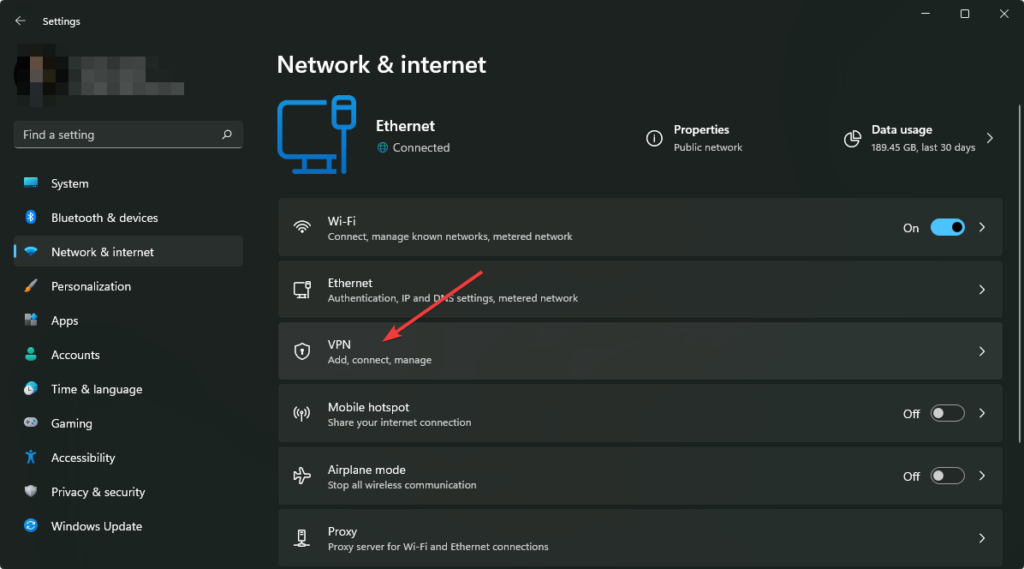
Go to Settings → Network & Internet → VPN → Edit and confirm:
- VPN provider: Windows (built-in)
- VPN type: L2TP/IPsec with pre-shared key
- Pre-shared key: entered exactly as provided (no spaces)
- Username / password: correct and active
Even a small typo in the PSK or server address can cause authentication errors. For detailed setup steps, see how to connect to a VPN.
2. Start Required Windows Services
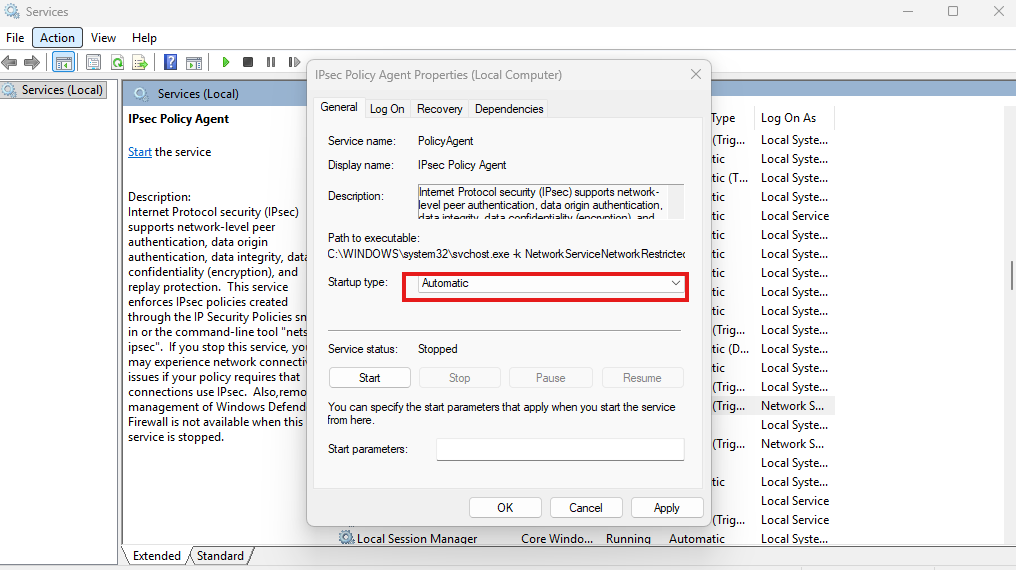
Your VPN depends on background encryption services. Press Win + R, type services.msc, and press Enter. Set these to Automatic and click Start:
- IKE and AuthIP IPsec Keying Modules
- IPsec Policy Agent
Restart your PC and try the VPN again.
3. Enable NAT-Traversal in the Registry
If your VPN is behind a router or you get Error 809, enable NAT-Traversal so IPsec can pass through network devices:
- Press Win + R → regedit → Enter.
- Go to:
HKEY_LOCAL_MACHINE\SYSTEM\CurrentControlSet\Services\PolicyAgent - Right-click → New → DWORD (32-bit) Value → name it
AssumeUDPEncapsulationContextOnSendRule. - Double-click it → set Value data to 2.
- Restart your computer.
4. Disable Credential Guard (Windows 11 Exclusive)
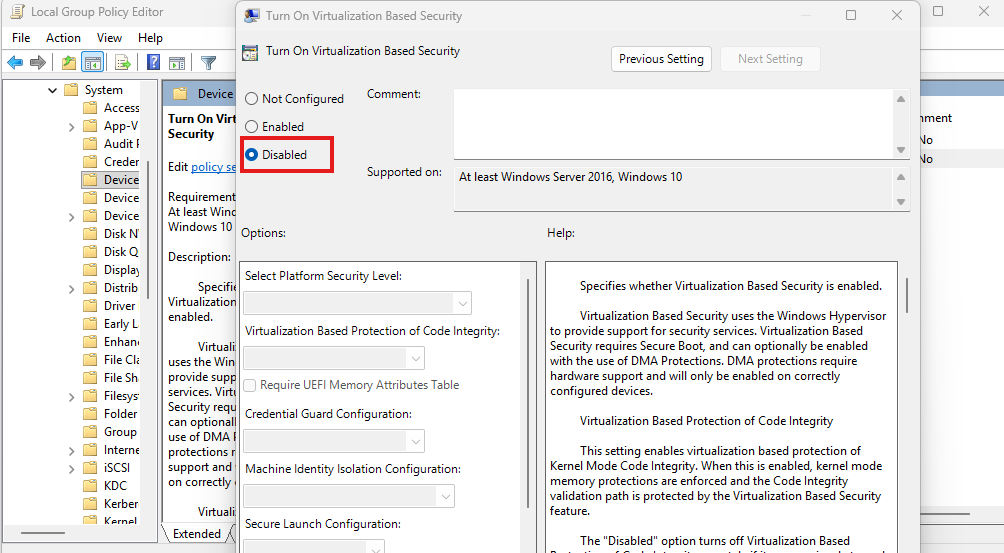
Windows 11 enables Credential Guard by default on modern devices. It can block MS-CHAP v2 authentication, which L2TP/IPsec uses. To turn it off temporarily:
- Press Win + R → gpedit.msc.
- Go to Computer Configuration → Administrative Templates → System → Device Guard.
- Open Turn On Virtualization-Based Security and set it to Disabled.
- Restart your PC and test the VPN.
You can re-enable it later after confirming the VPN works.
5. Allow VPN Ports and Protocols
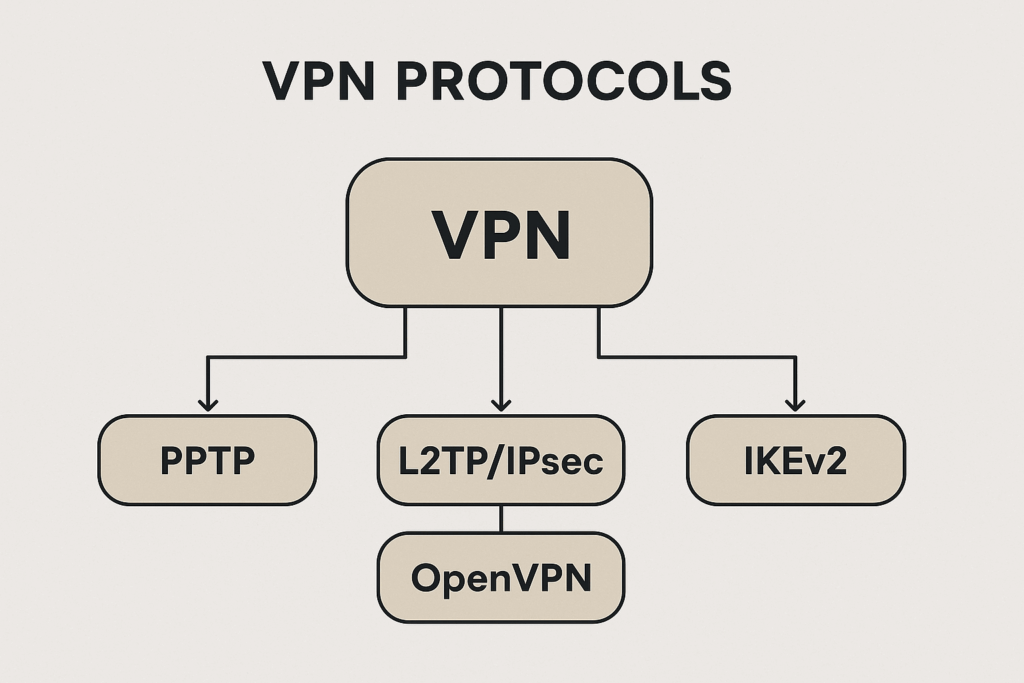
Make sure your firewall or router allows these connections:
- UDP 500 – IKE negotiation
- UDP 4500 – NAT traversal
- UDP 1701 – L2TP
- IP protocol 50 – ESP (encryption)
In Windows Defender Firewall → Advanced settings → Inbound rules, add rules for UDP 500 and 4500, and a custom rule for ESP. To understand how these protocols differ and when to use them, check this guide on VPN protocols.
6. Reinstall WAN Miniport Adapters
Corrupted WAN Miniports are another common reason for L2TP errors (789 or 720). To fix:
- Right-click Start → Device Manager.
- Expand Network adapters.
- Uninstall WAN Miniport (L2TP), WAN Miniport (IP), and WAN Miniport (IKEv2).
- Click Action → Scan for hardware changes.
Windows reinstalls clean drivers automatically. If your VPN connection disappears, check VPN not showing up in Network Connections.
7. Uninstall Problematic Windows Updates
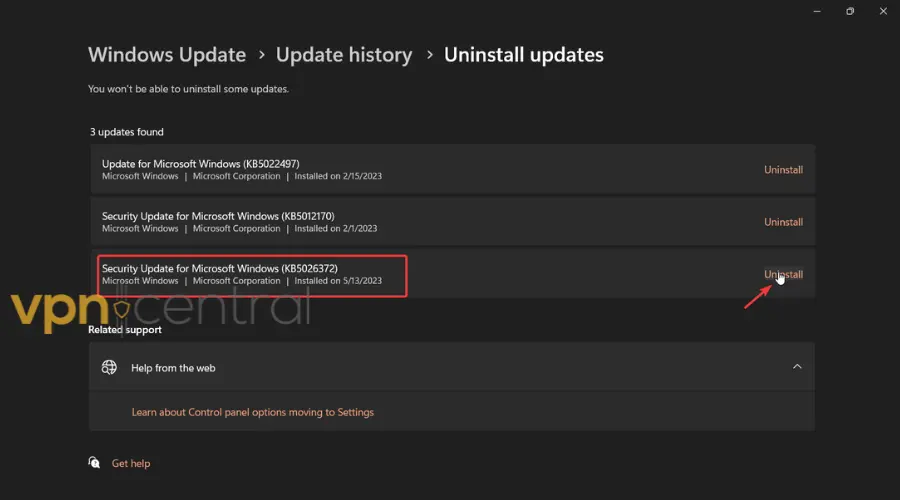
Some patches (like KB5009566 and KB5025305) temporarily broke L2TP support in Windows 11. To fix:
- Open Settings → Windows Update → Update history → Uninstall updates.
- Remove the latest cumulative update.
- Restart and test your VPN.
8. Turn Off IPv6
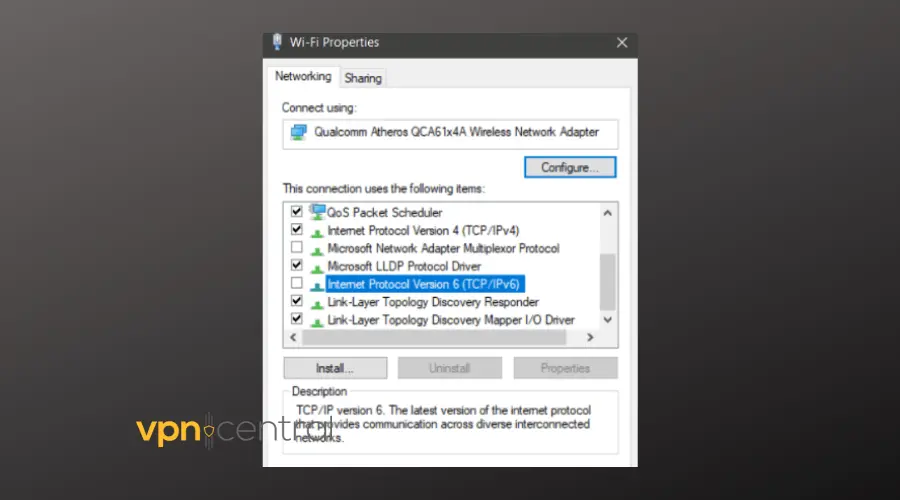
If your VPN provider doesn’t support IPv6, the connection might fail. Disable it to test:
- Press Win + R → ncpa.cpl → Enter.
- Right-click your active network → Properties.
- Uncheck Internet Protocol Version 6 (TCP/IPv6).
- Click OK and retry the VPN.
9. Flush DNS and Reset Winsock
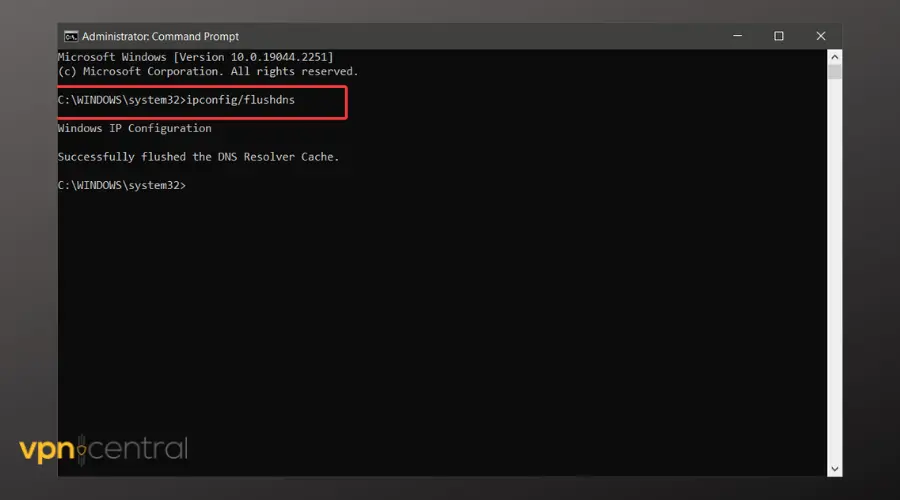
To reset your network stack, open Command Prompt as Administrator and run:
ipconfig /flushdns
netsh winsock reset
netsh int ip reset
Restart your PC after running these commands.
10. Fix Subnet Conflicts
If your local network uses the same IP range as your VPN (for example 192.168.1.x), traffic can route incorrectly. Change your router subnet to something like 192.168.50.x and try again. You can confirm correct routing by following this guide on accessing files through a VPN.
11. Update Network Drivers
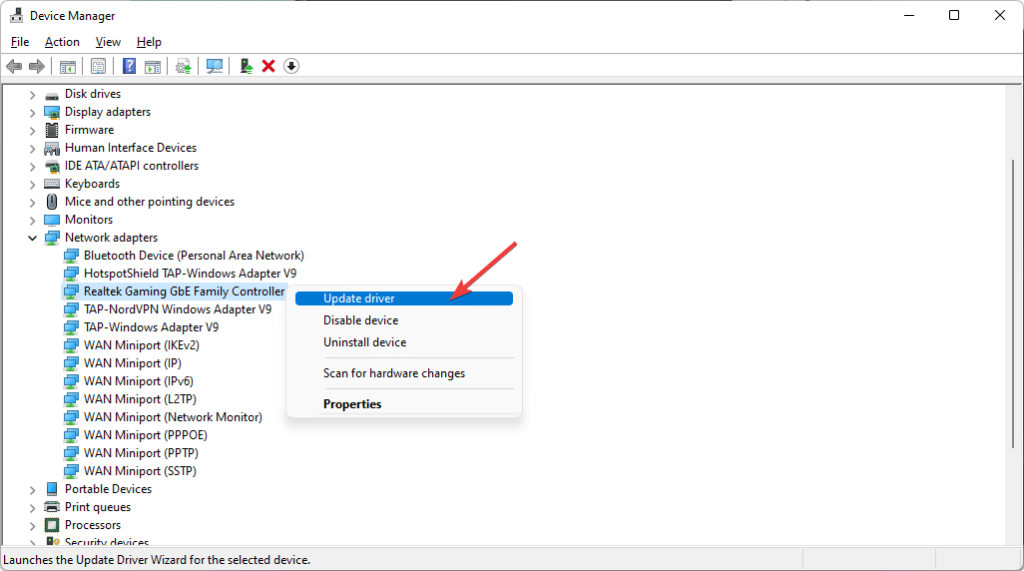
Windows 11 uses newer networking drivers (NDIS 6.9). Old NIC drivers may fail during IPsec negotiation:
- Open Device Manager → Network adapters.
- Right-click your network card → Update driver.
- Choose Search automatically for drivers.
12. Start the Routing and Remote Access Service (Windows 11 Exclusive)
Some Windows 11 builds cause slow or dropped VPNs. Enable this service to stabilize performance:
- Press Win + R → services.msc.
- Find Routing and Remote Access.
- Right-click → Start.
13. Reset Network Settings
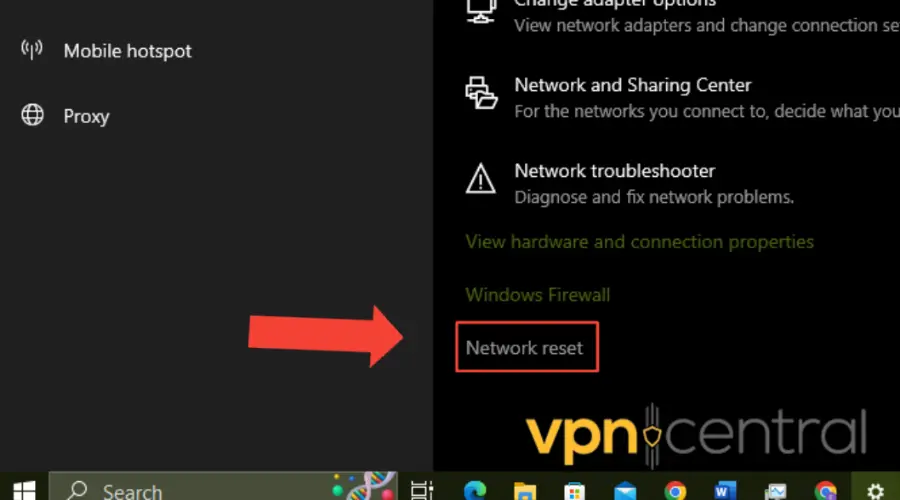
If nothing works, reset all network settings and rebuild the VPN from scratch:
- Go to Settings → Network & Internet → Advanced network settings → Network reset.
- Click Reset now.
- Restart your computer and reconfigure your VPN.
Common Error Codes and Fixes
| Error Code | Meaning | Fix |
|---|---|---|
| 789 | Wrong pre-shared key or invalid credentials | Re-enter PSK and password |
| 809 | Blocked by firewall or NAT | Add NAT-Traversal registry key |
| 766 | Certificate expected instead of PSK | Switch to PSK mode |
| 720 | Corrupted WAN Miniports | Reinstall adapters |
| 809 (after update) | Windows update bug | Uninstall or replace faulty patch |
Why did my VPN stop working after a Windows 11 update?
Some updates disable IPsec services or introduce temporary bugs. Restart services and uninstall the most recent patch.
Is L2TP/IPsec still safe to use?
Yes, with strong encryption (AES-256/SHA-2). For better reliability through NAT, consider switching to IKEv2/IPsec or OpenVPN. Learn more about VPN protocols
Final Thoughts
Most Windows 11 L2TP/IPsec issues come from incorrect pre-shared keys, blocked ports, or new system protections like Credential Guard. Go through each fix in order — especially the registry edit, service restart, and Credential Guard adjustment — to get your VPN running smoothly again.
Once it’s stable, keep your system updated and consider switching to IKEv2/IPsec for faster, more reliable connections.


Read our disclosure page to find out how can you help VPNCentral sustain the editorial team Read more


Improve this guide




User forum
0 messages