
Dell SupportAssist Remediation Update Causes Blue Screen Loops On Windows PCs


 6 min. read
  Published on
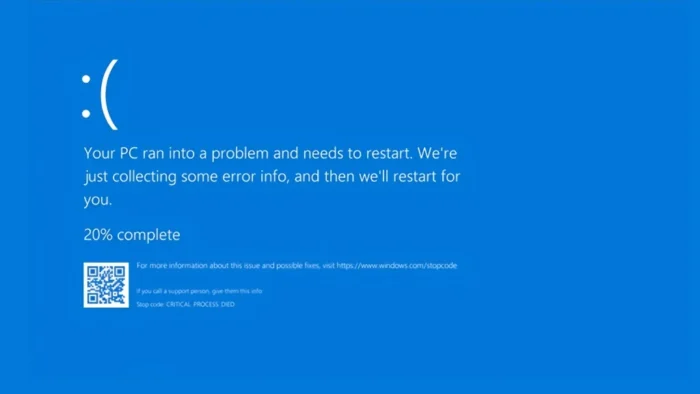
A faulty Dell SupportAssist Remediation update is causing blue screen errors and unexpected restarts on some Dell and Alienware Windows PCs.
Dell has confirmed that version 5.5.16.0 of Dell SupportAssist Remediation or Alienware SupportAssist Remediation can trigger the problem. The issue can cause systems to crash repeatedly with blue screen errors, including CRITICAL_PROCESS_DIED in user reports.

Access content across the globe at the highest speed rate.
70% of our readers choose Private Internet Access
70% of our readers choose ExpressVPN

Browse the web from multiple devices with industry-standard security protocols.

Faster dedicated servers for specific actions (currently at summer discounts)
The company says Dell Engineering is aware of the issue and is working on a resolution. For now, Dell’s official workaround is to uninstall the affected remediation service from Windows Settings.
What Dell has confirmed
Dell says the problem affects the Dell SupportAssist Remediation service, not the primary Dell SupportAssist application. The distinction matters because many users may remove the wrong app while trying to stop the crashes.
The remediation service operates separately from the main SupportAssist app. It works in the background and supports recovery functions, including system repair points through Dell OS SupportAssist Recovery.
Because the service runs quietly, affected users may not immediately connect the crashes to Dell software. Several users first noticed the problem after routine Dell BIOS, firmware, dock, or support software updates.
| Item | Details |
|---|---|
| Affected component | Dell SupportAssist Remediation or Alienware SupportAssist Remediation |
| Affected version | 5.5.16.0 |
| Main symptom | Blue screen errors and unexpected restarts |
| Reported stop error | CRITICAL_PROCESS_DIED |
| Main app status | Dell says the issue is not related to the primary SupportAssist app |
| Official workaround | Uninstall SupportAssist Remediation version 5.5.16.0 |
Users report repeated crashes after Dell updates
Reports on Dell’s community forums describe Windows systems rebooting roughly every 30 minutes after Dell software updates. Some users linked the crashes to DellSupportAssistRemediationService.exe after checking crash dumps and reliability logs.
One detailed report from an XPS 15 9530 owner said the system began crashing after Dell SupportAssist Remediation 5.5.16.0 and Dell SupportAssist OS Recovery Plugin for Dell Update 5.5.16.0 were installed on May 8, 2026.
The same report listed Windows Error Reporting and WinDbg data showing Bugcheck 0xEF, which maps to CRITICAL_PROCESS_DIED. Other users reported similar behavior across Dell and Alienware systems.
Which Dell PCs may be affected
Dell’s support article lists a broad set of affected product families, including Alienware, Inspiron, Latitude, OptiPlex, Vostro, XPS, G Series, Dell Pro, Dell Plus, Dell Pro Max, Dell desktops, laptops, all-in-ones, and workstations.
The issue does not mean every Dell PC in those families will crash. The key factor is whether the system has Dell SupportAssist Remediation or Alienware SupportAssist Remediation version 5.5.16.0 installed.
Users and IT administrators should check the installed version before making changes. Dell says if the installed version is not 5.5.16.0, the blue screen issue likely has another cause and users should follow standard blue screen troubleshooting.
How to check whether your Dell PC has the faulty version
Users can check the installed version through the Windows Settings app. This is the fastest way to confirm whether the device has the problematic remediation service.
- Open Windows Settings.
- Go to Apps.
- Select Installed apps.
- Search for Dell SupportAssist Remediation or Alienware SupportAssist Remediation.
- Check whether the installed version shows 5.5.16.0.
If the version is 5.5.16.0 and the PC has blue screen errors or unexpected restarts, Dell recommends uninstalling that component.
Dell’s official workaround
Dell’s official workaround is to uninstall Dell SupportAssist Remediation version 5.5.16.0 or Alienware SupportAssist Remediation version 5.5.16.0 from Installed apps.
The company warns that system repair points created by Dell OS SupportAssist Recovery may not remain available after removing the remediation service. However, Dell says users should not uninstall the primary Dell SupportAssist application to resolve this specific issue.
Dell also says the stable remediation component will appear as SupportAssist OS Recovery Tools during a future SupportAssist or Dell Command Update scan. Once installed, the tool should resume creating system repair points.
- Open Windows Settings.
- Go to Apps.
- Select Installed apps.
- Find Dell SupportAssist Remediation version 5.5.16.0 or Alienware SupportAssist Remediation version 5.5.16.0.
- Select the app menu.
- Click Uninstall.
- Restart the PC after removal.
- Run SupportAssist or Dell Command Update later to receive the stable replacement when available.
What IT administrators should do
IT teams managing Dell fleets should audit endpoints for Dell SupportAssist Remediation 5.5.16.0. The issue can disrupt users quickly because the affected service can run in the background without obvious warning signs.
Administrators should prioritize devices that recently installed Dell updates and now show repeated blue screen events, Kernel-Power events, or CRITICAL_PROCESS_DIED reports.
For managed environments, teams should test removal on a small group first, then roll out the workaround through their endpoint management platform if the symptoms match Dell’s advisory.
- Inventory Dell and Alienware systems for SupportAssist Remediation version 5.5.16.0.
- Review reliability history and crash logs for repeated blue screen events.
- Prioritize systems that crash after Dell firmware or support software updates.
- Remove only the affected remediation service where Dell’s conditions match.
- Keep the primary SupportAssist app or Dell Command Update if your workflow uses them.
- Monitor Dell’s support article for updated fix details.
What to do if crashes continue
Dell says users should follow standard blue screen troubleshooting if uninstalling the affected remediation service does not resolve the issue. This is important because not every CRITICAL_PROCESS_DIED error comes from Dell SupportAssist Remediation.
Users still under warranty can contact Dell support for additional help. Dell community staff also advised affected warranty users to use Dell’s Get Help Now chat and share their private service tag with support staff.
For most affected systems, the immediate goal is to stop the crash loop, preserve usability, and wait for Dell’s stable replacement component. Users should avoid removing unrelated drivers or firmware unless Dell support recommends it.
Why this issue caused confusion
Blue screen loops often lead users to blame Windows updates, especially when crashes begin after a wave of system maintenance. In this case, Dell’s own support article points to a separate Dell background service.
The problem also shows how deeply integrated OEM recovery utilities can affect system stability. A failure in a background remediation service can create a serious user-facing problem even when Windows itself is not the root cause.
Dell has not disclosed how many systems have been affected. The company says it will update its support article once more details are available.
FAQ
Dell says version 5.5.16.0 of Dell SupportAssist Remediation or Alienware SupportAssist Remediation can cause blue screen errors and unexpected restarts. The issue is not related to the primary Dell SupportAssist app.
The affected version is Dell SupportAssist Remediation 5.5.16.0 or Alienware SupportAssist Remediation 5.5.16.0. Dell advises users to check the installed version before uninstalling anything.
Open Windows Settings, go to Apps, select Installed apps, find Dell SupportAssist Remediation or Alienware SupportAssist Remediation version 5.5.16.0, and uninstall it. Restart the PC after removal.
Dell says users should not uninstall the primary Dell SupportAssist application to fix this specific issue. The problem comes from the separate SupportAssist Remediation service.


Read our disclosure page to find out how can you help VPNCentral sustain the editorial team Read more


Improve this guide



User forum
0 messages