
How to Change DNS on Linux: Easy Steps


 4 min. read
  Updated on
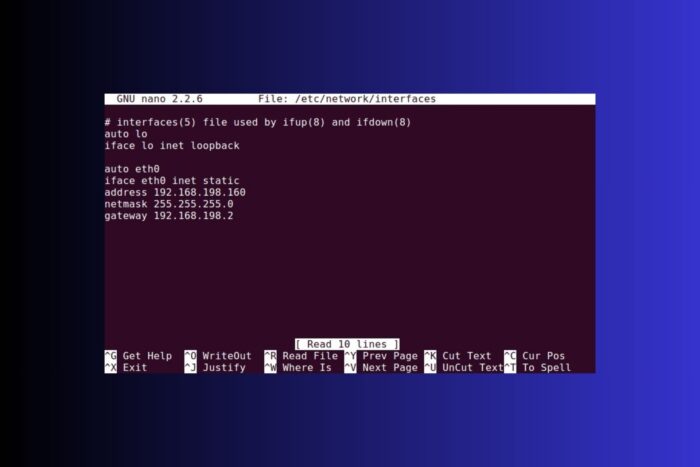
Changing DNS on Linux can improve speed, boost privacy, and solve network issues. You can adjust DNS servers through your desktop settings or by editing system files in the Terminal. Both methods are quick once you know the steps. If you’re a Mac user, you might prefer this guide on how to change DNS on Mac.
Table of contents
Before You Start
- Pick a DNS provider and note the IPv4 (and optional IPv6) addresses.
- Decide whether you want changes for one network adapter or system-wide.
- Have admin (sudo) rights to apply the new settings.
- Back up your current DNS entries in case you want to revert.
How to Change DNS on Linux
Method 1: Change DNS via Network Manager (GUI)
- Open Network Settings
In Ubuntu or similar distros, click the system menu and select Settings > Network. - Select your network
Click the gear icon next to your active Wi-Fi or Ethernet connection. - Edit IPv4 and IPv6 settings
Go to the IPv4 or IPv6 tab. Switch the DNS setting from “Automatic” to “Manual.” - Add DNS servers
Enter your preferred servers (for example, 1.1.1.1 and 1.0.0.1 for Cloudflare). Separate multiple entries with commas. - Save and reconnect
Click Apply, disconnect, then reconnect to apply changes.
These changes apply only to that specific connection. For advanced scenarios, check guides like changing DNS on Windows 11 or changing DNS across platforms to compare workflows.
Method 2: Change DNS via Terminal (System-Wide)
- Edit the resolv.conf file
Open Terminal and run sudo nano /etc/resolv.conf. Add lines like:
nameserver 1.1.1.1
nameserver 1.0.0.1 - Save and exit
Save the file, then restart networking services or reboot. - Make it persistent
On many distros, resolv.conf resets. Instead, edit NetworkManager config in /etc/NetworkManager/conf.d/ or update /etc/systemd/resolved.conf for permanent entries. - Restart the service
Run sudo systemctl restart systemd-resolved or reboot to apply changes.
Linux power users may prefer this method as it offers full control. If you also game, switching DNS can reduce ping, similar to DNS tweaks used for gaming performance.
Quick Comparison: Popular DNS Options
| Provider | Primary (IPv4) | Secondary (IPv4) | Strengths | When to Use |
|---|---|---|---|---|
| Cloudflare | 1.1.1.1 | 1.0.0.1 | Fast resolution, strong privacy | General use, privacy-focused |
| Google DNS | 8.8.8.8 | 8.8.4.4 | Global reach, reliability | Users in multiple regions |
| Quad9 | 9.9.9.9 | 149.112.112.112 | Blocks malicious domains | Extra security layer |
| OpenDNS | 208.67.222.222 | 208.67.220.220 | Filtering, parental controls | Families, home networks |
Note: To avoid DNS leaks, especially when using a VPN, check out how to fix DNS leaks on Android or learn how VPNs encrypt DNS requests.
Tips for a Smooth Switch
- Apply changes to both IPv4 and IPv6 if your ISP supports them.
- Always flush caches after switching DNS to avoid stale lookups.
- Use persistent methods (systemd-resolved or NetworkManager) so settings remain after reboot.
- If you also use Windows, compare results with changing DNS in Windows 10.
FAQs
For desktop users, Network Manager (GUI) is the simplest. Terminal offers deeper control.
It can improve lookup times, bypass ISP restrictions, and enhance privacy.
Use commands like dig or nslookup to see which server resolves requests.
Not if configured properly. VPNs may override your DNS, but many encrypt DNS for security.
Yes, Linux will try them in the order listed. Place the fastest first.
Conclusion
Linux gives you several ways to control DNS, whether through the GUI or system files. Switching servers can improve speed, reliability, or security. Pick your preferred provider, apply the settings, and verify. You can easily revert or test alternatives to find the best balance for your needs.


Read our disclosure page to find out how can you help VPNCentral sustain the editorial team Read more


Improve this guide


User forum
0 messages