
Airtel Xstream Not Working With VPN: Easy Fixes That Actually Work


 8 min. read
  Published on

Airtel Xstream Play focuses on India and often checks your network, location signals, and account status. When a VPN is on, the app or site can flag your IP, cookies, or DNS and block playback.
The steps below help you restore streaming quickly and safely.
How to fix Airtel Xstream Not Working with VPN
Table of contents
- How to fix Airtel Xstream Not Working with VPN
- 1) Switch to a Different VPN Server (Fix Region Errors)
- 2) Change VPN Protocol for Smoother Streaming
- 3) Use a VPN That Works Well With Indian ISPs
- 4) Clear Browser Cookies and App Cache
- 5) Stop DNS and IPv6 Leaks That Break Streaming
- 6) Temporarily Disable Location Services
- 7) Match Device Region and Time Zone Settings
- 8) Enable Split Tunneling on Mobile Data
- 9) Reinstall the App to Refresh Login and Playback
- 10) Restart Your Router or AirFiber Device
- 11) Test Both Wi-Fi and Mobile Data Connections
- Why This Happens on Indian ISPs
- Airtel Xstream Problems: Symptoms, Causes, and Quick Fix Table
- Device-Specific Fixes (Android/iOS, TV, Desktop)
- Extra Tips for Subscription, Offers, and Customer Care
- Summary: Easy Fixes for VPN Problems
- Conclusion: Get Back to Streaming
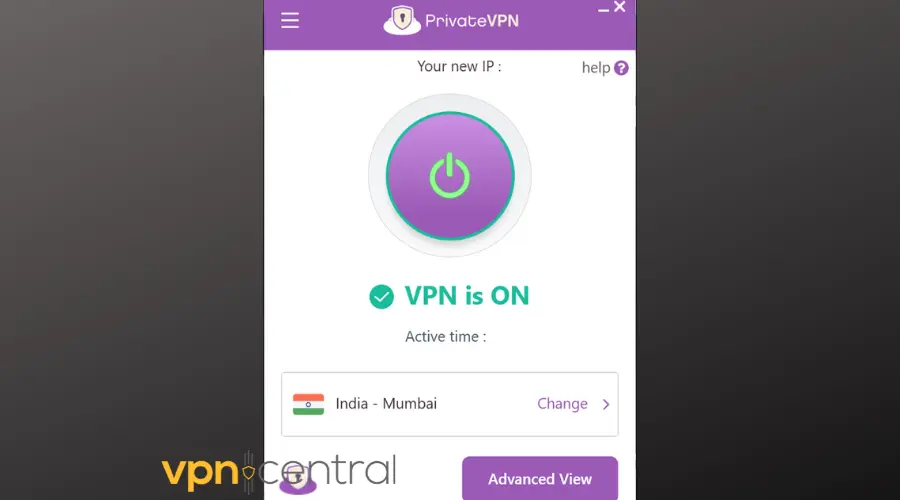
1) Switch to a Different VPN Server (Fix Region Errors)
Choose another India server in your VPN. If available, try obfuscated or streaming-optimized nodes—Airtel and many platforms block well-known VPN ranges.
- Android/iOS: Open VPN app → Locations/Servers → choose India (try a different city) → enable Obfuscated/Stealth or Streaming profile if offered → Connect.
- Windows/macOS: App → Locations → pick alternate India server → Settings → toggle Obfuscation/Stealth (if present) → Connect.
- Android TV/Fire TV: VPN → Server list → India (Streaming/Obfuscated) → Connect → reopen Xstream.
- Optional: If your provider offers it, use a Dedicated IP and retest.
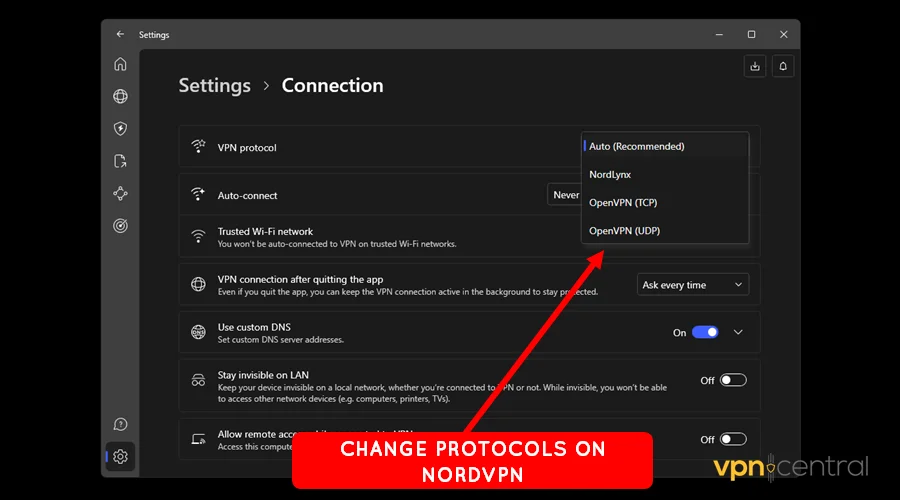
2) Change VPN Protocol for Smoother Streaming
Switch between WireGuard and OpenVPN (UDP/TCP). This helps when default ports are blocked. If you’re unsure what to pick, review the best VPN protocols and how they impact speed/reliability.
- Android/iOS: VPN app → Settings → Protocol → try WireGuard → test → then OpenVPN UDP → test → then OpenVPN TCP.
- Windows/macOS: App → Settings/Preferences → Protocol → cycle WireGuard → OpenVPN UDP → OpenVPN TCP → Save → reconnect.
- Router client: Router VPN page → Protocol → choose TCP if UDP fails → Apply → reconnect devices.
3) Use a VPN That Works Well With Indian ISPs
If switching servers and protocols still fails, try a VPN optimized for Indian streaming and ISP environments like Airtel. These tend to include obfuscation and stable virtual India servers.
| VPN | Key features | Why it helps |
|---|---|---|
| NordVPN | Obfuscated servers, virtual India options, Double VPN | Obfuscation disguises VPN traffic; virtual India nodes provide consistent Indian IPs; Double VPN adds privacy if traffic is inspected. |
| Surfshark | NoBorders/Obfuscation, multiple India locations, unlimited devices | NoBorders helps in restrictive ISP environments; many India nodes let you switch quickly if one is blocked; one plan covers all devices. |
| ExpressVPN | Virtual India servers, Lightway protocol, strong unblocking | Stable virtual routes, fast Lightway for Airtel fiber, and a strong track record with streaming apps. |
- How to apply: Install one provider → enable Obfuscation/Stealth/NoBorders → pick an India server (Mumbai/Delhi if offered) → combine with cache clear, split tunneling, and region/time-zone steps below.
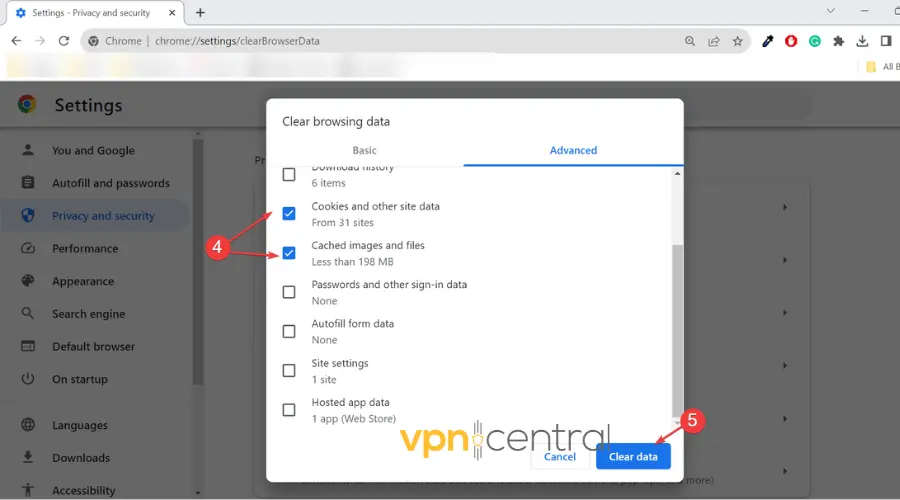
4) Clear Browser Cookies and App Cache
- Chrome (Win/macOS): ⋮ → Settings → Privacy and security → Clear browsing data → All time → clear Cookies + Cached images/files. (Site-specific: padlock → Site settings → Clear data.)
- Edge: ⋯ → Settings → Privacy → clear cookies + cache.
- Firefox: ≡ → Settings → Privacy & Security → Cookies and Site Data → Clear Data.
- Android app: Settings → Apps → Airtel Xstream Play → Storage & cache → Clear cache (if needed, Clear storage) → sign in again.
- iPhone/iPad: Settings → General → iPhone Storage → Airtel Xstream → Offload App → reinstall; or delete → reinstall → sign in.
- Android TV/Fire TV: Settings → Apps → Airtel Xstream → Clear cache (then Clear data if necessary) → reopen.
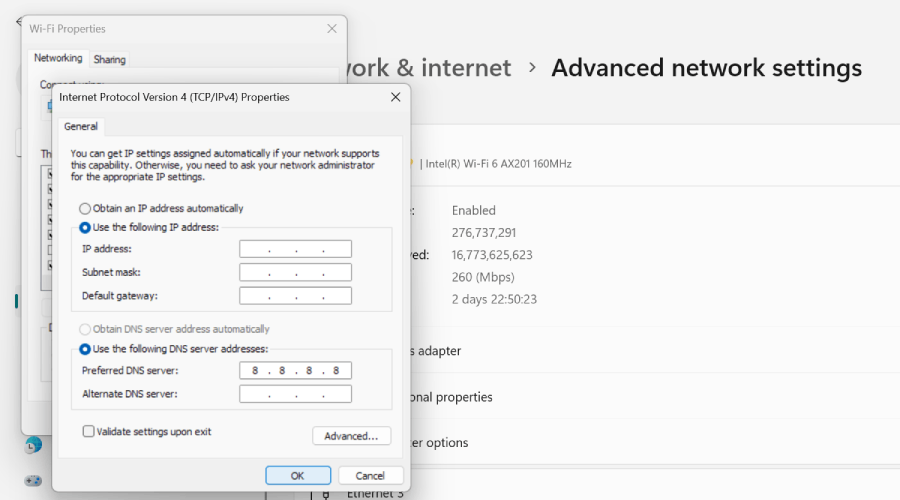
5) Stop DNS and IPv6 Leaks That Break Streaming
Enable “VPN DNS only” and block IPv6 in your VPN. Learn more in this explainer: does VPN encrypt DNS.
- Android: follow this guide to fix DNS leaks on Android.
- iPhone: use these steps to fix DNS leaks on iPhone.
- Windows (optional test): Control Panel → Network & Internet → Network and Sharing Center → Change adapter settings → adapter Properties → uncheck IPv6 → OK.
- Router (Nokia/AirFiber): Login (often 192.168.1.1) → Advanced → DNS → set to obtain automatically (if VPN app handles DNS) → Save → reboot.
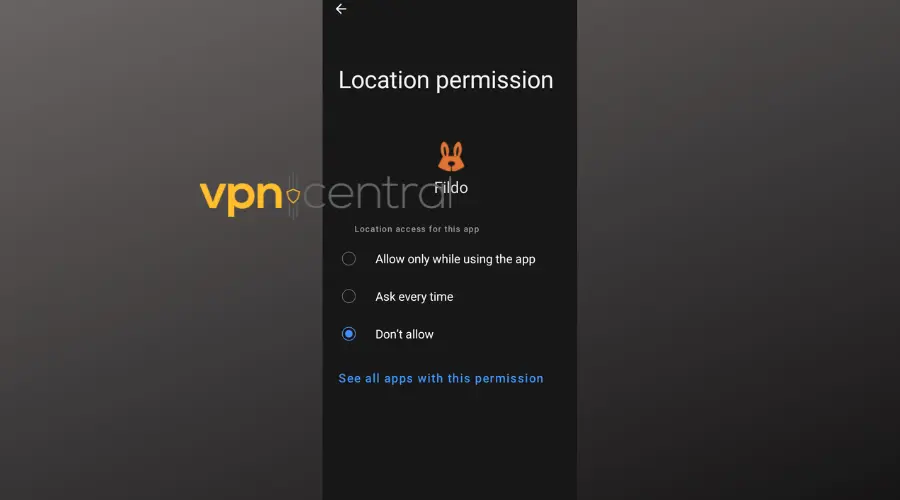
6) Temporarily Disable Location Services
If GPS doesn’t match your IP, playback may fail. For how IP/GPS interplay works, see will VPN hide my location.
- Android: Settings → Location → App permissions → Airtel Xstream → set to Don’t allow or disable Precise.
- iOS: Settings → Privacy & Security → Location Services → Airtel Xstream → Never or Ask Next Time; toggle Precise off.
- Browsers: Block location when prompted, or clear the site’s location permission in Site settings.
7) Match Device Region and Time Zone Settings
- Android: Settings → System → Date & time → enable auto time/time-zone, or set IST (UTC+5:30). Region: Settings → System → Languages & input → Languages → add English (India).
- iOS: Settings → General → Date & Time → Set Automatically; Language & Region → Region = India.
- Windows: Settings → Time & language → Date & time → time-zone = (UTC+05:30) India; Language & region → Country/region = India.
- macOS: System Settings → General → Date & Time → set time-zone Asia/Kolkata; Language & Region → Region = India.
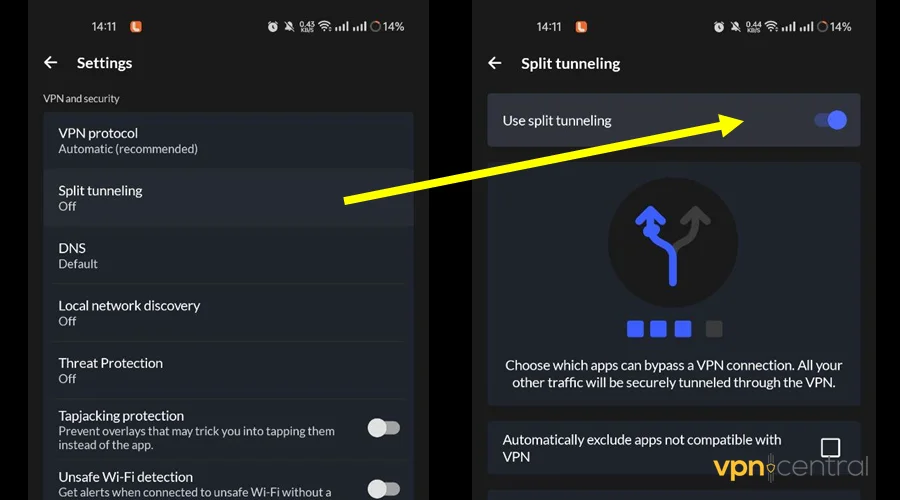
8) Enable Split Tunneling on Mobile Data
- Android: VPN app → Settings → Split Tunneling/App Exclusions → exclude the Xstream app → reconnect VPN → turn Wi-Fi off and test on mobile data.
- Windows: VPN app → Settings → Split Tunneling → exclude the streaming app or browser → reconnect.
- iOS: If app-level split tunneling isn’t supported, stream without VPN or use per-site exceptions if your provider supports Safari/Web extensions.
- Router VPN users: Prefer device-level VPN so you can exclude the Xstream app while keeping VPN for everything else.
9) Reinstall the App to Refresh Login and Playback
- Android: Long-press app → Uninstall → restart phone → Google Play → install → sign in.
- iOS: Long-press → Remove App → Delete → restart → App Store → install → sign in.
- Android TV/Google TV: Settings → Apps → Airtel Xstream → Uninstall → restart TV → reinstall.
- Fire TV Stick: Settings → Applications → Manage Installed Applications → Airtel Xstream → Uninstall → restart → reinstall.
10) Restart Your Router or AirFiber Device
Power-cycle the router (off/unplug 60s → on) and your device. If you use the new device, see this specific guide: how to fix Airtel AirFiber not working with VPN.
- Optional Windows flush: Run
ipconfig /flushdnsin Command Prompt (Admin) → reconnect VPN → retest.
11) Test Both Wi-Fi and Mobile Data Connections
- Phone: Toggle Wi-Fi off to use mobile data (Airtel) → test → toggle Wi-Fi on → test again.
- PC: Try a phone hotspot (Settings → Hotspot & tethering) → connect laptop → test.
- TV: If on Wi-Fi, try Ethernet or switch 2.4 ↔ 5 GHz bands.
Why This Happens on Indian ISPs
Licensing locks many services to India. Providers also compare GPS, IP, DNS, and account paths (mobile data vs Wi-Fi). VPNs can trigger blocks when those signals don’t align. A user complaint (SR 82813214, May 24, 2017) noted VPN logins failing on Airtel broadband while the same VPN worked fine on an Airtel 4G dongle and postpaid SIM—illustrating that ISP paths may treat VPN differently.
It isn’t unique to Airtel either. For context, see what happens when VPN is not working with Spectrum or when Cox blocks VPN traffic.
Airtel Xstream Problems: Symptoms, Causes, and Quick Fix Table
| Symptom | Likely cause | Fastest fix |
|---|---|---|
| “Not available in your region” / endless spinner | Known VPN IP or GPS/IP mismatch | Switch to obfuscated/dedicated IP; disable precise location; clear cookies/app cache |
| Works on dongle, fails on broadband | ISP filtering of VPN traffic | Use split tunneling or switch to mobile data |
| Signs in but won’t play videos | DNS/IPv6 leak or blocked port | Enable VPN DNS only & block IPv6; change protocol/port |
| Plays in browser but not on TV app | App cache/token issue | Force stop/clear cache or reinstall; reboot TV |
| Random buffering after enabling VPN | Congested server or throttled route | Change server/city; try TCP; power-cycle router |
Device-Specific Fixes (Android/iOS, TV, Desktop)
- Android/iOS: Force stop app → clear cache → exclude via split tunneling (if needed) → toggle location off for a test → reinstall if still failing → try another VPN server/protocol.
- Smart TV/Fire TV: Clear app cache → reinstall → pick an India-optimized/obfuscated server in the TV/router VPN → reboot TV.
- Laptop/Desktop: Clear site data for airtelxstream → enable VPN DNS protection → try OpenVPN TCP → verify Wi-Fi (resolve any “Airtel laptop not connecting to Wi-Fi” issues first).
Power users: you can set up your own Windows 11 VPN server or read up on what a VPN server is to better understand routing and access paths.
Extra Tips for Subscription, Offers, and Customer Care
Check current offers and make sure your plan is active, subscription mismatches sometimes look like VPN failures. Also note that upstream issues (packet loss) ruin streaming quality regardless of VPN. Example: Verizon packet loss shows how unstable routes affect video apps.
Summary: Easy Fixes for VPN Problems
- Switch to obfuscated or dedicated IP servers in India.
- Change protocol/port (WireGuard ↔ OpenVPN UDP/TCP).
- Clear cookies/app cache; disable precise location; match region/time-zone.
- Use split tunneling on Airtel mobile data when required.
- Reinstall apps; power-cycle router; try the other network path.
Conclusion: Get Back to Streaming
Getting blocked usually comes down to geo-licensing checks, VPN detection, and network paths. With the server/protocol swap, tighter DNS/IPv6 settings, cache resets, and—if needed—a VPN provider that’s known to work well with Indian ISPs, you should be streaming again quickly.


Read our disclosure page to find out how can you help VPNCentral sustain the editorial team Read more


Improve this guide




User forum
0 messages