
How to Fix BGMI Not Working With VPN (Step-by-Step)


 7 min. read
  Updated on
Battlegrounds Mobile India (BGMI) is geo-restricted to India, which is why it can fail to launch, log in, or matchmake when you’re tunneling through a VPN. You might see infinite loading, “server busy,” or “restricted region” messages—especially if you’re on a congested or blacklisted India route, or you toggled the VPN after opening the game.
Below is a clean, practical workflow to make BGMI work with a VPN on Android, iOS, and on PC via emulators. You’ll also find ping tips, safer “free” approaches, and settings to try when errors won’t go away.

Access content across the globe at the highest speed rate.
70% of our readers choose Private Internet Access
70% of our readers choose ExpressVPN

Browse the web from multiple devices with industry-standard security protocols.

Faster dedicated servers for specific actions (currently at summer discounts)
Table of contents
- Why BGMI Breaks When You Use a VPN
- Fix BGMI Not Working With VPN: Do This In Order
- 1) Connect to India before opening BGMI
- 2) Use a fast protocol and enable obfuscation if needed
- 3) Clear BGMI cache and re-authenticate
- 4) Disable conflicting network features
- 5) Reinstall/update from the correct India source
- 6) Favor off-peak windows and “known good” nodes
- 7) Optimize for ping on mobile and PC
- 8) Last resort: change provider or route pattern
- Free VPN for BGMI: What Actually Works
- Platform-Specific Notes
- Playing From Outside India: What to Expect
- Quick Troubleshooting Checklist
- FAQs
Why BGMI Breaks When You Use a VPN
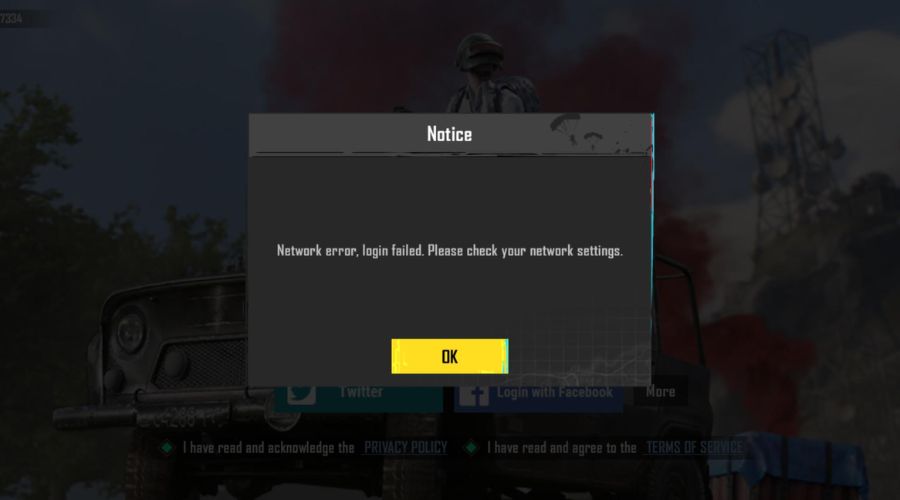
- Wrong/unstable server: Many providers now use virtual India locations; some routes get crowded or flagged.
- Switching mid-session: BGMI re-checks region; if your IP changes, you can be kicked.
- Background conflicts: Private DNS, ad-blockers, or parallel VPN/proxy apps can interfere.
- Store/app mismatch: Installing updates from non-India storefronts or mismatched APK variants triggers errors.
- High latency: Long distance to India plus weak peering causes packet loss, rubber-banding, and login failures.
If your symptoms resemble PUBG’s behavior with VPNs, the troubleshooting is nearly identical. For a deeper look at shared causes, see this explainer on PUBG not working with VPN.
Fix BGMI Not Working With VPN: Do This In Order
Follow these steps from top to bottom for the best results.
1) Connect to India before opening BGMI
- Force-close BGMI.
- Open your VPN and pick India (prefer routes labeled “India via Singapore/UK”).
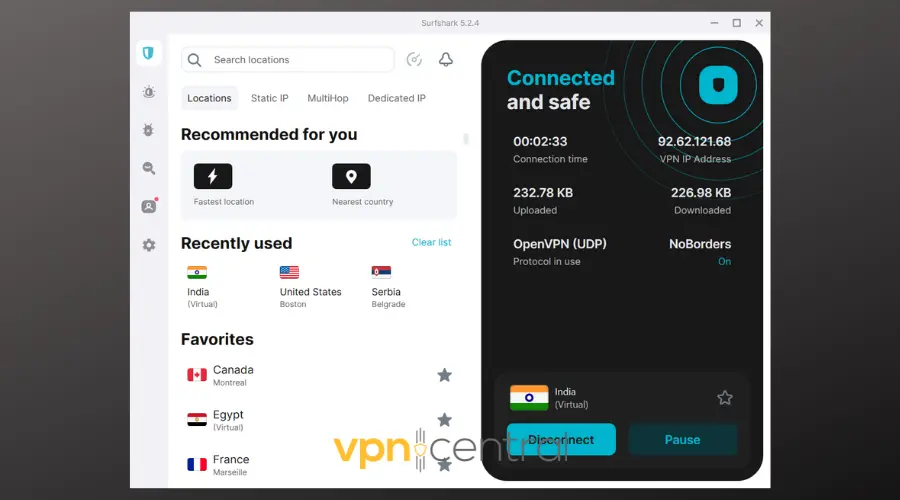
- Wait 10–15 seconds after “Connected,” then launch BGMI.
- If login fails, switch to a different India node from the same provider.
Trying to minimize lag across shooter engines? Compare routes with this practical guide to the best country to connect a VPN for gaming so you can avoid congested paths.
2) Use a fast protocol and enable obfuscation if needed
- In your VPN app, open Settings → Protocol.
- Try WireGuard/NordLynx/Lightway first.
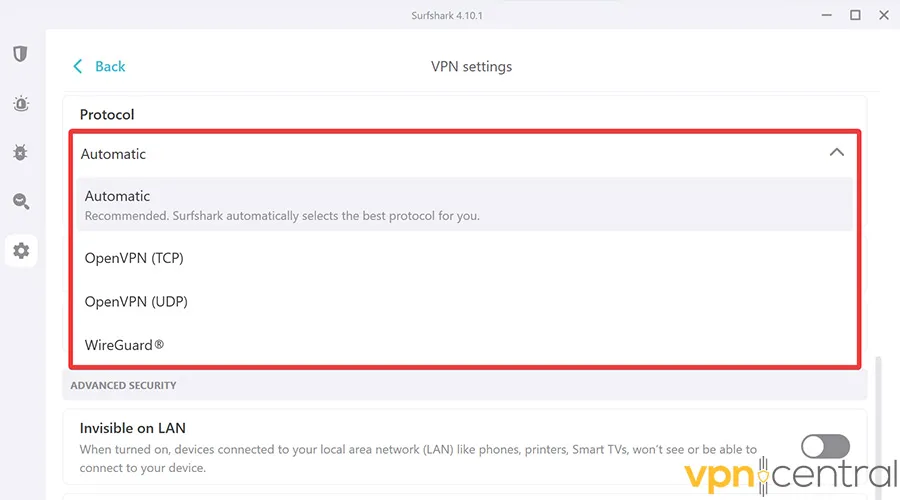
- If available, enable Obfuscation/Stealth/Camouflage and reconnect to India.
- Avoid double-VPN or multi-hop while gaming; they add latency.
If your goal is consistently low ping in PUBG-engine titles, borrow the same testing flow from this guide to a low-ping VPN for PUBG—the measurement approach applies 1:1 to BGMI.
3) Clear BGMI cache and re-authenticate
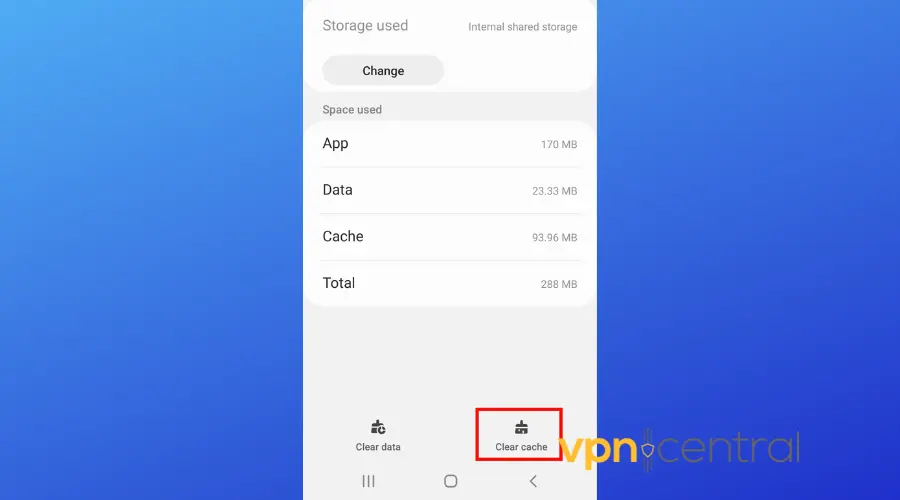
- Android: Settings → Apps → BGMI → Storage → Clear Cache (only use Clear Data if you must).
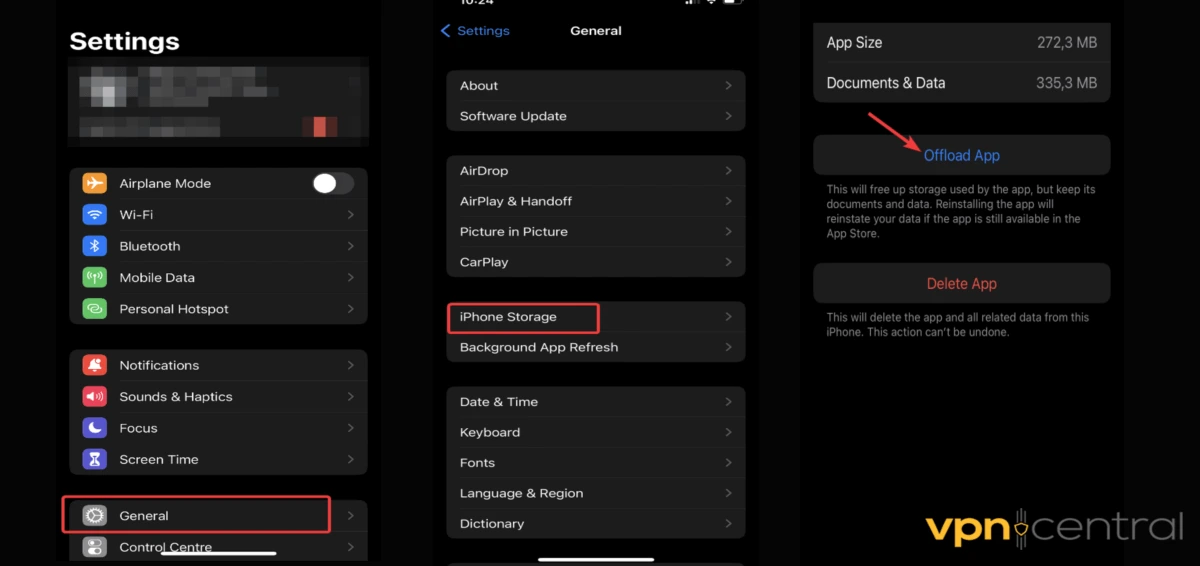
- iOS: Offload and reinstall if cache corruption is suspected.
- All: Reopen BGMI while connected to India and let the lobby fully load before switching screens.
When you hit hard network locks with PUBG-engine games, the same root causes apply. This walk-through to fix the PUBG connection timeout error maps closely to BGMI’s packet-drop stalls.
4) Disable conflicting network features
- Turn off Private DNS (Android) or iCloud Private Relay (iOS) temporarily.
- Disable ad-blocking/“VPN” browsers while you play.
- Ensure only one VPN/proxy is active at a time.
On emulators (BlueStacks/GameLoop), confirm no proxy is forced in the emulator. PUBG-engine titles are sensitive to layered tunnels and transparent proxies.
5) Reinstall/update from the correct India source
- Stay connected to India in your VPN.
- Open the app store set to India, or use the correct India APK.
- Install updates while connected to India, then launch the game without disconnecting.
Picking the right in-game region and VPN exit can also influence match stability. For broader context on route choices in PUBG titles, see best VPN location for PUBG.
6) Favor off-peak windows and “known good” nodes
During evening peak (IST), many India routes saturate. Test early morning or mid-day IST. When you find a smooth node with stable ping, favorite it and reuse it.
7) Optimize for ping on mobile and PC
- Prefer Wi-Fi 5/6 over mobile data.
- Sit closer to the router; use 5 GHz if available.
- On PC, use Ethernet, pause background updates, and assign the emulator to your fastest virtual NIC.
- If you’re constantly tuning latency in shooter engines, this neutral overview of VPN for PlayerUnknown’s Battlegrounds helps you understand provider differences that also matter for BGMI.
8) Last resort: change provider or route pattern
If you continue to face issues after all steps, consider switching to one of these proven VPNs for BGMI:
- ExpressVPN – Excellent for consistent, low-latency India connections via virtual servers.
- NordVPN – Reliable and secure, offering stable virtual India IPs with minimal lag.
- Surfshark VPN – Budget-friendly choice with fast WireGuard support and unlimited device connections.
Some providers rotate India IP pools. If a pool is temporarily flagged or crowded, switching to India via SG/UK/UAE or trying another provider can immediately fix login/store issues.
Free VPN for BGMI: What Actually Works
You asked for free VPN for BGMI, best free VPN, and BGMI VPN for PC free. Reality check:
- Most reputable free plans don’t include India, or severely throttle/bucket bandwidth.
- “Unlimited free” mobile VPNs often have invasive ads, weak privacy, and get flagged by services like BGMI.
- For real, playable routes, leverage free trials or money-back guarantees of premium providers—this is the only consistent way to get stable India exits with usable ping.
If your goal is strictly lower ping in PUBG-engine games, apply the testing and device-level tweaks from the low-ping VPN for PUBG guide. If you mainly need to pick the right exit, the breakdown of the best country to connect a VPN for gaming explains why some “India via SG/UK” routes feel better than others.
If you’re in India and cost matters, weigh options reviewed as the best value-for-money VPN in India so you don’t sacrifice stability during ranked matches.
Platform-Specific Notes
Android & iOS
- Keep the VPN on from launch to exit; don’t background-switch networks mid-match.
- Lock the app in Recent Apps to prevent the OS from killing it while the VPN reconnects.
PC (Emulator)
- Install and run the VPN on Windows, not only inside the emulator.
- In emulator networking, disable proxy and inherit host networking.
- Prefer Ethernet, and use a fast protocol (WireGuard/Lightway) on the desktop client.
Playing From Outside India: What to Expect
- Fair Play: Using a VPN for regional access is common; cheating or abuse will lead to sanctions with or without a VPN.
- Ping Physics: If you’re far from India, raw ping won’t drop below geography limits; prioritize stability (no jitter/packet loss).
- Consistency: Stick to the same India route each session. Frequent switching re-triggers checks and can cause login loops.
Quick Troubleshooting Checklist
- Connect to India before opening BGMI (never mid-session).
- Use WireGuard/Lightway, enable obfuscation if available.
- Clear cache, disable Private DNS/Private Relay, remove extra proxies.
- Reinstall/update BGMI while on India.
- Test multiple India routes and off-peak times; favorite the best node.
- On emulator, run VPN on Windows, use Ethernet, pause background downloads.
- If nothing works, switch provider or use another India via SG/UK route.
- When you hit engine-level timeouts, reference the steps in fix PUBG connection timeout error.
FAQs
No, BGMI doesn’t include a VPN. If you need an India IP, you must use a third-party VPN app.
Yes. Many players do so by connecting to an India server in a VPN before launching BGMI. Install updates while connected to India and keep the VPN on during the entire session.
Use a fast protocol (WireGuard/Lightway), stick to a proven India via SG/UK route, and play on wired/Ethernet if you’re on PC.
Sometimes. A good VPN can take a better path to India and reduce jitter or throttling, improving consistency even if raw ping stays high.


Read our disclosure page to find out how can you help VPNCentral sustain the editorial team Read more


Improve this guide




User forum
0 messages