
How to Fix Blink App Not Working with VPN: Step-by-Step Guide


 5 min. read
  Updated on
Key notes
Quick fixes you can try now: disable VPN, use split tunneling, select a nearby VPN server, restart devices, flush DNS cache, reset Blink sync module, update app and firmware, test mobile data connection (more details below).

The Blink app not working with VPN is a common problem that stops users from logging in or accessing live video feeds.
Many see errors like “HTTP 406,” “Unauthorized Access,” or blank screens when using a VPN. This guide covers the main causes and 9 practical fixes to restore full Blink functionality.

Access content across the globe at the highest speed rate.
70% of our readers choose Private Internet Access
70% of our readers choose ExpressVPN

Browse the web from multiple devices with industry-standard security protocols.

Faster dedicated servers for specific actions (currently at summer discounts)
Table of contents
- Why the Blink App Is Not Working with Your VPN
- Step-By-Step Fixes for Blink App Not Working with VPN
- 1) Temporarily Disable Your VPN
- 2) Enable Split Tunneling to Bypass VPN for Blink
- 3) Connect to a VPN Server Near Your Real Location
- 4) Restart Your Blink Devices and Network Equipment
- 5) Flush DNS and Clear Network Cache on Your Device
- 6) Reset Blink Sync Module and Re-Authenticate
- 7) Update Blink App and Device Firmware
- 8) Switch to Mobile Data to Test Your Connection
- 9) Use VPN Providers Known for IoT Compatibility
- Does Using a VPN Change Blink App Availability?
- Is Blink Available Worldwide with VPN?
- Blink Features Affected by VPN and Proxy Use
- How to Choose the Best VPN for Blink App Use
- Conclusion: How to Fix Blink App Not Working with VPN
Why the Blink App Is Not Working with Your VPN
Blink requires stable IP and DNS that match your region and direct internet connection. VPNs mask your real IP or alter routing and DNS, causing Blink to reject connections or fail SSL checks.
Blink App Issues: Common Symptoms Explained
- VPN causes login failures – VPN blocks or modifies authentication traffic.
- Live view does not load – video streams get blocked or interrupted through VPN.
- Sync Module shows offline status – unable to connect to Blink servers reliably.
- No motion alerts or notifications – server callbacks fail through VPN.
Typical Blink VPN Error Messages You May See
- “HTTP 406”
- “Unauthorized Access”
- “Invalid Credentials”
- “Unable to sign in at this time”
- SSL or certificate errors
Step-By-Step Fixes for Blink App Not Working with VPN
1) Temporarily Disable Your VPN
1. Open your VPN app.
2. Disconnect from the VPN.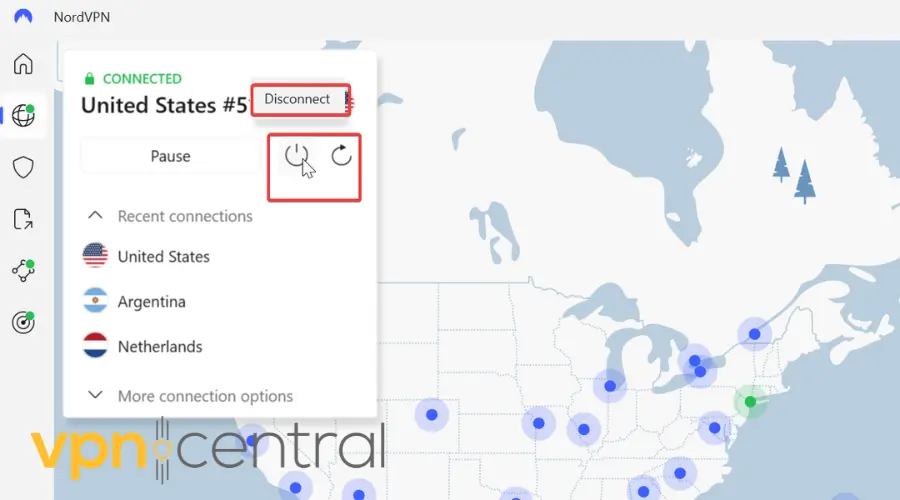
3. Open the Blink app and try to log in or view cameras.
Why this helps: Disabling VPN restores your true IP and routing. It fixes errors caused by location mismatch or SSL certificate failures.
2) Enable Split Tunneling to Bypass VPN for Blink
1. Access your VPN settings.
2. Find “split tunneling” or “app exclusions.”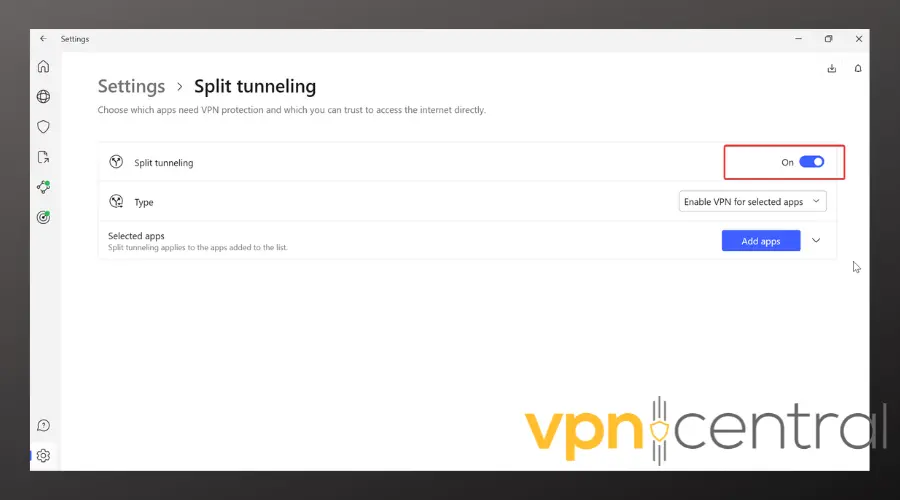
3. Add the Blink app to bypass VPN traffic.
Why this helps: It routes Blink data outside the VPN while keeping VPN active for other apps, avoiding blocking.
3) Connect to a VPN Server Near Your Real Location
1. Open your VPN client.
2. Choose a server close to your physical region.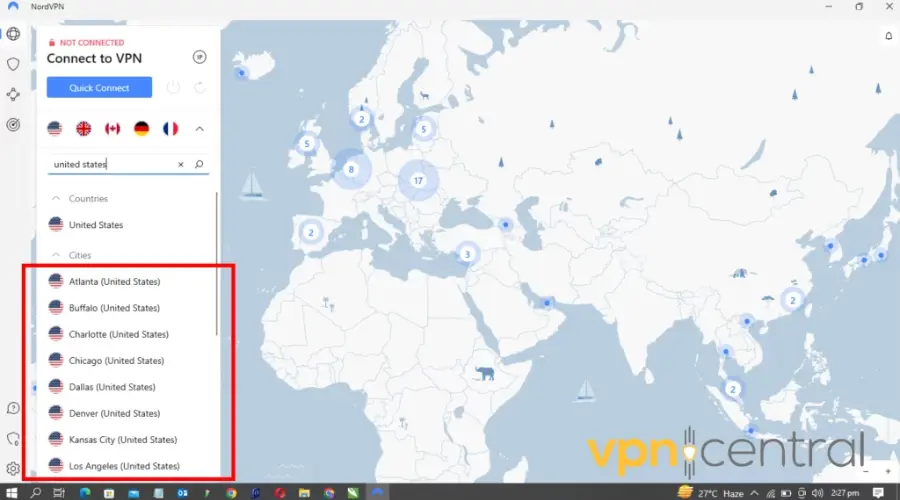
3. Retry Blink app login or live view.
Why this helps: Using a local VPN server reduces IP and region mismatch detected by Blink.
4) Restart Your Blink Devices and Network Equipment
1. Power off Blink cameras and sync module.
2. Reboot your phone or tablet.
3. Restart your router or modem.
4. Turn devices back on and test Blink.
Why this helps: Clears cached routes, IP conflicts, or DNS entries that the VPN may have caused.
5) Flush DNS and Clear Network Cache on Your Device
1. Toggle Airplane Mode on your device briefly.
2. Forget and reconnect to your Wi-Fi network.
3. Restart your router if possible.
Why this helps: Ensures your device uses fresh DNS lookups without VPN interference.
6) Reset Blink Sync Module and Re-Authenticate
1. Remove your Sync Module from the Blink app.
2. Add it again via the app while VPN is off or split tunneled.
3. Complete the setup process.
Why this helps: Blink setup expects consistent network conditions. Resetting while bypassing VPN ensures proper connection.
7) Update Blink App and Device Firmware
1. Check for Blink app updates in your app store.
2. Update camera and sync module firmware if available.
3. Restart devices and test.
Why this helps: Updates may fix VPN compatibility and connection bugs.
8) Switch to Mobile Data to Test Your Connection
1. Disable Wi-Fi and use cellular data.
2. Open Blink and check if login and live view work.
3. If successful, the issue lies with VPN and your home network.
Why this helps: Isolates VPN or local network as the cause.
9) Use VPN Providers Known for IoT Compatibility
- NordVPN: Offers strong split tunneling and many servers worldwide.
- Surfshark: Unlimited devices with reliable smart home support.
- ExpressVPN: Fast speeds and broad server locations.
Does Using a VPN Change Blink App Availability?
Yes. VPNs can block or limit Blink features like live video and notifications. Learn more about how VPNs affect devices in this VPN impact on devices article.
Is Blink Available Worldwide with VPN?
Blink works globally, but VPN use can cause errors if your VPN IP location conflicts with Blink’s regional controls.
Blink Features Affected by VPN and Proxy Use
- Live video streaming: often blocked or slow
- Push notifications: delayed or missing
- Login and authentication: frequently fails
- Device setup and pairing: can fail under VPN restrictions
How to Choose the Best VPN for Blink App Use
- Split tunneling: Allows bypassing VPN for Blink.
- Server location: Pick servers near your physical region.
- Connection speed: Fast upload/download for video.
- DNS protection: Avoids leaks causing connection errors.
- Customer support: Helpful for troubleshooting.
Conclusion: How to Fix Blink App Not Working with VPN
The Blink app’s connection issues with VPN usually stem from IP, DNS, or routing conflicts. Follow the 9 fixes above, focusing on disabling VPN, using split tunneling, and choosing compatible VPN providers. This will restore Blink’s full functionality securely.


Read our disclosure page to find out how can you help VPNCentral sustain the editorial team Read more


Improve this guide




User forum
0 messages