
How to Fix drive.google.com Is Blocked (Easy)


 4 min. read
  Published on
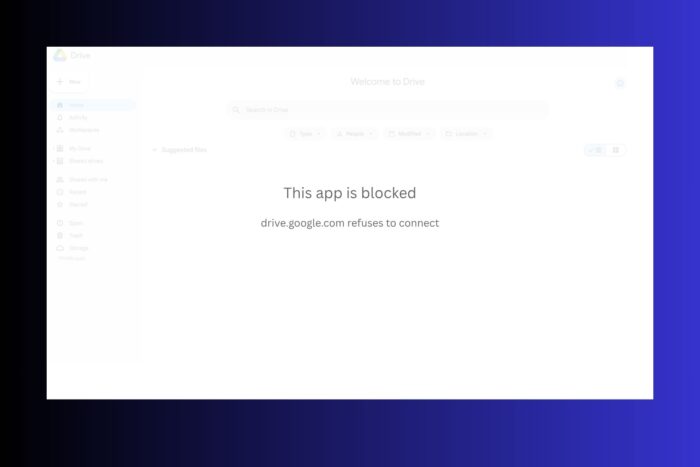
If Google Drive is blocked, it’s usually due to network restrictions, admin settings, or device issues. Using a VPN with recommended servers, troubleshooting your browser, or checking account settings can restore access quickly. Follow the steps below, I’ll show you how.
In this article:
Why drive.google.com Is Blocked
Understanding why Google Drive is blocked helps you target the right fix. Common causes include:
- Network or firewall restrictions: Schools, workplaces, and public Wi-Fi sometimes block Google Drive domains.
- Admin or organizational policies: Managed Google Workspace accounts can have Drive disabled for security or productivity.
- Browser or device issues: Outdated browsers, disabled JavaScript, cookies, or antivirus software can stop Drive from loading.
- Google account restrictions: Security settings, unusual sign-ins, or unverified apps may trigger a block.
- Regional or government restrictions: Some countries or networks partially or fully block Google services.
Use NordVPN to Unblock Google Drive
A VPN is often the fastest solution for network or regional blocks. That’s beacuse this private network tool hides your IP address, making it appear as if you’re browsing from ar egion where Google Drive works. It also encrypts traffic, which helps bypass ISP filtering or deep packet inspections.
Here’s how you use a VPN to unblock Google Drive:
- Sign up for NordVPN: Known for reliable speed and strong privacy.
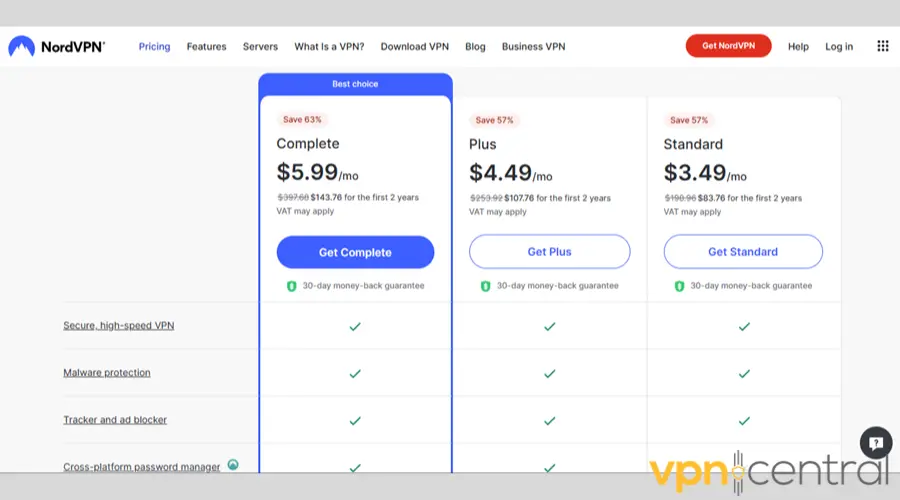
- Install the app: Available on Windows, macOS, Android, iOS, or as a browser extension.
- Connect to a recommended server:
- United States – New York or Los Angeles: Best for general access and speed.
- Canada – Toronto: Nearby region if U.S. servers are congested.
- United Kingdom – London: Great alternative if you need minimal latency in Europe.
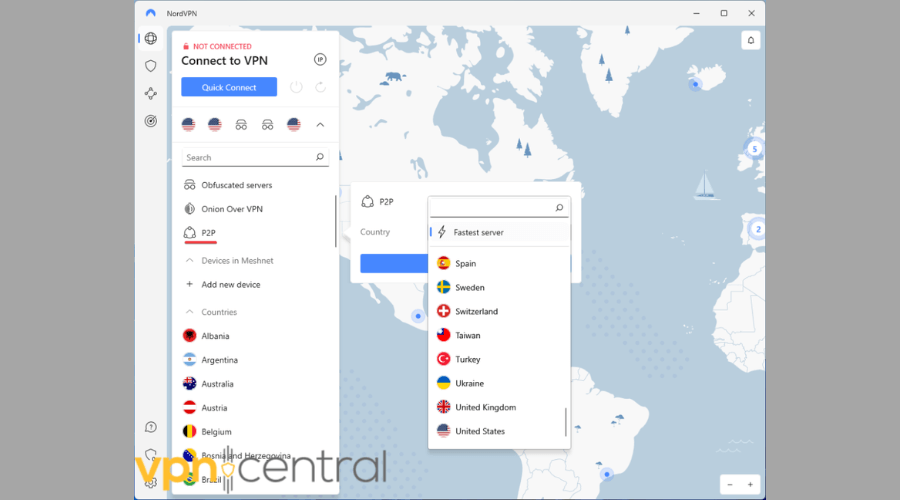
- Clear browser cache: Remove cookies and cached pages to avoid old “blocked” states.
- Open Google Drive: Visit drive.google.com and check access.
Tip: If one server doesn’t work, try switching protocols like WireGuard or OpenVPN for better connectivity.

NordVPN
Unblock Google Drive instantly with NordVPN!Fix Browser and Device Issues
Sometimes the block isn’t network-related. Try these steps:
- Clear cache and cookies: Ensures Drive isn’t stuck on a blocked page.
- Try a different browser: Chrome, Firefox, or Edge may behave differently.
- Update your browser: Outdated versions can trigger errors.
- Disable extensions temporarily: Ad blockers or privacy extensions may interfere.
- Check local firewall/antivirus: Temporarily disable to test, then whitelist Google Drive.
For detailed guidance on browser issues, see how to fix Google Chrome not working with VPN.
Check Your Google Account Settings
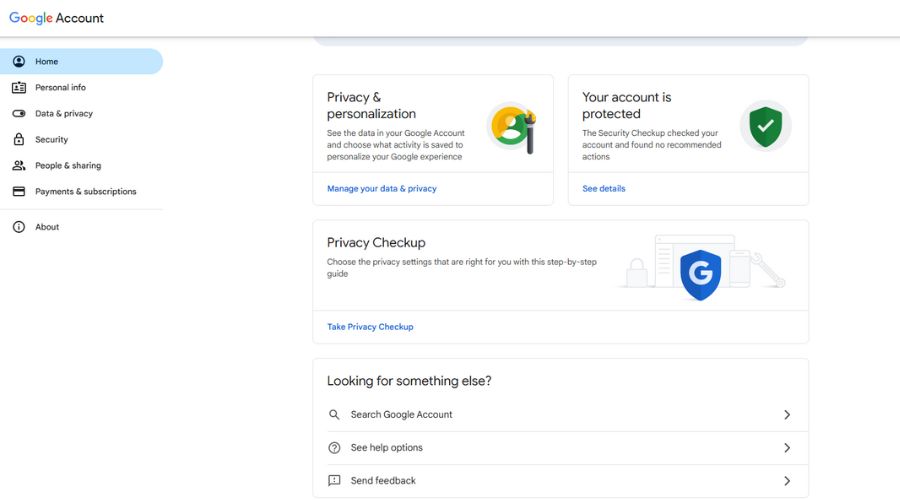
Some blocks come directly from your Google account:
- Managed account restrictions: Work or school accounts may have Drive disabled. Contact your administrator.
- Suspicious sign-in activity: Google may block access if it detects unusual login behavior.
- Third-party apps: Remove any suspicious apps in your account’s security settings.
For personal accounts, see Google Drive not working with VPN for more troubleshooting tips.
Test Network and Regional Issues
If other steps fail, check network-level problems:
- Switch Wi-Fi networks or use a mobile hotspot.
- If Drive works on another network, your original connection is the block source.
- If regional restrictions apply, use a NordVPN server in a country where Google services are fully accessible.
Conclusion
Blocked access to Google Drive doesn’t can be fixed by using a reliable VPN, clearing browser data, checking your account settings, or testing different networks. These blocks often stem from issues like Google detecting unusual activity on your account, enforcing regional restrictions, triggering security protocols after suspicious logins, or temporarily limiting access due to backend server issues.
Knowing the root of the problem is the first step in solving it. That’s why in the guidelines above we follow a cause-oriented approach. Let us know if you need any more help in the comments below.


Read our disclosure page to find out how can you help VPNCentral sustain the editorial team Read more


Improve this guide



User forum
0 messages