
Google Chrome Not Working With VPN: How to Fix It Fast


 6 min. read
  Updated on
Key notes
🛠️ QUICK FIXES 🛠️
-
Restart Chrome and your VPN, then test a site in incognito mode.
-
Change to a nearby VPN server with lower latency.
-
Flush DNS (
ipconfig /flushdns) and clear Chrome cache. -
Turn off proxy settings and ad-blocking extensions.
-
Disable “DNS over HTTPS” in Chrome temporarily.
-
Switch VPN protocol (OpenVPN → WireGuard).
-
Reboot your router or switch networks if nothing else works.

When Google Chrome is not working with your VPN, pages may refuse to load, show security errors, or display wrong regions.
It’s often a DNS, proxy, or network conflict issue, but it can be fixed quickly.
Why Chrome Stops Working With a VPN
Chrome can fail to connect through a VPN due to network routing errors, DNS conflicts, proxy settings, or blocked VPN IPs. Some VPNs don’t handle Chrome’s DNS over HTTPS correctly, while others get flagged by sites for suspicious traffic.
Symptoms & What They Mean
- Websites won’t load at all – blank screen or endless loading.
- Some sites load, others don’t – streaming services blocking VPN IPs.
- Slow browsing – VPN server congestion or wrong tunneling settings.
- Wrong region – Chrome caching old geolocation data.
- CAPTCHAs everywhere – VPN IPs overused or blacklisted.
- Sync errors – VPN blocking Google services or SSL traffic.
Typical Error Messages in Chrome
- “ERR_NETWORK_CHANGED”
- “ERR_CONNECTION_TIMED_OUT”
- “ERR_PROXY_CONNECTION_FAILED”
- “DNS_PROBE_FINISHED_NXDOMAIN” or “DNS_PROBE_FINISHED_BAD_CONFIG”
- “ERR_SSL_PROTOCOL_ERROR”
- “ERR_TUNNEL_CONNECTION_FAILED”
- “This site can’t be reached”
Table of contents
- Why Chrome Stops Working With a VPN
- Step-by-Step Fixes for Chrome Not Working With VPN
- 1. Restart Chrome and Reconnect Your VPN
- 2. Flush DNS and Reset Network Cache
- 3. Disable Proxy Settings in Chrome
- 4. Clear Chrome Cache and Cookies
- 5. Disable Browser Extensions Temporarily
- 6. Switch VPN Servers or Protocols
- 7. Reset Chrome’s Network and Security Settings
- 8. Turn Off DNS Over HTTPS in Chrome
- 9. Use a Better VPN for Chrome
- Does Using a VPN Change Website Availability in Google Chrome?
- Chrome Browsing Features Affected When VPN Isn’t Working
- How to Choose the Best VPN for Chrome
- Conclusion
- FAQ About Google Chrome and VPNs
Step-by-Step Fixes for Chrome Not Working With VPN
Follow the simple steps below to quickly fix any issues with Google Chrome and VPN.
1. Restart Chrome and Reconnect Your VPN
- Close Chrome completely.
- Disconnect your VPN, wait 10 seconds, then reconnect.
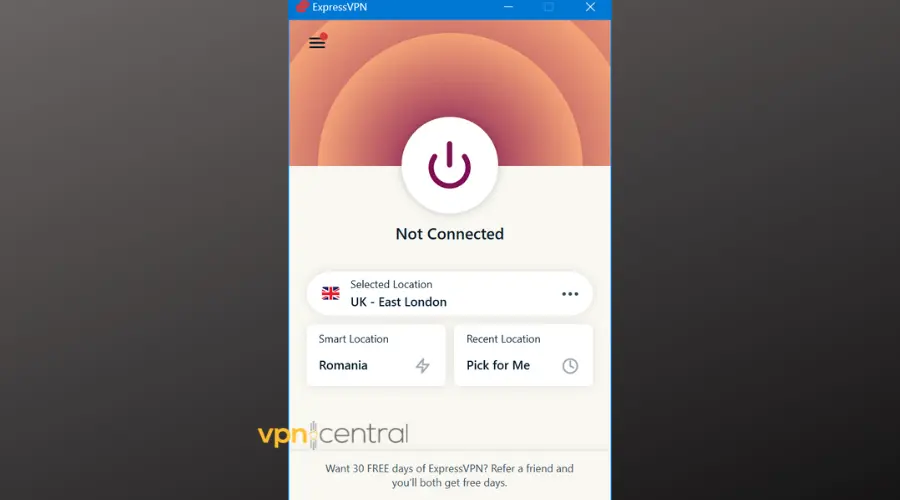
- Reopen Chrome and test a site.
Why this helps: It resets Chrome’s network state and reinitializes the VPN tunnel, clearing temporary IP or DNS mismatches.
2. Flush DNS and Reset Network Cache
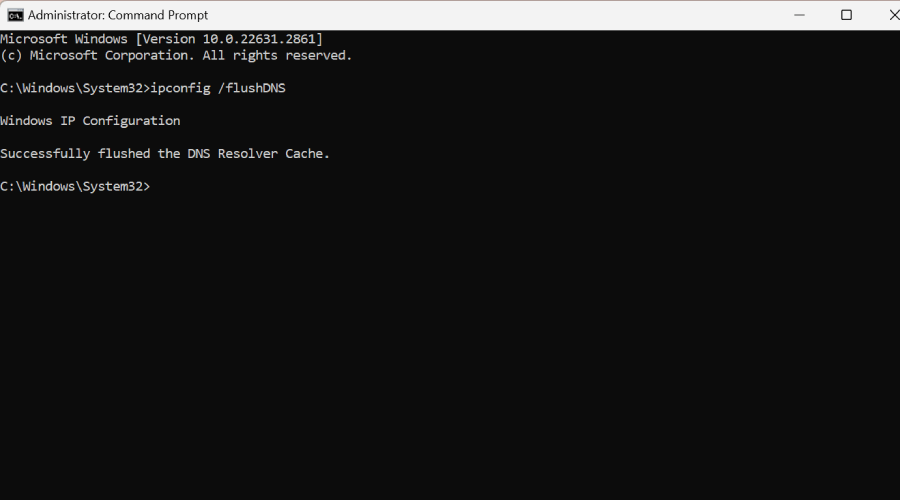
- Open Command Prompt (Windows) or Terminal (macOS).
- Run:
ipconfig /flushdns(Windows) orsudo dscacheutil -flushcache(Mac). - Restart Chrome.
Why this helps: This clears outdated DNS entries that cause Chrome to load old IPs after VPN changes.
3. Disable Proxy Settings in Chrome
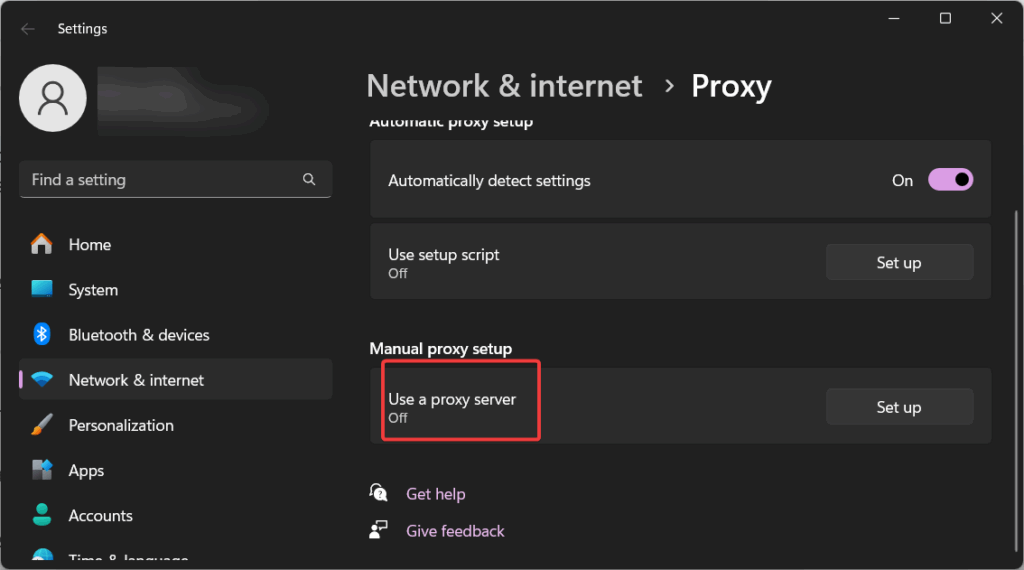
- Go to Settings > System > Open your computer’s proxy settings.
- Ensure Use a proxy server is turned off.
- Save and restart Chrome.
Why this helps: VPNs and manual proxies can conflict, producing “ERR_PROXY_CONNECTION_FAILED.”
4. Clear Chrome Cache and Cookies
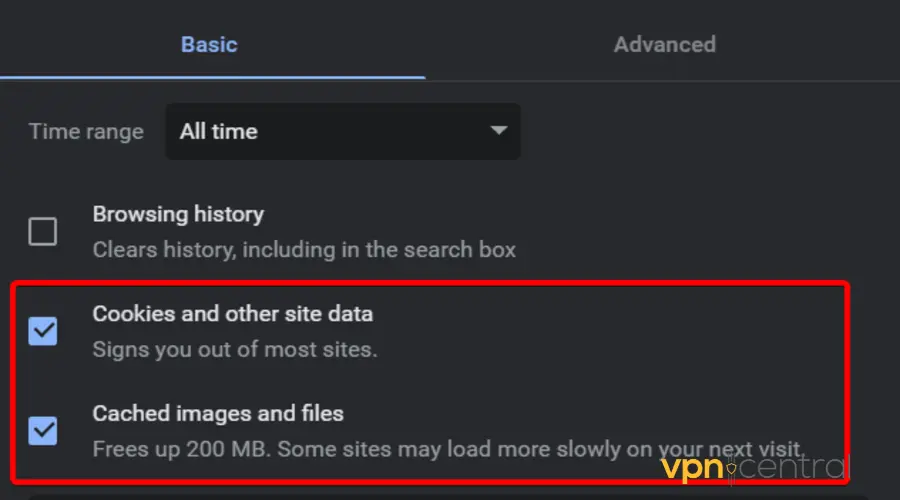
- Go to chrome://settings/clearBrowserData.
- Select All time > Cached images and cookies.
- Click Clear data.
Why this helps: Cached site data may store old IP or SSL information that doesn’t match your VPN’s new route.
5. Disable Browser Extensions Temporarily
- Visit chrome://extensions/.
- Turn off all extensions, especially ad blockers or proxy add-ons.
- Test your connection again.
Why this helps: Some extensions hijack or filter requests, interfering with VPN routing.
6. Switch VPN Servers or Protocols
- Open your VPN client.
- Select a different country or server.
- If available, switch between OpenVPN, IKEv2, and WireGuard.
Why this helps: Different servers and protocols handle traffic differently. This helps bypass IP blocks or unstable connections.
7. Reset Chrome’s Network and Security Settings
- Go to chrome://settings/reset.
- Choose Restore settings to their original defaults.
- Restart Chrome.
Why this helps: Removes hidden misconfigurations that prevent Chrome from communicating properly through the VPN tunnel.
8. Turn Off DNS Over HTTPS in Chrome
- Go to chrome://settings/security.
- Scroll to Use secure DNS and disable it.
- Restart the browser.
Why this helps: Some VPNs handle DNS internally. Chrome’s DNS-over-HTTPS can cause conflicts, leading to DNS errors like “DNS_PROBE_FINISHED_BAD_CONFIG.”
9. Use a Better VPN for Chrome
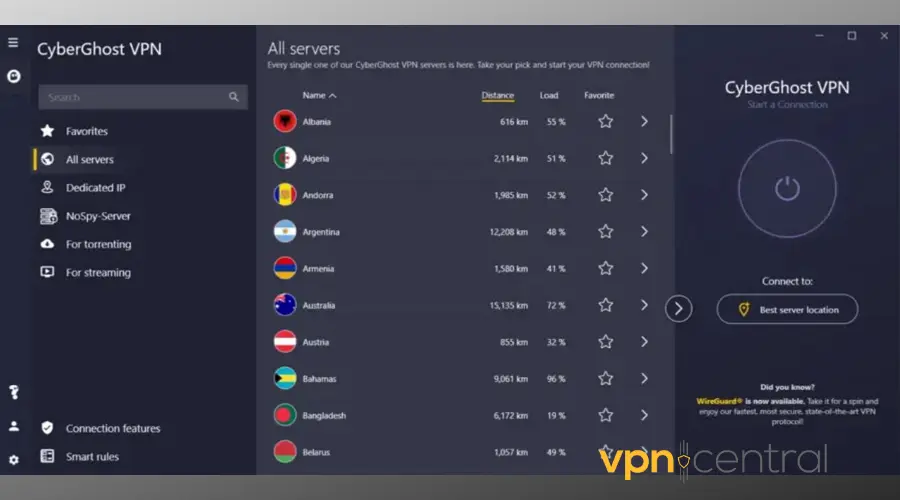
If Chrome keeps failing with your current VPN, the issue may be your provider’s DNS handling or IP range. Consider switching to a more Chrome-compatible VPN like CyberGhost.
CyberGhost offers fast Chrome-optimized servers and a free browser extension that hides your IP instantly. Note that the free extension encrypts browser traffic only, not your entire system, and doesn’t include full privacy features like the paid version.
Why this helps: Reliable VPNs maintain cleaner IP pools and better Chrome integration, preventing blocked or dropped connections.
Does Using a VPN Change Website Availability in Google Chrome?
Using a VPN can affect which websites you can access. Some streaming services, banking sites, and Google apps may block VPN IPs, while others detect the VPN location and show different content.
Chrome Browsing Features Affected When VPN Isn’t Working
- Streaming site access (Netflix, Hulu, BBC iPlayer)
- Google Drive syncing Google Drive not working with VPN
- Downloads and uploads
- Chrome extension connectivity
- Google account login and verification
- Search tracking and privacy, see Google Search privacy tips
How to Choose the Best VPN for Chrome
- Speed: Look for VPNs with fast, low-latency servers.
- Server Locations: Wide coverage ensures access to geo-blocked sites.
- Compatibility: Works smoothly with Chrome extensions and browser traffic.
- Privacy: No-logs policy and DNS leak protection.
- Support: Reliable customer service if Chrome-specific issues occur.
Conclusion
Start by trying simple fixes like restarting Chrome, clearing cache, and checking proxy/DNS settings. If problems persist, switch VPN servers, adjust protocols, or use a more Chrome-friendly VPN like CyberGhost. Following these steps resolves most Chrome VPN issues efficiently.
FAQ About Google Chrome and VPNs
A: Usually due to network conflicts, DNS issues, proxy settings, or blocked IPs.
A: Yes, Chrome works with most third-party VPNs via system or browser extensions.
A: Visit WhatIsMyIP to confirm your IP matches the VPN location.
A: Try switching servers or protocols, flushing DNS, or disabling conflicting extensions.
A: Streaming and geo-blocked sites often detect VPN IPs and restrict access.
A: Use a high-quality VPN with fewer shared IPs and enable stealth/obfuscation mode if available.


Read our disclosure page to find out how can you help VPNCentral sustain the editorial team Read more


Improve this guide




User forum
0 messages