
How to Fix Google Voice Not Working with VPN


 6 min. read
  Published on
If Google Voice isn’t working your VPN, you’ll deal with disconnects or even error messages that won’t let you in at all.
No matter if you use VPN for privacy or to access Google Voice from a restricted area, the steps outlined below will help you troubleshoot it in no time.

Access content across the globe at the highest speed rate.
70% of our readers choose Private Internet Access
70% of our readers choose ExpressVPN

Browse the web from multiple devices with industry-standard security protocols.

Faster dedicated servers for specific actions (currently at summer discounts)
Table of contents
Common Causes of VPN Not Working with Google Voice
There are several reasons why your VPN may be causing Google Voice to malfunction. Understanding these causes can help you quickly resolve the issue.
- IP Leakage: Some VPNs fail to mask your real IP address fully, which can lead to Google Voice detecting your true location and blocking your access. This is especially common with free VPN services.
- Incorrect VPN Server: Google Voice might be restricted to certain regions. If you’re connected to a VPN server in a country that Google Voice doesn’t support, you may encounter errors. For example, using a server located in a region where Google Voice is unavailable will prevent the service from functioning properly.
- Google Voice Security Measures: Google Voice uses a variety of methods to prevent fraud and unauthorized access. Sometimes, the VPN connection may trigger these security measures, causing the app to block access or show error messages.
- VPN Interference with Google’s Protocols: Certain VPN services or configurations might interfere with the protocols Google Voice uses for its voice and messaging services, leading to connection issues.
Common Error Messages When VPN is Not Working with Google Voice
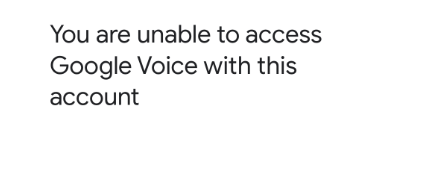
When Google Voice doesn’t work properly with a VPN, you may encounter various error messages. Here are the most common:
- “Access Denied”: This error message often appears when Google Voice detects that you’re attempting to access it from an unsupported region or from a suspicious IP address due to your VPN.
- “We can’t process your request right now”: This message could indicate that your VPN connection is triggering Google’s security system, possibly due to inconsistent IP addresses or server location conflicts.
- “Google Voice is not available in your country”: If your VPN is routing you through a country where Google Voice is unavailable, this error can appear.
Step-by-Step Troubleshooting Guide: How to Fix VPN Not Working with Google Voice
If you’re encountering problems, follow these troubleshooting steps to get Google Voice working properly with your VPN:
Step 1: Check for IP Leaks
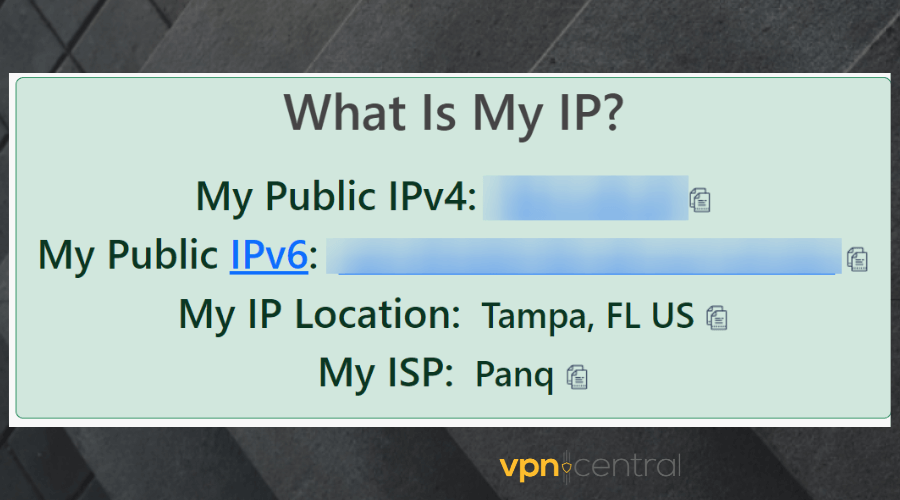
1. Disconnect from your VPN.
2. Use an IP checker (like whatismyip.com) to see if your real IP is exposed.
3. Reconnect to the VPN and check again. Ensure that your VPN shows a different IP and location. If your real IP is still visible, consider switching to a more secure VPN provider.
For a more in-depth look at how to fix VPN-related issues, including those specifically with Google Voice, check out our detailed guide on how to fix VPN by Google not working.
Step 2: Change Your VPN Server Location
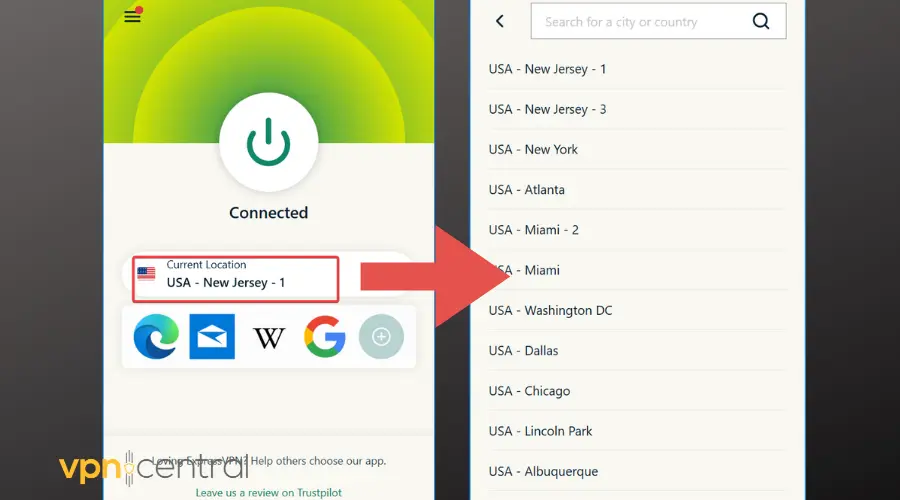
1. Open your VPN app and disconnect from the current server.
2. Choose a server located in a country where Google Voice is supported.
3. Reconnect to Google Voice and check if the issue is resolved.
If you encounter issues while trying to download or use Google Voice in certain regions, our guide on how to download Google Voice in Nigeria might offer some helpful tips on overcoming regional restrictions.
Step 3: Enable the Kill Switch
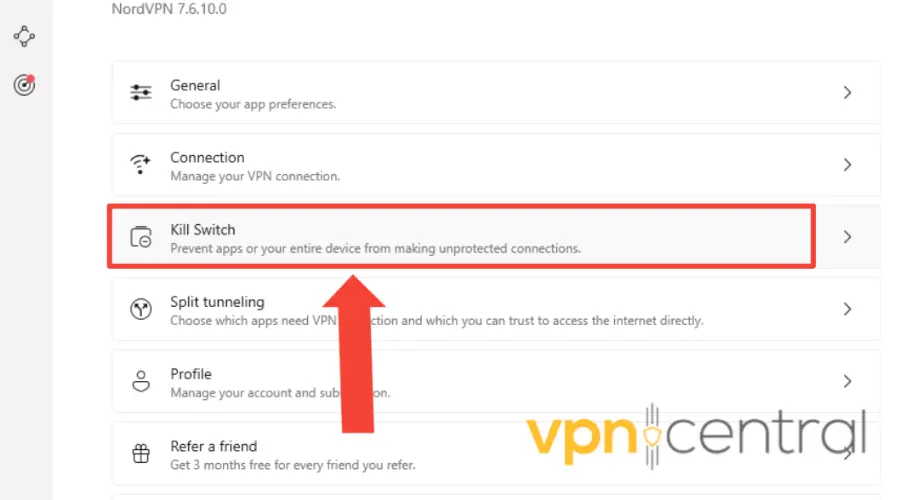
Many VPNs offer a “kill switch” feature, which cuts off internet access if the VPN connection drops. Enabling this feature ensures your real IP remains hidden, preventing issues with Google Voice.
Step 4: Clear Google Voice Cache
1. On your device, open Settings.
2. Go to Apps and find Google Voice.
3. Tap Storage, then click Clear Cache.
4. Restart Google Voice and try again.
Step 5: Test Without VPN
To confirm that the VPN is the issue, disconnect from the VPN and try using Google Voice without it. If it works, then the problem is definitely with the VPN configuration.
Step 6: Reinstall Google Voice
If all else fails, uninstall and reinstall the Google Voice app. This can resolve any app-specific issues or conflicts that may be affecting the connection.
VPNs That Work Well with Google Voice
Here are additional VPN recommendations that are known for working seamlessly with Google Voice:
1. Surfshark
Why It Works: Surfshark is known for its robust security features, high-speed servers, and compatibility with geo-restricted services like Google Voice. It offers unlimited simultaneous connections, allowing multiple devices to access Google Voice simultaneously without issues.
Best For: Users looking for a cost-effective VPN that doesn’t compromise on performance or privacy.
2. PrivateVPN
Why It Works: PrivateVPN has a reputation for unblocking services like Google Voice while maintaining a secure connection. It also offers servers optimized for streaming and VoIP calls, making it ideal for Google Voice.
Best For: Users who need a smaller, reliable VPN that delivers great performance with Google Voice.
If you’re still searching for a suitable VPN to use with Google Voice, our article on the best VPNs for Google Voice provides detailed recommendations on what works best for this service.
3. VyprVPN
Why It Works: VyprVPN offers its proprietary Chameleon protocol, which helps bypass restrictions and firewalls. This makes it an excellent option for accessing Google Voice without interruptions.
Best For: Users in regions where Google Voice is heavily blocked or restricted.
4. Mullvad
Why It Works: Mullvad offers strong privacy features, including anonymous sign-up and robust encryption. While it’s more privacy-focused, it also ensures fast, secure connections to services like Google Voice.
Best For: Privacy-conscious users who want a no-logs VPN while using Google Voice securely.
5. TunnelBear
Why It Works: TunnelBear is an easy-to-use VPN with reliable performance. It offers good speeds and can bypass geo-blocks to allow Google Voice usage from most locations.
Best For: Users looking for an intuitive, user-friendly VPN with reliable Google Voice support.
Conclusion
Using a VPN with Google Voice can sometimes be tricky, especially when the connection causes geo-blocking issues, IP leakage, or other interference. However, with the right VPN and troubleshooting steps, you can easily resolve most problems.
If Google Voice is not working with your VPN, start by checking for IP leaks, changing your server location, or enabling the kill switch. If these solutions don’t work, try using a VPN optimized for VoIP services or choose a VPN from our recommended list to ensure seamless usage of Google Voice.


Read our disclosure page to find out how can you help VPNCentral sustain the editorial team Read more


Improve this guide




User forum
0 messages