
Logitech Flow Won’t Work While Using a VPN? Here’s How to Fix It


 3 min. read
  Published on

Table of contents
Logitech Flow not working with VPN can quickly disrupt your workflow if you rely on seamless control across multiple computers.
Flow is designed to let you move your mouse and keyboard effortlessly between devices on the same network, but VPNs can block local connections and cause it to fail.

Access content across the globe at the highest speed rate.
70% of our readers choose Private Internet Access
70% of our readers choose ExpressVPN

Browse the web from multiple devices with industry-standard security protocols.

Faster dedicated servers for specific actions (currently at summer discounts)
Whether you’re working from home, managing multiple devices, or gaming across systems, this problem can throw a wrench in your setup. In this guide, we’ll explain why this happens and show you how to fix it step by step.
Complete Fixes for Logitech Flow Not Working With VPN
1. Disconnect VPN (Simplest)
- Temporarily disable VPN on all devices.
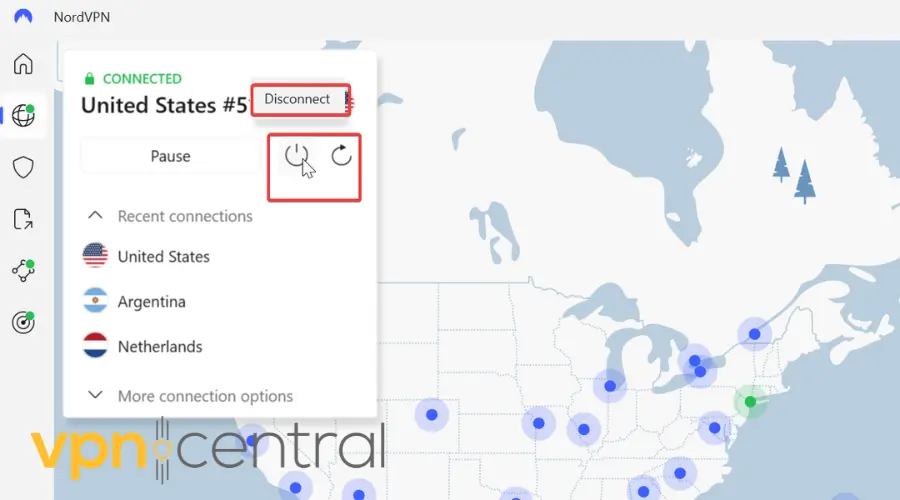
- Ensures all computers are on the same local network.
- ✅ Works immediately.
- ❌ Not ideal if VPN is required for security or work.
2. Use a VPN That Supports Local LAN Access
Some VPNs allow local network discovery or have built-in split-tunneling:
- Examples: NordVPN (with local network access enabled), ExpressVPN, ProtonVPN (supports LAN traffic bypass).
- Enable LAN access in the VPN settings to allow Flow to see other computers.
- This is often simpler than manually adding static routes.
- ✅ Works with VPN active.
- ✅ Less technical setup.
- ❌ Requires choosing a VPN that supports this feature.
3. Enable Split-Tunneling
- If your current VPN supports it:
- Open VPN settings.
- Enable Split-Tunneling / Local Network Access.
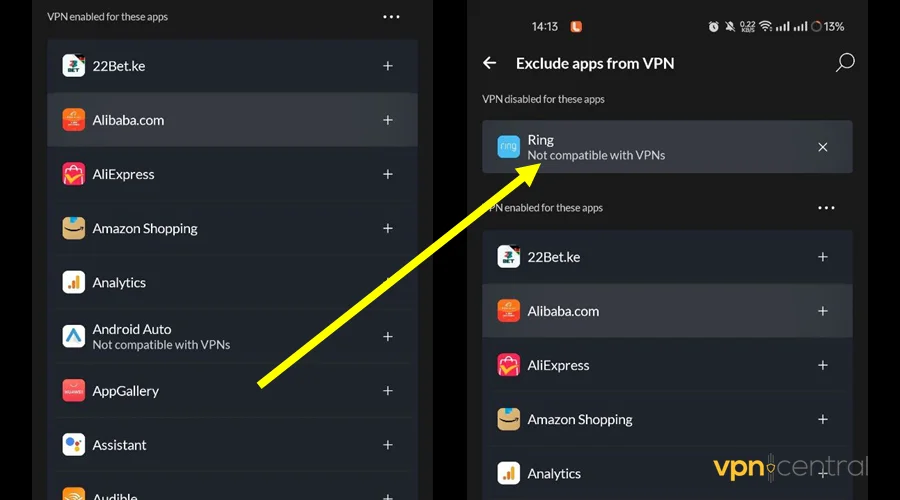
- Add Logi Options+ or Flow as an exception.
- Reconnect VPN and test Flow.
- ✅ Works while VPN is active.
- ✅ Most user-friendly if supported.
Split tunneling lets you exclude certain apps and services from the VPN tunnel. Could help if you want to keep using VPN for other services while allowing Logitech Flow use your regular internet connection.
4. Check Firewall / Security Software
- Ensure your firewall isn’t blocking local network traffic while VPN is active.
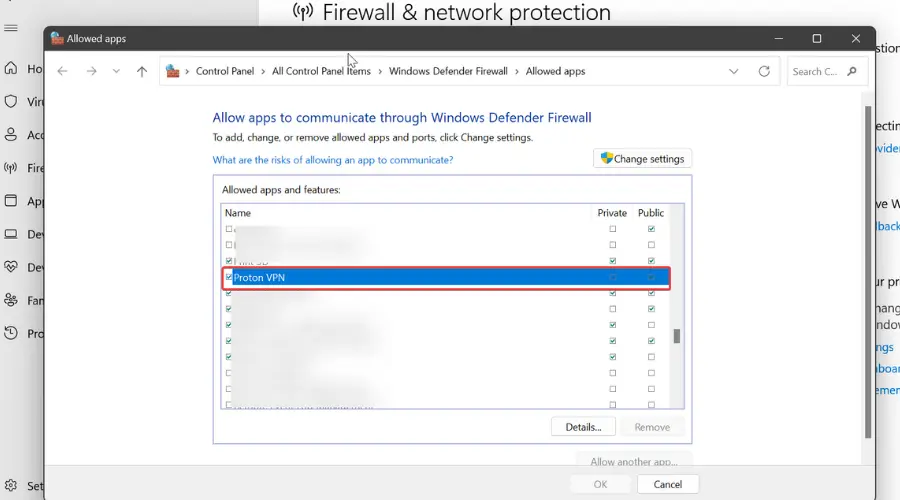
- Temporarily allow Flow/Logi Options+ through firewall.
- ✅ Helps when Flow is detected but won’t connect.
5. Use Static Routes (Advanced)
- If split-tunneling isn’t possible:
- Find your LAN subnet/gateway.
- Add a static route so local traffic bypasses the VPN.
Windows (Admin Command Prompt):
route add 192.168.1.0 mask 255.255.255.0 192.168.1.1
macOS Terminal:
sudo route -n add -net 192.168.1.0 192.168.1.1
- ✅ Forces Flow traffic to stay local.
- ❌ Advanced and may not work with strict corporate VPNs.
6. Ensure Same Subnet / Network
- Flow requires devices on the same local IP range.
- Check IPv4 addresses: first three octets must match (e.g.,
192.168.1.x). - ✅ Essential for Flow detection.
7. Reinstall Logi Options+
- Uninstall, download latest version, reinstall on all computers.
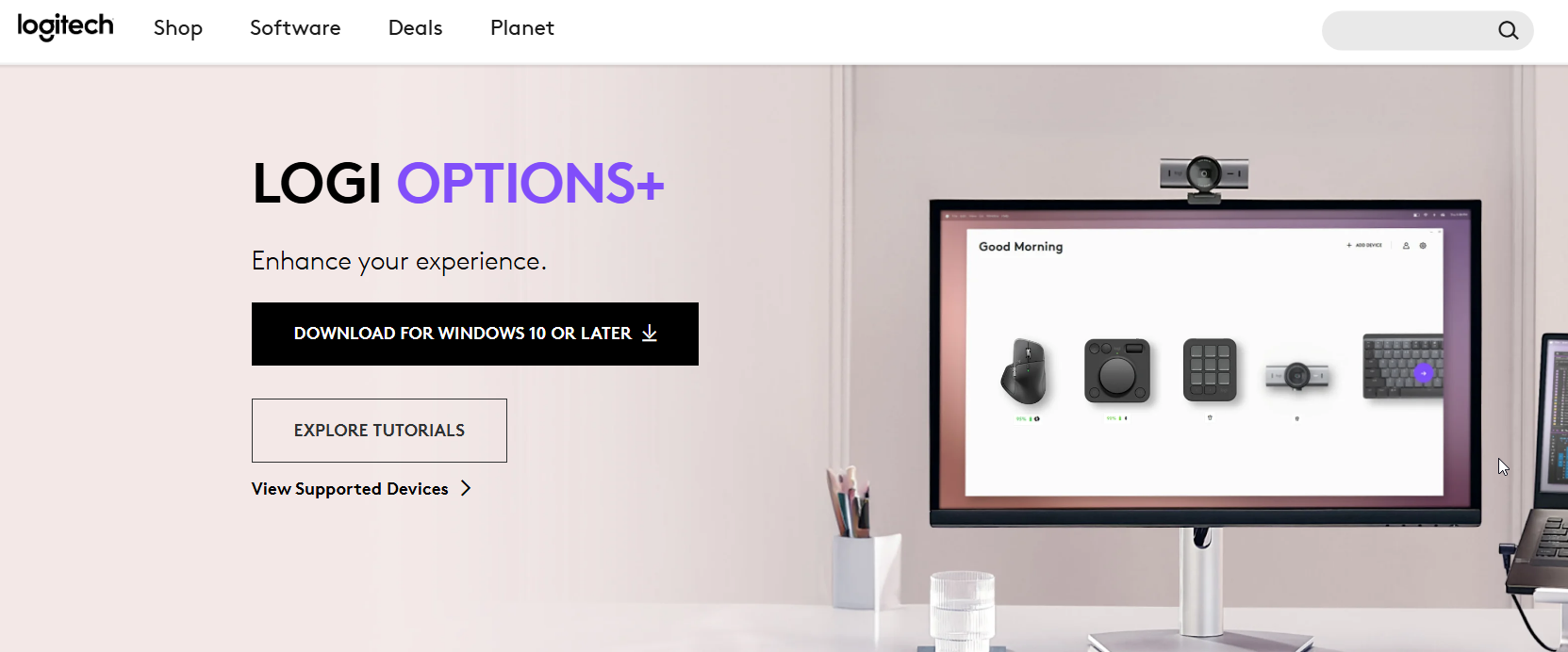
- ✅ Fixes software bugs and VPN conflicts.
8. Test on a Different Network
- Use Flow on a home or simple network without VPN.
- Confirms if VPN or network setup is the issue.
Quick Reference Table
| Fix | Works With VPN? | Complexity |
|---|---|---|
| Disconnect VPN | No | Easy |
| Use VPN with LAN Access | Yes | Easy-Medium |
| Split-Tunneling | Yes | Medium |
| Firewall Settings | Sometimes | Medium |
| Static Routes | Yes | Advanced |
| Ensure Same Subnet | Sometimes | Medium |
| Reinstall Logi Options+ | Sometimes | Easy |
| Test Different Network | N/A | Easy |
Logitech Flow not working with VPN is a common issue caused by VPN network restrictions or firewall settings. By adjusting your VPN, updating Flow, and allowing local network access, you can restore seamless device control and keep your workflow smooth. These fixes usually solve the problem without needing to uninstall or reinstall software.


Read our disclosure page to find out how can you help VPNCentral sustain the editorial team Read more


Improve this guide




User forum
0 messages