
How to Fix NordVPN Error 901138: Step-by-Step Troubleshooting Guide


 5 min. read
  Published on

NordVPN error 901138 usually shows up when there’s a connection or app issue, often triggered by outdated software, network interference, or login problems.
Update the app, reset your network, and switch servers or protocols to fix it. If the error persists, collect your app and device details and contact NordVPN support.
What Causes NordVPN Error 901138
NordVPN hasn’t documented error 901138 publicly, which means it’s likely a generic internal code tied to failed connections or login issues. Based on similar cases, here’s what usually triggers it:
- Account or login issues: Expired subscription, device limit reached, or wrong credentials.
- Outdated or corrupted app files: Old versions and broken drivers can cause authentication errors.
- Network or firewall interference: Firewalls, antivirus tools, or strict network rules can block VPN protocols.
- Device-specific bugs: Some users report issues tied to Windows TAP drivers, macOS Keychain access, or mobile system glitches.
Before going into deeper fixes, check your account status and internet connection. That often clears the error right away.
Table of contents
How to Fix NordVPN Error 901138
1. Start with the Basics
A few quick checks can save time before you try advanced fixes.
- Restart your device. A reboot clears temporary app and network conflicts.
- Log out and back in. Open the NordVPN app, sign out, and log back in using your correct credentials.
- Check your account. Go to your NordVPN dashboard to confirm your subscription is active and within device limits.
- Test a few servers. Connect manually to servers in different regions instead of relying on automatic server selection.
If your app stays stuck on “Connecting” or throws repeated errors, it’s time for a deeper reset.
2. Update or Reinstall NordVPN
Many NordVPN connection errors, including 901138, happen when the client is outdated or corrupted.
- Uninstall NordVPN from your device.
- Restart your computer or phone.
- Download the latest version from the official NordVPN website.
- Open the app and run a fresh install.
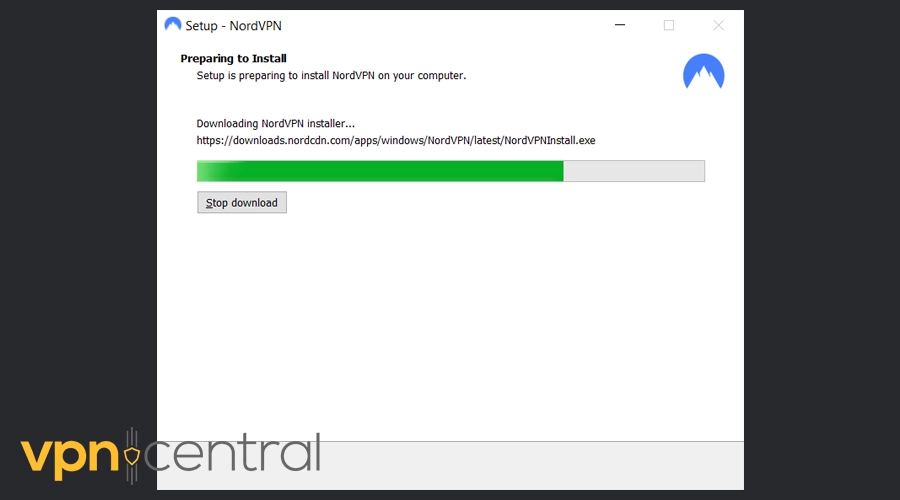
- After installation, open Help → Diagnostics → Reset network to clear cached settings.
If you’re also facing other issues like NordVPN not connecting, this reinstall often fixes both problems at once.
3. Reset Your Network Settings
Resetting the app’s network configuration often resolves stuck connections and unknown error codes.
- In the NordVPN app, click the question mark icon (Help section).
- Choose Run diagnostics.
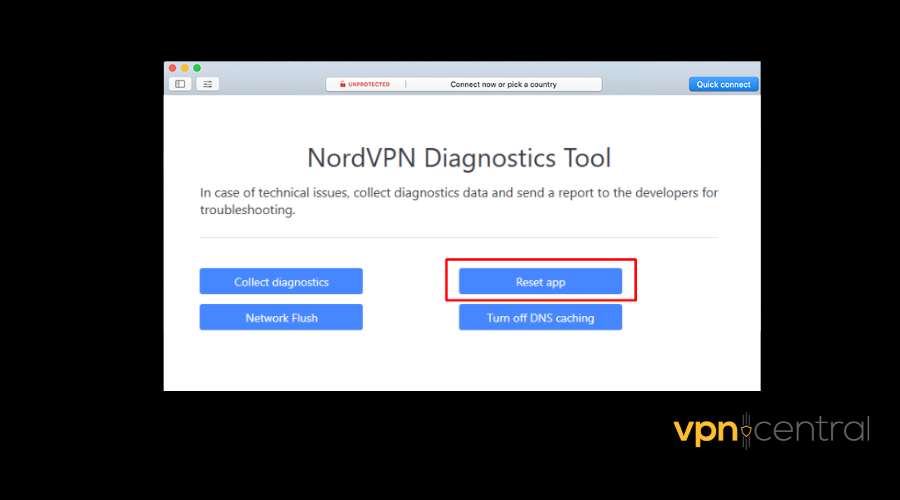
- Tick the boxes for installed applications and system dumps (optional).
- Select Reset network.
- Restart your device when the process is complete.
On Windows, you can also open Command Prompt and run:
- ipconfig /flushdns
This clears DNS cache issues that might be blocking your connection.
If you’re still not connecting afterward, check if your firewall or antivirus is interfering.
4. Check Firewall and Antivirus Settings
Security software can block VPN services, especially after updates or driver changes.
- Add NordVPN to your firewall and antivirus exclusions list.
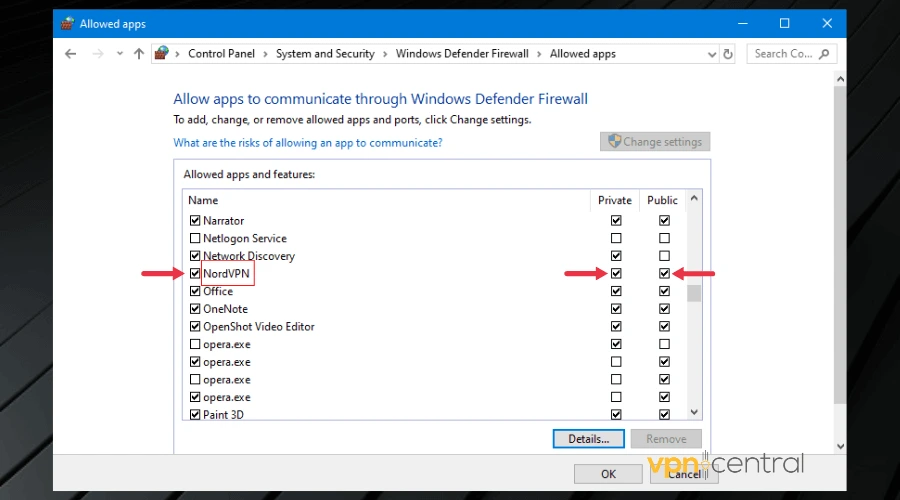
- Temporarily disable your antivirus and retry the connection.
- If your antivirus offers advanced browsing protection (like Threat Protection Pro™), turn it off temporarily.
Sometimes, these settings also cause buffering or lag. If you notice streaming issues, you might be running into a similar conflict as seen when NordVPN causes buffering.
5. Change VPN Protocols
NordVPN uses several protocols, including NordLynx, IKEv2, and OpenVPN. Switching between them can help if your current one is blocked by your network or firewall.
- Open NordVPN and go to Settings → Connection.
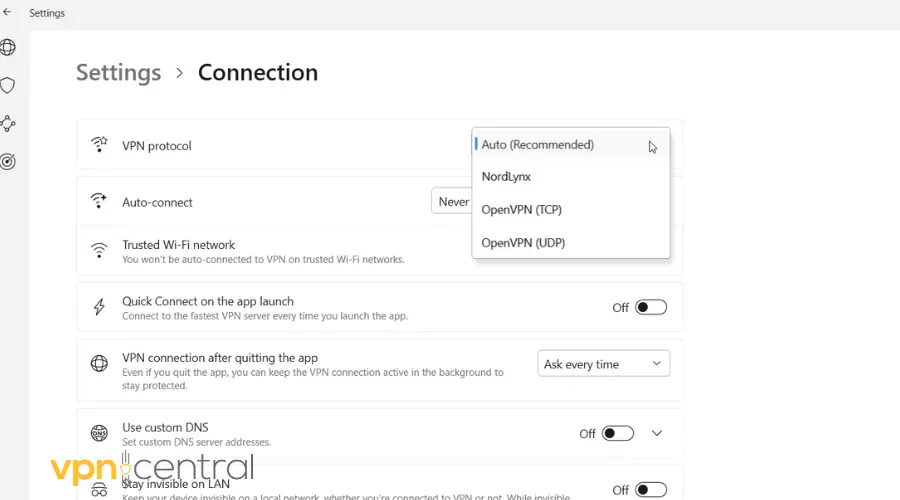
- Under VPN protocol, select Auto (Recommended) or manually switch to another one.
- Try OpenVPN (UDP) first for a stable connection.
This step can also help when facing issues like NordVPN connected but no internet, since protocol mismatches are a common cause.
6. Use Obfuscated Servers
If you’re in a country with VPN restrictions, your ISP may block VPN traffic altogether. NordVPN’s obfuscated servers disguise the connection to bypass these restrictions.
- Go to Settings → Advanced in your NordVPN app.
- Turn on Obfuscated servers.
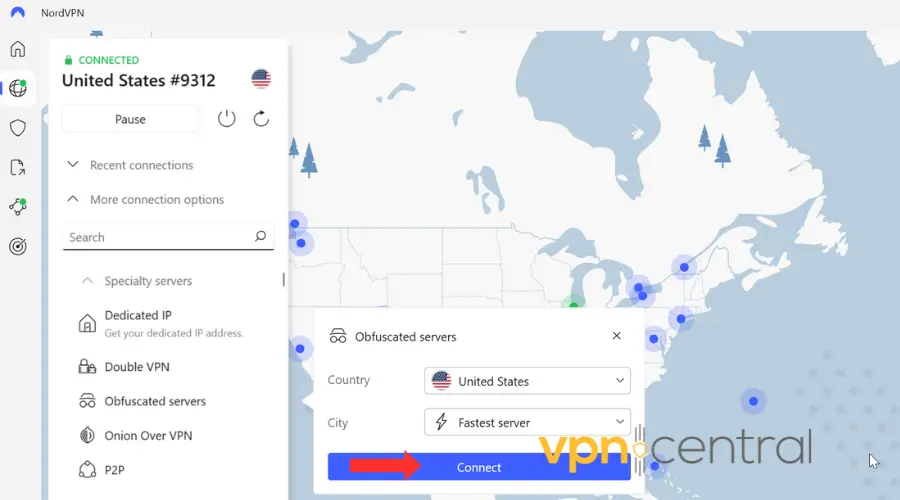
- Select a compatible server and reconnect.
This setting is especially useful if streaming apps or IPTV services won’t load, similar to when IPTV doesn’t work with NordVPN.
7. Device-Specific Fixes
Some operating systems need extra steps:
Windows
- Reinstall the TAP driver (NordVPN > Diagnostics > Repair Tools).
- Run NordVPN as Administrator to bypass system restrictions.
macOS
- If you see a Keychain prompt, unlock and reauthorize NordVPN.
- Reset permissions by deleting the NordVPN login credentials from Keychain Access and re-entering them.
Mobile (Android/iOS)
- Clear app cache and data.
- Reinstall the app if resetting settings doesn’t help.
If NordVPN keeps disconnecting on mobile, follow the fixes from NordVPN keeps disconnecting for more stable connections.
8. Contact NordVPN Support
If you’ve tried all steps and still see error 901138, it’s time to contact NordVPN directly.
Before reaching out, gather these details:
- Your NordVPN app version
- Operating system version
- Device type (PC, Mac, Android, iPhone, etc.)
- The exact error message or code
You can also mention if you’ve faced authentication errors or login failures recently, as they might share a root cause.
NordVPN’s support team can check internal logs tied to your account since this error isn’t publicly documented.
Conclusion
Error 901138 behaves like a general connection or authentication failure. Start with simple steps like restarting, logging in again, updating, or switching servers. If that doesn’t work, reset your network, change VPN protocols, or try obfuscated servers.
If you’ve followed every step and the issue persists, contact NordVPN support with your full system details so they can investigate it on their end.


Read our disclosure page to find out how can you help VPNCentral sustain the editorial team Read more


Improve this guide



User forum
0 messages