
How to Fix Quick Share Not Working With VPN (Easy Fix)


 5 min. read
  Updated on
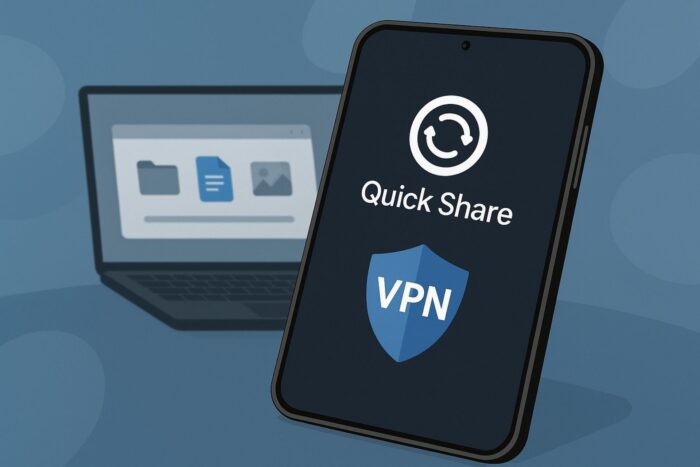
Quick Share makes it simple to send files instantly between devices, but using it with a VPN can sometimes cause problems. Many users on Samsung, Android, iOS, and even Huawei devices report that Quick Share stops working when the VPN is active. The issue usually comes down to how VPNs handle local network traffic.
If you’ve been searching for solutions, whether on Reddit discussions or device support pages, this guide will walk you through step-by-step methods to fix Quick Share not working with VPN so you can enjoy both security and seamless file transfers.
Table of contents
Why Does Quick Share Fail When VPN Is On?
Quick Share relies on local Wi-Fi Direct or Bluetooth discovery to connect devices. A VPN reroutes your internet traffic through encrypted tunnels, which can block or mask the local network protocols Quick Share uses. This conflict is why Samsung Quick Share or other phone brands might refuse to detect nearby devices.
If you’ve noticed similar problems with other tools, like Smart View not working with VPN, it shows how VPN interference with local traffic is a common issue.
The good news? You can fix it by adjusting a few settings or trying specific workarounds.
Step-by-Step Fixes for Quick Share Not Working With VPN
Here are the most effective methods to restore Quick Share functionality without giving up your VPN protection.
1. Allow Local Network Access in VPN Settings
Many VPN apps (Android, iOS, Samsung, Huawei) include an option like Allow access to devices on local network. This setting ensures your VPN doesn’t block local traffic.
- Open your VPN app.
- Go to Settings or Advanced preferences.
- Look for Local network bypass or Allow LAN traffic.
- Enable the option and retry Quick Share.
This is one of the most common fixes shared in Reddit threads about Quick Share not working with VPN.
2. Disable VPN Temporarily for Quick Share
If your VPN doesn’t offer a LAN bypass, the simplest fix is to turn it off during transfers.
- Pause or disconnect your VPN.
- Use Quick Share to send your files.
- Re-enable the VPN once done.
While not ideal, this ensures Quick Share works on Samsung, Android, iOS, or Huawei devices. If you also run into broader VPN connection issues, this guide on how to fix VPN not working can help you troubleshoot.
3. Switch VPN Protocols
Quick Share conflicts more with some VPN protocols (like OpenVPN) than others.
- Open your VPN app.
- Navigate to Connection settings.
- Change the protocol to IKEv2 or WireGuard.
- Reconnect and test Quick Share again.
4. Exclude Quick Share App From VPN Routing (Android & iOS)
Some VPNs allow app-based split tunneling. This lets Quick Share traffic bypass the VPN while keeping all other apps protected.
- Open your VPN app.
- Go to Split tunneling or App exceptions.
- Add Quick Share to the excluded apps list.
- Restart Quick Share and test file transfer.
5. Use Mobile Hotspot Without VPN
If Wi-Fi transfers fail, try creating a mobile hotspot without VPN active. Connect both devices to the same hotspot and retry Quick Share.
- Turn off your VPN.
- Enable Hotspot on one device.
- Connect the second device to the hotspot.
- Re-enable VPN only after the transfer completes.
On mobile devices, it’s also worth learning more about how VPN works on smartphones since encryption methods can directly affect local file-sharing features like Quick Share.
Comparison Table: VPN Settings vs Quick Share Functionality
| VPN Setting / Action | Impact on Quick Share | Recommended? |
|---|---|---|
| Local network access enabled | Works normally | ✅ Yes |
| Split tunneling for Quick Share | Works normally | ✅ Yes |
| VPN active with no LAN bypass | Often fails to detect devices | ❌ No |
| Switching protocols (IKEv2/WireGuard) | Usually works better | ✅ Yes |
| Fully disconnecting VPN | Always works | ⚠️ Only if needed |
Tips to Avoid Quick Share VPN Issues
– Always keep your VPN app updated to benefit from bug fixes.
– Try switching servers if Quick Share struggles only on certain VPN locations.
– Consider enabling battery optimization exclusions for both VPN and Quick Share apps.
– If you use Samsung Quick Share, make sure Nearby Sharing is also enabled in device settings.
Quick Share Fix When Using a VPN
By adjusting VPN settings or using temporary workarounds, you can make Quick Share work on Samsung, Android, iOS, and Huawei devices without giving up security. If one fix doesn’t work, try another—protocol changes and LAN bypass tend to be the most reliable solutions.
FAQs
A: Samsung Quick Share uses local Wi-Fi protocols that VPNs often block. Enabling local network access in VPN settings usually fixes this.
A: Yes, but you may need to enable LAN bypass or use split tunneling to allow Quick Share traffic.
A: It can, but you’ll need to exclude Quick Share from VPN routing or temporarily pause the VPN.
A: On Huawei phones, go to your VPN app’s advanced settings and enable LAN access or use hotspot transfers when VPN is off.


Read our disclosure page to find out how can you help VPNCentral sustain the editorial team Read more


Improve this guide


User forum
0 messages