
Showmax Not Working with VPN: How to Fix It on TV, Android, and More


 7 min. read
  Published on
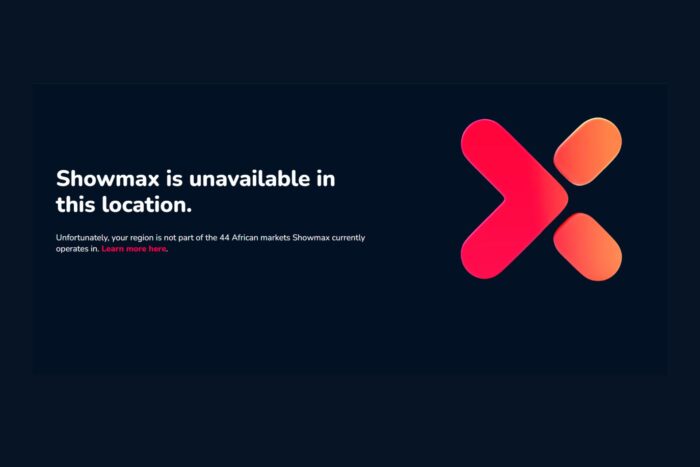
Showmax not working with VPN can be frustrating if you’re trying to watch your favorite shows outside South Africa. If Showmax detects a VPN or your connection isn’t set up correctly, you’ll probably end up blocked or hit with network errors. Fortunately, you can fix it.
Below, we’ll show you foolproof solutions that’ll fix Showmax not working with VPN on smart TV, Android, iPhone, or even desktop.

Access content across the globe at the highest speed rate.
70% of our readers choose Private Internet Access
70% of our readers choose ExpressVPN

Browse the web from multiple devices with industry-standard security protocols.

Faster dedicated servers for specific actions (currently at summer discounts)
Table of contents
Why Showmax Blocks VPNs
Showmax actively enforces geo-restrictions to comply with licensing agreements. This means users outside supported regions or connecting through VPNs might see errors like Network Error, Proxy Detected, or Geo-Restriction.
These issues usually arise because:
- VPN IPs are flagged or blacklisted
- DNS leaks reveal your actual location
- Your network or device settings interfere with streaming
- Servers are overloaded or incompatible
This mainly affects travelers, expats, or anyone using smart TVs or Android devices who want uninterrupted access to Showmax content. For more details on common connection errors, check out Showmax connection not allowed and Showmax not available in your current location.
How to Fix Showmax Not Working with VPN
1. Disable Your VPN Temporarily
Sometimes the VPN itself is the reason Showmax isn’t working. To check this:
- Open your VPN app.
- Turn off the VPN connection.
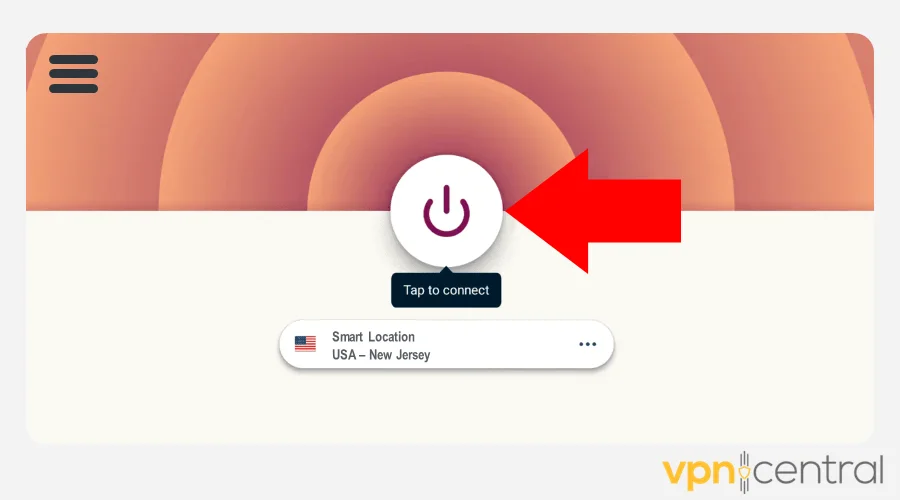
- Try opening Showmax again.
Turning off the VPN helps you confirm whether it’s causing the problem. If Showmax works without it, the VPN is the issue, which helps you know which fix to focus on next.
2. Check for Data Compression Services
Some VPNs or internet providers compress your data to save bandwidth, but this can interfere with streaming. To fix this:
- Open your VPN app and look for “Data Saver” or “Data Compression” options.
- Disable them.
- Restart Showmax and see if the video plays.
Data compression can change how streaming data is transmitted, causing errors or blocking playback. Turning it off ensures Showmax receives data in the correct format.
3. Verify Your IP Address
Showmax only works if your IP appears to be in South Africa. To check your IP:
- Go to WhatIsMyIP or another IP checking site.
- Look at the country listed next to your IP address.
- If it’s not South Africa, reconnect to a South African server in your VPN app.
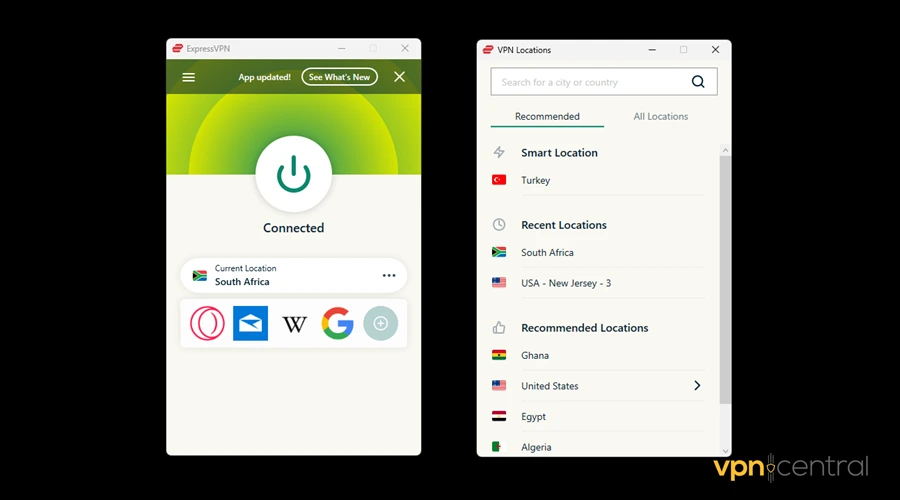
- Refresh Showmax and try again.
Showmax uses your IP to determine your location. If your IP shows a different country, Showmax blocks access. Ensuring the IP is in South Africa lets the service know you’re in an allowed region.
4. Check for DNS Leaks
Even with a VPN, your real location can sometimes be exposed. To prevent this:
- Visit a DNS leak test site while your VPN is connected.
- If it shows your real location, open your VPN settings.
- Enable “DNS Leak Protection” or a similar option.
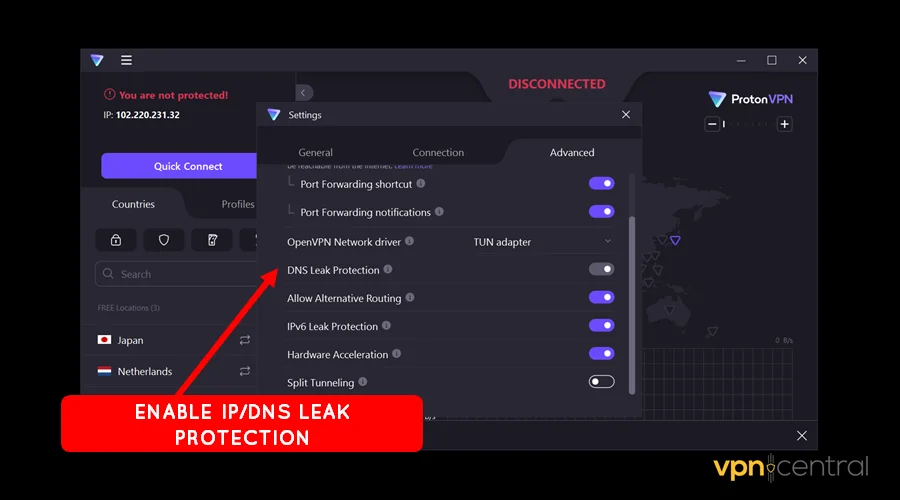
- Reconnect to the VPN and test Showmax.
DNS leaks reveal your true location to websites. Enabling DNS leak protection keeps your location hidden, letting Showmax think you’re in South Africa.
5. Try a Different VPN Server
Some Showmax servers are blocked, even if your VPN is in South Africa. To fix this:
- Open your VPN app.
- Disconnect from your current server.
- Select a different South African server.
- Reconnect and reload Showmax.
Certain IP addresses get flagged by Showmax. Switching servers gives you a fresh IP that is less likely to be blocked, allowing uninterrupted streaming.
6. Switch Your Internet Connection
Sometimes the problem isn’t your VPN, but your network. Try this:
- If you’re on Wi-Fi, switch to mobile data or another Wi-Fi network.
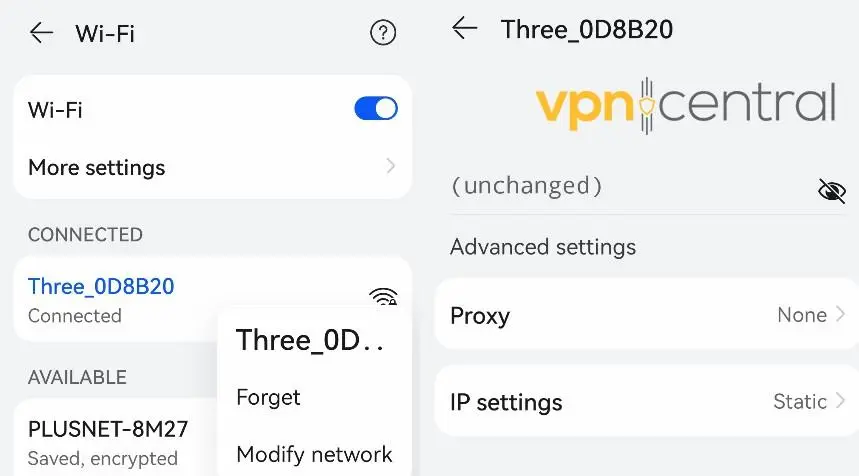
- Reconnect your VPN to a South African server.
- Open Showmax and see if it works.
Network restrictions or firewall rules can interfere with VPN connections. Using a different connection removes these potential barriers and improves streaming stability.
7. Use an Obfuscated Server
Obfuscated servers hide the fact you’re using a VPN, which can bypass Showmax’s detection. Steps:
- Check if your VPN has “Obfuscated Servers” or “Stealth Mode.”
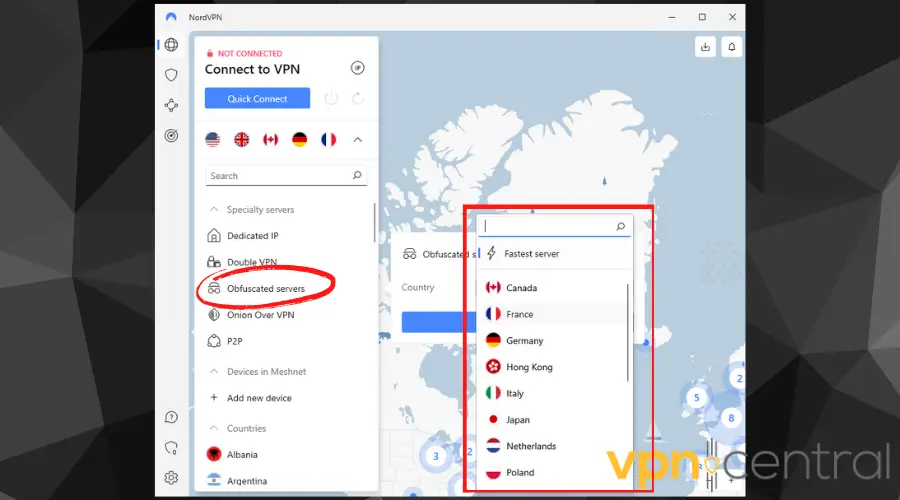
- Enable this feature.
- Connect to a South African obfuscated server.
- Test Showmax again.
Obfuscation masks VPN traffic so that streaming platforms cannot detect it. This reduces the chances of Showmax blocking your connection.
8. Reinstall the VPN App
A corrupted or outdated VPN can cause streaming errors. To reinstall:
- Uninstall your current VPN app.
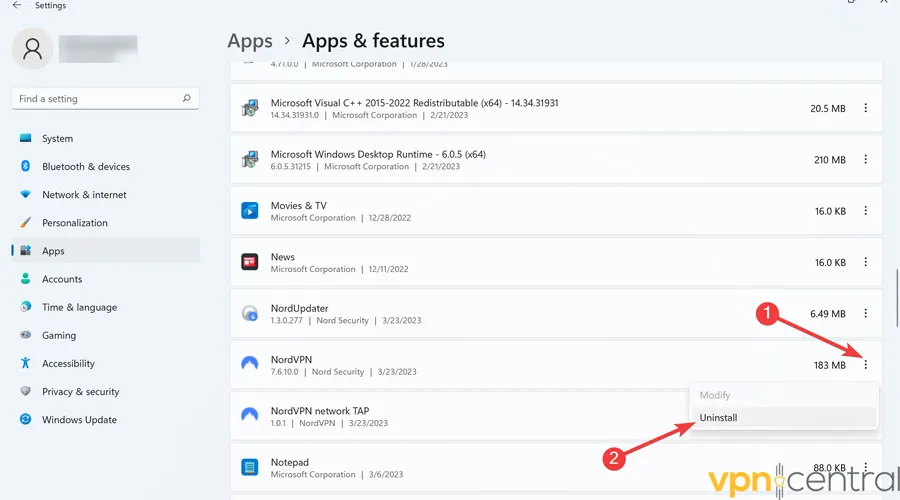
- Download the latest version from the official VPN website or app store.
- Log in and reconnect to a South African server.
- Try streaming Showmax.
Fresh installation ensures your VPN is up to date, with the latest servers and security fixes. This removes any glitches that may have been preventing streaming.
9. Use a VPN with a Dedicated IP
Shared VPN IPs are often blocked by Showmax. A dedicated IP reduces this risk:
- Check if your VPN provider offers a dedicated IP feature.
- Purchase or assign a dedicated South African IP.
- Connect to this IP in your VPN app.
- Open Showmax and start streaming.
Dedicated IPs are unique to you and less likely to be flagged by Showmax. One reliable option is NordVPN, which offers dedicated IPs for an additional fee. While it costs extra, it’s worth it for uninterrupted streaming and better reliability.

NordVPN
If you want a smooth Showmax experience, consider signing up for NordVPN and getting a dedicated South African IP for consistent access.Showmax Error Codes Explained
- Network Error: Connection failed, usually due to VPN or network issues
- Proxy Detected: VPN or proxy is being blocked
- Geo-Restriction: Showmax is unavailable in your location
- Playback Error: Temporary server or network issue
How to Download Showmax Outside South Africa
- Choose a VPN that works with Showmax and supports South African servers.
- Install the VPN on your device (TV, Android, or desktop).
- Connect to a South African server in the VPN app.
- Create a Showmax account if you don’t already have one.
- Download the Showmax app from your device’s app store.
- Log in and start streaming.
Conclusion
Showmax not working with VPN can be a big disruption if you rely on streaming abroad or on devices like smart TVs and Android phones.
By following these practical fixes, from checking IP and DNS to using dedicated VPN servers, you can regain access and enjoy your shows without interruptions. With the right setup, streaming Showmax outside South Africa becomes seamless.
FAQ
Showmax detects and blocks VPN traffic to enforce geo-restrictions. Certain IPs are flagged as proxies.
Free VPNs usually have limited IPs and servers, making it easy for Showmax to detect them. Paid VPNs with dedicated IPs are more reliable.
Smart TVs often have stricter network rules. Make sure your VPN supports TV devices or use a router-level VPN setup.
Run a DNS leak test online while connected to your VPN. If your real location appears, enable DNS leak protection.
No. Showmax is geo-restricted. A VPN connected to a South African server is required.


Read our disclosure page to find out how can you help VPNCentral sustain the editorial team Read more


Improve this guide




User forum
0 messages