
Microsoft confirms Windows 11 KB5089549 can fail with error 0x800f0922


 7 min. read
  Published on
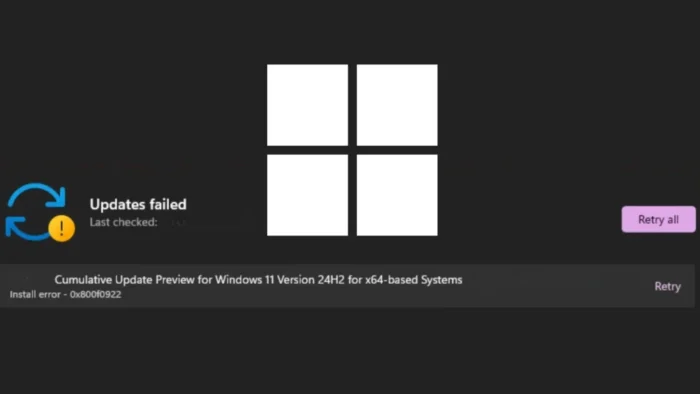
Microsoft has confirmed that the May 2026 security update for Windows 11 can fail to install on some devices with error code 0x800f0922.
The issue affects KB5089549, the cumulative update released on May 12, 2026, for Windows 11 version 25H2 and version 24H2. The update moves devices to OS builds 26200.8457 and 26100.8457.

Access content across the globe at the highest speed rate.
70% of our readers choose Private Internet Access
70% of our readers choose ExpressVPN

Browse the web from multiple devices with industry-standard security protocols.

Faster dedicated servers for specific actions (currently at summer discounts)
Microsoft says the failure happens on devices with limited free space on the EFI System Partition, especially when the partition has 10 MB or less available. On affected PCs, Windows rolls back the update instead of completing installation.
What happens when KB5089549 fails
The update may appear to install normally at first. The problem usually appears during the restart phase, when Windows reaches around 35 to 36 percent of the installation process.
At that point, the device can roll back the update and show the message “Something didn’t go as planned. Undoing changes.” After Windows returns to the desktop, Windows Update may show error 0x800f0922.
Microsoft says affected systems may also show CBS log entries that point to insufficient EFI System Partition space. These entries can include “SpaceCheck: Insufficient free space” and “ServicingBootFiles failed. Error = 0x70.”
| Item | Details |
|---|---|
| Update | KB5089549 |
| Release date | May 12, 2026 |
| Affected Windows versions | Windows 11 version 25H2 and 24H2 |
| OS builds | 26200.8457 and 26100.8457 |
| Confirmed error | 0x800f0922 |
| Cause listed by Microsoft | Limited free space on the EFI System Partition |
Why the EFI System Partition causes the error
The EFI System Partition stores boot files that Windows needs during startup. Windows hides this partition from normal File Explorer views because users do not normally need to manage it directly.
KB5089549 includes boot-related changes tied to Secure Boot certificate servicing. These changes can require enough free space in the EFI System Partition to update boot files safely.
If the partition has too little free space, the update can fail during the restart phase. Microsoft says the issue is especially likely when the EFI System Partition has 10 MB or less available.
Secure Boot changes are part of the update
KB5089549 adds Secure Boot certificate-related changes as Microsoft prepares for the expiration of Secure Boot certificates used by most Windows devices starting in June 2026.
The update also adds a new SecureBoot folder under C:\Windows on eligible devices. Microsoft says the folder contains example scripts for IT professionals who manage Secure Boot certificate updates across device fleets.
Microsoft describes the certificate rollout as controlled and phased. Devices receive new certificates only after they show enough successful update signals.
- KB5089549 adds new Secure Boot certificate targeting data.
- Eligible devices may get a new SecureBoot folder under C:\Windows.
- The folder includes example scripts for enterprise deployment.
- The certificate rollout uses phased targeting rather than a single broad push.
- The update also includes security fixes from the May 2026 Patch Tuesday release.
Microsoft has issued workarounds
Microsoft lists two workarounds for affected customers. The first option lets users modify an EFI System Partition registry setting, restart the device, and then retry the update.
The registry workaround changes the EspPaddingPercent value under the Bfsvc registry path. Microsoft warns that incorrect registry edits can cause serious system problems, so users should back up the registry before making changes.
The second option uses Known Issue Rollback. Microsoft says the KIR mitigation has already propagated automatically to consumer devices and non-managed business devices. Restarting the PC may help the mitigation apply faster.
| Workaround | Who should use it | What it does |
|---|---|---|
| Registry change | Advanced users and administrators | Allows the update to install by changing an ESP-related servicing setting |
| Known Issue Rollback | Consumers and non-managed business devices | Automatically mitigates the failing change after propagation |
| Group Policy KIR | Enterprise-managed Windows devices | Lets IT admins apply the mitigation across managed fleets |
What home users should do
Most home users should restart the PC first, then check Windows Update again. Microsoft says the Known Issue Rollback mitigation has already reached consumer and non-managed business devices, and a restart can help apply it.
Users should not delete random EFI System Partition files to make space. Removing the wrong boot file can stop Windows from starting correctly.
If the update continues to fail, users can wait for Microsoft’s future resolution or ask for help before changing the registry. The registry workaround can help, but it is safer for users who understand Windows recovery and backups.
- Restart the PC.
- Open Settings.
- Go to Windows Update.
- Click Check for updates.
- Retry KB5089549.
- Avoid manually deleting EFI files.
- Back up important files before using the registry workaround.
What IT admins should do
Enterprise-managed devices need separate handling because Known Issue Rollback may not apply automatically in the same way it does on consumer systems.
Microsoft says IT administrators can install and configure a special Group Policy for Windows 11 version 25H2 and version 24H2. The policy temporarily disables the change causing the issue.
Admins should test the policy on a small group of affected systems before broad deployment. They should also monitor update compliance, reboot status, and CBS logs across devices that repeatedly fail KB5089549.
- Identify devices failing KB5089549 with error 0x800f0922.
- Check whether CBS logs show insufficient ESP free space.
- Apply Microsoft’s KB5089549 Known Issue Rollback Group Policy where needed.
- Restart affected devices after applying the policy.
- Retry installation after the mitigation applies.
- Track devices that still fail after KIR.
- Prepare for Microsoft’s future Windows update that includes a full resolution.
Other fixes included in KB5089549
KB5089549 includes the latest May 2026 security fixes and quality improvements from earlier optional preview updates.
The update also fixes a BitLocker recovery issue tied to boot file updates on systems with certain TPM validation settings, including invalid PCR7 configurations. Microsoft says that issue could appear after installing the April 2026 security update KB5083769.
Other changes include boot manager servicing improvements, reliability improvements for Simple Service Discovery Protocol notifications, and daylight saving time support for the Arab Republic of Egypt.
| Area | Change in KB5089549 |
|---|---|
| Security | Includes May 2026 Windows security fixes |
| Secure Boot | Adds certificate targeting data and a SecureBoot folder on eligible devices |
| BitLocker | Fixes a recovery issue after boot file updates on some systems |
| Boot manager | Improves startup reliability after boot file updates |
| Connectivity | Improves SSDP notification reliability |
| Time settings | Adds daylight saving time support for Egypt’s 2023 change |
Why the update still matters
KB5089549 is a mandatory security update, so affected devices should not stay unpatched longer than necessary. Delaying cumulative updates can leave systems without current security fixes.
The installation problem appears tied to a specific servicing condition rather than a broad Windows 11 failure. Many devices install the update normally.
For affected systems, the safest path is to follow Microsoft’s mitigation guidance, avoid risky manual EFI cleanup, and keep checking for the future update that includes the permanent fix.
FAQ
It is a confirmed installation failure affecting some Windows 11 devices installing KB5089549. Microsoft says it happens on systems with limited free space on the EFI System Partition, especially when 10 MB or less is available.
KB5089549 applies to Windows 11 version 25H2 and version 24H2. The known issue affects some devices on those versions when the EFI System Partition has limited free space.
Home users should restart the PC first so the Known Issue Rollback mitigation can apply, then retry Windows Update. Advanced users can use Microsoft’s registry workaround, but they should back up the registry before making changes.
No. Users should not manually delete EFI System Partition files. Removing the wrong boot files can prevent Windows from starting. Use Microsoft’s mitigation guidance instead.


Read our disclosure page to find out how can you help VPNCentral sustain the editorial team Read more


Improve this guide

User forum
0 messages