
Amazon Not Working With VPN? 9 Easy Fixes (Step-by-Step)


 11 min. read
  Published on
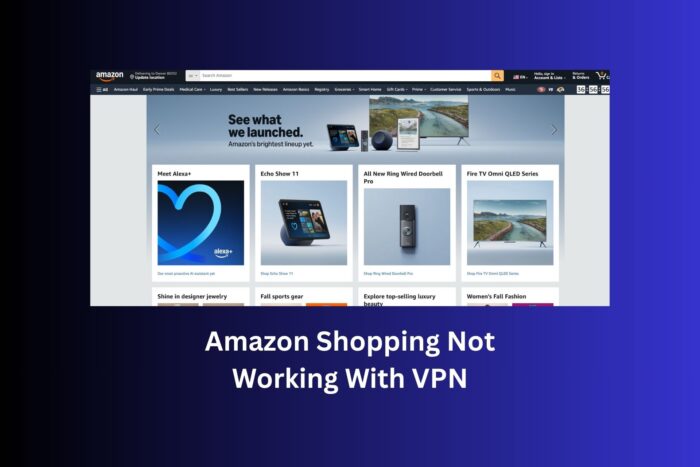
Amazon not working with VPN can show up in different ways. Some users see a “This site can’t be reached” message. Others run into HTTP proxy errors, endless loading screens, or the cart failing to update. In some cases, you may log in but checkout refuses to process because your IP doesn’t match your billing address. These issues are frustrating, especially if you always keep a VPN on for privacy or when browsing on public Wi-Fi.
If you’ve ever had Amazon block access while connected to a VPN, you’re not alone. The site actively blocks or filters VPN traffic. The good news is there are several ways to get back in smoothly without turning your VPN off entirely.

Access content across the globe at the highest speed rate.
🔥 Save 81% + 2 bonus months! 🔥
70% of our readers choose Private Internet Access
70% of our readers choose Private Internet Access
2
Browse the web from multiple devices with industry-standard security protocols.
🔥 Save 73%! 🔥

Faster dedicated servers for specific actions (currently discounted)
🔥 Save 69%! 🔥
Table of contents
Steps: Fix Amazon Shopping Website/ App Not Working With VPN
Try a Different VPN Server
Amazon blocks specific IP ranges when too many users share them. Open your VPN app and switch to another server in the same country as your account and billing address. If you must browse internationally, test several servers until one loads the site reliably.
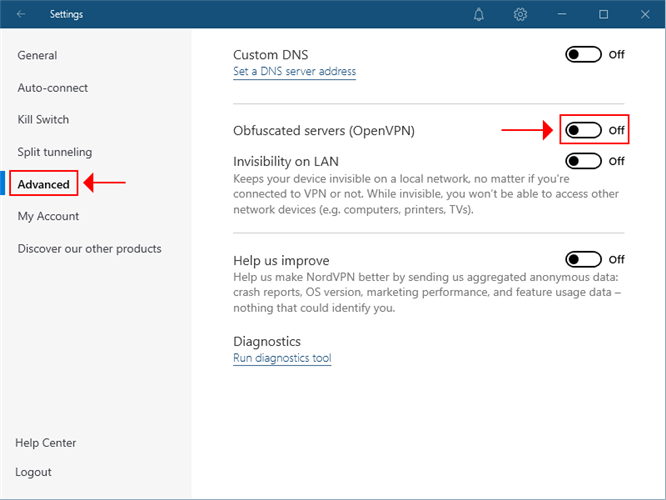
Pro tip for macOS + NordVPN: download the NordVPN OpenVPN app, enable Obfuscated servers in Settings, and reconnect. Canadian servers also tend to work well.
If you’re using Amazon’s streaming device, you may also want to check how to install a VPN on Firestick for a more consistent connection.
How to do it
- Open your VPN app and disconnect.
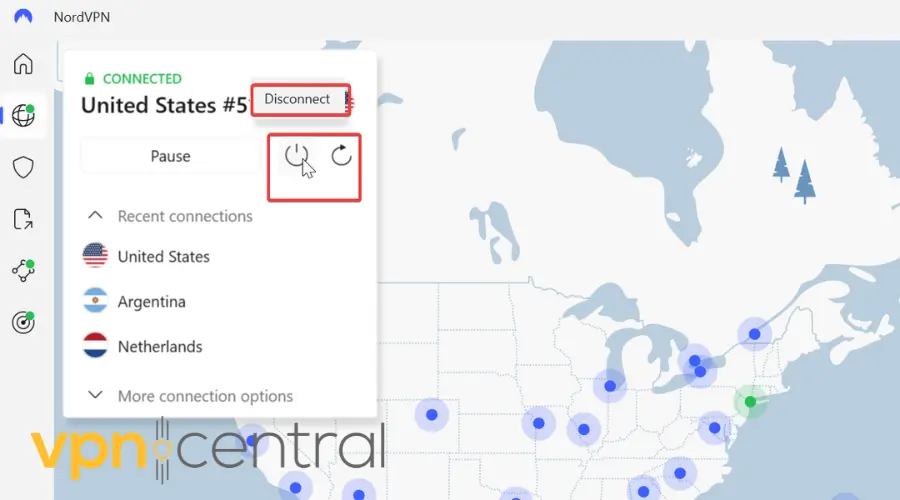
- Open the server list and select your home country.
- Pick a different city or a server labeled as new or less loaded.
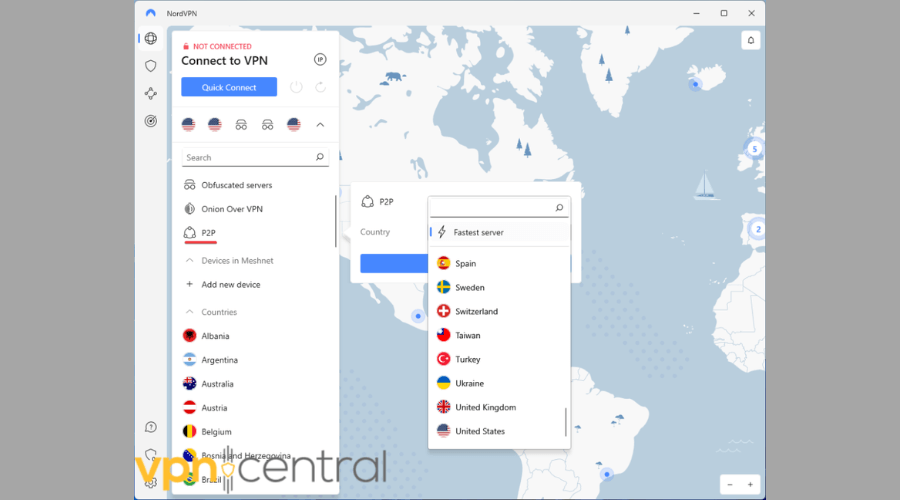
- Connect and wait for the VPN status to show Connected.
- Refresh Amazon.
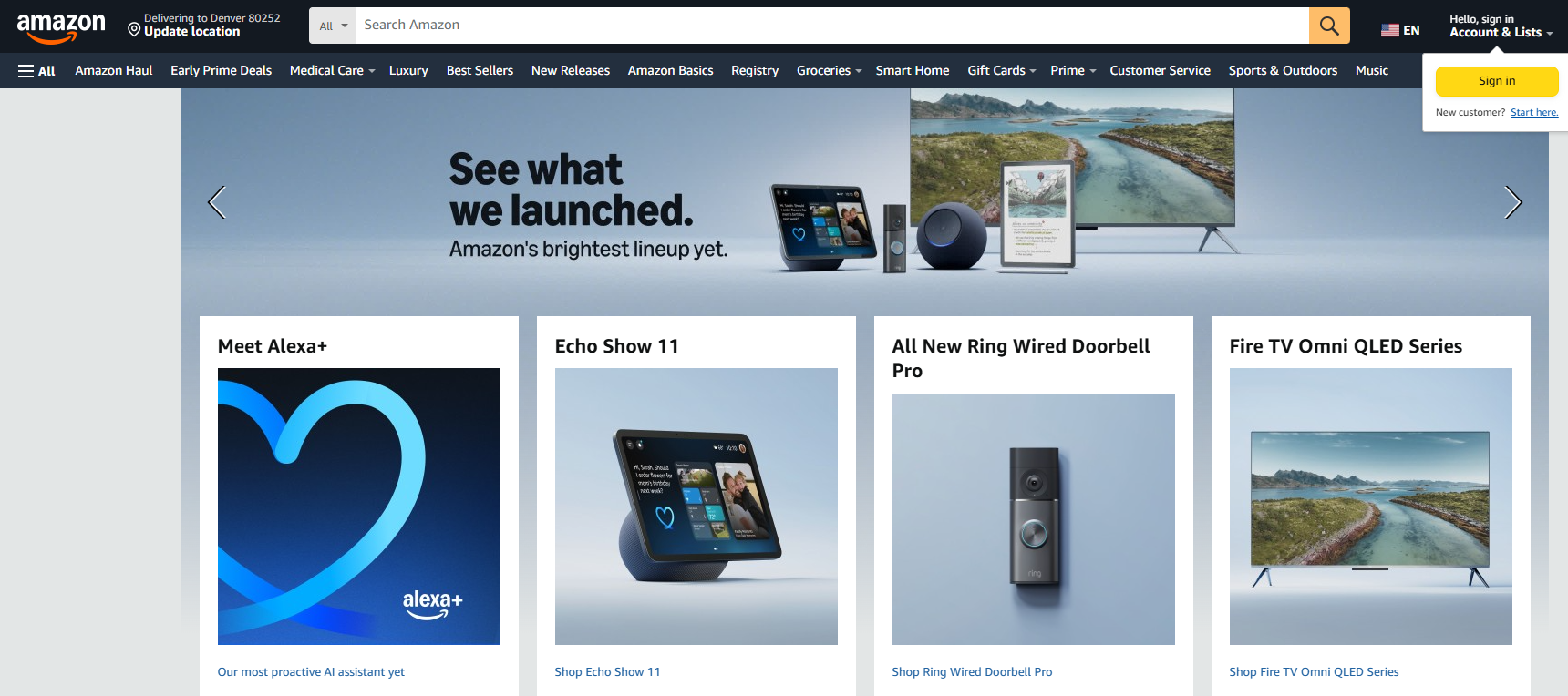
- If it still fails, repeat with two or three more servers in the same country.
Clear Cookies and Cache
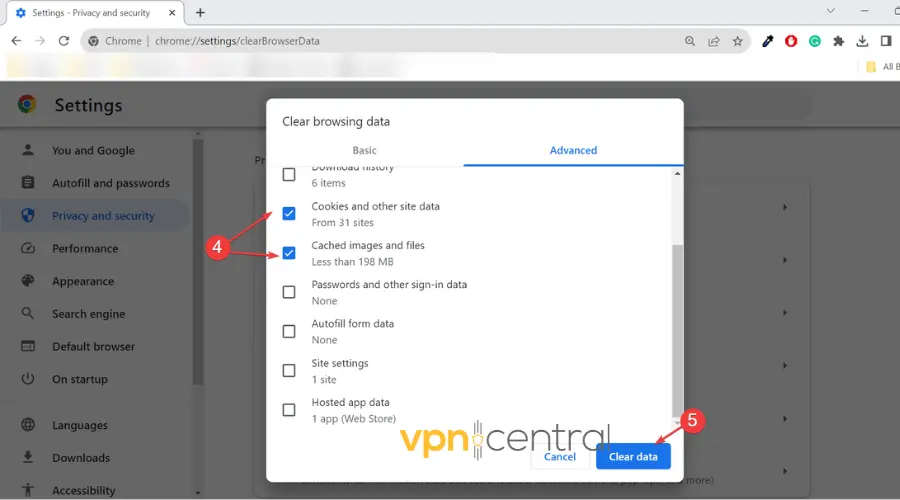
Old session data tells Amazon where you were before. Clear your browser’s cookies and cache, close the browser, reconnect your VPN, and log in again. This removes region-locking leftovers that can break the site or trigger re-authentication.
If you’re still blocked, it’s often because Amazon has sophisticated ways of detecting VPN usage beyond cookies.
How to do it
- Disconnect the VPN.
- Chrome/Edge: Settings → Privacy and security → Clear browsing data → Time range All time → Cookies and Cached files → Clear data.
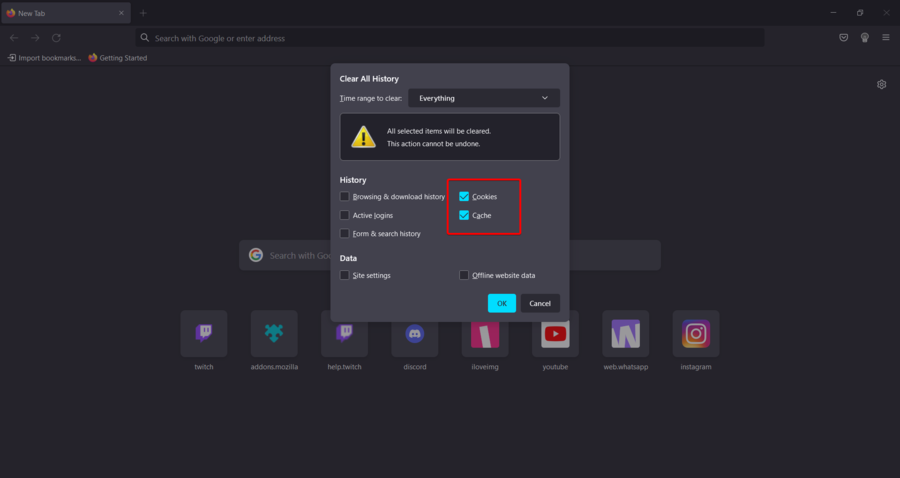
- Firefox: Settings → Privacy & Security → Cookies and Site Data → Clear Data → select both options → Clear.
- Safari: Safari menu → Settings → Privacy → Manage Website Data → Remove All.
- Close the browser completely.
- Reconnect your VPN.
- Reopen the browser and sign in to Amazon again.
Try Another Browser or Device
Some extensions, fingerprint settings, or old profiles cause conflicts. Test Amazon in a fresh browser profile or a different browser. If possible, try a second device or your phone’s browser to isolate device-specific issues.
How to do it
- Keep the VPN connected.
- Open a different browser you have installed, or create a fresh profile. A good error free option we recommend is Opera.
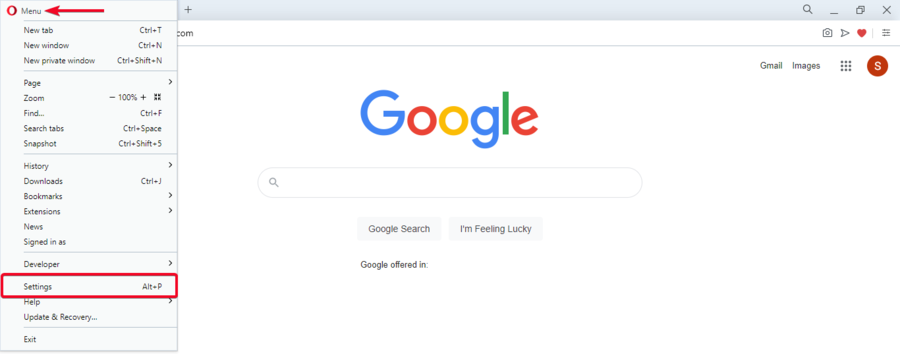
- Disable all extensions in the test browser.
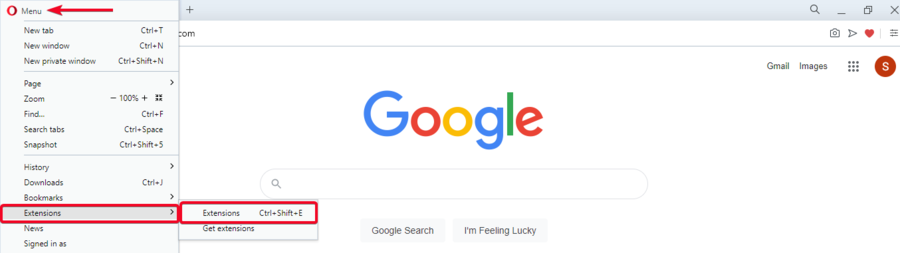
- Visit Amazon and try to sign in and browse.
- If possible, test on a second device or your phone to confirm the issue is not device specific.
Disable and Re-Enable the VPN
If the site is stuck on “this site can’t be reached,” toggle the VPN off, confirm Amazon loads, then turn the VPN back on and switch to a fresh server.
For some users, disabling the VPN or proxy temporarily, as shown in this guide on how to disable VPN or proxy services for Amazon, helps bypass temporary blocks.
How to do it
- Turn off the VPN connection in your app.
- Open Amazon without VPN and confirm the site loads.
- Reconnect the VPN, but choose a different server in your home country.
- Reload Amazon and sign in again.
- If it fails, repeat with one more alternate server.
Change the VPN Protocol
Switch to a protocol that blends in better. Obfuscation makes VPN traffic look like regular HTTPS, reducing automatic blocks.
If you’re running into errors such as Amazon error code 7136 or Amazon error 1042/4061, switching protocols often clears them.
How to do it
- Open your VPN app → Settings → Protocol.
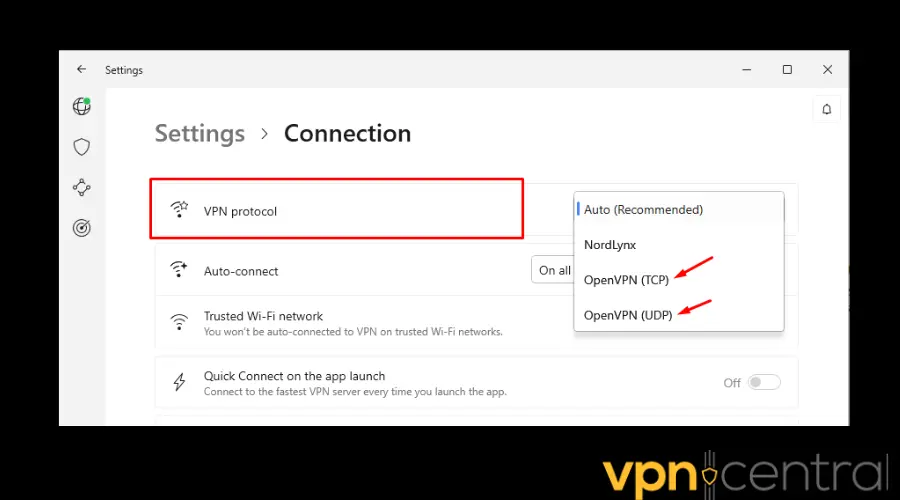
- Try these in order: OpenVPN TCP with Obfuscation → OpenVPN UDP → WireGuard (if stealth is supported).
- Save the setting and reconnect.
- Test Amazon again.
Turn Off IPv6
If IPv6 leaks, Amazon can detect your real region. Disabling IPv6 often fixes stubborn loading problems.
How to do it
- Windows: Control Panel → Network and Sharing Center → Change adapter settings → right-click your active adapter → Properties → uncheck Internet Protocol Version 6 → OK.
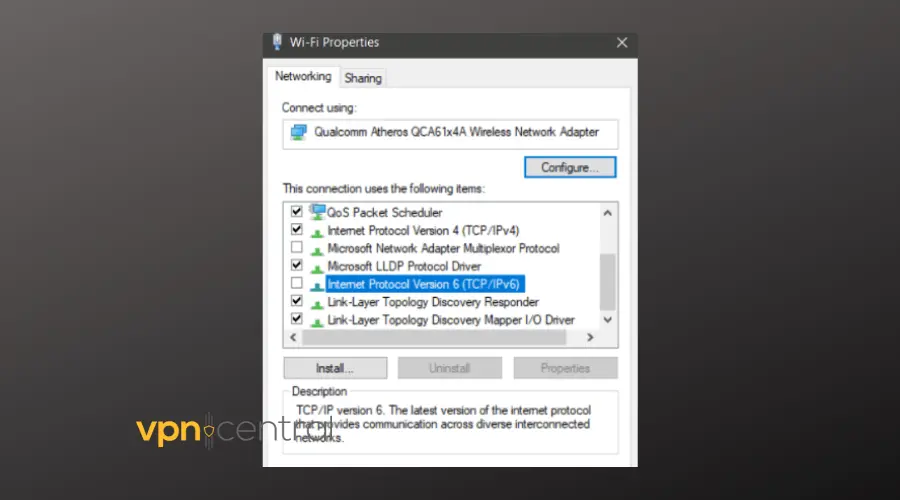
- macOS: Terminal → networksetup -setv6off “Wi-Fi” (or “Ethernet”).
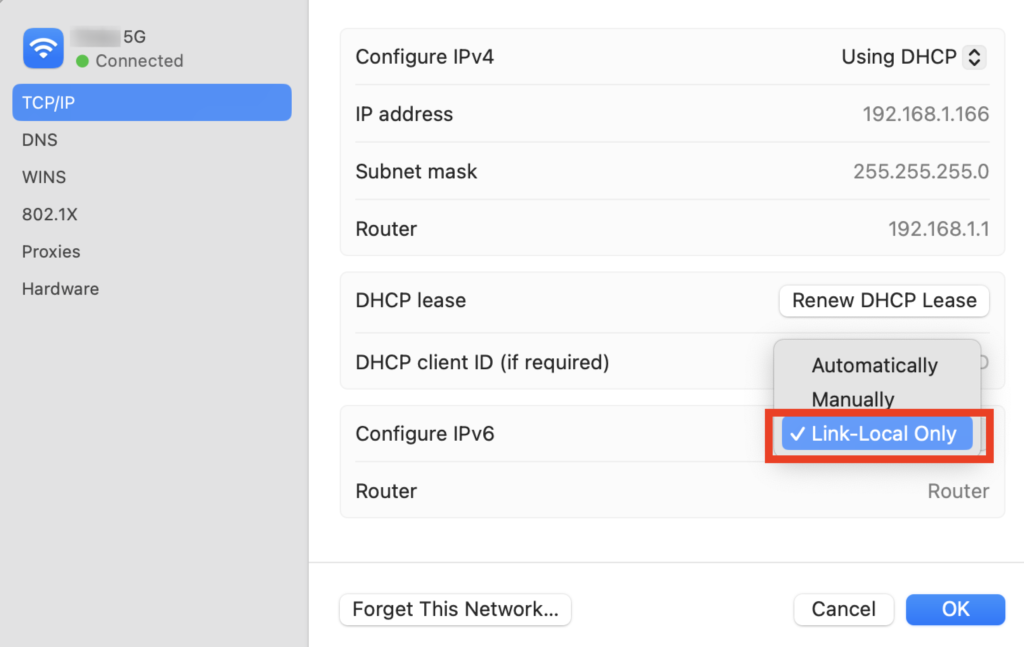
- Reconnect your VPN and reload Amazon.
Test for DNS Leaks
If your DNS requests reveal your real region, Amazon can flag the session.
How to do it
- Connect to your VPN.
- Open a private window and run a DNS leak test.
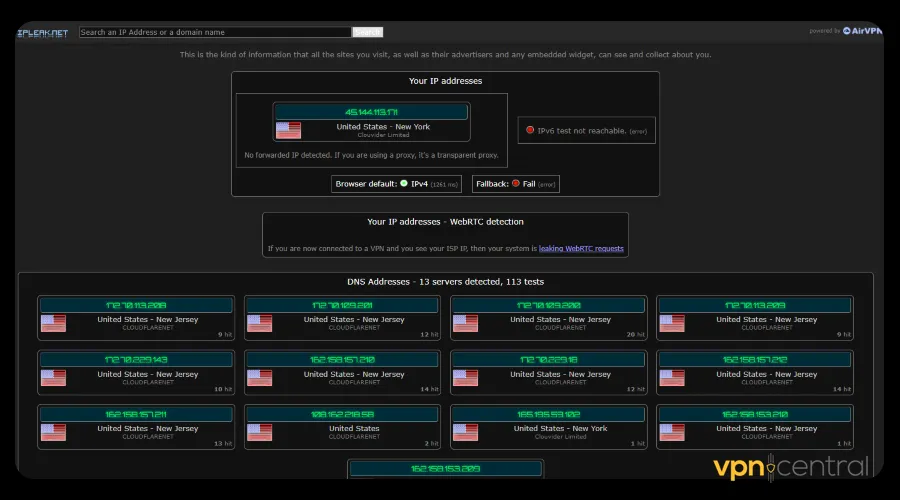
- Check that the reported DNS matches your VPN server country.
- If not, enable DNS leak protection in your VPN app.
- Flush DNS.
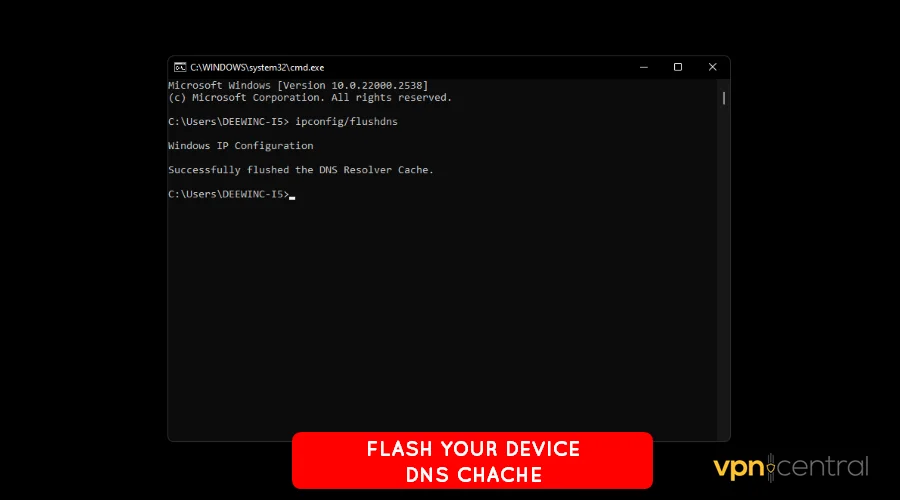
- Reconnect your VPN and try again.
Restart Devices or Reinstall the Amazon App
Power-cycling clears stale routes. Reinstalling the Amazon app acts like a deep cache reset.
If you’re using Prime and suddenly see “Video unavailable” messages, this Amazon Prime Video unavailable guide explains why app reinstalling sometimes fixes the issue.
How to do it
- Turn off your VPN and shut down your device.
- Restart your router and modem.
- Reconnect your VPN to a new server.
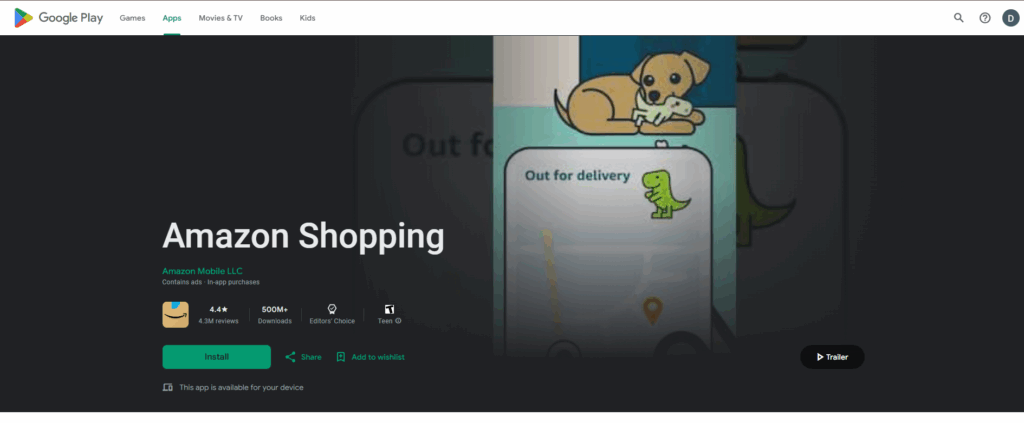
- If using the Amazon app: uninstall and reinstall it from the App Store or Play Store.
- Sign in again and test.
Switch to a Better VPN for Amazon
If your provider’s IP pool is heavily blacklisted, you will keep hitting walls. Use a VPN known for strong obfuscation and leak protection.
Some VPNs are optimized specifically for Amazon Prime; if your provider struggles, see what to do when your Amazon Prime VPN isn’t working.
How to do it
- Sign up with a proven provider (ExpressVPN , NordVPN, Surfshark ).
- Install the app and enable obfuscation/stealth features.
- Connect to a server in your account’s home country.
- Clear cookies and start a new Amazon session.
Best VPNs for Amazon Shopping
- ExpressVPN is one of the best choices for Amazon. It offers a wide server network across 100+ countries and comes with built-in obfuscation that makes VPN traffic look like normal HTTPS. This means Amazon is less likely to detect or block your connection. It also provides fast speeds, which is important when browsing large catalogs or adding items quickly during sales.
- Why choose it for Amazon?
- – Trusted reputation with strong privacy policies
- – Excellent at bypassing IP blacklists
- – Easy to use across devices, including routers
- Why choose it for Amazon?
- NordVPN is known for its “Obfuscated Servers” feature, which is especially useful when shopping on Amazon. These servers hide the fact that you’re using a VPN, reducing the risk of checkout errors or login challenges. NordVPN also has a very large server network and supports advanced tools like Threat Protection to block trackers and ads.
- Why choose it for Amazon?
- – Obfuscation reduces VPN detection
- – Large, stable network in Amazon’s core markets (US, UK, Germany, Japan)
- – Additional security features for safe shopping
- Surfshark is a budget-friendly VPN that still works well with Amazon. It has an IP Rotator feature, which changes your IP address frequently so Amazon is less likely to block you. Surfshark also allows unlimited device connections, making it ideal for families who shop on multiple accounts.
- Why choose it for Amazon?
- – Affordable pricing
- – Rotating IPs help avoid detection
- – Unlimited devices on one subscription
- Why choose it for Amazon?
- CyberGhost is beginner-friendly and includes servers optimized for shopping and streaming. Its interface makes it easy to pick a reliable server quickly, and its dedicated IP option can help reduce false fraud flags during checkout.
- Why choose it for Amazon?
- – Optimized servers make setup easy
- – Option for dedicated IP addresses
- – Budget-friendly plans with strong security
- Why choose it for Amazon?
- PIA offers one of the largest server networks in the industry, which means you’ll always have options if Amazon blocks one IP. It also allows deep customization for DNS and protocols, giving you more control over privacy settings while shopping.
- Why choose it for Amazon?
- – Huge server list to bypass blocks
- – Affordable and highly customizable
- – Works well for privacy-first users
- Why choose it for Amazon?
How Does Amazon Block VPNs?
Amazon uses several detection methods to filter VPN traffic:
- Blacklisted IPs: large providers reuse the same IP ranges that are easy to identify.
- Location mismatches: account billing address vs. current IP country.
- DNS or IPv6 leaks: leaking traffic outside the VPN tunnel exposes real location.
- Shared IP behavior: hundreds of logins from one IP raise red flags.
- Fraud systems: unusual purchases from suspicious IPs can be blocked automatically.
Why Does Amazon Block VPN?
Amazon blocks VPNs mainly to protect against fraud and ensure compliance with its regional policies, but there are a few more reasons behind it:
- Fraud and security checks: Amazon tracks logins, purchases, and IP behavior. Many unrelated users from the same IP looks suspicious and can force verification or block checkout.
- Geo-restrictions on shopping: certain items are region-bound. Appearing in another country via VPN triggers limits, especially when billing or shipping does not match.
- Payment mismatches: Amazon compares billing address, card origin, and IP location. If they do not line up, transactions can be rejected automatically.
- Blacklisted VPN IPs: recycled ranges from big providers get flagged and blocked across login and checkout systems.
- Data collection and analytics: blocking VPN traffic helps Amazon keep accurate browsing and purchase analytics that VPNs would mask.
- Bot and abuse prevention: blocks reduce scraping, gift card abuse, and multi-account manipulation.
In short, Amazon does not ban VPNs outright — it limits or rejects suspicious connections to protect transactions, enforce availability rules, and preserve marketplace integrity.
Can I Access Foreign Amazon Sites With VPN?
Yes, but with limitations. You can browse foreign Amazon sites (like amazon.co.uk or amazon.de) with a VPN, but you may not be able to check out unless your billing address matches the store’s country.
- Amazon UK (amazon.co.uk) – Popular for electronics and books, but checkout may fail if your card is not UK-based.
- Amazon Germany (amazon.de) – Offers EU-wide shipping options but usually requires a German or EU billing address.
- Amazon Japan (amazon.co.jp) – Specializes in Japanese editions of games, manga, and electronics. International shipping is limited without a Japan-based payment method.
- Amazon India (amazon.in) – Features local products and competitive pricing but only works with Indian billing and shipping details.
- Amazon US (amazon.com) – The largest catalog, often with global sellers, but shipping abroad can carry high fees.
This is similar to how Amazon Firestick works differently abroad — here’s a list of countries where Firestick works if you’re curious about device support across regions.
And just like with streaming, some VPNs are better suited for shopping across these regional sites. If your current provider keeps failing, guides like Amazon Prime VPN not working show why switching servers or upgrading VPN service often solves the issue.
Comparison Table of Amazon Foreign Sites
| Amazon Site | Key Differences | Checkout Requirements | Shipping Notes |
|---|---|---|---|
| Amazon US (amazon.com) | Largest product catalog worldwide | US billing details recommended | Limited international shipping, high import fees |
| Amazon UK (amazon.co.uk) | Strong in books, electronics, local brands | UK card/address often required | Ships across Europe, some global |
| Amazon Germany (amazon.de) | EU-friendly, big tech catalog | EU billing address preferred | Broad EU delivery, sometimes free inside EU |
| Amazon Japan (amazon.co.jp) | Focus on games, manga, Japanese tech | Japan-based card or billing info | Limited international shipping |
| Amazon India (amazon.in) | Local pricing, strong in smartphones & fashion | Indian billing details required | Domestic shipping only, no overseas delivery |
How to Avoid Amazon VPN Detection (Complete Privacy Setup)
- Match IP to Account Region.
- Use Obfuscation or Stealth.
- Disable IPv6 and enable DNS leak protection.
- Clear cookies before login.
- Use split tunneling for checkout if payments fail.
- Keep stable behavior (do not switch countries mid-session).
Short Wrap-Up
Fix Amazon website not working with VPN by switching servers, clearing cookies, matching your region, enabling obfuscation, and disabling leaks. If blocks persist, a stronger VPN is the fastest fix.
FAQs
Because Amazon flags shared VPN IPs, mismatched regions, and leaks. Clearing cookies and using obfuscation usually resolves it.
No, but it blocks suspicious IPs. Accounts are not banned for VPN use.
Yes, if you use the right server and provider. Premium VPNs handle detection better.
Often due to blacklisted IPs, DNS/IPv6 leaks, or stale cookies. Switching servers and clearing data usually solves it.


Read our disclosure page to find out how can you help VPNCentral sustain the editorial team Read more


Improve this guide




User forum
0 messages