
How to Fix Facebook Messenger Not Working With VPN (2026)


 6 min. read
  Published on

If Facebook Messenger not working with a VPN disrupts your chats, you can fix it quickly. Many users run into this issue when VPN settings leak information or when Messenger blocks certain protocols.
This guide explains the root causes, error messages, and step-by-step fixes.

Access content across the globe at the highest speed rate.
🔥 Save 81% + 2 bonus months! 🔥
70% of our readers choose Private Internet Access
70% of our readers choose Private Internet Access
2
Browse the web from multiple devices with industry-standard security protocols.
🔥 Save 73%! 🔥

Faster dedicated servers for specific actions (currently discounted)
🔥 Save 69%! 🔥
Here’s a quick look at how to fix it:
- Check for Messenger outages
- Restart Messenger and your VPN
- Update both apps
- Switch VPN servers
- Change VPN protocol
- Clear browser or app cache
- Enable VPN obfuscation
- Disable split tunneling for Messenger
- Test a wired or stronger connection
- Reinstall Messenger
- Try a different VPN provider
More details below.
Why Facebook Messenger Stops Working With a VPN
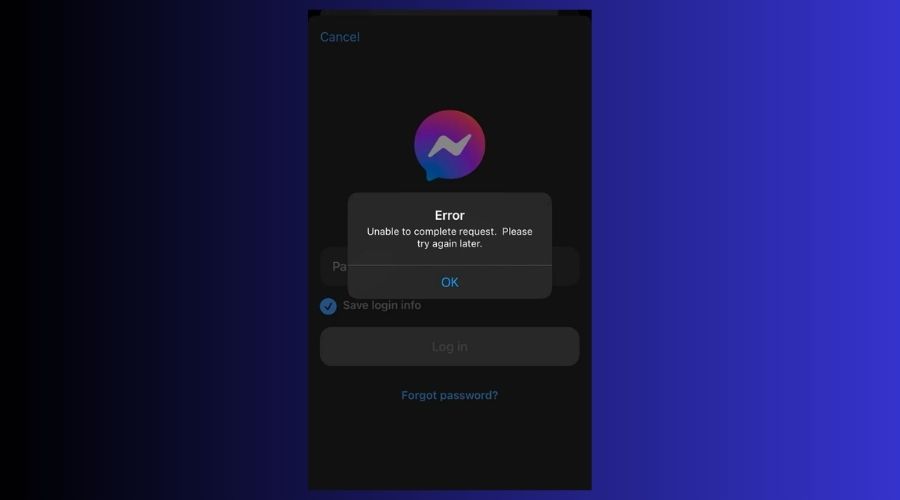
Facebook and Messenger often fail with VPNs because of IP leaks, blocked protocols, or mismatched account locations. If the app notices unusual login behavior, it may temporarily restrict access. Outdated software or misconfigured VPN tunneling can also prevent stable connections.
If you already experienced Facebook apps breaking while using a VPN, this guide on Facebook not working with VPN covers broader cases beyond Messenger.
Common Symptoms of Messenger VPN Issues
- Messages stuck on “Sending” → weak connection or blocked VPN server
- Calls not connecting → protocol mismatch or bandwidth drop
- Login prompts repeating → account location security trigger
- Blank chats or contacts not loading → cache or routing conflict
Typical Facebook Messenger VPN Error Messages
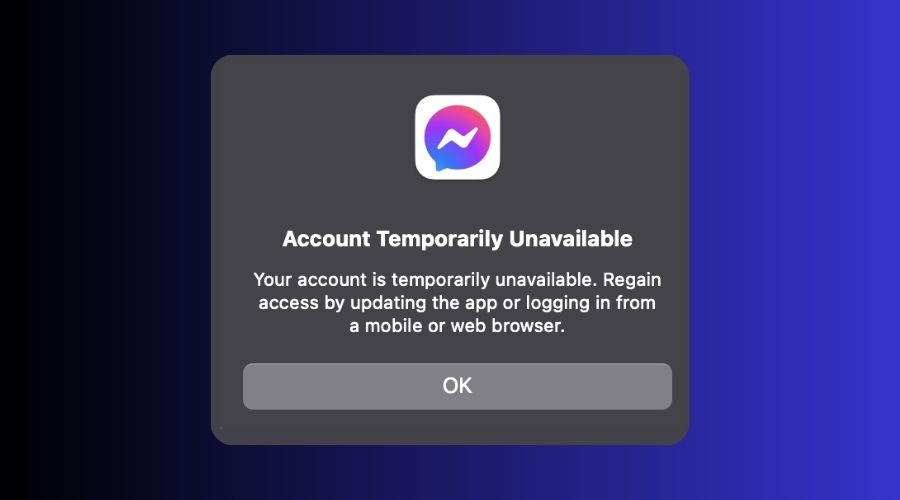
- “Something went wrong. Please try again.”
- “Couldn’t connect. Check your internet connection.”
- “This content isn’t available right now.”
- “Unexpected error occurred. Log in again.”
Step-by-Step Fixes for Messenger Not Working With VPN
Fix 1: Check for Reported Messenger Outages
- Open your browser and go to Downdetector’s Messenger page.
- Review live outage reports in your region.
- If Messenger shows widespread downtime, wait for Facebook to resolve it before testing VPN fixes.
Why this helps: Sometimes Messenger breaks globally due to server-side problems. Confirming an outage saves time by avoiding unnecessary troubleshooting.
Fix 2: Restart Messenger and VPN
- Close Facebook Messenger completely.
- Disconnect your VPN.
- Restart your device.
- Reconnect to VPN and open Messenger.
Why this helps: Restarting clears cached sessions and forces Messenger to reconnect through the VPN tunnel properly.
Fix 3: Update Messenger and VPN Apps
- Open your device’s app store.
- Update Facebook Messenger.
- Update your VPN app.
- Restart your device.
Why this helps: Outdated versions often conflict with Facebook’s security updates, which can break login or chat sessions.
Fix 4: Try Different VPN Servers for Messenger
- Open your VPN app.
- Select a different server in the same country.
- Reconnect and retry Messenger.
Why this helps: Some IP addresses get flagged by Facebook. Switching servers rotates your IP and often bypasses the block.
Fix 5: Change VPN Protocol
- Go to VPN settings.
- Select a protocol like OpenVPN or WireGuard.
- Reconnect to the VPN.
- Test Messenger again.
Why this helps: Certain networks block specific VPN protocols. Changing protocol adjusts the handshake and restores stable messaging.
Fix 6: Clear Messenger or Browser Cache
- On mobile, open device settings.
- Select Apps → Messenger → Storage.
- Tap Clear cache.
- On browser, clear cookies and cached data.
Why this helps: Cached login data may conflict with new VPN locations, which can cause repeated errors or missing chats.
Fix 7: Enable VPN Obfuscation for Messenger
- Open VPN settings.
- Look for “Obfuscation” or “Stealth mode.”
- Turn it on.
- Reconnect and use Messenger.
Why this helps: Obfuscation disguises VPN traffic, which prevents Facebook or network firewalls from detecting and blocking your connection.
Fix 8: Disable Split Tunneling
- Open VPN app settings.
- Check split tunneling options.
- Make sure Messenger is included in the VPN tunnel.
- Reconnect and test.
Why this helps: If Messenger bypasses the VPN, its traffic won’t match your VPN IP. That mismatch can trigger login errors or blocked messages.
Fix 9: Test Your Internet Connection
- Disable VPN temporarily.
- Run a speed test.
- Switch to a stronger Wi-Fi or mobile data connection.
- Reconnect to the VPN.
Why this helps: Weak or unstable internet can mimic a blocked VPN. Improving your base connection stabilizes Messenger traffic.
Fix 10: Reinstall Facebook Messenger
- Uninstall the Messenger app.
- Restart your device.
- Download and reinstall from the app store.
- Log in with your account.
Why this helps: A clean install resets cached tokens and ensures compatibility with the latest VPN connection.
Fix 11: Use a Reliable VPN for Facebook Messenger
ExpressVPN:
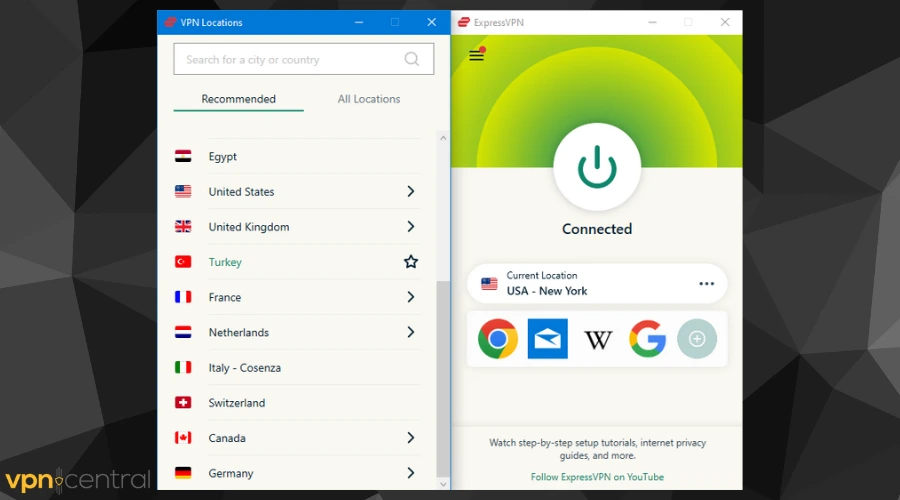
Delivers fast servers and steady Messenger performance on iOS, Android, and desktop. Its obfuscation features help bypass network blocks and reduce login prompts.
NordVPN:
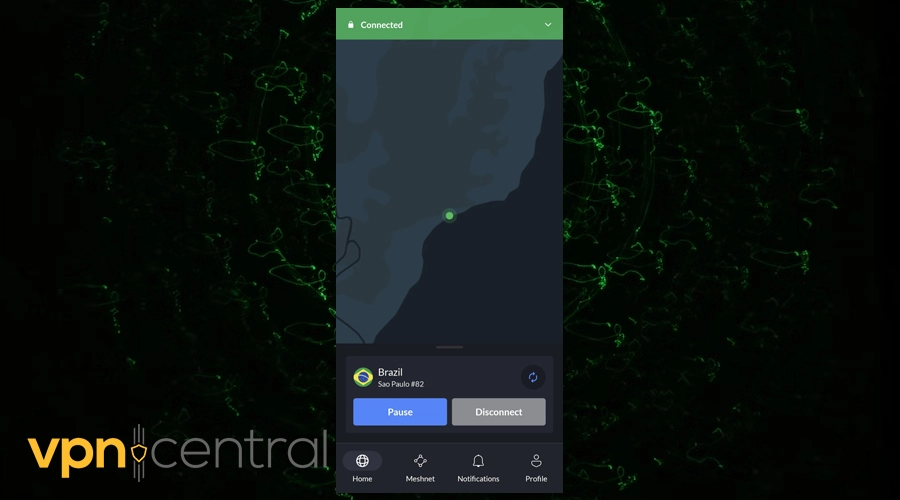
Offers obfuscated servers, stable speeds for video calls, and split tunneling controls when you need them.
Surfshark:
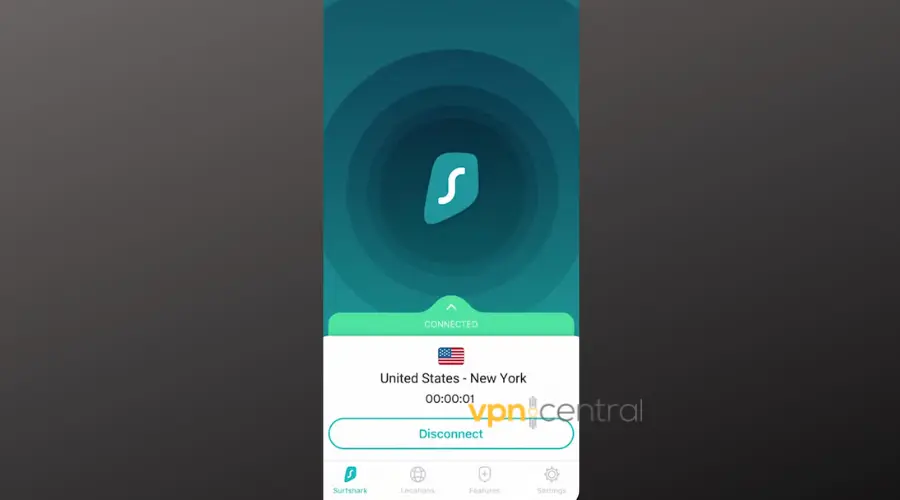
Supports unlimited devices, balances price and performance, and includes CleanWeb to reduce trackers that can complicate logins.
Conclusion
If Facebook Messenger not working with VPN keeps blocking your chats, follow this playbook in order: check outages first, then restart apps, update software, rotate servers, change protocol, clear cache, enable obfuscation, and verify split tunneling. For stubborn cases, reinstall Messenger or switch to a VPN with strong obfuscation and aggressive IP rotation. To understand Facebook’s broader data practices, see the Facebook user privacy settlement.
FAQ
App stores tie updates to your region. When your VPN places you in a different country, the store metadata may not match your account. Turn the VPN off to update, or connect to a server in your real region, then retry the update and reconnect the VPN.
Yes. Facebook tracks IP ranges, login velocity, and device signals. When many users log in from the same VPN IP, Facebook can flag that address. Switching servers or using an obfuscated server reduces detection and lowers the chance of extra verification prompts.
Calls need stable, low-latency connections and open ports. A congested server, blocked protocol, or strict firewall can break call setup while text still sends. Change to WireGuard or OpenVPN UDP, pick a nearby server, and enable obfuscation if the network inspects traffic.
You likely hit a blocked IP or a leak. Test several servers in the same country, then try another country nearby. Enable the VPN’s leak protection and obfuscation. If problems persist, move to a provider with better IP rotation and stealth options.
Reduce location hopping. Favor a small set of nearby servers, keep your device clock and DNS consistent, and stay signed in on one or two devices. Frequent country changes trigger risk checks that cause login loops or temporary restrictions.
Yes. Cached tokens and region data can conflict with your new VPN IP. Clearing app or browser cache forces fresh authentication and region checks, which resolves blank chats, stale sessions, and “Something went wrong” loops.


Read our disclosure page to find out how can you help VPNCentral sustain the editorial team Read more


Improve this guide




User forum
0 messages