
How to Fix Gmail Not Working with VPN (2026 Fixes)


 7 min. read
  Updated on
Key notes
🛠️ QUICK FIXES 🛠️
-
Restart your device
-
Check your internet connection
-
Turn VPN off and on again
-
Clear browser cache and cookies quickly
-
Ensure Gmail app is updated
For more advanced troubleshooting, keep reading ⬇️
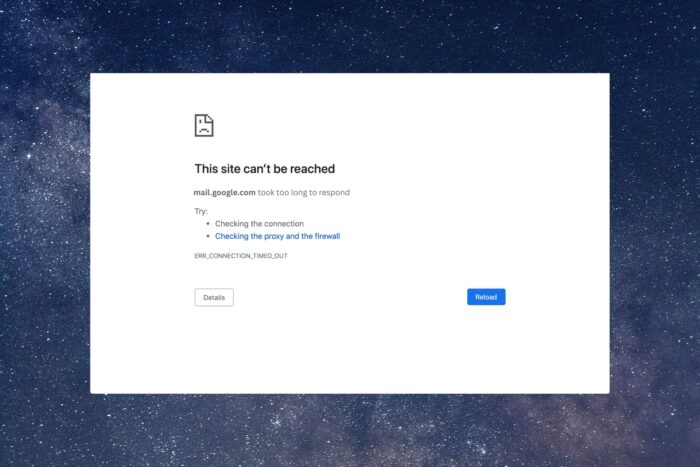
If your Gmail is not working with VPN, it can be a big pain. Sometimes Gmail won’t load at all, keeps asking for verification, or blocks email apps like Thunderbird. Quick fixes include switching VPN servers, using a reliable VPN, verifying your identity, clearing browser cache, or turning off VPN temporarily.
Table of contents
- Why Gmail and Google Services Fail with VPN
- Step-by-Step Fixes for Gmail VPN Issues
- 1. Switch VPN Servers to Fix Gmail Access
- 2. Use a High Quality VPN with Dedicated IPs for Gmail
- 3. Enable Two Step Verification to Avoid Gmail Blocks
- 4. Clear Browser Cache and Cookies to Fix Gmail Loading
- 5. Use Incognito or Private Browsing Mode with VPN
- 6. Temporarily Turn Off VPN for Email Clients
- 7. Update Browser or Email App to Fix Gmail Issues
- 8. Switch VPN Protocol to Improve Gmail Connection
- 9. Use a Better VPN for Reliable Gmail Acces
- How VPN Problems Affect Gmail Across Devices
- Conclusion: Get Gmail Working While Using VPN
- FAQ About Gmail VPN Problems
Why Gmail and Google Services Fail with VPN
Google tracks login locations and IP addresses to protect accounts. If it detects a connection from an unusual location, it can block Gmail or other Google services like Calendar, Meet, or Drive. These blocks often show up as errors or repeated verification prompts. For context, a study of the most hacked accounts shows why Google is extra cautious with suspicious logins.

Access content across the globe at the highest speed rate.
🔥 Save 81% + 2 bonus months! 🔥
70% of our readers choose Private Internet Access
70% of our readers choose ExpressVPN
2
Browse the web from multiple devices with industry-standard security protocols.
🔥 Save 73%! 🔥

Faster dedicated servers for specific actions (currently at summer discounts)
🔥 Save 69%! 🔥
Common Gmail Problems with VPN
- Gmail takes forever to load
- Repeated sign out or login verification requests
- Delays sending or receiving emails
- Missing features like Chat, Meet, or Calendar
- Thunderbird, Outlook, and other email apps fail to sync
- Browser errors like Browser not supported or Network error
- Gmail and other Google services inaccessible
Typical Gmail Errors Caused by VPN
- Connection errors: Temporary error 500, 502, 503, 504, Connection timed out
- Login problems: Sign in attempt prevented, Suspicious sign in, 2 Step Verification required
- Email client errors: Cannot sync mailbox, Authentication failed
- Security alerts: Unusual activity detected, Account access blocked
- Miscellaneous glitches: Blank inbox, missing attachments, incomplete search results
Step-by-Step Fixes for Gmail VPN Issues
1. Switch VPN Servers to Fix Gmail Access
Steps
1. Open your VPN client
2. Pick a server closer to your real location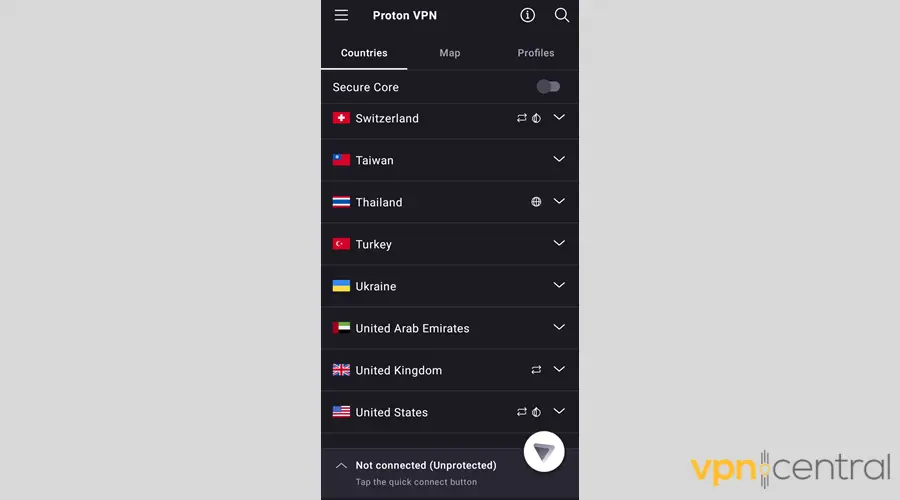
3. Connect and refresh Gmail
Why this helps
Google flags logins from unexpected IP addresses. A nearby server makes Gmail see you as a familiar user and improves speed.
2. Use a High Quality VPN with Dedicated IPs for Gmail
Steps
1. Look for premium VPNs with dedicated IPs like ExpressVPN, NordVPN, or Surfshark
2. Subscribe and set up the VPN
3. Connect to a dedicated IP server for Gmail
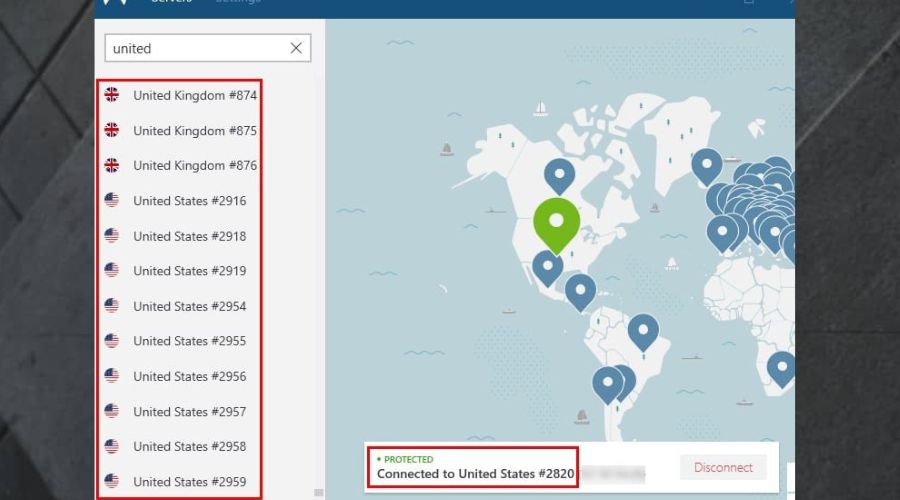
Why this helps
Dedicated IPs reduce blocks and suspicious login flags. Gmail and other Google services work smoothly with email clients like Thunderbird or Outlook.
3. Enable Two Step Verification to Avoid Gmail Blocks
Steps
1. Log in to Gmail on a trusted device
2. Go to Google Account > Security > 2 Step Verification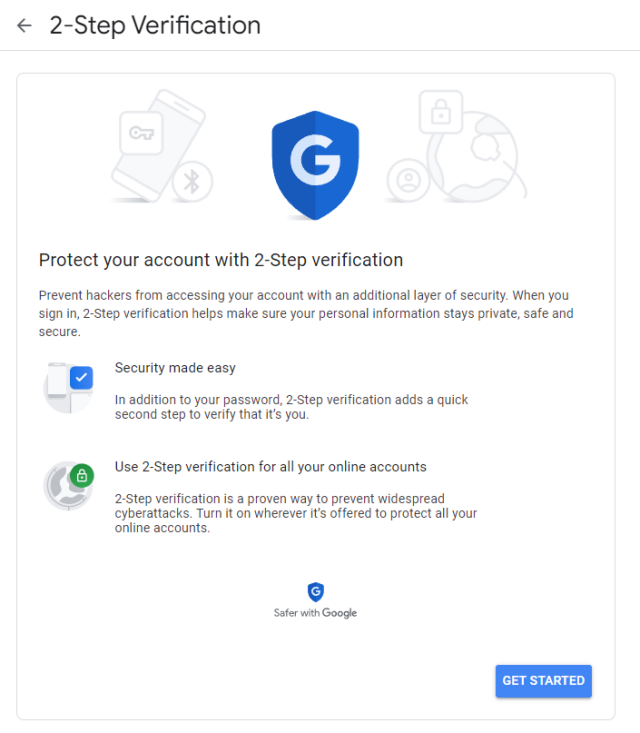
3. Enable verification by SMS, authenticator app, or backup codes
4. Complete identity prompts when Gmail blocks access
Why this helps
Google sees repeated logins from VPN servers as risky. Two step verification proves it is really you and avoids lockouts.
4. Clear Browser Cache and Cookies to Fix Gmail Loading
Steps
1. Open browser settings
2. Go to Privacy and Security > Clear Browsing Data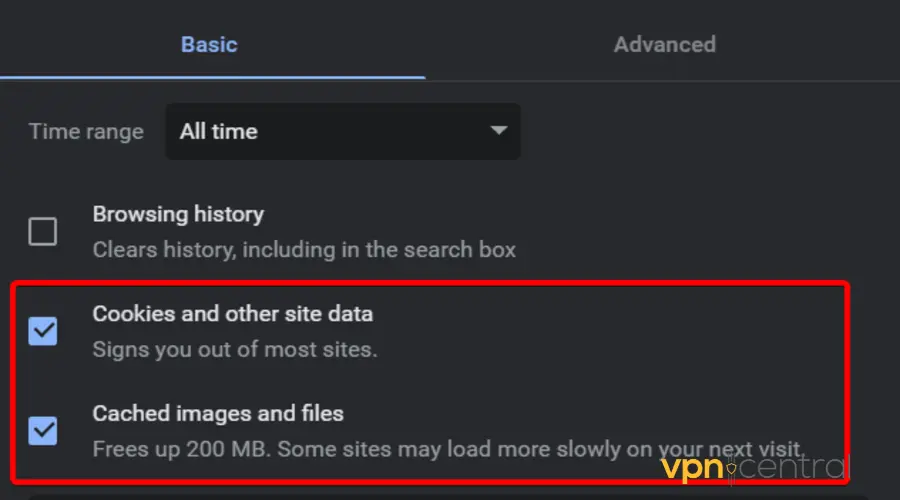
3. Select cache and cookies, then clear them
4. Reload Gmail and log in
Why this helps
Old browser data can clash with VPN IPs. Clearing it lets Gmail load cleanly and reduces errors.
5. Use Incognito or Private Browsing Mode with VPN
Steps
1. Open a new Incognito window in Chrome or Private Browsing in Firefox or Edge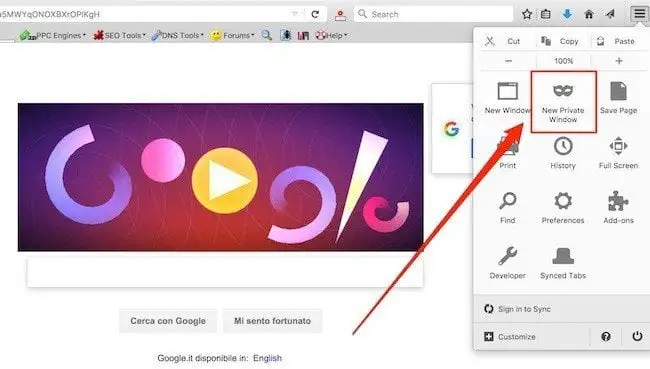
2. Connect VPN and open Gmail
Why this helps
Private mode blocks old cookies and extensions that can interfere with Gmail.
6. Temporarily Turn Off VPN for Email Clients
Steps
1. Open Outlook, Thunderbird, or other email apps
2. Disconnect the VPN
3. Sync Gmail
4. Reconnect VPN after emails finish loading
Why this helps
VPNs can block IMAP and SMTP. Turning VPN off temporarily lets email apps sync without errors. This can also help with how VPN affects spam protection and how to fix email not working with VPN.
7. Update Browser or Email App to Fix Gmail Issues
Steps
1. Check for updates in your browser or email client
2. Install pending updates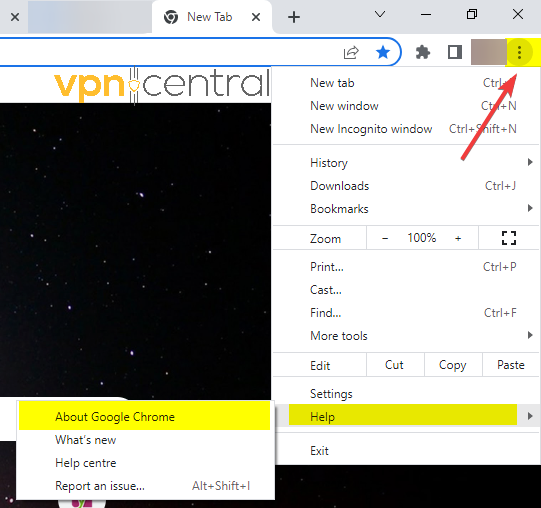
3. Restart the app and reconnect VPN
Why this helps
Outdated software can trigger Gmail blocks or feature failures when using VPN. If Chrome is giving trouble, follow guidance on fix Google Chrome when it is not working with VPN.
8. Switch VPN Protocol to Improve Gmail Connection
Steps
1. Open VPN settings
2. Change protocol to OpenVPN, WireGuard, or IKEv2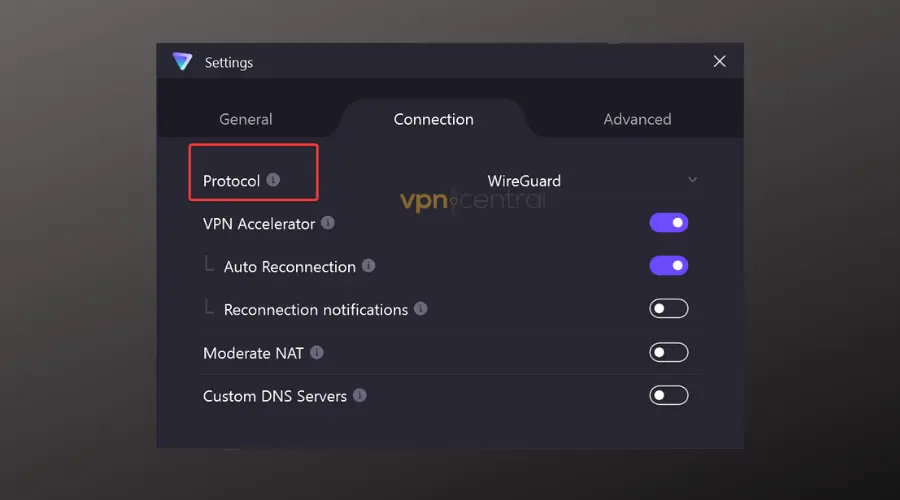
3. Connect and try Gmail again
Why this helps
Some VPN protocols work better with Gmail security. Changing protocols improves connection reliability.
9. Use a Better VPN for Reliable Gmail Acces
Steps
1. Subscribe to Surfshark and install the app on your device
2. Connect to a server near your location or use a dedicated IP if available
3. Open Gmail or other Google services and log in
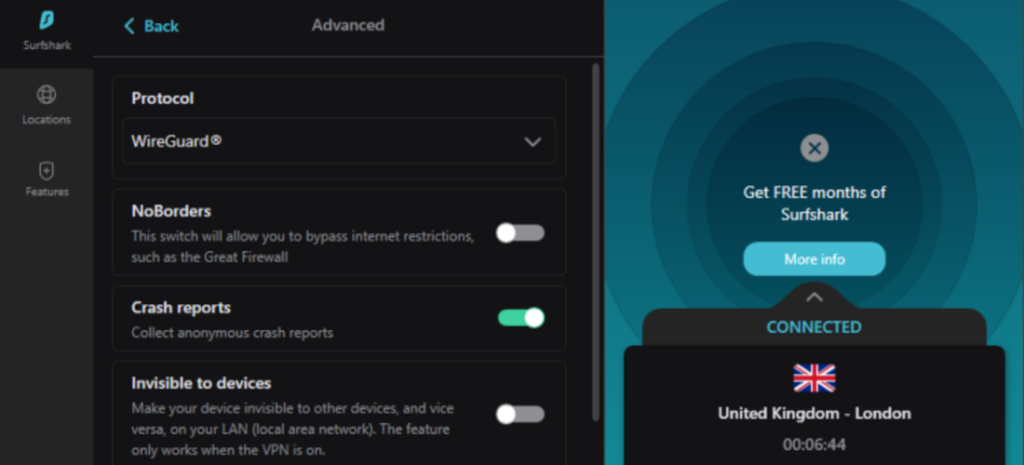
Why this helps
Surfshark offers dedicated IPs and fast servers that reduce Gmail blocks and verification loops. It works well with browsers, mobile apps, and email clients, letting Gmail and other Google services function smoothly. If you need to access Gmail from restricted regions like China, Surfshark is a reliable option.
How VPN Problems Affect Gmail Across Devices
Gmail VPN Issues on Windows, Mac, iPhone, and Android
Problems show up on browsers, mobile apps, and email clients. Gmail may fail to load, features like Chat and Calendar may not work, and apps like Thunderbird may fail to sync. Outlook often works fine, which can be confusing.
Gmail Features and Services That Stop Working with VPN
- Reading and sending emails
- Gmail search and labels
- Chat, Meet, and Calendar integration
- Email syncing in third party apps
- Access to Google Drive or other Google services
How to Pick the Best VPN for Gmail and Other Google Services
When choosing a VPN:
- Pick one with dedicated IPs
- Choose fast servers close to your location
- Make sure it works with IMAP and SMTP
- Avoid VPNs that trigger Google detection
- Check support for Gmail and other Google service issues
Conclusion: Get Gmail Working While Using VPN
Gmail not working with VPN usually comes from Google security, blocked IPs, or VPN server issues. Most problems go away by switching servers, using a dedicated IP VPN, verifying identity, clearing cache, or turning off VPN temporarily. These can also help address other issues with Google services, such as Google Maps not working with VPN. Premium VPNs like Surfshark give the smoothest experience. Following these steps will let Gmail work while keeping your VPN active.
FAQ About Gmail VPN Problems
Yes, but it works best with reliable servers. Free or shared VPNs often trigger blocks.
Google sees login from a new location or IP and blocks access or asks for repeated verification.
Use a premium VPN with dedicated IPs, enable two step verification, and avoid switching servers while logged in. For email apps, turn off VPN while syncing.
Sometimes yes. VPNs can block IMAP or SMTP. Either use a reliable VPN or turn off VPN while syncing emails.
Premium VPNs with dedicated IPs like ExpressVPN, NordVPN, or Surfshark reduce login issues and keep Gmail accessible.
VPN servers can be slow or block connections. Switching to a nearby or faster server usually fixes it.
Google applies the same IP and location security rules to Drive, Calendar, and Meet. Using dedicated IPs or Surfshark VPN fixes these issues.


Read our disclosure page to find out how can you help VPNCentral sustain the editorial team Read more


Improve this guide




User forum
0 messages