
How to Fix VPN Detected Error (Easy Guide)


 7 min. read
  Published on
Getting a “VPN detected” error can happen when you tryy to access a streaming site, game, or app securely. This error usually means the platform has recognized that your connection is coming from a VPN or proxy, and that goes against their internal policies.
Luckily, there are several proven ways to fix it safely and legally.

Access content across the globe at the highest speed rate.
🔥 Save 81% + 2 bonus months! 🔥
70% of our readers choose Private Internet Access
70% of our readers choose ExpressVPN
2
Browse the web from multiple devices with industry-standard security protocols.
🔥 Save 73%! 🔥

Faster dedicated servers for specific actions (currently at summer discounts)
🔥 Save 69%! 🔥
In this article:
Here’s how the detection usually happens:
Websites and apps identify VPNs by analyzing your connection details, IP address, and traffic behavior. They use databases and network fingerprinting to separate home users from known VPN servers.
- IP reputation checks: Your VPN server IP might belong to a hosting provider like AWS or OVH, which appears on blocklists from MaxMind or IPinfo.
- Traffic fingerprints: Firewalls can detect VPN protocols like OpenVPN or WireGuard by looking at packet headers.
- Geolocation mismatches: If your VPN says you’re in the US but your DNS or GPS says Romania, the app flags it as suspicious.
- Behavior patterns: Logging in from two countries within minutes can raise security alerts.
You’ll normally get blocked for one of these reasons:
- The IP you’re using is already known as a VPN endpoint.
- Too many users are signing in from that same IP address.
- The app is enforcing location rules, like streaming services, gambling platforms, or financial services. This is very common with betting sites, which may also flag you if the VPN is unstable or if your VPN is not working on gambling sites.
Some sites can also detect tunneling on public or restricted networks, like hotel Wi-Fi or campus Wi-Fi. In those cases, you might get kicked before you even log in if you can’t connect to a VPN on public Wi-Fi.
How Can I Fix a VPN Detected Error?
To fix this, you need to disguise your VPN traffic or make it appear more like a normal home connection. Follow the steps below carefully.
Before trying any fix, disconnect from your VPN and clear your browser cache. Then reconnect and test after each change.
1. Switch to a Different VPN Server
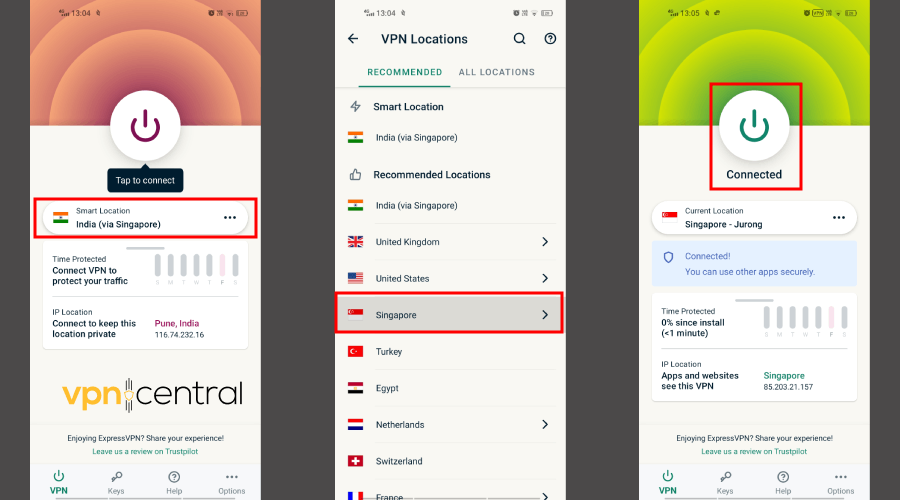
Many “VPN detected” errors come from blacklisted or overused IP addresses.
- Open your VPN app.
- Choose another server in the same country.
- Reconnect and reload the blocked site.
If you’re seeing a block while accessing gambling sites, switching to a fresh server that hasn’t been flagged can help. This is one of the most reliable quick fixes when a VPN is not working on gambling sites.
2. Use Obfuscated or Stealth Servers
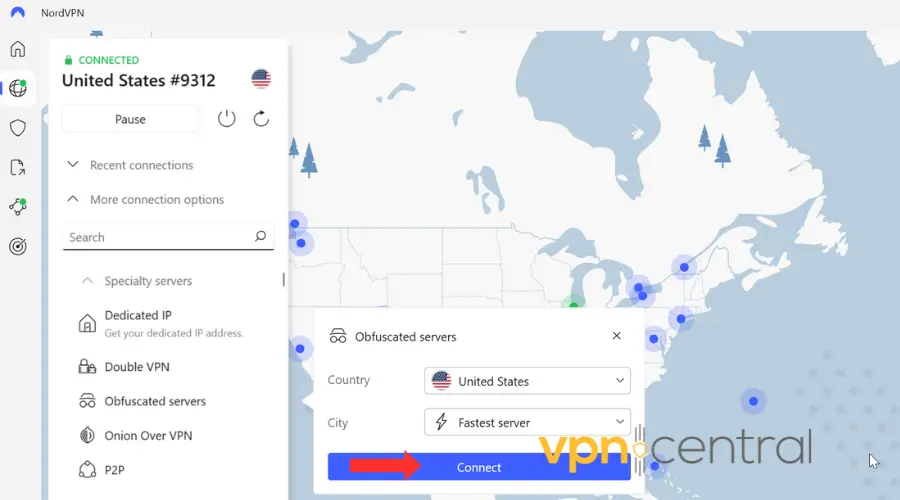
Some VPN providers include obfuscation, a feature that hides VPN signatures from firewalls and DPI filters.
- Go to your VPN settings.
- Enable “Stealth Mode,” “Camouflage Mode,” or “Obfuscated Servers.”
- Reconnect and check if the site loads normally.
This method helps bypass VPN detection in regions or apps that use deep packet inspection, including streaming, gambling, and gaming platforms. It can also reduce those situations where your VPN is connected but not working.
3. Try a Residential IP VPN
Residential VPNs route your traffic through real home IPs instead of data centers. These addresses look like genuine users, not hosting servers.
If your provider supports it, switch to a residential or smart proxy server. Streaming apps, banking portals, and betting platforms are less likely to immediately blacklist those IPs because they blend in with normal ISP traffic.
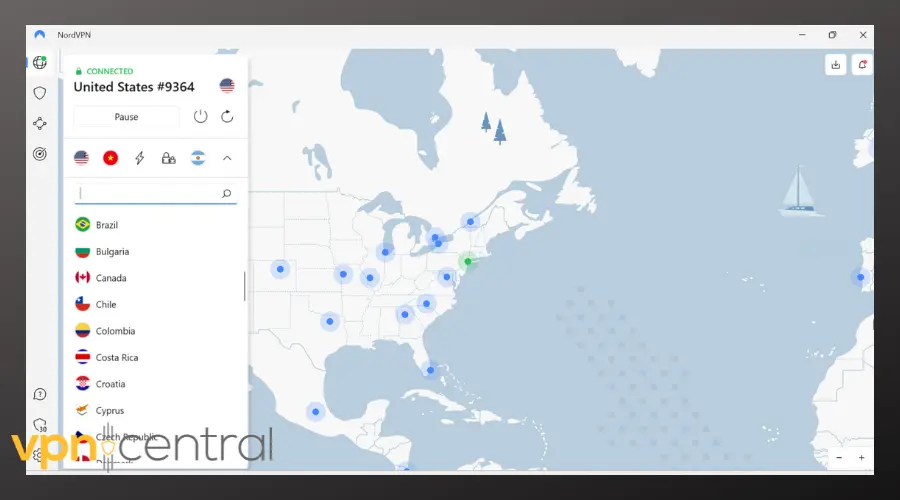
In this case, we recommend trying NordVPN. NordVPN offers a “dedicated IP” add-on in many locations (which simulates the effect of a residential IP) and strong general reputation.
It’s a trusted brand, with lot os location and good support and infrastructure. Keep in mind hat dedicated IPs cost extra and may not be pure residential IPs (but close enough for most cases).

NordVPN
<strong>Try NordVPN’s Residential IPs for a More Private, Undetectable Connection.</strong>4. Change the VPN Protocol
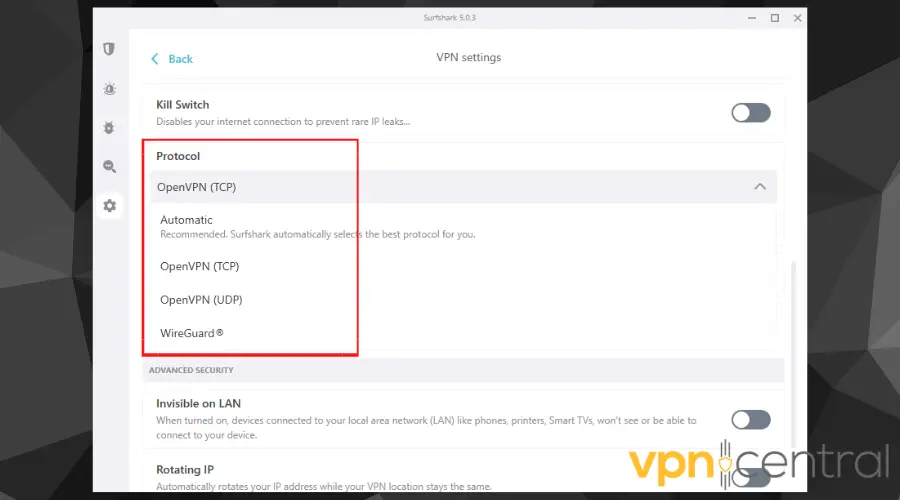
Different VPN protocols leave different fingerprints. Switching protocols can confuse detection systems.
- Open your VPN settings.
- Change the connection type to WireGuard, IKEv2, or OpenVPN TCP/443.
- Reconnect and retry.
Using TCP/443 helps your VPN traffic mimic normal HTTPS, which can prevent auto-blocks.
5. Flush DNS and Use the VPN’s DNS
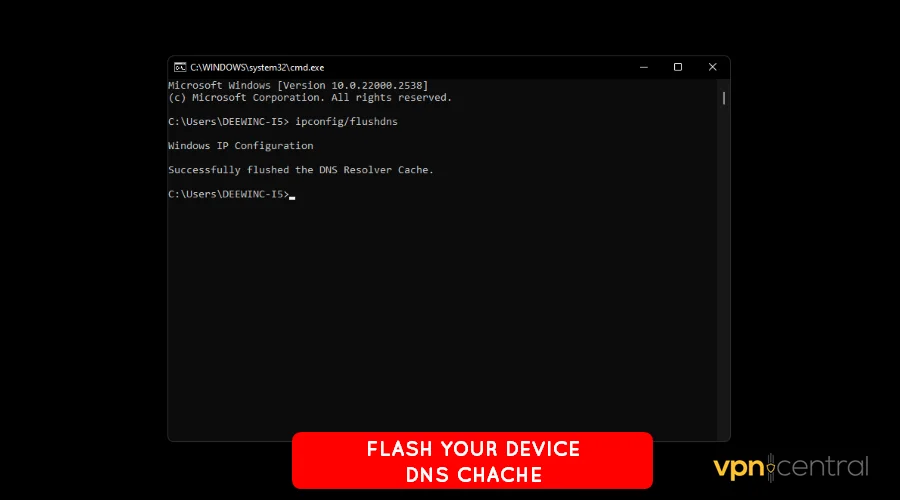
A DNS leak can reveal your real location even if the VPN is connected. You want all DNS traffic going through the tunnel.
- Disconnect from the VPN.
- Press Windows + R, type
cmd, and hit Enter. - Run this command:
ipconfig /flushdns - Reconnect to your VPN and make sure “Use VPN DNS servers” is enabled.
If you’re still blocked after this, you might be dealing with a partial block where the VPN session exists but traffic is filtered, similar to when your VPN is connected but not working, because the service cuts off data instead of killing the tunnel.
6. Clear Browser Cookies and App Cache
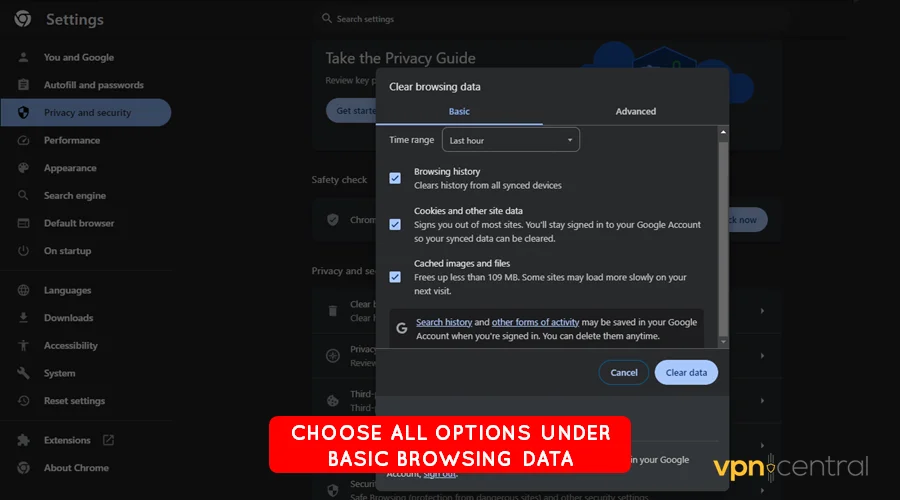
Cookies can store old IP or location data, which exposes your previous (non-VPN or different VPN) location.
- In Chrome or Edge, go to Settings → Privacy → Clear browsing data.
- Select “Cookies and site data” and “Cached images and files.”
- Restart your browser.
On iOS or Android apps, go to the app’s storage settings and clear cache/data. This is important for platforms that remember regional licensing data, like streaming or sportsbook apps.
7. Contact VPN Support
If none of the steps work, your VPN provider may already know about the block.
Open a ticket and say, “The site [example.com] shows a VPN detected or proxy error.”
They can give you a working server list or tell you which locations are currently unblocked.
Some providers also maintain special servers for networks that aggressively block tunnels, like universities, hotels, and airports. That’s useful if you can’t connect to a VPN on public Wi-Fi and need a fallback method.
Tips to Prevent VPN Detected Errors
- Avoid free VPNs: their IPs are public and easily blacklisted.
- Stick to premium VPNs that refresh their IP ranges and rotate servers.
- Enable the Kill Switch to stop leaks during reconnection.
- Use split tunneling if you only need the VPN for certain apps.
- Keep your VPN client updated so you get the newest obfuscation modes.
Comparison Table: Common VPN Detected Fixes
| Problem Cause | Recommended Fix | Difficulty | Success Rate |
|---|---|---|---|
| Blacklisted IP | Switch to new server / residential IP | Easy | ★★★★☆ |
| Deep Packet Inspection | Use obfuscated or stealth mode | Medium | ★★★★★ |
| DNS leaks | Flush DNS & force VPN DNS | Easy | ★★★★☆ |
| Cached location data | Clear cookies and app cache | Easy | ★★★★☆ |
| Protocol fingerprint block | Change protocol or port (OpenVPN TCP/443, WireGuard) | Medium | ★★★★☆ |
Fix VPN Detected Error Quickly and Safely
You don’t need to fully disable your VPN to access most services. By switching servers, hiding VPN fingerprints, clearing cached data, and locking DNS to the tunnel, you can usually restore access without breaking terms or leaking your location.
FAQs
Netflix uses IP reputation databases and blocks known VPN server ranges to comply with licensing rules. Switching to a residential IP server or enabling obfuscation often fixes this.
Some public networks actively block VPN protocols. If you can’t connect to a VPN on public Wi-Fi, try switching to TCP/443 or an obfuscated server so your traffic looks like standard HTTPS.
No. Using a VPN is legal in most regions. But individual platforms (streaming, gambling, banking) may restrict access from outside approved regions.


Read our disclosure page to find out how can you help VPNCentral sustain the editorial team Read more


Improve this guide




User forum
0 messages