
Hackers Use Fake macOS Update Prompts to Steal Passwords and Crypto Wallet Data


 7 min. read
  Published on
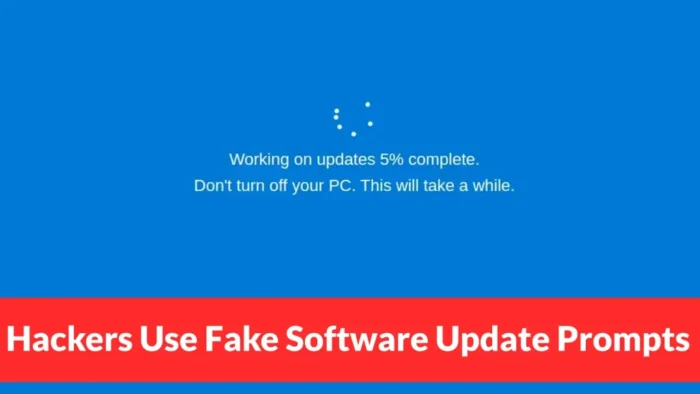
Hackers linked to North Korea are targeting macOS users with fake software update prompts designed to steal passwords, cryptocurrency wallet data, browser credentials, Telegram sessions, SSH keys, and Apple Notes data.
The campaign is tied to Sapphire Sleet, a North Korean state-backed threat actor that mainly targets people and companies in cryptocurrency, venture capital, finance, and blockchain. According to a Microsoft Threat Intelligence report, the attackers do not need to exploit a macOS bug. They convince victims to run malicious files themselves.

Access content across the globe at the highest speed rate.
70% of our readers choose Private Internet Access
70% of our readers choose ExpressVPN

Browse the web from multiple devices with industry-standard security protocols.

Faster dedicated servers for specific actions (currently at summer discounts)
The attack starts with social engineering. A target is contacted by someone posing as a recruiter, then pushed toward a fake meeting or software update. The first known version used a Zoom SDK update lure. Microsoft says a newer June 2026 version uses a Microsoft Teams-themed AppleScript file.
How the Fake macOS Update Attack Works
The original lure file was called Zoom SDK Update.scpt. When opened, it launched in macOS Script Editor, a legitimate Apple tool. The visible part of the file looked like normal update instructions, but the malicious code sat far below the visible text, hidden behind thousands of blank lines.
Once the victim runs the file, the script begins a staged attack chain. It uses curl and osascript to download and execute more AppleScript payloads, then installs malicious components that collect system data, steal credentials, and prepare the Mac for data theft.
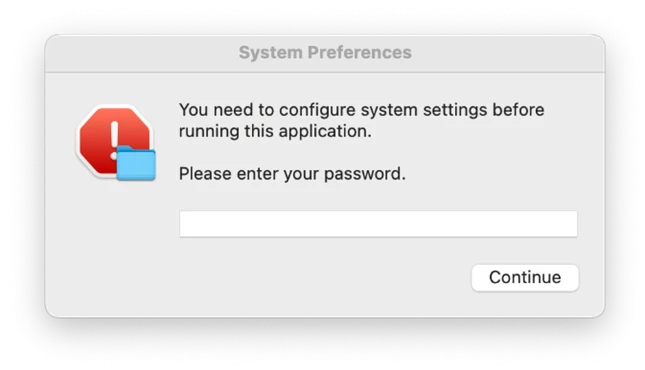
Microsoft says the attackers also use native-looking macOS prompts to make the attack look legitimate. One fake app, systemupdate.app, asks the user to enter their password to complete the update. Another fake app, softwareupdate.app, later shows an update-complete message to reduce suspicion.
| Attack stage | What happens | Why it matters |
|---|---|---|
| Recruiter lure | The victim is contacted about a job or interview | Targets are more likely to trust the interaction |
| Fake update file | A malicious AppleScript is disguised as a Zoom or Teams SDK update | The victim manually starts the attack |
| Password prompt | systemupdate.app displays a real-looking macOS password dialog | The attacker captures a valid local password |
| Data theft | The malware collects browser data, wallet files, Telegram sessions, SSH keys, and Notes | Crypto assets and sensitive accounts may be exposed |
| Persistence | Backdoors and launch agents keep the malware active | The attacker can maintain access after reboot |
The Malware Steals More Than macOS Passwords
The stolen password is not only sent to the attackers. Microsoft found that the malware validates the entered password against the local macOS authentication database before exfiltrating it through the Telegram Bot API.
After that, the malware collects high-value local data. It targets Chromium-based browser profiles, saved credentials, cookies, autofill data, browsing history, wallet extension storage, macOS keychain databases, Ledger Live and Exodus wallet files, Telegram Desktop session data, SSH keys, shell history, and Apple Notes.
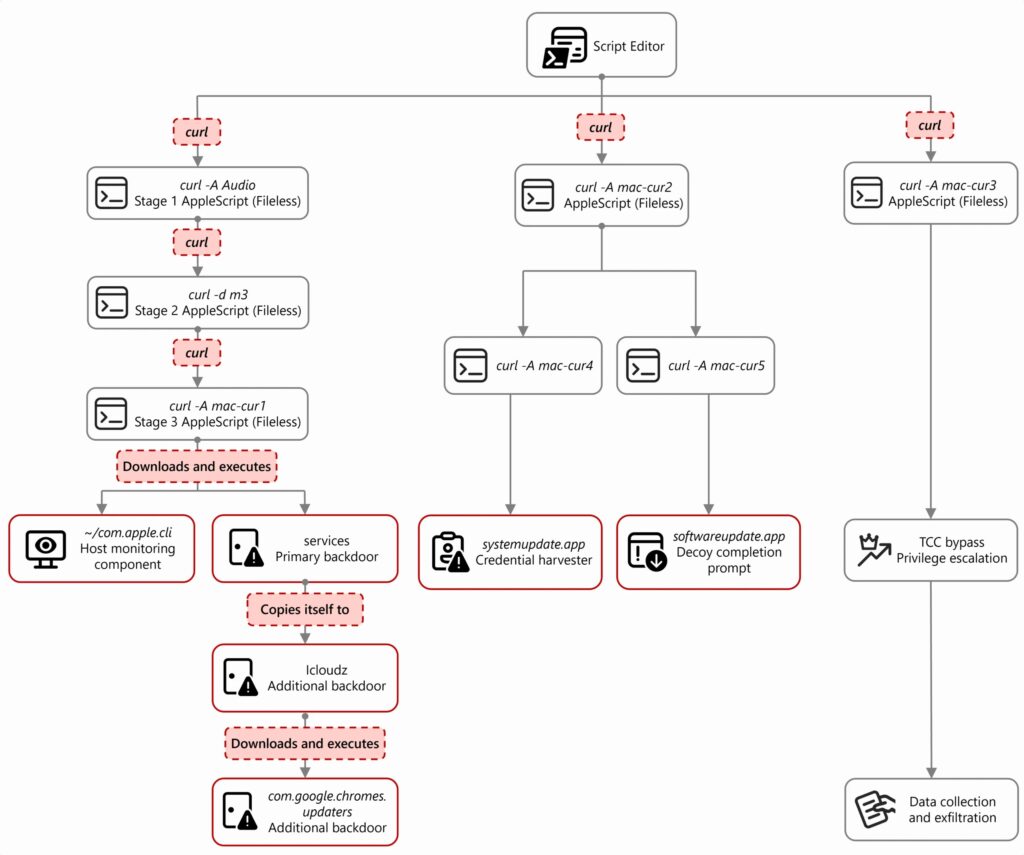
The campaign also includes backdoors such as com.apple.cli, icloudz, and com.google.chromes.updaters. Microsoft’s June 2026 update says the Teams-themed variant changed some names and persistence paths, including components such as com.microsoft.helper and a hidden .google.docs payload, while keeping the same user-driven attack model.
Why macOS Users Are Still at Risk
macOS includes several built-in security layers, but this campaign works because it abuses user trust. Apple explains in its macOS malware protection guide that Gatekeeper, notarization, and XProtect help prevent, block, and remediate malware. However, social engineering can still convince a user to run something dangerous.
That is why the fake update prompt matters. A user may believe they are approving a normal installation, especially during a job interview or technical support-style conversation. The attacker then turns a familiar workflow into a credential theft channel.
Apple says the safest place to get Mac apps is the App Store, and its guidance for safely opening apps warns users to be careful with software that triggers macOS security alerts or comes from an unverified source.
Apple and Microsoft Have Added Protections
Microsoft says it shared details of the campaign with Apple through responsible disclosure. Apple has since added platform-level protections, including Safari Safe Browsing blocks and XProtect signatures for malware tied to the campaign.
Those protections help, but users still need to keep macOS updated. Apple says XProtect signatures are updated automatically based on threat intelligence, and macOS checks for those updates by default.
Security teams should also treat unexpected AppleScript files, fake SDK updates, and curl-to-osascript command chains as suspicious. The campaign shows how attackers can use real macOS tools in a malicious workflow without relying on a traditional exploit.
How to Protect Macs From Fake Update Prompts
Users should never run scripts, terminal commands, or software update files sent through chat, email, recruiter messages, or meeting links unless they can verify the source independently.
- Download apps and updates only from official vendor websites, the Mac App Store, or trusted management tools.
- Do not enter your Mac password into unexpected update prompts.
- Avoid opening .scpt files received through social media, chat, or email.
- Keep macOS and security updates enabled.
- Use hardware wallets for significant crypto holdings.
- Rotate passwords if a suspicious prompt was approved.
- Check for unusual login sessions in Telegram, browsers, cloud services, and crypto accounts.
- Use endpoint protection that can detect suspicious Script Editor, curl, osascript, and LaunchAgent activity.
For organizations, the key step is reducing the chance that users can run untrusted scripts. Admins can block or restrict compiled AppleScript files downloaded from the internet, monitor suspicious LaunchDaemon and LaunchAgent creation, and watch for unexpected changes to the macOS TCC database.
Apple’s own Gatekeeper checks help warn users before opening downloaded apps, but users should not override warnings during unsolicited interviews, remote support sessions, or crypto-related business conversations.
Key Indicators to Watch
Security teams investigating possible exposure should review Microsoft’s full indicator list, but several file names and paths stand out because they imitate trusted Apple, Google, Zoom, and Microsoft components.
| Indicator type | Example | Role in the campaign |
|---|---|---|
| AppleScript lure | Zoom SDK Update.scpt | Initial fake Zoom update file |
| AppleScript lure | msteams sdk update.scpt | Teams-themed June 2026 variant |
| Fake app | systemupdate.app | Credential harvester |
| Fake app | softwareupdate.app | Decoy update-complete prompt |
| Backdoor | icloudz | Memory-loading backdoor |
| Persistence file | /Library/LaunchDaemons/com.google.webkit.service.plist | Launch daemon used to restart malware |
| User LaunchAgent | ~/Library/LaunchAgents/com.apple.identification.plist | Persistence in the Teams-themed variant |
The campaign is a reminder that macOS security warnings and update prompts need context. A real update should come from Apple, a known app, or a trusted admin workflow. A file sent by a stranger during a fake interview should not be treated as routine software maintenance.
FAQ
Microsoft attributes the campaign to Sapphire Sleet, a North Korean state-backed threat actor that targets cryptocurrency, venture capital, finance, and blockchain-related organizations.
No. The campaign relies on social engineering. Attackers trick users into opening malicious AppleScript files and entering their Mac password into fake update prompts.
The malware can collect local passwords, browser data, cookies, crypto wallet files, Telegram session data, SSH keys, shell history, macOS keychain databases, Apple Notes, and system information.
Users should install updates only through System Settings, the Mac App Store, official vendor websites, or trusted company management tools. They should not run scripts, terminal commands, or update files sent through recruiter messages, chats, or emails.
They should change their Mac password, rotate saved browser passwords, review crypto wallet security, check Telegram and cloud account sessions, scan the Mac with trusted security software, and contact their IT or security team if the device is used for work.


Read our disclosure page to find out how can you help VPNCentral sustain the editorial team Read more


Improve this guide



User forum
0 messages