
How to Fix Zen Browser Not Working with VPN (Easy)


 4 min. read
  Published on
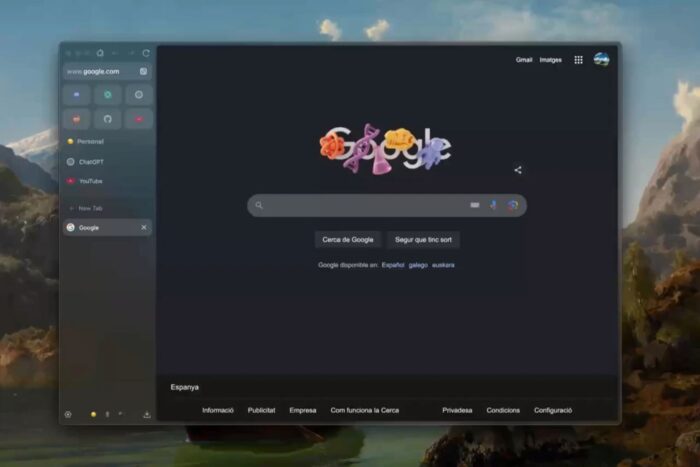
If Zen Browser isn’t working with your VPN, it can be a hassle. Whether you’re dealing with slow speeds, dropped connections, or simply no connection at all, there are a few common fixes that should get you back up and running in no time.
Table of contents
How to Fix Zen Browser Not Working with VPN
1. Switch VPN Protocols
One of the quickest ways to fix issues with Zen Browser and your VPN is to change the VPN protocol. Some protocols don’t play nice with every browser, and switching to a different one can often resolve connectivity issues.

Access content across the globe at the highest speed rate.
70% of our readers choose Private Internet Access
70% of our readers choose ExpressVPN

Browse the web from multiple devices with industry-standard security protocols.

Faster dedicated servers for specific actions (currently at summer discounts)
How to fix it:
- Open your VPN app.
- Find the settings or preferences menu.
- Look for the “Protocol” option.
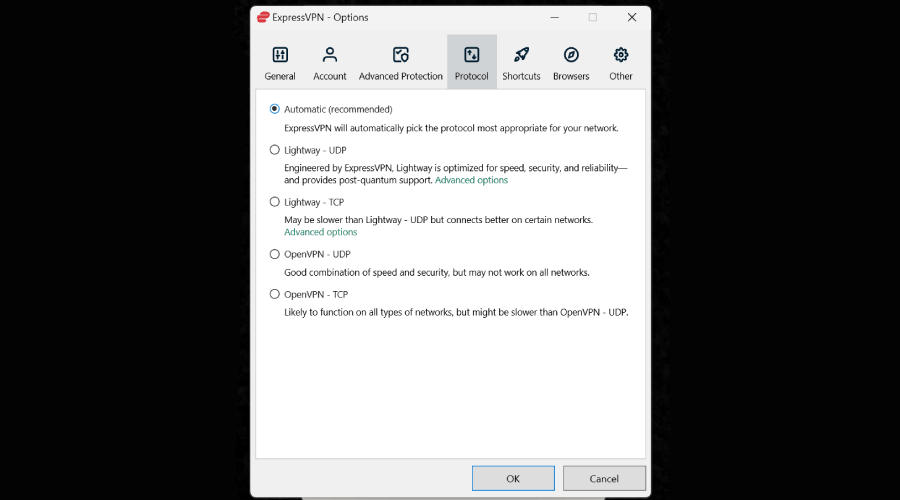
- Switch from OpenVPN (or any other protocol) to IKEv2 or WireGuard.
- Save the settings and try using Zen Browser again.
If you’re having trouble with VPN protocols, similar issues have been reported with browsers like Opera not working with VPN. Switching protocols can help fix the problem.
2. Disable WebRTC
WebRTC can leak your real IP address even when you’re connected to a VPN, which could lead to problems with Zen Browser. This is especially annoying if you’re trying to access content that’s geo-blocked or maintain privacy.
How to fix it:
- Open Zen Browser.
- Click on the menu icon (three dots or lines).
- Go to “Settings.”
- Scroll down and look for a “Privacy & Security” section.
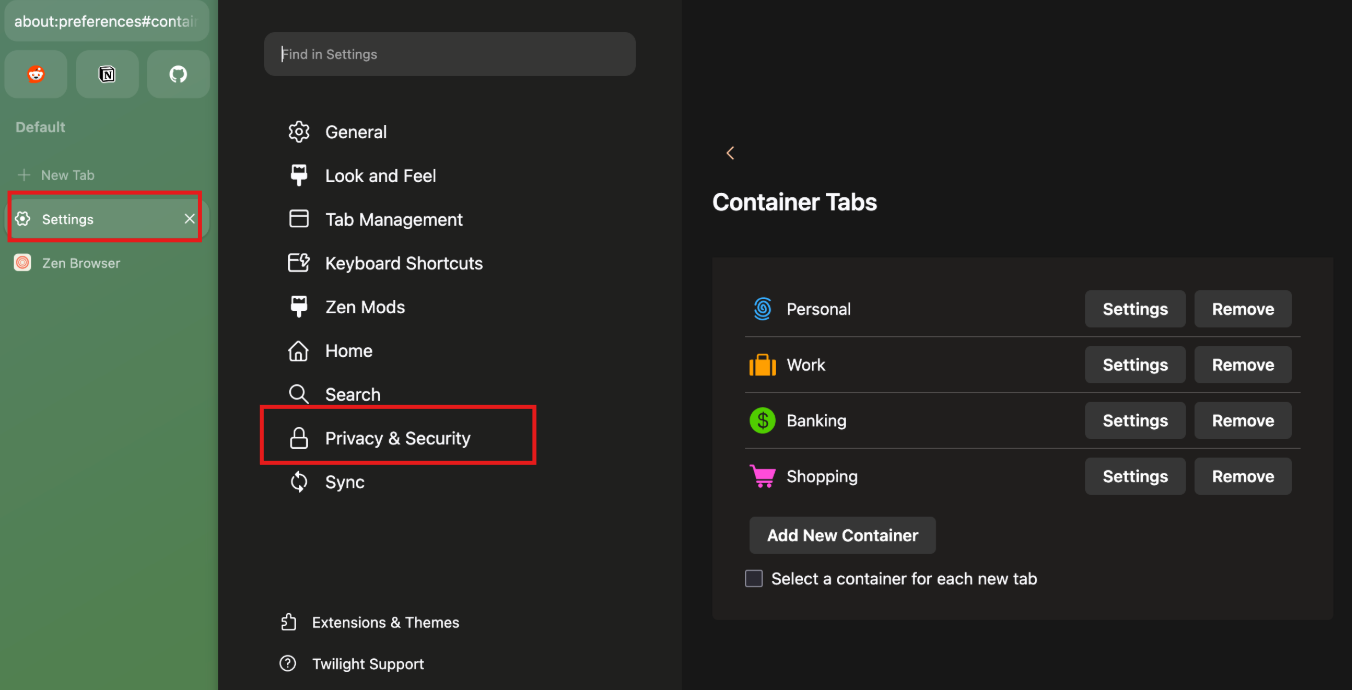
- Find the WebRTC option and turn it off.
- Restart the browser and check if the issue is fixed.
This problem isn’t just limited to Zen Browser. Users have reported similar issues with Google Chrome not working with VPN, so it might be worth trying this step across different browsers.
3. Check DNS Settings
If your DNS settings aren’t aligned with your VPN, you could run into issues with Zen Browser. The wrong DNS can bypass your VPN, which might cause websites to see your real IP address or prevent pages from loading correctly.
How to fix it:
- Open Zen Browser.
- Click on the menu icon and go to “Settings.”
- In the settings, search for “DNS” or “Network settings.”
- Set your DNS settings to the default system DNS or use the DNS servers provided by your VPN provider.
- Save the settings and try browsing again.
or you can change the DNS through the Windows settings.
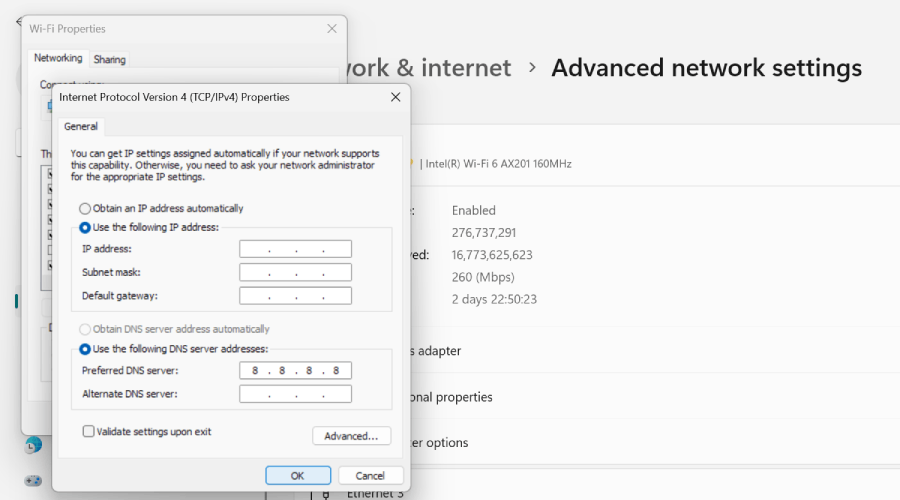
If you’re troubleshooting DNS or VPN settings, it’s a good idea to refer to guides like how to fix Google Search not working with VPN for additional insights into DNS issues.
4. Disable Firewall/Security Software
Sometimes, your firewall or security software can block the VPN’s connection, making it hard for Zen Browser to function. If this is the case, you might see no connection or slow speeds.
How to fix it:
- Go to your device’s Control Panel (Windows) or System Preferences (Mac).
- Find your firewall or security software.
- Temporarily turn off the firewall or security software.
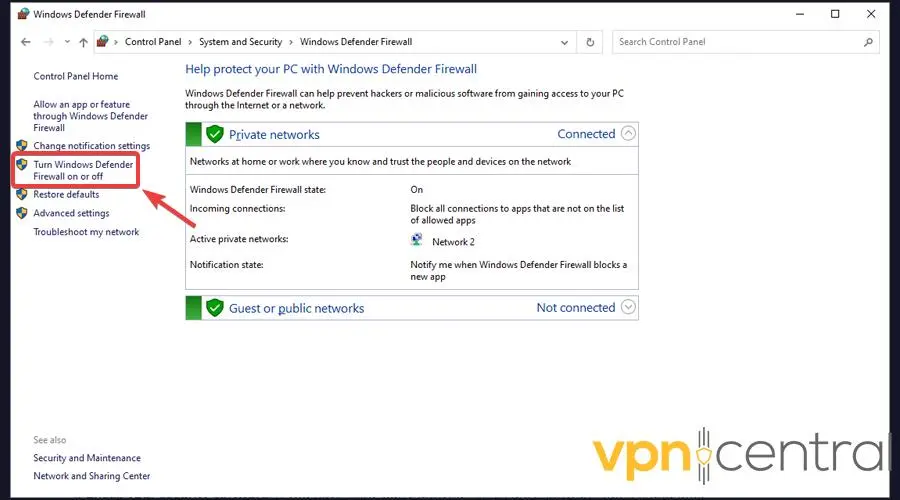
- Try using Zen Browser again.
- If it works, adjust the firewall settings to allow the VPN’s traffic without turning it off permanently.
5. Try a Different VPN Service
If nothing else works, the issue might lie with your VPN provider. Some VPN services don’t work well with certain browsers, or their servers might be overloaded.
How to fix it:
- Download a different VPN app, like ExpressVPN, NordVPN, or CyberGhost.
- Install the new VPN and set it up.
- Connect to a server and check if Zen Browser works better with this new VPN.
- If it does, the original VPN service was likely the cause of the issue.
If you’re still having trouble with VPN connections and Zen Browser, you might also want to check out Tor not working with VPN for additional guidance.
Conclusion
Zen Browser and VPNs don’t always get along perfectly, but the solutions are usually straightforward. By switching VPN protocols, disabling WebRTC, adjusting DNS settings, and making sure your firewall isn’t blocking the VPN, you can get things back to normal. If all else fails, trying a different VPN service should do the trick. Keep these steps in mind, and you should be good to go.


Read our disclosure page to find out how can you help VPNCentral sustain the editorial team Read more


Improve this guide




User forum
0 messages